
1. Introduction
Welcome to the user manual for your new XMING V1 LED Mini Projector. This manual provides essential information for setting up, operating, and maintaining your projector to ensure optimal performance and longevity. Please read this manual thoroughly before using the product.

Figure 1.1: Front view of the XMING V1 LED Mini Projector, showcasing its compact design and lens.
The XMING V1 LED Mini Projector is designed to deliver a high-definition home theater experience with its 1080P intrinsic resolution and impressive 800 CVIA lumens brightness. It incorporates advanced features such as eye-friendly low blue light emission, Global MEMC motion compensation for smooth visuals, and robust connectivity options including HDMI 2.1 and Wi-Fi 6. The integrated Boston Acoustics speakers provide a rich audio experience, making it suitable for various entertainment and presentation needs.
2. Safety Information
To ensure safe operation and prevent damage to your projector, please observe the following safety precautions:
- Power Source: Use only the power adapter supplied with the projector. Ensure the voltage matches the requirements specified on the adapter.
- Ventilation: Do not block any ventilation openings. Maintain adequate space around the projector for proper airflow to prevent overheating.
- Heat: The projector may become warm during operation. This is normal. Avoid touching the projector's surface directly after prolonged use.
- Liquid Exposure: Do not expose the projector to rain, moisture, or any liquids. If liquid enters the device, disconnect power immediately and contact customer support.
- Cleaning: Disconnect the power cord before cleaning. Use a soft, dry cloth. Do not use liquid or aerosol cleaners.
- Placement: Place the projector on a stable, flat surface. Avoid placing it in direct sunlight, near heat sources, or in environments with excessive dust or humidity.
- Eye Safety: Do not look directly into the projector lens when the lamp is on. The bright light can cause eye damage.
- Servicing: Do not attempt to service this product yourself. Refer all servicing to qualified service personnel. Opening the casing may expose you to dangerous voltage or other hazards.
3. Package Contents
Please check the contents of your product box. If any items are missing or damaged, contact your retailer or XMING customer support immediately.
- XMING V1 LED Mini Projector
- Power Adapter
- Remote Control
- User Manual (this document)
- (Other accessories may vary by region or package)
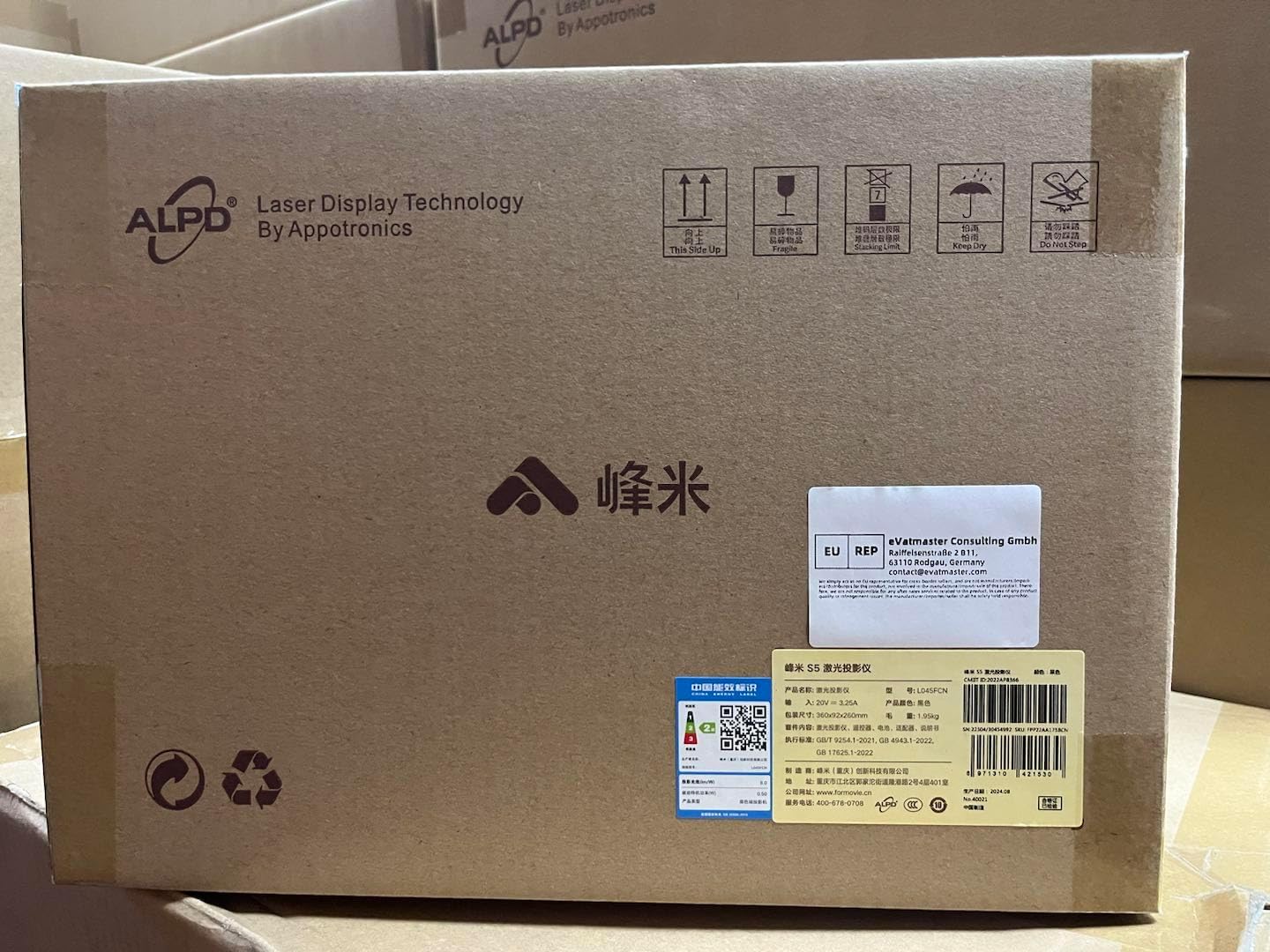
Figure 3.1: Example of the XMING V1 LED Mini Projector packaging, indicating careful handling and product information.
4. Product Features
The XMING V1 Projector is equipped with advanced features for an enhanced viewing experience:
- 1080P Intrinsic Resolution: Features a custom four-piece low-light-loss optical lens group, enhancing center clarity and improving overall clarity by 50%.
- Eye Friendly: Certified by SGS for low blue light emission, providing a gentle and non-glaring viewing experience.
- Global MEMC Motion Compensation: Intelligently and accurately interpolates and dynamically compensates pictures for super smooth visuals, ideal for sports and games.
- Faster and Stronger Connectivity: Equipped with HDMI 2.1 interface supporting 120Hz ultra-high refresh rate and 12ms ultra-low latency. Dual-channel Wi-Fi 6 ensures stable and fast wireless connections.
- Outstanding Pure Original Sound: Features 2*6W high-power speakers and proprietary FAA sound effect engine, matching optimal sound effects for different sources.
- Smart Ecosystem Integration: Supports Mi Home IoT Ecosystem and Far-field Voice control for smart home integration.

Figure 4.1: Illustration of the projector's high-brightness sealed optical engine and LTPS 4.45" FHD display, highlighting key optical features.

Figure 4.2: Visual representation of the projector's 800 CVIA Lumens brightness, powered by BOE technology.

Figure 4.3: Demonstration of Global MEMC Motion Compensation, showing the difference between visuals with and without MEMC for smoother motion.

Figure 4.4: Overview of the projector's gaming capabilities, including Dual-channel Wi-Fi 6, HDMI 2.1, 12ms Low Latency, and 120Hz High Refresh Rate.

Figure 4.5: Details on the projector's audio system, highlighting Dolby Audio, 2*6W High-Power Speakers, and FAA Sound Effect Engine, powered by Boston Acoustics.

Figure 4.6: Illustration of the projector's integration with Mi Home IoT Ecosystem and Far-field Voice control, demonstrating smart control capabilities.
5. Setup
5.1 Initial Placement
Choose a stable, flat surface for your projector. Ensure there is adequate space around the projector for ventilation. The projection distance will determine the screen size. Refer to the specifications for recommended distances.
5.2 Power Connection
- Connect the power adapter to the DC IN port on the projector.
- Plug the other end of the power adapter into a wall outlet.
- The power indicator light on the projector will illuminate.
5.3 First Power On
- Press the Power button on the projector or the remote control to turn on the device.
- The projector will display the startup logo and then the main interface.
5.4 Focus and Keystone Correction
The XMING V1 projector features automatic focus and keystone correction. If manual adjustment is needed:
- Focus: Use the focus adjustment on the remote control or through the projector's settings menu to achieve a clear image.
- Keystone Correction: If the projected image is trapezoidal, use the keystone correction function in the settings menu to adjust it to a rectangular shape.
6. Operating Instructions
6.1 Remote Control Overview
Familiarize yourself with the remote control buttons for easy navigation and control of your projector.
- Power Button: Turns the projector on/off.
- Navigation Buttons (Up/Down/Left/Right): Navigate through menus and options.
- OK Button: Confirms selections.
- Back Button: Returns to the previous screen.
- Home Button: Returns to the main interface.
- Volume Buttons (+/-): Adjusts the audio volume.
- Input Source Button: Selects input sources (HDMI, USB, Wireless).
- Settings Button: Accesses the projector's settings menu.
- Voice Control Button: Activates far-field voice commands.
6.2 Connecting Input Sources
The projector supports various input sources:
- HDMI: Connect a computer, game console, Blu-ray player, or other HDMI-enabled device to the HDMI 2.1 port.
- USB: Insert a USB flash drive into the USB port to play media files (photos, videos, music).
- Wireless (Wi-Fi 6): Connect to your home Wi-Fi network to access online streaming services, screen mirroring, or other internet-based features.
6.3 Smart Features and Apps
The XMING V1 projector comes with built-in smart features:
- Internet Built-In: Access pre-installed streaming applications or download new ones from the app store (if available).
- Far-field Voice Control: Use voice commands to control the projector, search for content, or interact with compatible smart home devices.
- Screen Mirroring: Cast content from your smartphone or tablet wirelessly to the projector.
7. Maintenance
7.1 Cleaning the Projector
- Exterior: Use a soft, dry, lint-free cloth to wipe the projector's casing. Do not use abrasive cleaners, waxes, or solvents.
- Lens: Gently clean the projector lens with a lens cleaning cloth or a soft brush designed for optical lenses. Avoid touching the lens directly with your fingers.
- Ventilation Openings: Periodically check and clean the ventilation openings to prevent dust buildup, which can affect cooling performance. Use a soft brush or compressed air (held at a distance) to remove dust.
7.2 Storage
When not in use for an extended period, store the projector in a cool, dry place, away from direct sunlight and extreme temperatures. It is recommended to use the original packaging for storage to protect it from dust and physical damage.
8. Troubleshooting
If you encounter issues with your XMING V1 Projector, refer to the following common problems and solutions:
| Problem | Possible Cause | Solution |
|---|---|---|
| No Power | Power cord not connected; Power outlet faulty; Projector in standby mode. | Ensure power cord is securely connected. Try a different outlet. Press the power button on the projector or remote. |
| No Image | Incorrect input source selected; Cable not connected properly; Device not powered on. | Select the correct input source. Check HDMI/USB cable connections. Ensure the connected device is powered on. |
| Blurry Image | Out of focus; Incorrect projection distance. | Adjust the focus using the remote or settings. Ensure the projector is within the recommended projection distance. |
| No Sound | Volume too low or muted; Audio cable not connected; Source device audio settings. | Increase volume. Check audio connections. Adjust audio output settings on the source device. |
| Remote Control Not Working | Batteries low or dead; Obstruction between remote and projector; Remote not paired. | Replace batteries. Remove obstructions. Re-pair the remote control if necessary (refer to specific pairing instructions in the full manual). |
If the problem persists after trying these solutions, please contact XMING customer support.
9. Specifications
The following are the technical specifications for the XMING V1 LED Mini Projector:
| Feature | Detail |
|---|---|
| Brand Name | XMING |
| Model Number | Xming V1 |
| Product Dimensions | 7.99 x 5.83 x 10.08 inches |
| Display Resolution | 3840 x 2160 (Supported), 1080P Intrinsic |
| Brightness | 800 CVIA Lumens |
| Connectivity Technology | Wireless (Wi-Fi 6), HDMI 2.1, USB |
| Special Features | Internet Built-In, Internet Ready, Speakers (Boston Acoustics 2*6W), Global MEMC, Low Blue Light, Far-field Voice |
| Recommended Uses | Indoor/Outdoor |
| ASIN | B0DBG4XQKX |
| Date First Available | July 25, 2024 |
10. Warranty and Support
10.1 Warranty Information
The XMING V1 LED Mini Projector comes with a standard manufacturer's warranty. Please refer to the warranty card included in your product packaging for specific terms and conditions, including warranty period and coverage details. Keep your purchase receipt as proof of purchase for warranty claims.
10.2 Customer Support
For technical assistance, troubleshooting, or warranty inquiries, please contact XMING customer support. You can typically find contact information on the official XMING website or on the product packaging.
For more information, you may visit the manufacturer's support page: http://bbqk.com/s23ijk
When contacting support, please have your product model number (Xming V1) and ASIN (B0DBG4XQKX) ready.