1. Introduction
This user manual provides comprehensive instructions for the assembly, operation, and maintenance of your Anycubic Kobra S1 3D Printer. Designed for both beginners and experienced users, the Kobra S1 offers high-speed, high-precision 3D printing with advanced features for an optimal printing experience. Please read this manual thoroughly before using the printer to ensure safe and efficient operation.

Figure 1.1: Anycubic Kobra S1 3D Printer. This image shows the fully enclosed 3D printer with a printed lion model inside, highlighting its sleek design and printing capabilities.
2. Safety Information
- Always operate the printer in a well-ventilated area.
- Keep hands clear of moving parts during operation.
- Do not touch the hotend or heated bed during or immediately after printing, as they can reach high temperatures.
- Ensure the printer is placed on a stable, level surface.
- Use only recommended filaments and power adapters.
- Keep children and pets away from the printer during operation.
- In case of emergency, immediately disconnect the power supply.
3. What's in the Box
Your Anycubic Kobra S1 package includes the following components:
- Anycubic Kobra S1 3D Printer
- Power Cable
- Filament Spool Holder
- Tool Kit (including various Allen wrenches, pliers, scraper)
- USB Cable
- Test Filament
- User Manual (this document)
- SD Card with preloaded test files
4. Setup
4.1 Initial Assembly
The Anycubic Kobra S1 is designed for quick and easy assembly. Follow the included quick start guide or refer to the official assembly video for detailed instructions. Ensure all components are securely fastened before proceeding.
4.2 Automatic Bed Leveling (LeviQ3.0)
The printer features LeviQ3.0 technology for effortless automatic bed leveling and Z-axis compensation. This ensures a perfect first layer without manual adjustments. Simply initiate the auto-leveling process from the touchscreen interface.
4.3 Firmware Update
For full functionality and optimal performance, it is recommended to update to firmware v2.4.8.3 or later. Firmware updates can unlock additional features and improve printer stability. Instructions for updating firmware are available on the official Anycubic website.

Figure 4.1: Important notes regarding compatibility, firmware updates, and nozzle clogging. This image highlights key considerations for optimal printer performance and user experience.
5. Operating Instructions
5.1 High-Speed and High-Precision Printing
The Anycubic Kobra S1 boasts a travel speed of up to 600mm/s and 20000mm/s² acceleration. Its CoreXY construction and dual motor drive minimize vibrations, ensuring smoother and more precise prints even at high speeds.

Figure 5.1: Illustration of the Anycubic Kobra S1's high printing speed capabilities, showing a Benchy print time of 15 minutes compared to others at 1 hour 26 minutes.
5.2 Filament Compatibility
The full metal hotend can reach 320°C, and the heated bed maintains 120°C, allowing compatibility with a wide range of filaments including PLA, TPU, ASA, ABS, and PETG. Multiple nozzle sizes (0.2, 0.4, 0.6, 0.8mm) are supported for various printing applications.
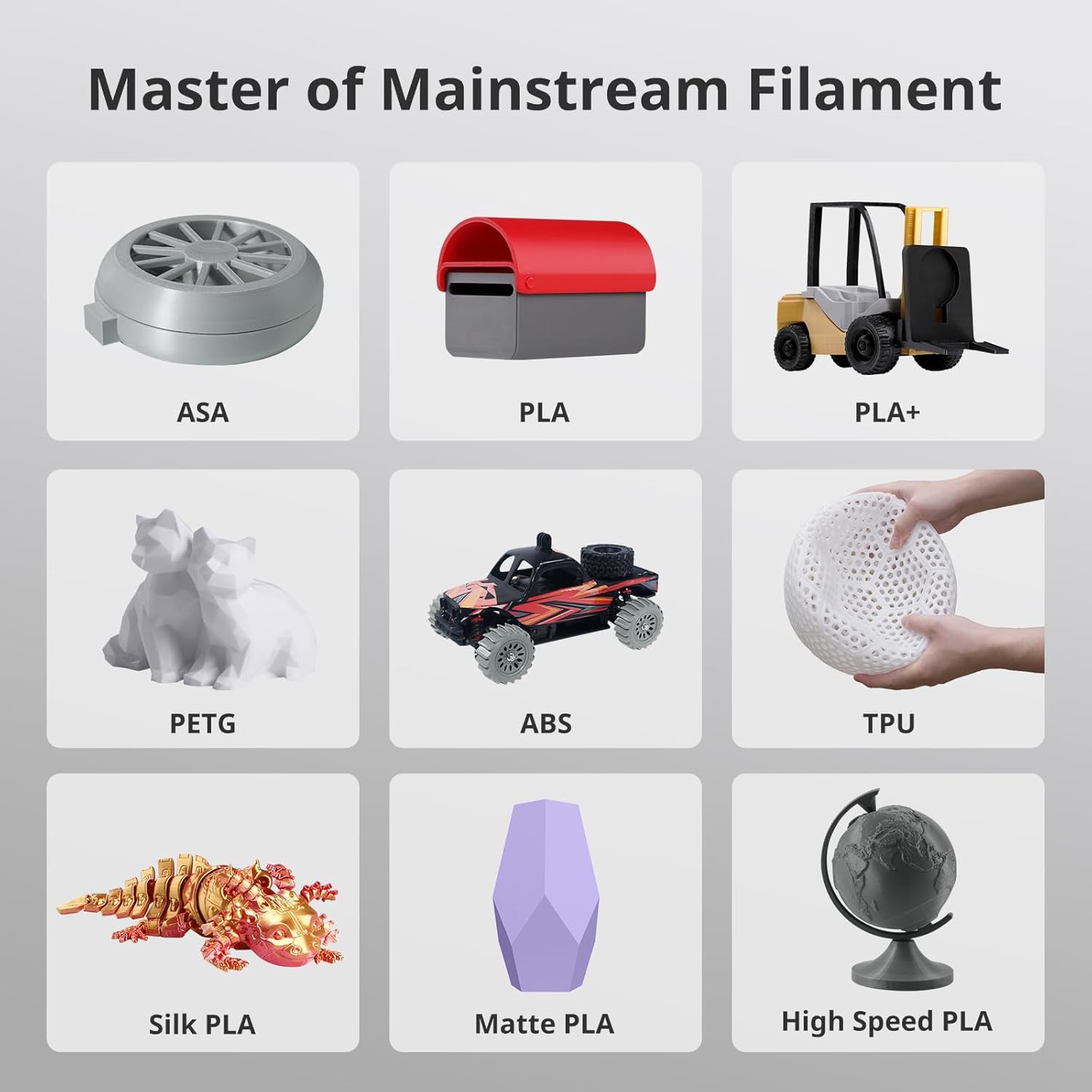
Figure 5.2: Visual representation of the Anycubic Kobra S1's compatibility with various mainstream filaments such as ASA, PLA, PLA+, PETG, ABS, TPU, Silk PLA, Matte PLA, and High Speed PLA.
5.3 Multi-Color Printing
For multi-color printing, the Anycubic Kobra S1 requires the Anycubic ACE Pro. Note that the ACE Pro for Kobra 3 is not directly compatible with the Kobra S1; an upgrade kit is necessary. This setup allows for vibrant, multi-color prints.

Figure 5.3: An example of stunning multi-color printing, demonstrating the capabilities when the Anycubic Kobra S1 is equipped with the Anycubic ACE Pro.
5.4 One-Click Printing & Makeronline
Leverage Anycubic's self-operated model library, Makeronline, which offers a vast collection of high-quality, free model resources from over 3000 designers worldwide. This feature simplifies the printing process with one-click printing functionality.
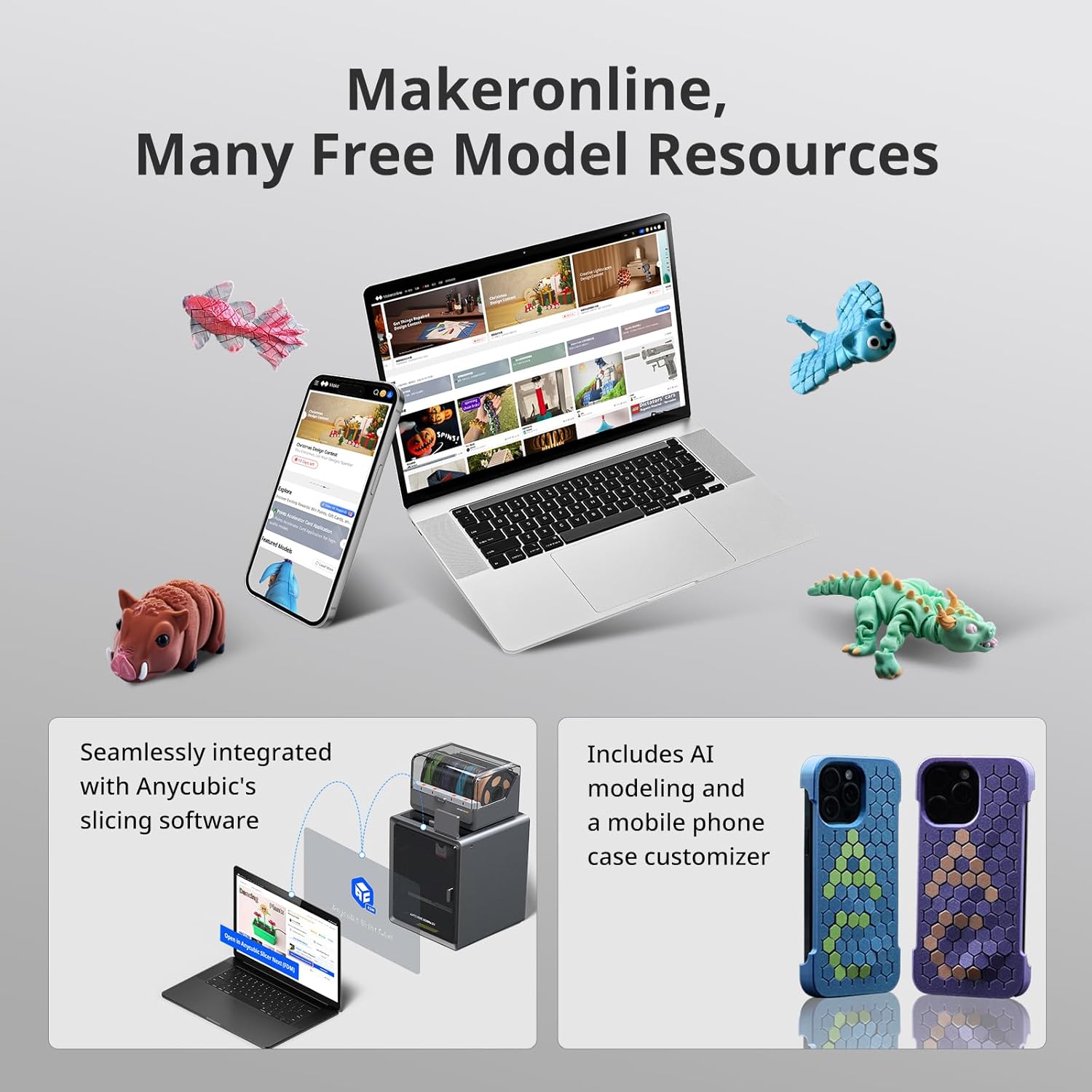
Figure 5.4: The Makeronline platform, showcasing its integration with Anycubic's slicing software and offering a wide range of free 3D models for printing.
5.5 Intelligent Printing Features
- AI Spaghetti Detection: Instantly detects and alerts you to anomalies such as "spaghetti" failures, ensuring smooth operation. (Requires camera for functionality).
- Belt Tension Monitoring: Continuously checks belt status to prevent disruptions and ensure precision.
- Power Loss Recovery: Automatically resumes printing after power loss or interruptions, enhancing efficiency and reliability.

Figure 5.5: Overview of intelligent printing features including AI Spaghetti Detection, Belt Tension Monitoring, and Power Loss Recovery, designed to enhance print reliability and user convenience.
5.6 Remote Monitoring and Control
Monitor and control your Anycubic Kobra S1 remotely using the Anycubic App. This allows you to check print progress, adjust settings, and manage your printer from anywhere.
Video 5.1: Anycubic Kobra S1 Combo 3D Printer Remote Monitoring. This video demonstrates the remote monitoring capabilities of the printer, allowing users to oversee their prints from a distance.
Video 5.2: Anycubic Kobra S1 3D Printer Overview. This video provides a general overview of the Anycubic Kobra S1 3D printer, showcasing its features and design.
6. Maintenance
6.1 Hotend Maintenance
The Anycubic Kobra S1 features a tool-free hotend disassembly for easy maintenance and replacement. Ensure the hotend is properly installed after any maintenance to prevent issues.

Figure 6.1: Detailed view of the Anycubic Kobra S1's hotend, highlighting its tool-free disassembly, anti-clogging design, 320°C metal hotend, and various nozzle options.
6.2 Filament Drying
Proper filament drying is crucial for print quality. If using the Anycubic ACE Pro, it supports drying while printing, helping to maintain filament quality and prevent issues like stringing or poor adhesion.
Video 6.1: Anycubic Kobra S1 Combo, Drying While Printing. This video illustrates the filament drying feature of the Anycubic ACE Pro, which can be used in conjunction with the Kobra S1.
7. Troubleshooting
7.1 Nozzle Clogging
Nozzle clogs are a common 3D printing issue with multiple possible causes, including incorrect temperature settings or filament type. Refer to the Anycubic WIKI troubleshooting guide for solutions. If the problem persists, contact customer support.
7.2 Compatibility Issues
The Anycubic ACE Pro for Kobra 3 is not compatible with the Anycubic Kobra S1 directly. An upgrade accessory kit is required to enable multi-color printing with the Kobra S1 if you already own an ACE Pro for Kobra 3. Always review compatibility details before purchase.
8. Specifications
| Feature | Detail |
|---|---|
| Brand | ANYCUBIC |
| Model | Anycubic Kobra S1 |
| Product Dimensions | 22 x 19 x 18 inches (55.88 x 48.26 x 45.72 cm) |
| Item Weight | 2.2 pounds (1 kg) |
| Max Print Speed | 600mm/s |
| Max Acceleration Speed | 20000mm/s² |
| Hotend Temperature | Up to 320°C |
| Heat Bed Temperature | Up to 120°C |
| Nozzle Diameter | Standard 0.4mm (Supports 0.2, 0.6, 0.8mm expansion) |
| Supported Filament | PLA, TPU, ASA, ABS, PETG |
| Build Volume | 250 x 250 x 250mm |
| Auto-Leveling | LeviQ3.0 Full-Auto |
| Noise Level | ≤44dB |
9. Warranty & Support
Anycubic prioritizes customer satisfaction. If you encounter any questions or issues with your Kobra S1 3D Printer, please do not hesitate to contact our dedicated customer support team for assistance. For warranty information, please refer to the documentation provided with your purchase or visit the official Anycubic website.
You can visit the official ANYCUBIC Store for more information and support: ANYCUBIC Official Store


