
1. Introduction
Thank you for choosing the Mesqool 10.1\" Large Digital Calendar Clock. This device is designed to provide clear and comprehensive time, date, and environmental information, along with advanced features like customizable alarms, reminders, and a digital photo frame. Its user-friendly interface and remote control make it ideal for all ages, especially for seniors.
2. Safety Information
- Power Source: Use only the provided power adapter. Ensure the voltage matches your local power supply.
- Placement: Place the clock on a stable, flat surface or mount it securely on a wall. Avoid direct sunlight, high temperatures, and high humidity.
- Cleaning: Disconnect power before cleaning. Use a soft, dry cloth. Do not use liquid cleaners or aerosols.
- Water Exposure: Do not expose the device to water or moisture. This product is for indoor use only.
- Batteries: The clock uses 2 CR2032 batteries (included) for backup. Do not attempt to recharge non-rechargeable batteries. Dispose of batteries properly.
- Ventilation: Ensure adequate ventilation around the device. Do not block ventilation openings.
3. Setup
3.1. What's in the Box
- Mesqool 10.1\" Digital Calendar Clock
- Remote Control
- Power Adapter
- User Manual (this document)
- Wall Mounting Accessories (if applicable)
3.2. Power Connection
Connect the provided power adapter to the DC IN port on the back of the clock and then plug it into a standard electrical outlet. The clock will power on automatically.

Image: The Mesqool 10.1-inch Digital Calendar Clock displaying time, date, temperature, and humidity, accompanied by its remote control.
3.3. Initial Settings (Time, Date, Language)
Upon first power-on, you may need to set the time, date, and preferred language. Use the included remote control or the side buttons on the clock to navigate the settings menu.
- Press the MENU button on the remote control to access the main settings.
- Navigate using the arrow keys (UP/DOWN/LEFT/RIGHT) to select options.
- Press OK or ENTER to confirm a selection.
- Set the current time (12/24-hour format), date (MM/DD/YYYY or DD/MM/YYYY), and year.
- Select your preferred display language (English, German, French, Italian, Spanish, Japanese are supported).
- Adjust the Auto DST (Daylight Saving Time) setting as needed.
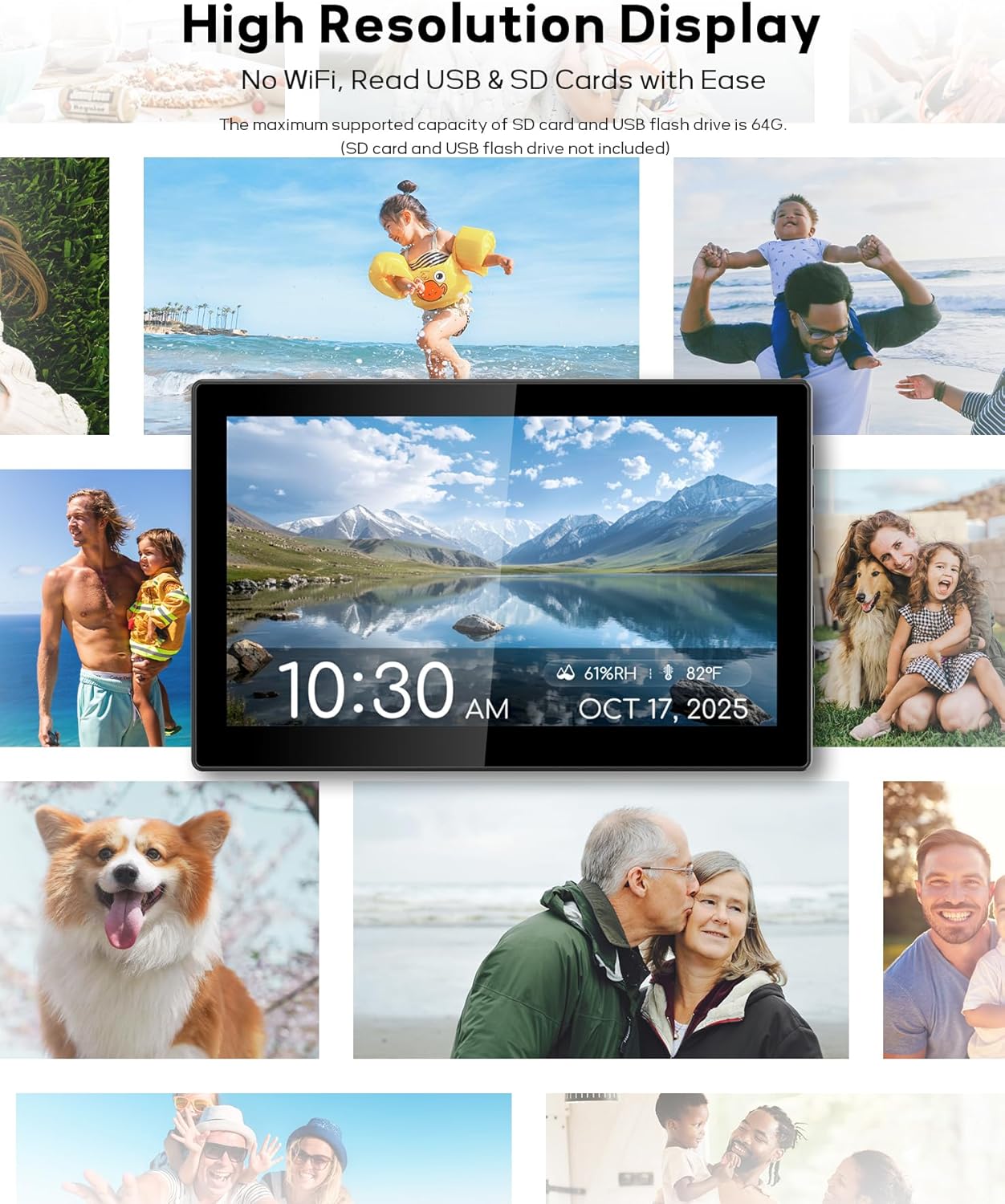
Image: A hand holding the remote control, demonstrating ease of adjustment for the wall-mounted digital clock.
4. Operating Instructions
4.1. Time and Date Display
The clock features a large, clear display showing the time, day of the week, date, and year. It also includes a unique 6-time period display (pre-dawn, morning, afternoon, evening, night, midnight) to help distinguish between AM and PM, particularly useful for individuals with memory challenges.
4.2. Indoor Temperature & Humidity Sensor
The clock is equipped with an industrial-grade sensor that continuously monitors and displays the indoor temperature (in °F or °C) and relative humidity (RH%). This feature helps you maintain a comfortable and healthy indoor environment.

Image: The rear view of the digital clock, highlighting the integrated temperature and humidity sensor.
4.3. Flexible Alarm & Schedule Settings
Set up to 23 customizable alarms and reminders. You can configure alarms for specific days (weekdays only, weekends, or any combination) and create one-time reminders for special dates. The clock also supports personalized messages via keyboard input.
- Access the "Alarm" or "Schedule" menu from the main settings.
- Choose from 18 unique alarm sounds with 9 volume levels.
- Select pre-set reminders (e.g., "Take medication", "Time for a shower") or create your own custom messages.

Image: An elderly man on a couch, with the digital clock on the wall displaying a "Take your morning medication" reminder, illustrating its utility for daily routines.

Image: A child sleeping, with the digital clock displaying a gentle alarm, indicating the variety of alarm sounds available.
4.4. Display Themes & Brightness
Personalize your clock's appearance with 12 unique display themes and 9 font colors, including text time, analog clock, classic, and minimalist styles. The clock features an intelligent light sensor for auto-dimming, adjusting screen brightness based on ambient light. You can also set timed brightness levels or adjust manually.

Image: A collection of Mesqool digital clocks showcasing the 12 available themes and various color options.
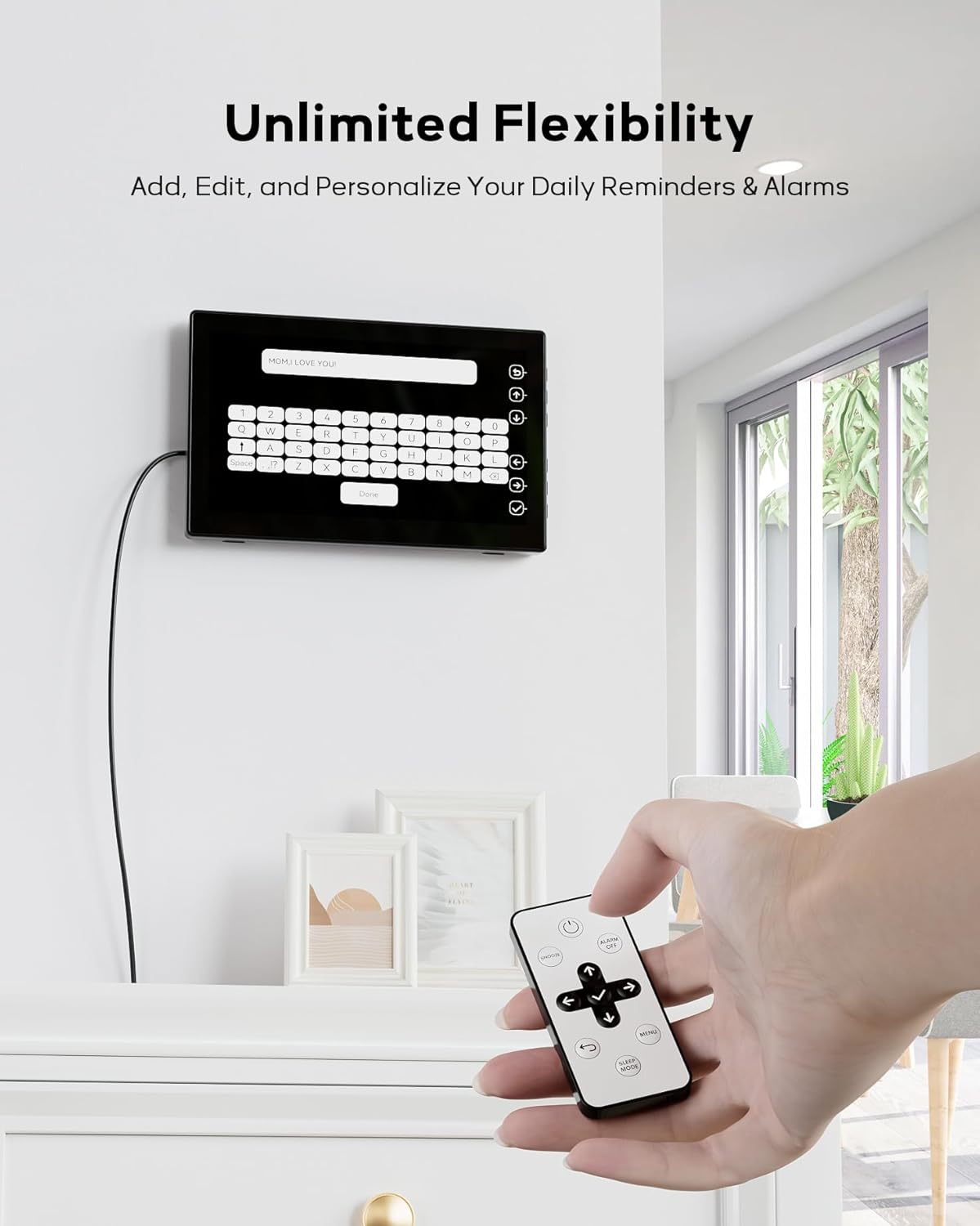
Image: Illustrations demonstrating the clock's three dimming modes: auto-dimming, time-period dimming, and manual brightness adjustments.
4.5. Digital Picture Frame Function
Transform your clock into a digital picture frame by inserting a USB flash drive or standard SD card (up to 64GB, not included). Display your favorite photos in a slideshow, reliving precious memories directly on the screen.
- Insert the USB drive or SD card into the designated slot on the side of the clock.
- Navigate to the "Photo" or "Picture Frame" setting in the menu.
- Select your desired display options, such as slideshow interval.

Image: The digital clock showcasing its built-in digital picture frame feature, displaying various family photos.
4.6. Memory Function (Backup Battery)
The digital calendar has an internal backup battery (2 CR2032 batteries) that allows it to retain all settings and automatically reset to the correct time and date in case of a power failure. Note: The backup battery does not power the clock for display; it only preserves settings.
5. Maintenance
- Cleaning the Screen: Gently wipe the screen with a soft, lint-free cloth. For stubborn smudges, slightly dampen the cloth with water. Avoid excessive moisture.
- Cleaning the Body: Use a soft, dry cloth to wipe the clock's body. Do not use abrasive cleaners or solvents.
- Battery Replacement: If the backup battery needs replacement, ensure the clock is unplugged. Open the battery compartment, replace the CR2032 batteries with new ones, observing polarity, and close the compartment securely.
6. Troubleshooting
| Problem | Possible Cause / Solution |
|---|---|
| Clock does not power on. | Ensure the power adapter is securely plugged into both the clock and a working electrical outlet. Try a different outlet. |
| Time/Date is incorrect. | Access the settings menu to manually adjust the time and date. Check the Auto DST setting if applicable. |
| Alarms are not sounding. | Verify that the alarm is enabled, the volume is set appropriately, and the alarm time/day settings are correct. |
| Screen is too dim or too bright. | Check the auto-dimming setting. Adjust manual brightness levels in the display settings. Ensure the light sensor is not obstructed. |
| Photos from USB/SD card are not displaying. | Ensure the USB drive or SD card is properly inserted and formatted (FAT32 recommended). Check that the image files are in a supported format (e.g., JPEG). The maximum supported capacity is 64GB. Note: Prolonged use of the USB/SD card feature may cause the device to warm up; this is normal. |
| Remote control is not working. | Check the remote control's battery. Ensure there are no obstructions between the remote and the clock's IR receiver. |
7. Specifications
| Feature | Detail |
|---|---|
| Brand | Mesqool |
| Model Number | CR1026 |
| Display Type | IPS |
| Product Dimensions | 14\"W x 4\"H |
| Item Weight | 1.5 pounds |
| Power Source | Corded Electric |
| Material | Plastic |
| Mounting Type | Tabletop & Wall Mounted |
| Backup Batteries | 2 CR2032 (included) |
| Special Features | Adjustable Volume, Auto Dimmable, Battery Backup, Calendar Display, Temperature Display, Humidity Display, Customizable Schedules, Digital Picture Frame |
| Connectivity Technology | USB flash drive/standard size SD card (max 64GB) |
8. Warranty and Support
The Mesqool 10.1\" Large Digital Calendar Clock comes with an extended warranty. For specific warranty terms and conditions, please refer to the product packaging or contact Mesqool customer support directly.
If you encounter any issues or have questions not covered in this manual, please contact Mesqool customer support for assistance. Contact information can typically be found on the product packaging or the official Mesqool website.
