
1. Introduction
This manual provides comprehensive instructions for the setup, operation, maintenance, and troubleshooting of your onn. 100027827 RGB Wired Adjustable DPI Gaming Mouse. Please read this manual thoroughly before using the product to ensure optimal performance and longevity.

Figure 1.1: The onn. 100027827 RGB Wired Gaming Mouse, showcasing its ergonomic design and RGB lighting strip.
2. Package Contents
Ensure all items are present in the package. If any items are missing or damaged, please contact customer support.
- onn. 100027827 RGB Wired Adjustable DPI Gaming Mouse (with attached USB cable)
- User Manual (this document)
3. Features
The onn. 100027827 Gaming Mouse is designed for an enhanced gaming experience with the following key features:
- Adjustable DPI from 200 to 7200 for customizable response speed.
- 16 million RGB colors with dynamic LED lighting effects.
- 7 programmable buttons for macros, DPI adjustments, and lighting effects.
- Gaming-grade optical sensor.
- Durable attached USB cable, 6 ft./1.8 m in length.
- Adjustable sensitivity levels: 36 adjustable sensitivity levels from 200 to 7200 DPI (Windows software only); 5 adjustable sensitivity levels: 1600/2400/3200/5600/7200 DPI (hardware preset).
- Guaranteed to 3 million clicks for extended durability.
- Side anti-slip rubber grips for enhanced control.
- Braided cable cover for additional durability.
- Windows and Mac compatible.
- USB plug and play functionality.
4. Setup
Setting up your onn. gaming mouse is a straightforward process.
- Unpack the Mouse: Carefully remove the mouse from its packaging.
- Connect to Computer: Locate an available USB port on your computer (desktop or laptop). Insert the USB connector of the mouse into the USB port.
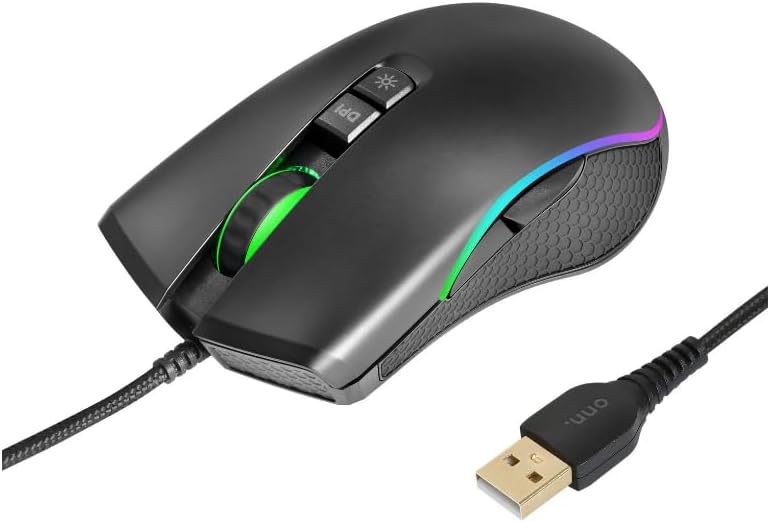
Figure 4.1: The USB connector of the onn. gaming mouse, ready for plug-and-play connection.
- Automatic Installation: The mouse is plug-and-play compatible with Windows and Mac operating systems. Your computer should automatically detect and install the necessary drivers. This process may take a few moments.
- Verify Functionality: Once installed, the mouse's LED lighting will illuminate, and you should be able to move the cursor on your screen.
For advanced customization options, such as 36 adjustable sensitivity levels and 16.8 million LED colors, dedicated Windows software may be required. Refer to the "Customization" section for more details.
5. Operating Instructions
Your onn. gaming mouse features standard mouse functions along with dedicated buttons for enhanced control.

Figure 5.1: Top view of the mouse, highlighting the DPI and LED control buttons.
- Left Click (Button 1): Primary action button.
- Right Click (Button 2): Secondary action button, typically for context menus.
- Scroll Wheel (Button 3): Scroll up or down through documents and web pages. Can also be pressed for a middle-click function.
- DPI Button (Button 4): Located behind the scroll wheel. Press this button to cycle through the 5 preset DPI sensitivity levels (1600/2400/3200/5600/7200 DPI). Each press changes the cursor speed.
- LED Lighting Button (Button 5): Located near the DPI button. Press this button to cycle through different RGB lighting effects and modes.
- Side Buttons (Buttons 6 & 7): Typically used for "forward" and "back" navigation in web browsers or file explorers. These buttons are programmable via Windows software.
6. Customization
The onn. 100027827 Gaming Mouse offers extensive customization options, primarily through dedicated Windows software (not included, typically available for download from the manufacturer's website).
6.1. DPI Sensitivity Adjustment
- Hardware Presets: Use the dedicated DPI button on the mouse to cycle through 5 preset DPI levels: 1600, 2400, 3200, 5600, and 7200 DPI.
- Software Adjustment (Windows Only): For finer control, the Windows software allows for 36 adjustable sensitivity levels ranging from 200 to 7200 DPI. This enables precise tuning of cursor speed to match your gaming style or workflow.
6.2. RGB LED Lighting Effects
- Hardware Control: Use the dedicated LED lighting button on the mouse to switch between various pre-programmed lighting effects and modes.
- Software Control (Windows Only): The Windows software unlocks the full potential of the 16.8 million LED colors, allowing you to customize lighting patterns, colors, and brightness to create personalized aesthetics.
6.3. Programmable Buttons
- The mouse features 7 programmable buttons. While some have default functions (like DPI and LED control), the Windows software allows you to assign custom macros, key binds, or specific functions to these buttons, enhancing efficiency in games and applications.
7. Maintenance and Care
Proper care will ensure the longevity and optimal performance of your gaming mouse.
- Cleaning: Use a soft, dry, lint-free cloth to wipe the surface of the mouse. For stubborn dirt, slightly dampen the cloth with water or a mild electronics cleaner. Avoid using harsh chemicals, abrasives, or solvents.
- Sensor Maintenance: Keep the optical sensor on the bottom of the mouse clean and free from dust or debris. Use a cotton swab or compressed air if necessary.

Figure 7.1: The underside of the mouse, showing the optical sensor and glide feet.
- Cable Care: Avoid sharp bends or kinks in the USB cable. Do not pull the mouse by its cable. The braided cable cover provides additional durability, but proper handling is still recommended.
- Storage: When not in use, store the mouse in a clean, dry environment away from extreme temperatures and direct sunlight.
8. Troubleshooting
If you encounter issues with your onn. gaming mouse, refer to the following common troubleshooting steps.
| Problem | Possible Cause | Solution |
|---|---|---|
| Mouse not responding / Cursor not moving |
|
|
| LED lights not working or flickering |
|
|
| DPI sensitivity not changing |
|
|
| Buttons not responding or performing incorrect actions |
|
|
9. Specifications
| Feature | Detail |
|---|---|
| Model Number | 100027827 |
| Brand | Wireless Warehouse (onn.) |
| Connectivity | Wired USB |
| Sensor Type | Optical |
| DPI Range | 200 - 7200 DPI (Adjustable) |
| Programmable Buttons | 7 |
| LED Lighting | RGB (16 million colors) |
| Cable Length | 6 ft. / 1.8 m |
| Click Lifespan | Guaranteed to 3 million clicks |
| Compatibility | Windows, Mac, Linux |
| Dimensions (approx.) | 12.7 x 6.99 x 4.06 cm |
| Weight (approx.) | 1.15 kg (Parcel Weight) |
10. Warranty and Support
For warranty information and technical support, please refer to the official website of Wireless Warehouse or contact their customer service directly. Keep your purchase receipt as proof of purchase for any warranty claims.
Manufacturer: Wireless Warehouse
Model: 100027827
For the most up-to-date support resources, visit the Wireless Warehouse store on Amazon: Wireless Warehouse Store


