Introduction
This user manual provides comprehensive instructions for the ieGeek PoE Security Camera System. This system features 5MP Ultra HD cameras, an 8-channel NVR with a 2TB built-in hard drive, and advanced AI detection capabilities. Designed for both indoor and outdoor surveillance, it offers reliable wired connectivity, two-way audio, and enhanced night vision for complete peace of mind.
What's in the Box
The ieGeek PoE Security Camera System package includes the following components:
- 1 x 8CH POE NVR
- 4 x 5MP POE Camera
- 1 x HDMI Cable
- 1 x DC 48V 1.37A Power Adapter
- 1 x 1 Meter NVR Network Cable
- 4 x 18.3m Dome Network Cable
- 4 x Dome Stand
- 4 x Positioning Sticker
- 4 x Screw Pack
- 1 x USB Mouse
- 1 x User Manual
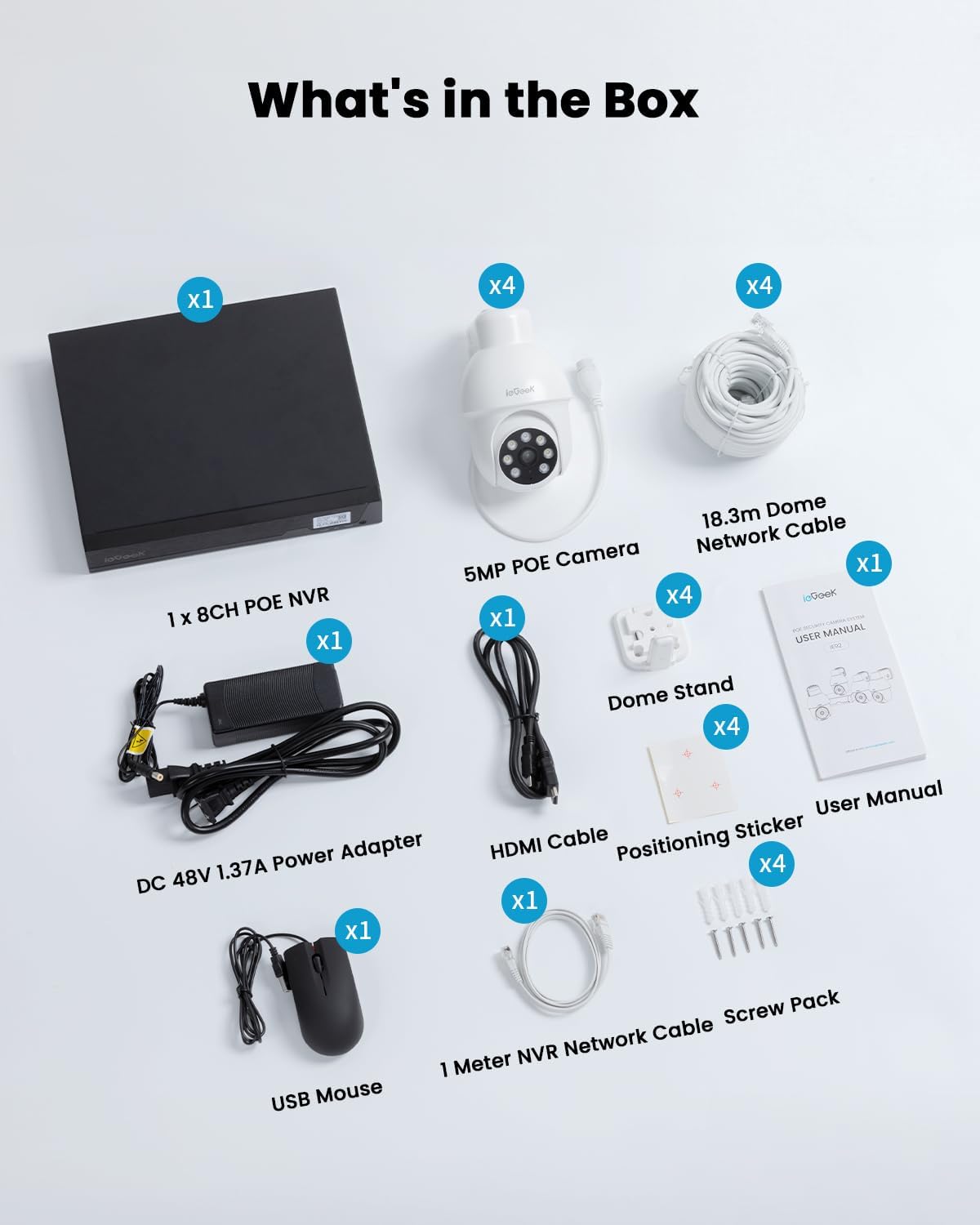
Image: All components included in the ieGeek PoE Security Camera System package.
Video: An unboxing demonstration of the ieGeek IE92 5MP PoE Camera System, showing all included items.
Setup and Installation
The ieGeek PoE Security Camera System utilizes Power over Ethernet (PoE) technology for simplified installation. Follow these steps to set up your system:
- Connect each 5MP PoE camera to the 8CH POE NVR using the provided 18.3m PoE network cables.
- Plug the DC 48V 1.37A Power Adapter into the NVR and connect it to a power outlet.
- Connect your monitor to the NVR via the HDMI port using the HDMI cable.
- For remote access and advanced features, connect the NVR to your router using the 1-meter NVR network cable.
- Connect the USB mouse to the NVR's USB port for navigation.
- Press the power switch on the NVR to start the device. The monitoring screen should appear within 1 minute.

Image: Connection diagram illustrating how cameras, NVR, and router are linked in the system.
Video: A step-by-step guide on connecting the ieGeek IE92 security camera system components.
Operating Instructions
Recording and Storage Settings
The NVR supports 24/7 continuous recording and uses H.265+ technology for efficient storage. You can manage recording settings directly from the NVR interface:
- Navigate to the 'Settings' menu on the NVR interface.
- Under 'Storage', you can enable 'Overwrite old' to automatically overwrite the oldest recordings when the hard disk is full.
- Activate 'All Day' mode for continuous 24/7 recording.
- Set an 'Expiration time (days)' for playback retention (valid range 1-750 days).
- In 'Disk Settings', you can view hard drive usage and format the disk if needed. Formatting will delete all previously saved data.

Image: The NVR display showing continuous recording from multiple cameras and storage settings.
Playback Function
To review recorded footage:
- Click 'Playback' on the NVR interface to enter the video playback screen.
- Select the desired camera channel and date to search for recordings.
- Use the timeline at the bottom to choose a specific time period for playback.
AI Detection and Automatic Humanoid Tracking
The system features advanced AI technology for accurate detection and tracking:
- In 'Camera Settings', navigate to the 'AI' tab to enable or disable AI detection.
- Select detection types such as human, vehicle, package, or pet.
- Adjust the sensitivity (Low, Medium, High) for optimal detection.
- Set a 'Defense Time' to specify when the alarm can be detected.
- Define specific detection areas within the camera's view. Only movement within the selected area will trigger an alert.
- The PTZ (Pan-Tilt-Zoom) camera automatically tracks moving objects within its 355° horizontal and 90° vertical range.

Image: A security camera tracking a person, illustrating the humanoid tracking and PTZ capabilities.
Video: Demonstration of the ieGeek 5MP PoE Camera System's automatic human tracking feature.
Video: Illustrates how the camera auto-tracks when a moving human is detected.
Two-Way Audio
Communicate directly through the cameras with the built-in speakers and microphones:
- Use the 'ieGeek Cam' app to engage in two-way conversations with visitors or deter intruders.
Color Night Vision
Experience clear, colorful images even in low-light conditions:
- The 15-meter color night vision provides true-to-life colors.
- Each camera is equipped with eight infrared LEDs for clear visibility up to 100 feet at night.

Image: A demonstration of 5MP Ultra Colorful Video, highlighting clear night vision and digital zoom for details like license plates.
Video: Showcases the 5MP Ultra HD color visual experience provided by the camera system.
Motion-Activated Lights & Alarm
The system provides instant alerts and active deterrence:
- When motion is detected, the outdoor PTZ camera automatically activates lights and sends real-time alerts to your phone via the app.
- You can configure the system to sound a siren or activate spotlights upon detection.

Image: A visual representation of the 3-second instant alert system, featuring siren, spotlight, and app push notifications upon detection.
Video: A comprehensive guide on NVR system functions, including recording, playback, and camera settings for motion and AI detection.
Specifications
| Feature | Detail |
|---|---|
| Brand | ieGeek |
| Model Number | IE92 |
| Connectivity Technology | Wired |
| Video Capture Resolution | 5MP |
| Special Features | 355° Pan 90° Tilt, Auto Humanoid Tracking, Motion Activate Lights & Alarm, 24/7 Recording, IP65 Waterproof, 5MP Ultra HD, 15M/49FT Color Night Vision, Package/Human/Vehicle/Pet Detection (No Fee) |
| Number of Channels | 8 |
| Memory Storage Capacity | 10 TB (Supports up to 10TB hard drive, package comes with 2TB hard drive) |
| Color | White-5MP POE System Set |
| Power Source | Corded Electric |
| Item Dimensions L x W x H | 11.02 x 9.06 x 2.76 inches |
| Operating System | POE System with 8CH POE NVR |
| Recommended Uses | Indoor/Outdoor Security; Monitor |
| Compatible Devices | Smartphones, Monitor, Compatible with all VGA/HDMI display, Tablets |
| Night Vision Range | 15 Meters |
| Frame Rate | 25fps |
| Recording Mode | 24/7 Recording |
| Waterproof Rating | IP65 |
Maintenance
To ensure the longevity and optimal performance of your ieGeek PoE Security Camera System, regular maintenance is recommended:
- Cleaning: Regularly wipe the camera lenses with a soft, damp cloth to remove dust and smudges. Ensure the NVR unit is kept in a clean, dry, and well-ventilated area.
- Firmware Updates: Check the ieGeek official website or app periodically for firmware updates. Keeping your system's firmware up-to-date ensures improved performance, new features, and enhanced security.
- Environmental Conditions: While the cameras are IP65 waterproof, avoid prolonged exposure to extreme weather conditions outside the standard operating temperature range of -20°C to 55°C.
- Cable Inspection: Periodically inspect all network and power cables for any signs of wear, damage, or loose connections.
Troubleshooting
If you encounter any issues with your ieGeek PoE Security Camera System, refer to the following common troubleshooting tips:
- No Video Display: Ensure all cables (power, HDMI, network) are securely connected. Verify the NVR is powered on and the monitor is set to the correct input source.
- No Recording: Check the NVR's storage settings to ensure 24/7 recording is enabled and the hard drive is not full or requires formatting.
- Network Connectivity Issues: Confirm the Ethernet cable connecting the NVR to the router is secure. Restart both the NVR and your router.
- False Alarms: Adjust the sensitivity settings for motion and AI detection in the camera settings. Define specific detection areas to minimize unwanted alerts.
- Poor Night Vision: Ensure the camera lens is clean and free from obstructions. Verify that the infrared LEDs are functioning correctly.
For more detailed troubleshooting or persistent issues, please refer to the official user manual PDF or contact customer support.
Warranty and Support
ieGeek is committed to providing high-quality products and excellent customer service.
- Warranty: The product comes with a 2-year quality guarantee.
- Returns: A 30-day free returns policy is available.
- User Manual: For detailed instructions and further assistance, please download the official User Manual (PDF).
- Customer Support: For any inquiries or support needs, you can contact ieGeek's professional after-sales team via email at service@iegeek.com. They aim to reply within 24 working hours.


