1. Introduction
Welcome to the Xgody X18 4G LTE Unlocked Phone user manual. This guide provides essential information on setting up, operating, and maintaining your new smartphone. The Xgody X18 features a 6.3-inch display, runs on Android 10, and includes a 4000mAh battery for extended use. It supports dual SIM cards and offers Face ID for secure access.
2. Package Contents
Please verify that all items are present in your product package:
- X18 Smartphone
- Protective Film
- Phone Case
- User Manual
- USB Cable
- Eject Pin

Image: Contents of the Xgody X18 retail package, including the phone, protective film, case, manual, USB cable, and eject pin.
3. Device Overview
The Xgody X18 features a sleek design with a 6.3-inch display and a comfortable grip. Familiarize yourself with the physical components of your device.

Image: Front and rear view of the Xgody X18 smartphone, showcasing its design and available colors.

Image: Detailed view of the Xgody X18's side profile, highlighting its slimness, 3.5mm earphone jack, Micro-USB port, and 3-card slot.
4. Setup
4.1 SIM Card and SD Card Installation
The Xgody X18 supports two Nano SIM cards and one SD card for expandable storage. Follow these steps to install them:
- Locate the SIM tray on the side of the phone.
- Insert the eject pin into the small hole next to the tray to open it.
- Carefully place your Nano SIM cards (SIM1 and SIM2) and the SD card (up to 256GB, not included) into their respective slots on the tray.
- Gently push the tray back into the phone until it clicks into place.

Image: Close-up of the Xgody X18's 3-card slot, showing dedicated spaces for two Nano SIM cards and one TF (SD) card.
4.2 Initial Power On
To power on your device for the first time, press and hold the power button located on the side of the phone until the Xgody logo appears on the screen. Follow the on-screen prompts to complete the initial setup, including language selection, Wi-Fi connection, and Google account setup.
4.3 Network Compatibility
The Xgody X18 is a 4G LTE unlocked phone. It is compatible with T-Mobile networks and their MVNO networks. Please note that it is NOT COMPATIBLE with AT&T, Cricket, Verizon, or Mint Mobile. Always confirm compatibility with your carrier before use.

Image: A table detailing network band compatibility for various carriers (AT&T, T-Mobile, Verizon, Sprint) with the Xgody X18, indicating supported 2G, 3G, and 4G bands.
5. Operating Instructions
5.1 Android 10 OS
Your Xgody X18 runs on the Android 10 operating system, offering a stable and user-friendly experience with redesigned applications and an intuitive interface.

Image: Multiple screens of the Xgody X18 displaying the Android 10 operating system interface, including settings, home screen, and camera app.
5.2 Face Unlock
Secure your device and unlock it quickly using Face ID. To set up Face Unlock:
- Go to Settings > Security > Face Unlock.
- Follow the on-screen instructions to register your face.
- Ensure you are in a well-lit environment for optimal recognition.

Image: A person using the Xgody X18's Face Unlock feature, illustrating its speed and security.
5.3 Camera Usage
The Xgody X18 is equipped with a 5MP front camera and an 8MP rear camera, supporting various modes like Panorama and Time-lapse.
- Open the Camera application from your home screen or app drawer.
- Tap the camera icon to switch between front and rear cameras.
- Select your desired mode (e.g., Photo, Video, Panorama) from the options.
- Tap the shutter button to capture photos or start/stop video recording.

Image: Visual representation of the Xgody X18's camera capabilities, including 5MP front and 8MP rear cameras, Panorama, and Time-lapse modes.
5.4 Battery Management
The 4000mAh high-capacity battery provides long-lasting power. To optimize battery life:
- Adjust screen brightness.
- Close unused applications running in the background.
- Enable battery saver mode when needed.
- Charge your phone using the provided USB cable.

Image: The Xgody X18 phone displaying a 100% charge, emphasizing its 4000mAh battery and estimated usage times for video playback, music, web surfing, and gaming.
5.5 Storage and Performance
The X18 comes with 2GB RAM and 16GB ROM, expandable up to 256GB with an SD card (not included). This configuration supports smooth operation for daily tasks and media consumption.
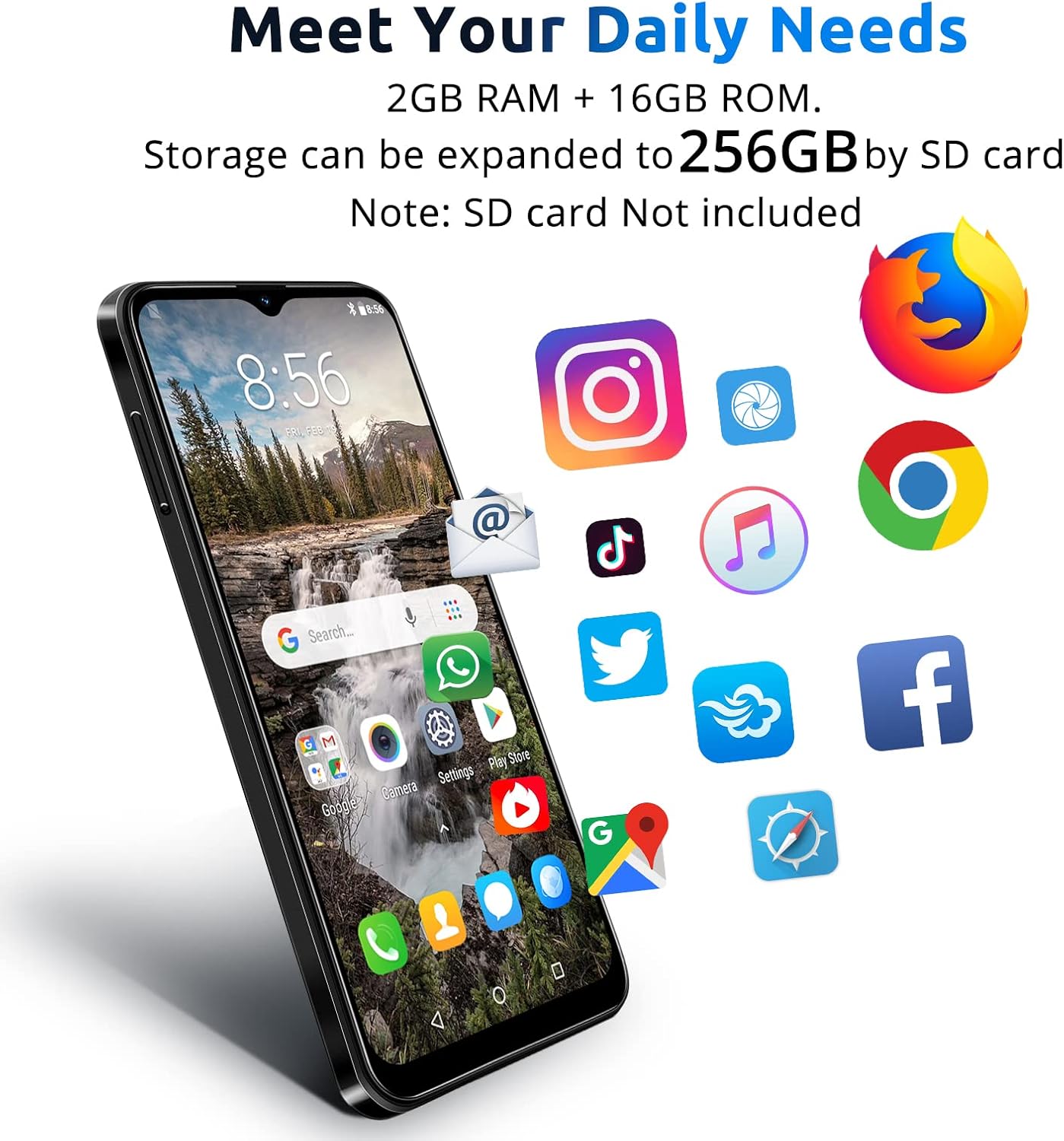
Image: The Xgody X18 screen displaying various app icons, illustrating its capacity for applications and media with 2GB RAM and 16GB ROM, expandable storage.
5.6 Display and Audio
Enjoy a cinematic viewing experience on the 6.3-inch QHD display, complemented by stereo speakers for immersive audio.

Image: The Xgody X18 displaying a dynamic scene, highlighting its 6.3-inch V-notch display, visual enhancement, and stereo speaker capabilities for an enhanced viewing experience.
5.7 GPS Navigation
The built-in GPS system provides accurate navigation, guiding you through complex routes whether you are driving or walking.

Image: The Xgody X18 phone displaying a map application, indicating its GPS, Glonass, and Beidou navigation capabilities.
6. Maintenance
To ensure the longevity and optimal performance of your Xgody X18, follow these maintenance guidelines:
- Keep it Clean: Regularly wipe the screen and body with a soft, dry cloth. Avoid harsh chemicals.
- Protect from Damage: Use the provided phone case and protective film to guard against scratches and minor impacts.
- Avoid Extreme Temperatures: Do not expose the phone to very high or low temperatures, as this can affect battery life and internal components.
- Software Updates: Keep your operating system updated to the latest version for security and performance improvements.
- Battery Care: Avoid completely draining the battery frequently. Charge it before it reaches 0% to prolong its lifespan.
7. Troubleshooting
If you encounter issues with your Xgody X18, refer to the following common solutions:
7.1 Phone Not Turning On
- Ensure the battery is charged. Connect the phone to a charger and wait a few minutes before attempting to power it on again.
- Press and hold the power button for at least 10-15 seconds to perform a forced restart.
7.2 Network Connectivity Issues
- Check if your SIM card is properly inserted (refer to Section 4.1).
- Verify that your carrier is compatible with the Xgody X18 (refer to Section 4.3).
- Restart the phone.
- Go to Settings > Network & internet > Mobile network and ensure mobile data is enabled.
7.3 Poor Call Quality / Noise During Calls
- Ensure you are in an area with good network coverage.
- Check if the microphone or speaker is obstructed by the phone case or debris.
- Restart the phone.
- Test with another SIM card if possible to rule out carrier-specific issues.
7.4 Apps Crashing or Freezing
- Close and reopen the problematic app.
- Clear the app's cache and data (Settings > Apps & notifications > [App Name] > Storage & cache).
- Ensure you have sufficient storage space available.
- Restart the phone.
8. Specifications
Key technical specifications for the Xgody X18 smartphone:
| Feature | Specification |
|---|---|
| Model Name | X18 |
| Operating System | Android 10.0 |
| Screen Size | 6.3 Inches |
| RAM Memory | 2 GB |
| Internal Storage | 16 GB |
| Expandable Storage | Up to 256GB (SD card not included) |
| Battery Capacity | 4000 Milliamp Hours |
| Rear Camera | 8 MP |
| Front Camera | 5 MP |
| Connectivity | 4G LTE, Wi-Fi, Bluetooth, GPS |
| SIM Card Support | Dual Nano SIM |
| Special Features | Face ID, Built-In GPS, Dual SIM, Supports USB OTG |
| Item Weight | 15.2 ounces |
9. Warranty and Support
Xgody is committed to providing quality products and excellent customer service. Should you encounter any issues while using your Xgody X18, please do not hesitate to contact our professional after-sales team.
9.1 How to Contact Support
To contact our support team, please follow these steps:
- Locate your order details on the platform where you purchased the product.
- Find the option to 'Contact Seller' or 'Get Product Support'.
- Click to enter and select the relevant topic concerning your issue.
Our team will promptly review your concerns within 12 hours and aim to respond with a solution within 24 hours.


