
TMEZON E1-PRO*2+W300
TMEZON 2-Cam Security Camera Wireless Outdoor System User Manual
Model: E1-PRO*2+W300
1. Introduction
This user manual provides detailed instructions for the TMEZON 2-Cam Security Camera Wireless Outdoor System. This system offers a comprehensive security solution with advanced features, including 2K color night vision, 360° pan-tilt, and auto-tracking capabilities. Designed for ease of use, it operates wirelessly via 2.4G WiFi and requires no subscription fees, offering local storage for up to 120 days of loop recording. The cameras are solar-powered for continuous operation and are built to withstand outdoor conditions.
2. What's in the Box
Upon opening your TMEZON 2-Cam Security Camera Wireless Outdoor System package, you will find the following components:
- 2 x Security Cameras (E1-PRO)
- 1 x WiFi Base Station (W300)
- 2 x Solar Panels
- 1 x User Manual
- 1 x Installation Package (screws, wall anchors, mounting brackets)
Please ensure all items are present and in good condition before proceeding with installation.
3. Product Specifications
| Feature | Description |
|---|---|
| Model Name | E1-PRO*2+W300 |
| Indoor/Outdoor Usage | Outdoor, Indoor |
| Power Source | Solar Powered |
| Connectivity Protocol | Wi-Fi (2.4G) |
| Video Capture Resolution | 4MP (2K) |
| Night Vision Range | Up to 65 Feet (ColorPura Technology) |
| Pan & Tilt | 355° Pan, 90° Tilt |
| Storage | Built-in 32GB local storage (up to 120 days loop recording) |
| Special Features | PIR Motion Detection, Real-time Alerts, 2-Way Audio, Auto Tracking, HDMI Connectivity, IP65 Waterproof |
| Dimensions | 2 x 3 x 3 inches (per camera) |
| Item Weight | 4.93 pounds (total package) |
4. Setup and Installation
Follow these steps to set up your TMEZON security camera system:
4.1 Initial Charging
Before installation, it is recommended to fully charge the cameras using the provided USB cable. This ensures optimal battery performance from the start, complementing the solar charging.
4.2 App Download and Account Creation
Download the official TMEZON app (e.g., CKK app or EseeCloud app as mentioned in product details) from your smartphone's app store. Create an account and log in to begin the pairing process.
4.3 Camera and Base Station Pairing
The cameras and base station are designed for easy pairing. Follow the in-app instructions to connect your cameras to the base station. This typically involves pressing a 'SYNC' button on the base station and then on each camera. The base station will beep to confirm successful WiFi matching.

Image: Visual guide for syncing the camera with the base station. This process ensures a stable wireless connection for your security system.
4.4 Mounting the Cameras and Solar Panels
Choose strategic outdoor locations for your cameras that provide optimal viewing angles and sufficient sunlight exposure for the solar panels. Use the provided installation package to securely mount the cameras and solar panels. The solar panels connect directly to the cameras to provide continuous power.

Image: The complete TMEZON 2-Cam security system, including two cameras, two solar panels, and the central base station, ready for outdoor installation.

Image: A TMEZON camera mounted outdoors with its connected solar panel, illustrating the continuous power supply feature.
4.5 Wi-Fi Coverage Optimization
The base station acts as a central hub for your cameras, extending Wi-Fi coverage. Position the base station centrally within your home to ensure strong signal strength to all connected cameras. External antennas on the cameras further enhance connectivity.

Image: A diagram illustrating how the TMEZON base station and cameras provide comprehensive Wi-Fi coverage around a home, ensuring all areas are monitored.
4.6 HDMI Connectivity
The base station includes an HDMI port, allowing you to connect it directly to a TV or monitor for live viewing of your camera feeds on a larger screen.
5. Operating Your Security System
Once installed, your TMEZON security system offers a range of features for effective home monitoring.
5.1 Pan-Tilt and Auto Tracking
Control the camera's 355° pan and 90° tilt remotely via the mobile app to cover a 360° viewing area. The auto-tracking feature allows the camera to automatically follow detected motion, ensuring continuous surveillance of moving subjects.

Image: A sequence of images demonstrating the camera's 360° pan-tilt and auto-tracking capabilities, following a person's movement across a wide area.
5.2 PIR Motion Detection and Alerts
The advanced PIR (Passive Infrared) motion detection minimizes false alarms by accurately identifying human and animal movement within a 6-meter effective distance. Upon detection, the system sends real-time app push notifications, activates a flashlight, and triggers instant alerts.

Image: A TMEZON camera detecting a person at night, with a phone displaying a real-time motion alert, showcasing the smart PIR sensor functionality.
5.3 2K Color Night Vision
Equipped with ColorPura technology, the cameras provide crystal clear 4MP (2K) color night vision, capturing vivid and detailed videos even in low-light conditions up to 65 feet away. Two night vision modes (infrared or color) are available.
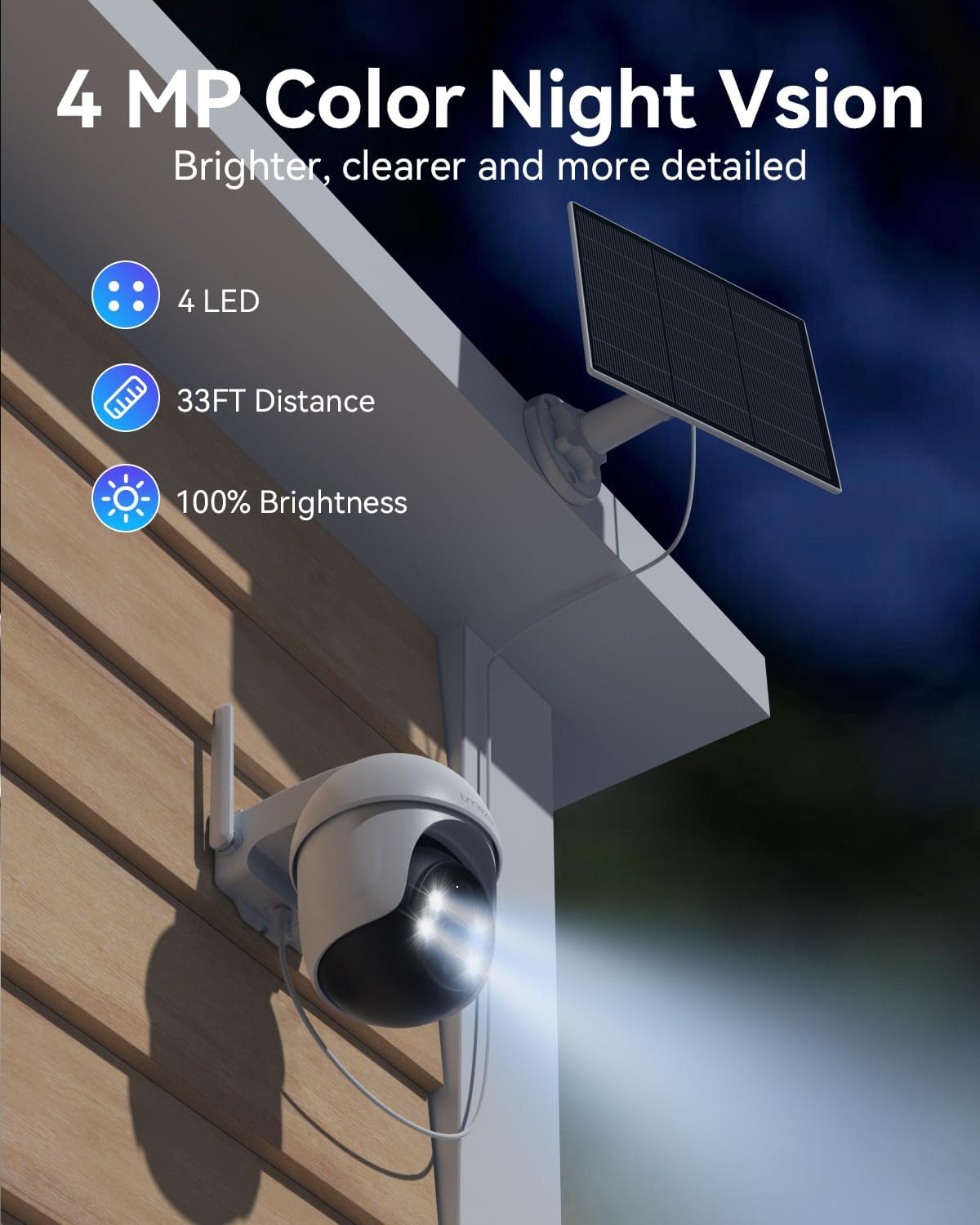
Image: A TMEZON camera demonstrating its 4MP color night vision capabilities, providing brighter and more detailed footage in dark environments.
5.4 Two-Way Audio
Utilize the two-way audio feature through the app to communicate with visitors or deter intruders directly from your smartphone.

Image: A user interacting with a delivery person via the TMEZON app's two-way audio feature, showing seamless communication.
5.5 Local Storage and No Subscription
The system includes a built-in 32GB local storage, supporting up to 120 days of loop recording without any additional subscription fees. This ensures your data remains private and secure.
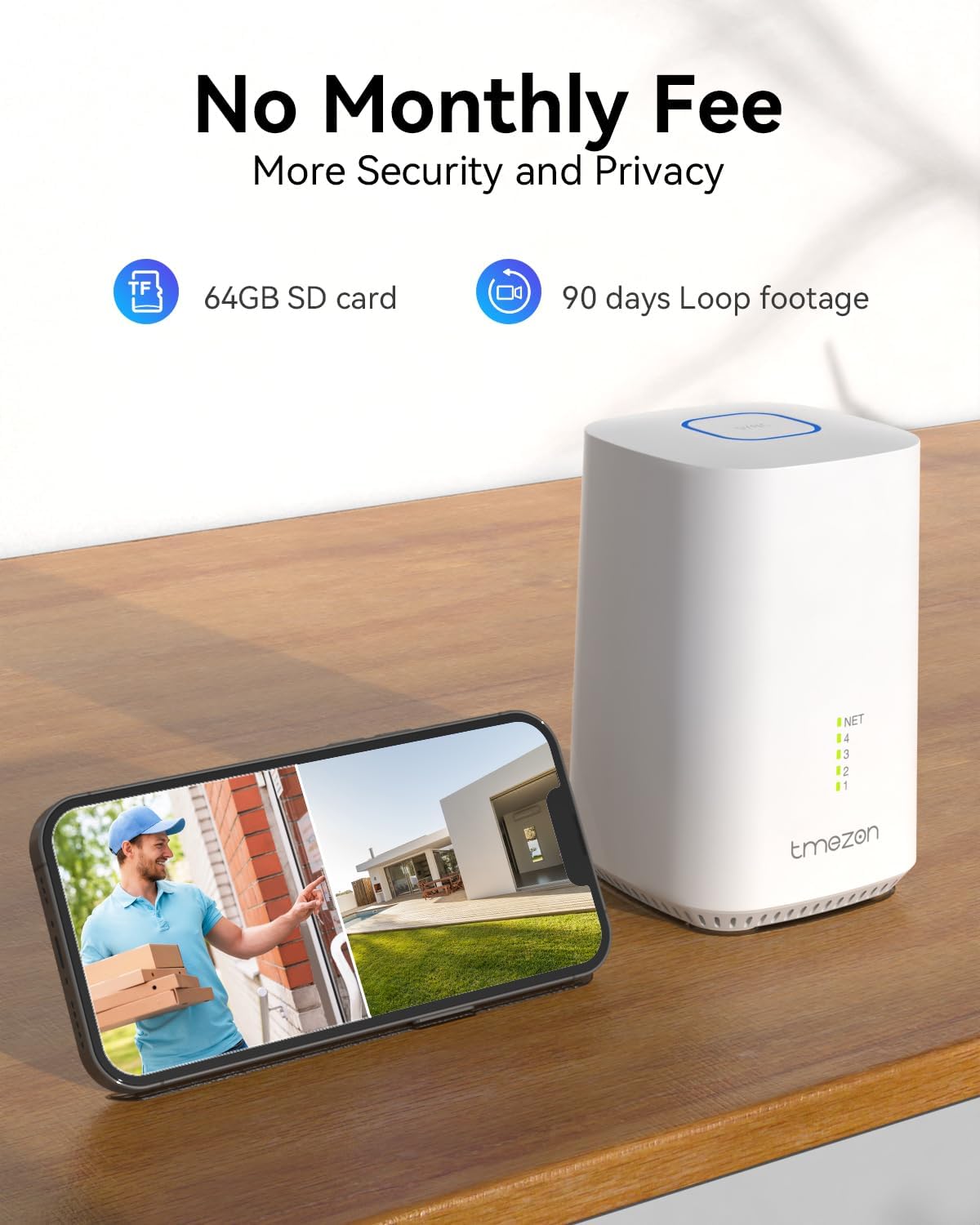
Image: The TMEZON base station and a smartphone displaying the system's local storage capability, highlighting the absence of monthly fees.
5.6 Official Product Video
For a visual demonstration of the system's features and operation, please watch the official product video below:
Video: An official overview of the TMEZON Home Security Systems, demonstrating key features like installation, app control, and various surveillance capabilities.
6. Maintenance
To ensure the longevity and optimal performance of your TMEZON security system, regular maintenance is recommended.
6.1 Cleaning
Wipe the camera lenses and solar panels periodically with a soft, damp cloth to remove dust, dirt, or debris that may obstruct vision or reduce charging efficiency. Avoid using harsh chemicals or abrasive materials.

Image: A TMEZON camera with solar panel, shown enduring rainfall, highlighting its IP65 waterproof rating for outdoor durability.
6.2 Firmware Updates
Check the mobile app regularly for any available firmware updates. Keeping your device's firmware up-to-date ensures you have the latest features, security patches, and performance improvements.
6.3 Battery Health
While solar-powered, monitor the battery levels through the app, especially during prolonged periods of low sunlight. If needed, manually charge the cameras using the USB port to maintain optimal performance.
7. Troubleshooting
Here are solutions to common issues you might encounter:
7.1 Camera Offline
- Check Wi-Fi Signal: Ensure the camera is within range of the base station and has a strong 2.4G Wi-Fi signal.
- Power Supply: Verify the solar panel is receiving adequate sunlight and the camera battery is charged.
- Restart Devices: Try restarting both the camera and the base station.
7.2 Frequent False Alarms
- Adjust PIR Sensitivity: In the app settings, reduce the PIR motion detection sensitivity.
- Optimize Placement: Reposition the camera to avoid areas with frequent non-human motion (e.g., tree branches swaying, passing cars if not needed).
7.3 Poor Night Vision Quality
- Clean Lens: Ensure the camera lens is clean and free from smudges or dirt.
- Check for Obstructions: Remove any objects that might be blocking the camera's view or reflecting infrared light.
- Lighting Conditions: Ensure there isn't excessive ambient light interfering with the night vision.
7.4 Unable to Connect to App
- App Version: Make sure your app is updated to the latest version.
- Network Check: Confirm your smartphone has a stable internet connection.
- Re-pair: If issues persist, try re-pairing the camera with the base station and app following the setup instructions.
8. Warranty and Support
TMEZON is committed to providing high-quality products and customer satisfaction.
8.1 Warranty Information
For detailed warranty information regarding your TMEZON 2-Cam Security Camera Wireless Outdoor System, please refer to the warranty card included in your product packaging or visit the official TMEZON website. Warranty terms and conditions may vary by region.
8.2 Customer Support
Should you encounter any issues or have questions not covered in this manual, TMEZON offers 24/7 online customer service. Please reach out to their support team for assistance.
Related documentsE1-PRO*2+W300


Ask a question about this manual
Ask about setup, troubleshooting, compatibility, parts, safety, or missing instructions. Manuals+ will review the question and use this page’s manual context to help answer it.