1. Introduction
Thank you for choosing the BoyKeep Ease Life K11 Indoor Security Camera. This manual provides detailed instructions for setting up, operating, and maintaining your camera to ensure optimal performance and security for your home. This camera is designed for indoor use, offering high-resolution video, two-way audio, and smart detection features.

Image: The BoyKeep Ease Life K11 Indoor Security Camera shown next to a smartphone displaying the live feed from the camera, demonstrating its remote monitoring capability.
2. What's in the Box
- BoyKeep Ease Life K11 Indoor Security Camera
- USB to USB-C Cable (approx. 6 feet)
- Instruction Manual
Note: A power adapter is not included with this version of the camera. Please use a 5V/1A USB power adapter (not supplied) to power the device.
3. Product Features
- High-Resolution & Night Vision: Enjoy clear and vivid 1080P HD resolution. The camera features enhanced night vision for monitoring in low-light conditions.

Image: A visual comparison demonstrating the superior clarity of 1080P resolution compared to 720P, illustrated with images of cats.
- Motion Tracking & Alerts: The camera records alert videos and sends notifications to your phone upon detecting motion or sound. Customizable monitoring zones, schedules, and sensitivity settings help minimize false alarms. An integrated alarm feature can deter intruders.
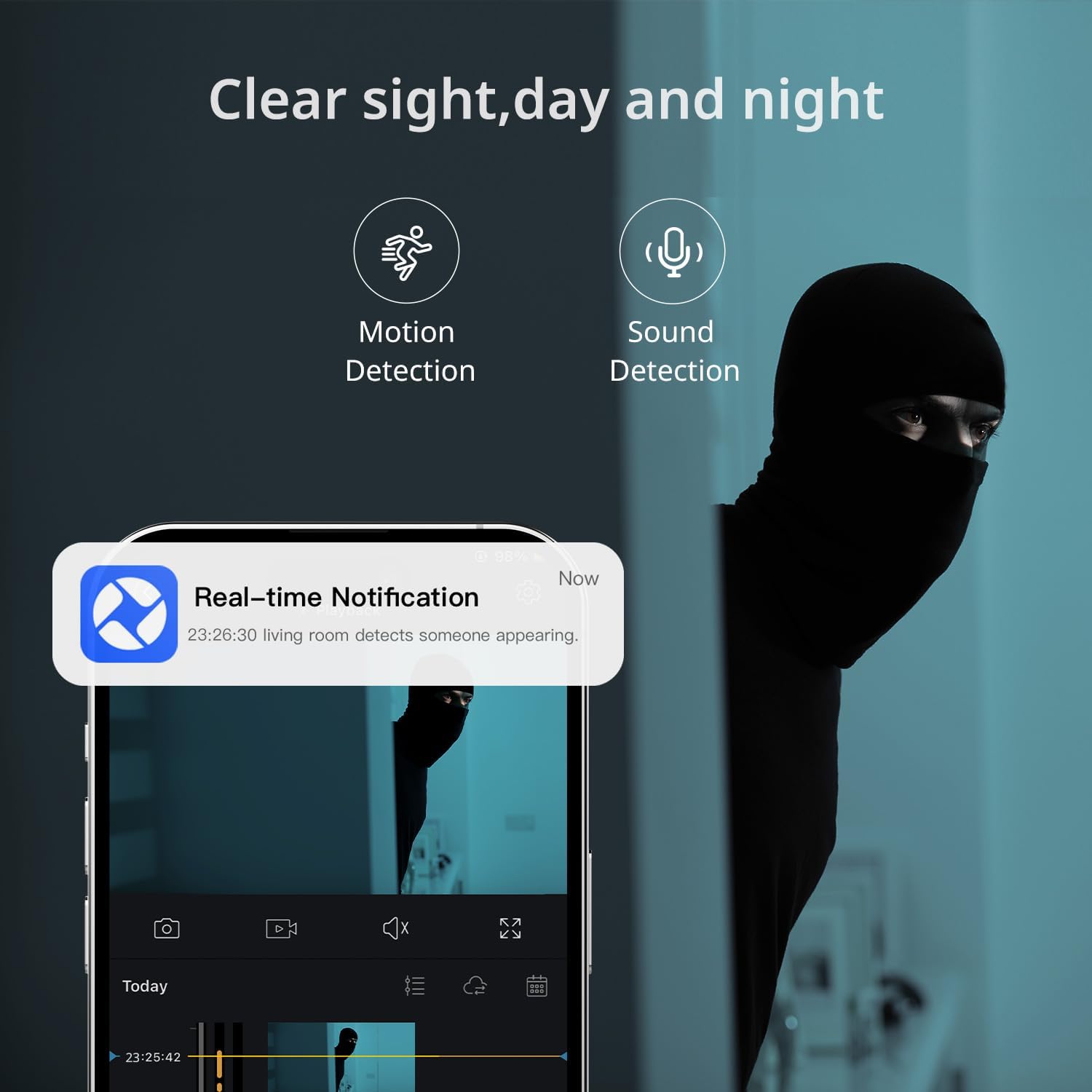
Image: A smartphone displaying a real-time notification for detected motion, illustrating the camera's alert capabilities.
- Two-Way Communication: Equipped with a built-in microphone and speaker, the camera enables seamless two-way audio communication, allowing you to hear and speak through the camera via the app.

Image: A visual representation of the two-way audio feature, showing a dog and a person communicating through the camera.
- Multi-Device Viewing & Sharing: Add multiple cameras to the Ease Life App and view up to four real-time video feeds simultaneously. Share access with up to 10 family members for collective monitoring.
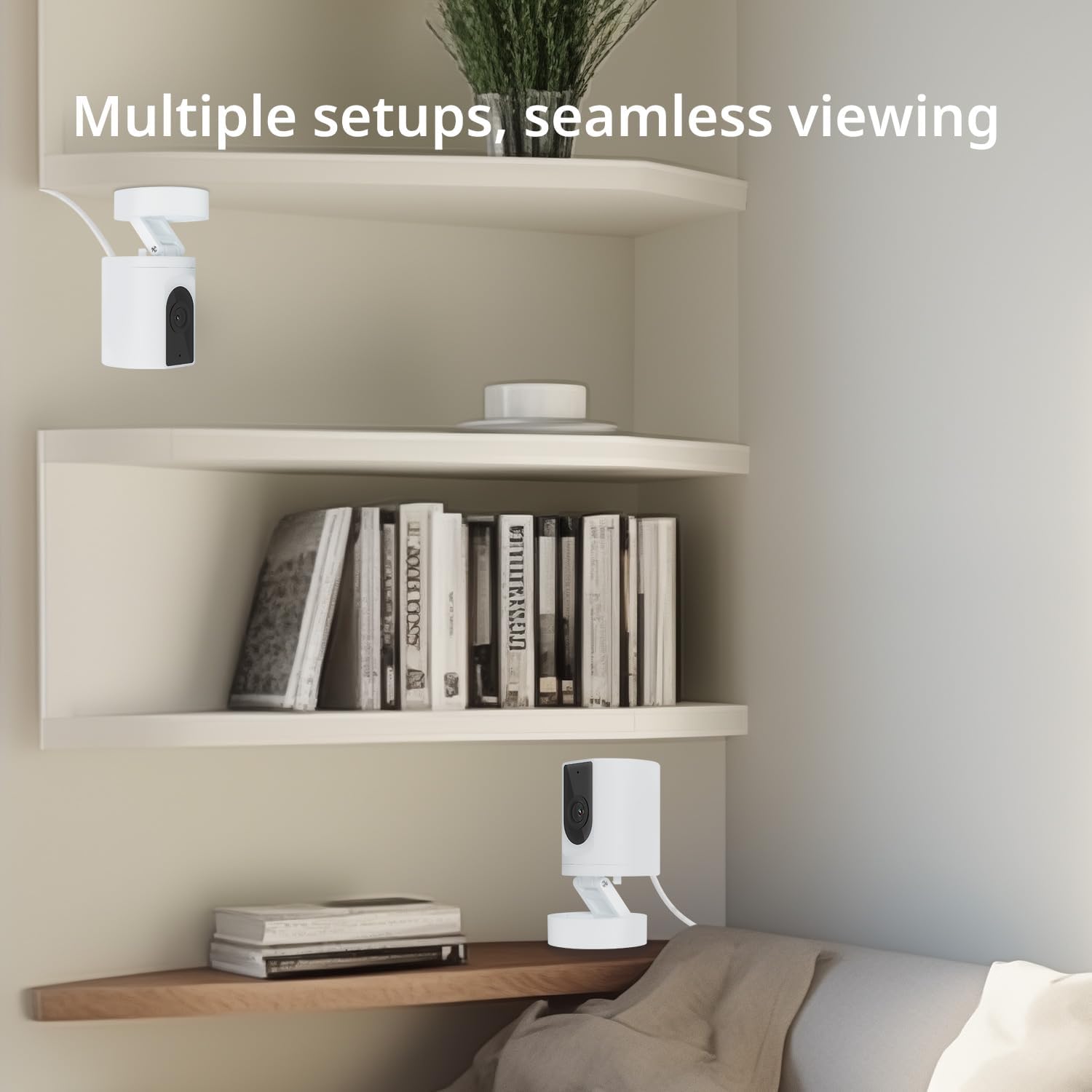
Image: Multiple camera setups in a home environment, showcasing the flexibility for seamless viewing from various angles.
- Flexible Recording Options: Supports local storage via a Micro SD card (up to 128GB, not included) for 24/7 continuous or motion-triggered recording. Optional cloud storage plans are available for additional backup and security.

Image: A smartphone screen showing a timeline of recorded video, with icons representing cloud storage and memory card options.
- Connectivity: Supports 2.4G Wi-Fi and Bluetooth for easy connection.

Image: The camera's connectivity features highlighted, showing support for 2.4G WiFi and Bluetooth, along with a 130-degree viewing angle.
4. Setup Guide
- Power On: Connect the camera to a 5V/1A USB power adapter (not included) using the provided USB to USB-C cable. The camera will power on and indicate readiness for setup.
- Download the App: Search for and download the "Ease Life" app from your smartphone's app store (available for Android and iOS).
- Register/Log In: Open the Ease Life app and create a new account or log in if you already have one.
- Add Device: Tap the "+" icon in the app to add a new device. Select your camera model (K11) from the list.
- Connect to Wi-Fi: Follow the in-app instructions to connect the camera to your 2.4G Wi-Fi network. Ensure your phone is also connected to the same 2.4G Wi-Fi network during setup. The app may guide you to scan a QR code displayed on your phone with the camera lens.
- Pairing Complete: Once connected, the camera will indicate successful pairing, and you can begin live viewing.
5. Operating Instructions
- Live View: Open the Ease Life app and select your camera to view the live feed.
- Two-Way Audio: On the live view screen, tap the microphone icon to speak through the camera. Tap the speaker icon to listen to audio from the camera's location.
- Motion/Sound Detection: Access camera settings in the app to enable or disable motion and sound detection. Adjust sensitivity levels and set specific monitoring zones or schedules as needed.
- Recording & Playback:
- Micro SD Card: Insert a Micro SD card (not included) into the TF slot on the camera (refer to the bottom of the camera for the slot). The camera will automatically begin recording based on your settings (continuous or motion-triggered). To view recordings, access the playback feature in the app.
- Cloud Storage: If you opt for cloud storage, follow the in-app instructions to subscribe and activate the service. Recordings will be securely stored in the cloud.
- Sharing Device: In the app, navigate to the camera settings and find the 'Share Device' option to invite family members to view the camera feed.
6. Maintenance
- Cleaning: Use a soft, dry cloth to clean the camera lens and body. Avoid using harsh chemicals or abrasive cleaners.
- Placement: Ensure the camera is placed in a stable, dry indoor environment, away from direct sunlight, heat sources, and excessive moisture.
- Firmware Updates: Regularly check the Ease Life app for available firmware updates to ensure your camera has the latest features and security enhancements.
7. Troubleshooting
| Problem | Possible Solution |
|---|---|
| Camera won't connect to Wi-Fi. |
|
| Poor image quality. |
|
| Two-way audio has static or is unclear. |
|
| Camera is not recording. |
|
8. Specifications
| Feature | Detail |
|---|---|
| Model Name | K11 |
| Indoor/Outdoor Usage | Indoor |
| Video Capture Resolution | 1080P HD |
| Connectivity Technology | Wireless (2.4G Wi-Fi, Bluetooth) |
| Power Source | Corded Electric (DC 5V/1A, adapter not included) |
| Compatible Devices | Tablet, Smartphone (Android) |
| Special Features | 2-Way Audio, Motion Detection, Night Vision, Cloud/SD Storage |
| Mounting Type | Wall Mount (with included base) |
| Color | White |
| Product Dimensions | 4.72 x 2.8 x 2.8 inches |
| Item Weight | 3.84 ounces |
9. Warranty Information
BoyKeep products are covered by a limited warranty from the date of purchase. Please retain your proof of purchase for warranty claims. For specific warranty terms and conditions, refer to the warranty card included with your product or visit the official BoyKeep website.
10. Customer Support
If you encounter any issues or have questions regarding your BoyKeep Ease Life K11 Indoor Security Camera, please contact our customer support team:
- Email: support@boykeep.com (example email, replace with actual if available)
- Website: Visit the BoyKeep Store on Amazon
Our support team is available to assist you with technical issues, setup guidance, and general inquiries.


