
Introduction
This manual provides comprehensive instructions for the HP 255 Dual Wireless Mouse (Model 8R3U1UT). This device offers dual-mode connectivity via 2.4 GHz wireless (USB-A dongle) and Bluetooth 5.0, ensuring compatibility with Windows, ChromeOS, and macOS. It features a 1600 DPI optical sensor for precise control and is designed for comfortable, ambidextrous use.
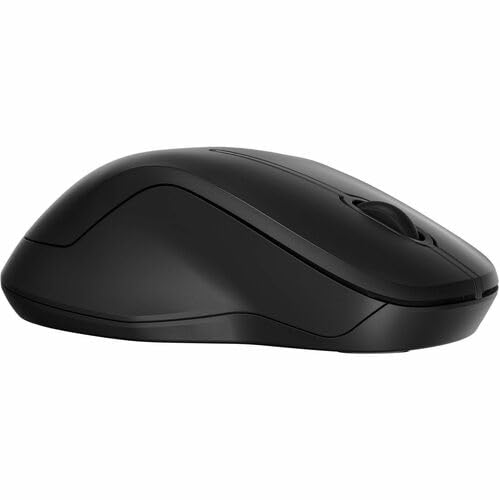
Image: Top-down view of the HP 255 Dual Wireless Mouse, showcasing its symmetrical black design.
Package Contents
Verify that all items are present in the package:
- HP 255 Dual Wireless Mouse
- USB-A Wireless Dongle (typically stored inside the mouse)
- Quick Start Guide (if included)
- Note: 1 AA battery is required and not included.
Setup
1. Battery Installation
- Locate the battery compartment cover on the underside of the mouse.
- Slide or lift the cover to open the compartment.
- Insert one AA battery, ensuring correct polarity (+/-).
- Close the battery compartment cover securely.
The mouse requires one AA battery for operation. Batteries are not included with the product.
2. Connecting via 2.4 GHz Wireless (USB-A Dongle)
- Remove the USB-A wireless dongle from its storage slot, typically located inside the battery compartment or near it.
- Plug the USB-A dongle into an available USB-A port on your computer (Windows, ChromeOS, or macOS).
- Turn on the mouse using the power switch on its underside.
- The mouse should automatically connect to your computer. No additional drivers are typically required for this plug-and-play connection.
3. Connecting via Bluetooth 5.0
- Ensure your computer's Bluetooth is enabled.
- Turn on the mouse using the power switch on its underside.
- Press and hold the Bluetooth pairing button (often located on the underside of the mouse, or combined with the mode switch) until the indicator light starts blinking, indicating pairing mode.
- On your computer, navigate to Bluetooth settings:
- Windows: Settings > Devices > Bluetooth & other devices > Add Bluetooth or other device.
- macOS: System Settings > Bluetooth.
- ChromeOS: Quick Settings panel > Bluetooth.
- Select "HP 255 Mouse" or a similar name from the list of available devices and follow any on-screen prompts to complete pairing.
- The indicator light on the mouse will stop blinking and remain solid (or turn off) once successfully paired.
Operating Instructions
Mouse Buttons
The HP 255 Dual Wireless Mouse features 3 buttons:
- Left Click Button: Primary function for selecting items, opening links, etc.
- Right Click Button: Secondary function for context menus and additional options.
- Scroll Wheel / Middle Button: Used for scrolling through documents and web pages. Pressing it down often acts as a middle-click button for specific functions.
DPI (Dots Per Inch)
The mouse operates at a fixed resolution of 1600 DPI, providing smooth and precise cursor control across various surfaces.
Power Management
- Power Switch: Use the ON/OFF switch on the underside of the mouse to conserve battery life when not in use.
- Automatic Sleep Mode: The mouse enters a low-power sleep mode after a period of inactivity to extend battery life. Move the mouse or click a button to wake it up.
- Battery Life: A single AA battery can provide up to 12 months of usage, depending on usage patterns.
Maintenance
- Cleaning: Use a soft, dry cloth to clean the mouse. For stubborn dirt, slightly dampen the cloth with water. Avoid harsh chemicals or abrasive cleaners.
- Sensor Cleaning: Periodically clean the optical sensor on the underside of the mouse with a soft, lint-free cloth to ensure optimal tracking performance.
- Battery Replacement: Replace the AA battery when the mouse performance degrades or the low battery indicator (if present) illuminates.
- Storage: When not in use for extended periods, turn off the mouse and consider removing the battery to prevent leakage. Store the USB dongle inside the mouse for safekeeping.
Troubleshooting
Mouse Not Responding
- Check Battery: Ensure the AA battery is correctly installed and has sufficient charge. Replace if necessary.
- Power Switch: Verify the mouse is turned ON.
- USB Dongle (2.4 GHz):
- Ensure the dongle is securely plugged into a working USB-A port.
- Try plugging the dongle into a different USB-A port.
- Ensure the dongle is within range (typically up to 10 meters) and not obstructed.
- Bluetooth (Bluetooth 5.0):
- Ensure your computer's Bluetooth is enabled.
- Re-attempt the pairing process as described in the "Connecting via Bluetooth 5.0" section.
- Ensure the mouse is within Bluetooth range (typically up to 10 meters).
- Remove the mouse from your computer's Bluetooth device list and re-pair it.
- Surface: Ensure you are using the mouse on a suitable surface. Highly reflective or transparent surfaces may affect optical tracking.
Erratic Cursor Movement
- Clean the optical sensor on the underside of the mouse.
- Try using the mouse on a different surface.
- Ensure there are no strong electromagnetic interferences nearby.
Specifications
| Model Name | HP 255 Dual Wireless Mouse (8R3U1UT) |
| Connectivity Technology | Wireless (2.4 GHz via USB-A dongle), Bluetooth 5.0 |
| Movement Detection | Optical |
| Movement Resolution | 1600 DPI |
| Number of Buttons | 3 (Left, Right, Scroll Wheel/Middle) |
| Hand Orientation | Ambidextrous |
| Power Source | 1 x AA Battery (not included) |
| Battery Life | Up to 12 months |
| Compatible Operating Systems | Windows, ChromeOS, macOS |
| Material | 50% Post-Consumer Recycled Plastics |
| Dimensions (L x W) | 5.3"L x 3.4"W (approximate) |
Warranty and Support
For warranty information and technical support, please refer to the documentation included with your product or visit the official HP support website:
Keep your purchase receipt and product model number (8R3U1UT) handy when contacting support.


