
Introduction
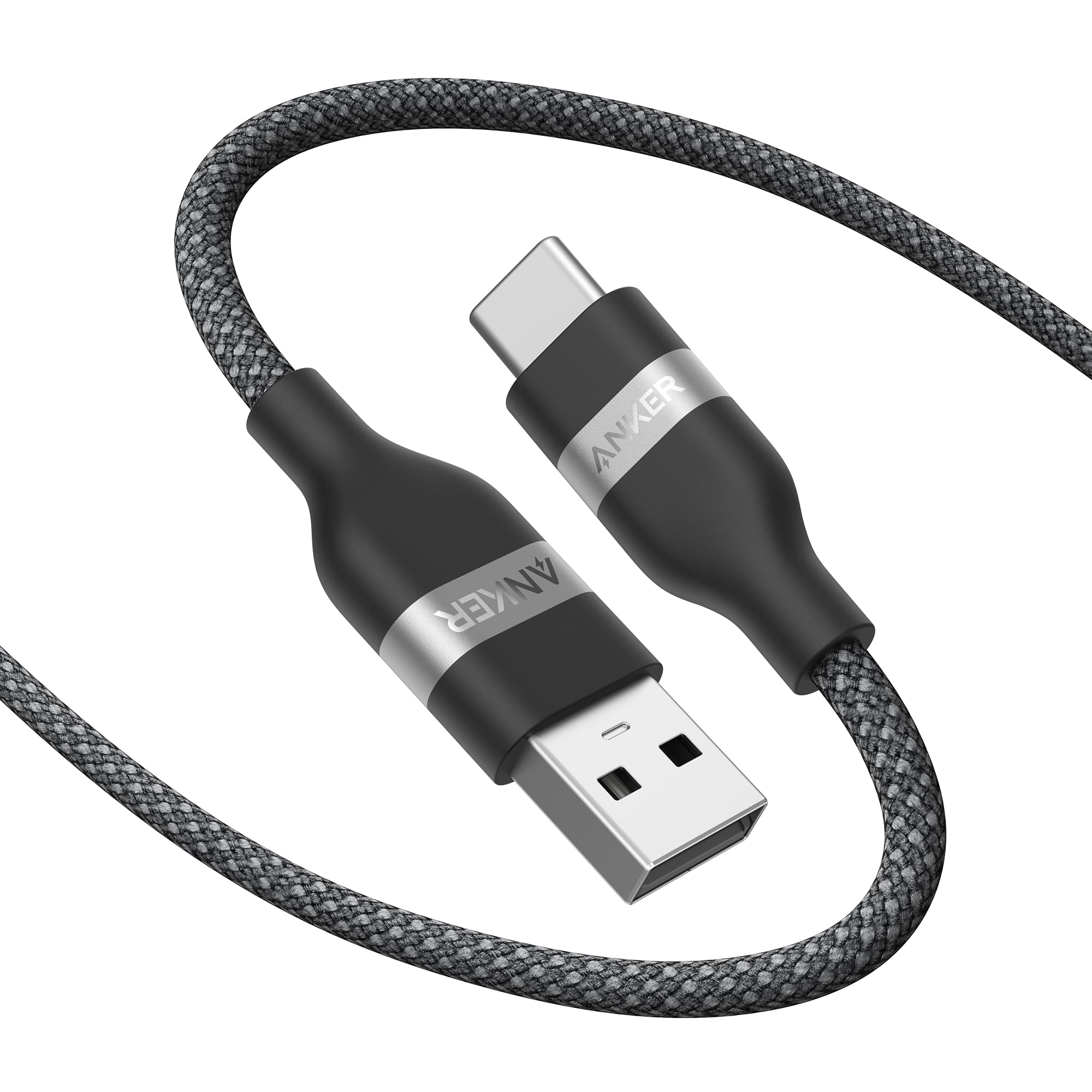
The Anker Nano USB A to USB C Cable is designed for reliable charging and data transfer between USB-A and USB-C compatible devices. This 6-foot black cable features an upcycled-braided cord for enhanced durability and a tangle-resistant design for ease of use and storage. It supports various devices including iPhone 15/16/17 series, Samsung Galaxy Note20, and more.
Setup
To set up your Anker Nano USB A to USB C Cable, follow these simple steps:
- Identify Ports: Locate a standard USB-A port on your power adapter, computer, or car charger. Identify the USB-C port on your smartphone, tablet, or other compatible device.
- Connect USB-A: Insert the USB-A end of the cable into the USB-A port of your power source or host device.
- Connect USB-C: Insert the USB-C end of the cable into the USB-C port of your target device. Ensure a firm connection at both ends.
For in-car use with systems like Apple CarPlay or Android Auto, connect the USB-A end to your vehicle's USB-A data port and the USB-C end to your smartphone.

Video demonstrating the connection of the Anker cable for CarPlay functionality.
Operating
The Anker Nano USB A to USB C Cable facilitates both charging and data transfer for compatible devices.
- Charging: When connected to a compatible power adapter, the cable delivers power to your USB-C device. It supports up to 5V⎓3A (15W) and Quick Charge (QC) 18W Max for efficient charging.
- Data Transfer: The cable supports data transfer speeds of up to 480 Mbps, allowing for quick synchronization of files, photos, and videos between your devices.
- CarPlay/Android Auto: For vehicles equipped with Apple CarPlay or Android Auto, this cable provides a stable and reliable connection for seamless integration of your smartphone's features with your car's infotainment system.

Maintenance
To ensure the longevity and optimal performance of your Anker Nano USB A to USB C Cable, consider the following maintenance tips:
- Storage: The cable features a tangle-resistant design. When not in use, coil the cable neatly and secure it with the included strap or a cable tie to prevent tangles and kinks.
- Cleaning: Use a soft, dry cloth to wipe the cable and connectors. Avoid using harsh chemicals or abrasive materials, which can damage the cable's braided exterior or connectors.
- Handling: Avoid excessive bending or sharp angles, especially near the connectors, to prevent internal wire damage. The cable is engineered to withstand over 35,000 bends, but proper handling extends its lifespan.
- Environment: Store the cable in a cool, dry place away from direct sunlight, extreme temperatures, and moisture.

Troubleshooting
If you encounter issues with your Anker Nano USB A to USB C Cable, refer to the following common problems and solutions:
- Device Not Charging:
- Ensure both ends of the cable are securely connected.
- Verify that the power adapter or USB-A port is functional and providing power.
- Check if your device's charging port is clean and free of debris.
- Confirm that your device is compatible with USB-C charging.
- Slow Charging:
- Ensure your power adapter supports the required charging speed for your device (e.g., Quick Charge).
- Some devices have limited charging speeds via USB-A. Refer to your device's specifications.
- Data Transfer Issues:
- Ensure both devices (e.g., phone and computer) are powered on and configured for data transfer.
- Check your device's settings to allow data access when connected via USB.
- CarPlay/Android Auto Disconnections:
- Ensure your car's infotainment system and smartphone software are up to date.
- Try restarting both your phone and the car's infotainment system.
- Verify that the USB-A port in your car supports data transfer for CarPlay/Android Auto.

Specifications
| Feature | Detail |
|---|---|
| Brand | Anker |
| Model Number | A82G2 |
| Connector Type | USB Type A, USB Type C |
| Cable Type | USB A to USB C Cable |
| Length | 6 feet (1.8 meters) |
| Outer Material | Upcycled-Braided |
| Data Transfer Rate | 480 Mbps |
| Maximum Current | 3 A |
| Maximum Voltage | 5 Volts |
| Special Feature | Soft, Tangle-resistant |
| Durability | 35,000+ bend lifespan |
| Environmental | Constructed from durable, recycled materials |
Warranty and Support
Anker provides a 24-month warranty for this product, ensuring peace of mind regarding its quality and performance. In addition to the cable, your purchase includes a welcome guide.
For technical assistance, warranty claims, or any product-related inquiries, please refer to the contact information provided in your product packaging or visit the official Anker support website. Our friendly customer service team is available to assist you.

