
1. Setup and Installation
This section provides detailed instructions for setting up and installing your Havion K02 Smart Lock. Ensure all components are present before beginning.
1.1 Unboxing and Components Overview
Familiarize yourself with the contents of your Havion K02 package.
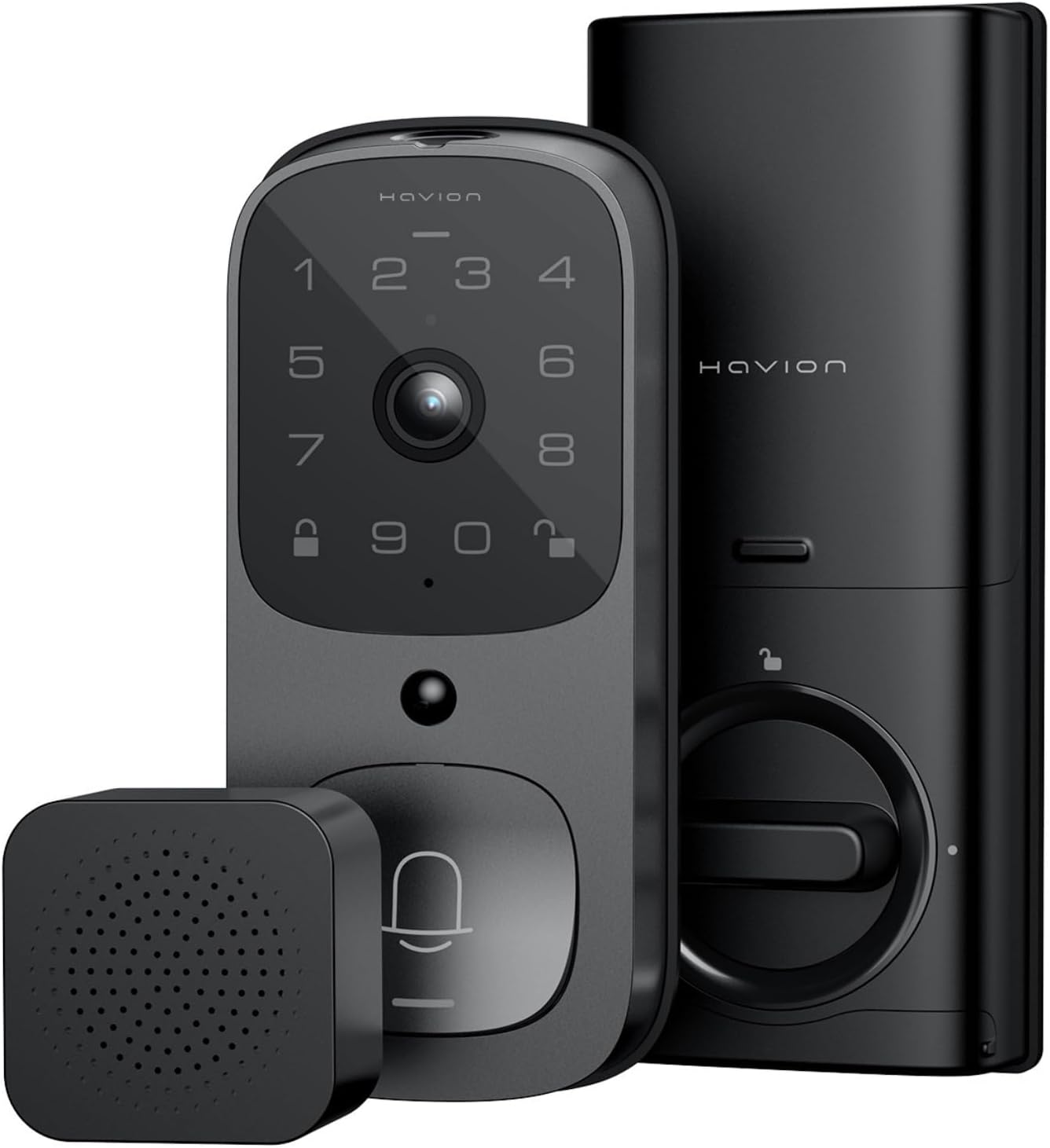
Figure 1: Havion K02 Smart Lock, Camera, and Chime.

Figure 2: The Havion K02 combines a doorbell, security camera, and smart lock into one device.
1.2 Pre-Installation Steps
- Before installation, measure the distance between the lock cylinder.
- To fit the backset 60mm or 70mm, ensure the word "Top" on the deadbolt faces up.
- If the door hole is 54mm, direct installation of the door lock is possible.
- Before installation, rotate the tail of the lock cylinder to the horizontal position.
1.3 Physical Installation
The Havion K02 is designed for easy installation and is suitable for door thicknesses from 1-3/8" to 2-1/8", working with both left and right door directions.
- Install the lock cylinder into the door frame.
- Pass the connection wire through the button of the cylinder. Align the protruding position of the latch with the concave position of the lock body and insert.
- Take two screws (Type A or E) and pass them through the mounting plate. Tighten them to secure the Exterior Assembly.
- Secure the door lock with 2 screws (Type B).
- Install the battery pack.
- Put on the battery cover.
- Install the decorative cover.
Video 1: Havion K02 Deadbolt Lock Installation Guide. This video demonstrates the step-by-step process for installing the deadbolt lock component.
Video 2: Havion K02 Smart Door Knob Installation Video. This video provides visual guidance for installing the smart door knob.
1.4 App Registration and Wi-Fi Connection
Download the Havion app from your device's app store to register your device and connect to Wi-Fi.
Video 3: Havion K02 APP Registration Installation. This video guides you through the app registration and initial setup process.
Video 4: Havion K02 Guide to Connecting Devices to WIFI. This video demonstrates how to connect your smart lock to your home Wi-Fi network.
2. Operating Your Smart Lock
The Havion K02 offers multiple convenient ways to access your home and monitor activity.
2.1 Unlocking Methods
Choose the method that best suits your needs:
- App Control: Unlock your door remotely via the Havion app.
- Fingerprint: Use the integrated fingerprint sensor for quick and secure access.
- Password: Enter your personalized password on the keypad.
- Physical Key: A traditional key is provided for manual unlocking as a backup.

Figure 3: Overview of multiple unlocking methods including fingerprint, password, smart app, and physical key.
2.2 Monitoring and Communication
Stay connected and aware of activity at your doorstep.
- 2K QHD Camera: Provides clear video with a 170° wide-angle lens.
- Enhanced Night Vision: See clearly up to 33 feet in low-light conditions.
- Two-Way Audio: Communicate with visitors directly through the app.
- Real-time Alerts: Receive push notifications for motion detection and doorbell rings.
- Guest Codes: Manage visitor access by creating temporary or permanent guest codes via the app.

Figure 4: Two-way audio feature for clear communication with visitors.

Figure 5: The Havion app allows remote unlocking and real-time notifications for activity at your door.
2.3 Smart Home Integration
The Havion K02 works with Amazon Alexa and Google Assistant for seamless integration into your smart home ecosystem.
3. Maintenance
3.1 Battery Management
The smart lock is powered by a 10,000mAh Lithium Polymer battery, providing up to 270 days of use per charge (based on 10 uses per day). An emergency charge port is included for convenience.
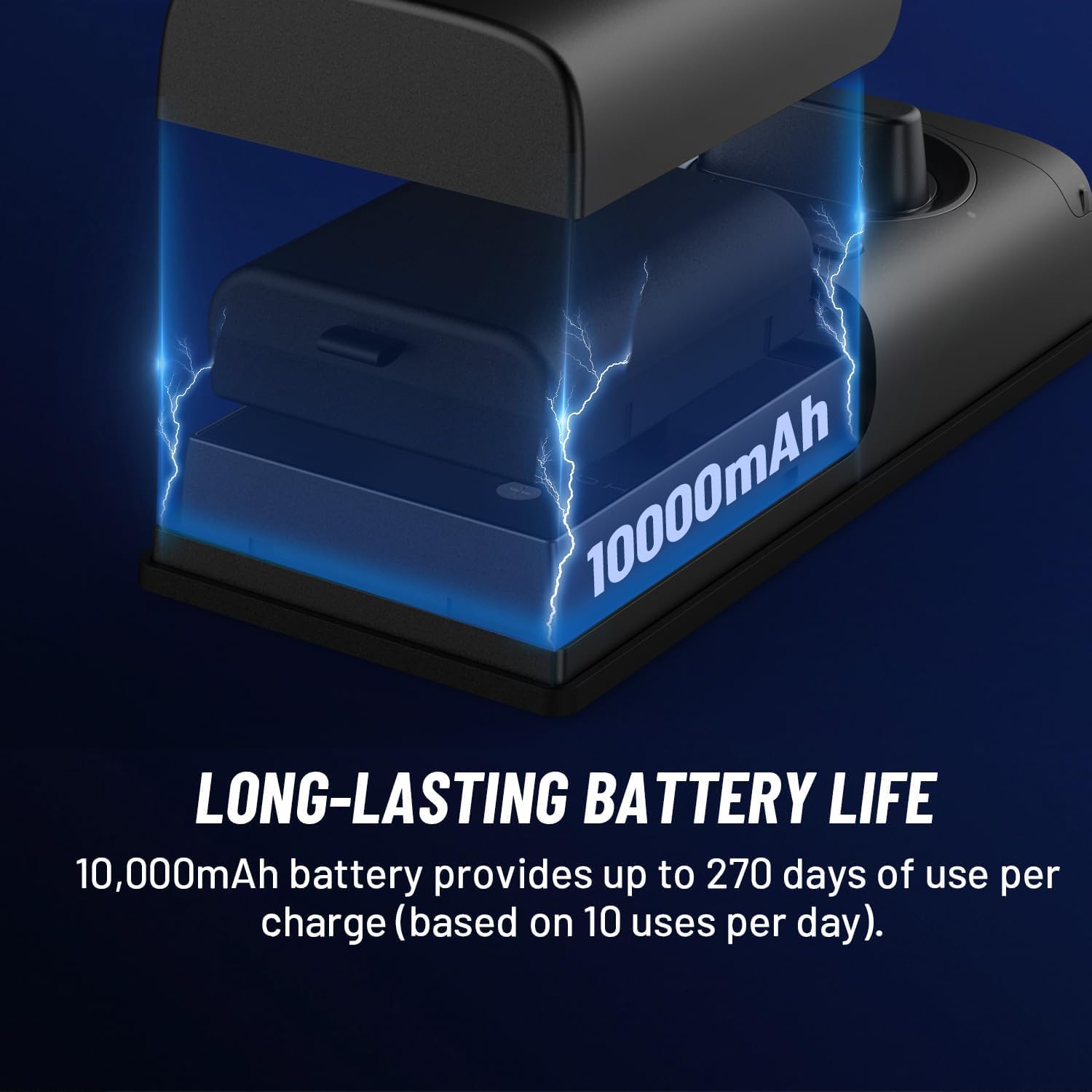
Figure 6: The 10,000mAh battery provides extended usage between charges.
3.2 Durability and Environmental Conditions
The device features IP65 waterproof rating and operates in temperatures from -22°F to 140°F, ensuring reliable performance in various weather conditions.
4. Troubleshooting
4.1 False Alarm Reduction
The Havion K02 utilizes PIR and radar dual motion sensors to significantly reduce false alarms by up to 95%. This dual detection system enhances accuracy and optimizes battery life.

Figure 7: The additional radar sensor combined with PIR dual motion sensors prevents false alarms.
4.2 Connectivity Issues
If you experience connectivity problems, refer to the 'Guide to Connecting Devices to WIFI' video in the Setup section or consult the Havion app for troubleshooting steps. Ensure your device is within 30 feet of your 2.4GHz Wi-Fi router for optimal signal strength.
5. Specifications
| Feature | Detail |
|---|---|
| Model Name | K02 |
| Indoor/Outdoor Usage | Indoor, Outdoor |
| Power Source | Battery Powered (10,000mAh Lithium Polymer) |
| Connectivity | Wi-Fi (2.4GHz), Bluetooth |
| Camera Resolution | 2K QHD (1920p) |
| Camera View Angle | 170° Wide-Angle |
| Night Vision | Up to 33 feet |
| Motion Detection | PIR & Radar Dual Sensors |
| Local Storage | 32GB eMMC Built-in |
| Water Resistance | IP65 |
| Operating Temperature | -22°F to 140°F |
| Door Thickness Compatibility | 1-3/8" to 2-1/8" |
| Dimensions (L x W x H) | 6.2 x 2.7 x 1.1 inches |
| Weight | 4.09 pounds |
6. Warranty and Support
The Havion K02 Smart Lock comes with a 2-year warranty. In case of any issues, the policy is 'replace only' rather than repair. For detailed warranty information and further support, please refer to the official Havion website or contact customer service.
