
1. Introduction
The FiiO K11 is a compact desktop Digital-to-Analog Converter (DAC) and Headphone Amplifier designed to deliver high-fidelity audio. It features a fully-differential 24-bit R2R resistor array, offering a unique sound signature. The K11 incorporates a powerful amplifier section, dual operating modes (NOS/OS), and versatile output options to enhance your listening experience.

2. Package Contents
Before proceeding with setup, please verify that all items are present in the package:
- FiiO K11 R2R Unit
- Power Adapter
- Power Cable
- USB Type-C to USB Type-A Data Cable
- Headphone Adapter (e.g., 6.35mm to 3.5mm)
- Quick Start Guide
- Warranty Card
3. Setup Instructions
3.1 Power Connection
- Connect the power adapter to the FiiO K11's power input port.
- Plug the power cable into a suitable electrical outlet.
3.2 Audio Input Connection
The FiiO K11 supports various digital audio inputs:
- USB Input: Connect your computer or other USB audio source to the K11 using the provided USB Type-C to USB Type-A cable.
- Coaxial Input: Use a coaxial cable to connect a digital audio source.
- Optical Input: Use an optical cable to connect a digital audio source.
3.3 Audio Output Connection
The FiiO K11 offers multiple audio output options:
- Headphone Outputs:
- 6.35mm Single-Ended: For standard headphones.
- 4.4mm Balanced: For headphones with a balanced connection.
- Line Out (RCA): Connect to an external amplifier or active speakers using RCA cables.
3.4 Initial Configuration
Upon first use or after a reset, you may need to configure basic settings using the multi-function knob:
- Gain Setting: The K11 features three-level gain modes. Adjust the gain to match the sensitivity of your headphones. For most headphones, a medium gain setting is suitable. For high-impedance or low-sensitivity headphones, a high gain setting may be necessary.
- Output Mode: Select between Headphone Out (PO) with adjustable volume or Line Out (LO) for fixed-level output to external amplifiers.
- Sampling Mode (NOS/OS): Choose between Non-Oversampling (NOS) and Oversampling (OS) modes. NOS mode maintains the original sampling rate for a more organic sound, while OS mode upsamples to 384kHz for increased detail and clarity. Experiment to find your preferred sound signature.

4. Operating Instructions
4.1 Multi-function Knob Operation
The FiiO K11 utilizes a single multi-function knob for most operations:
- Power On/Off: Press and hold the knob to power the device on or off.
- Volume Control: Rotate the knob clockwise to increase volume and counter-clockwise to decrease volume. The K11 uses an NJW1195A precise digital volume chipset for accurate adjustment.
- Menu Navigation: Short press the knob to enter the menu. Rotate to scroll through options, and short press again to select.
- Input Selection: Within the menu, you can select the desired audio input (USB, Coaxial, Optical).
4.2 Display Information
The custom, high-contrast LCD screen on the K11 provides real-time information:
- Sampling Rate: Displays the current audio sampling rate (e.g., 192kHz, DSD256).
- Volume Level: Shows the current volume setting.
- Gain Setting: Indicates the active gain level (Low, Medium, High).
- Output Mode: Displays whether Headphone Out (PO) or Line Out (LO) is active.

4.3 NOS/OS Dual Operating Modes
The K11 offers two distinct operating modes for signal processing:
- NOS (Non-Oversampling) Mode: This mode processes the audio signal at its original sampling rate. It aims to preserve the authentic sound, offering a more natural and musical presentation.
- OS (Oversampling) Mode: This mode upsamples all incoming audio signals to 384kHz for processing. It is designed to deliver enhanced detail, clarity, and a more refined sound.
These modes are freely switchable via the device's menu, allowing users to choose based on their preference and the audio content.

5. Maintenance
To ensure the longevity and optimal performance of your FiiO K11, follow these maintenance guidelines:
- Cleaning: Use a soft, dry cloth to wipe the exterior of the device. Avoid using liquid cleaners or abrasive materials, as they may damage the finish or internal components.
- Environment: Operate and store the K11 in a clean, dry environment, away from direct sunlight, extreme temperatures, and high humidity.
- Ventilation: Ensure adequate ventilation around the device to prevent overheating. Do not block any ventilation openings.
- Cable Management: Handle cables carefully. Avoid excessive bending or pulling, which can damage connectors or internal wiring.
6. Troubleshooting
If you encounter issues with your FiiO K11, refer to the following common troubleshooting steps:
- No Sound Output:
- Check all cable connections (power, input, output).
- Ensure the correct input source is selected on the K11.
- Verify that the volume is not set to minimum or muted.
- Confirm that your headphones or speakers are properly connected and functional.
- Cracking Noise on PC (High Sample Rates):
- If experiencing cracking or distortion when using high sample rates (e.g., 32-bit/384kHz) on a PC, try installing the latest FiiO USB drivers from the official FiiO website.
- Alternatively, reduce the audio output settings on your PC to 24-bit/192kHz or lower to see if the issue resolves.
- Coaxial Input Dropouts (192/24):
- Some users may experience brief dropouts when using the coaxial input at 192kHz/24-bit. Try using a different coaxial cable or switch to the optical input if available.
- Reducing the sample rate of the source device may also resolve this.
- Idle Standby Not Working / Display Issues:
- If the idle standby function does not activate or the display shows signal sampling rate when no signal is present, check for firmware updates on the FiiO website. These issues may be addressed in future firmware revisions.
- High Line Out Voltage:
- The Line Out (LO) mode may output a high voltage (above 2V), which could cause clipping in some preamplifiers. If this occurs, switch the K11 to variable output mode (PO) and reduce the volume to an appropriate level (e.g., around -96dB) before connecting to your preamp.
7. Specifications
| Feature | Specification |
|---|---|
| Brand | FiiO |
| Model | K11 |
| Material | Aluminum Alloy |
| Item Weight | 2.13 pounds |
| Package Dimensions | 9.65 x 7.76 x 2.44 inches |
| Interface Type | USB, Coaxial, Optical |
| Audio Output Jacks | 6.35mm (Single-Ended), 4.4mm (Balanced), RCA (Line Out) |
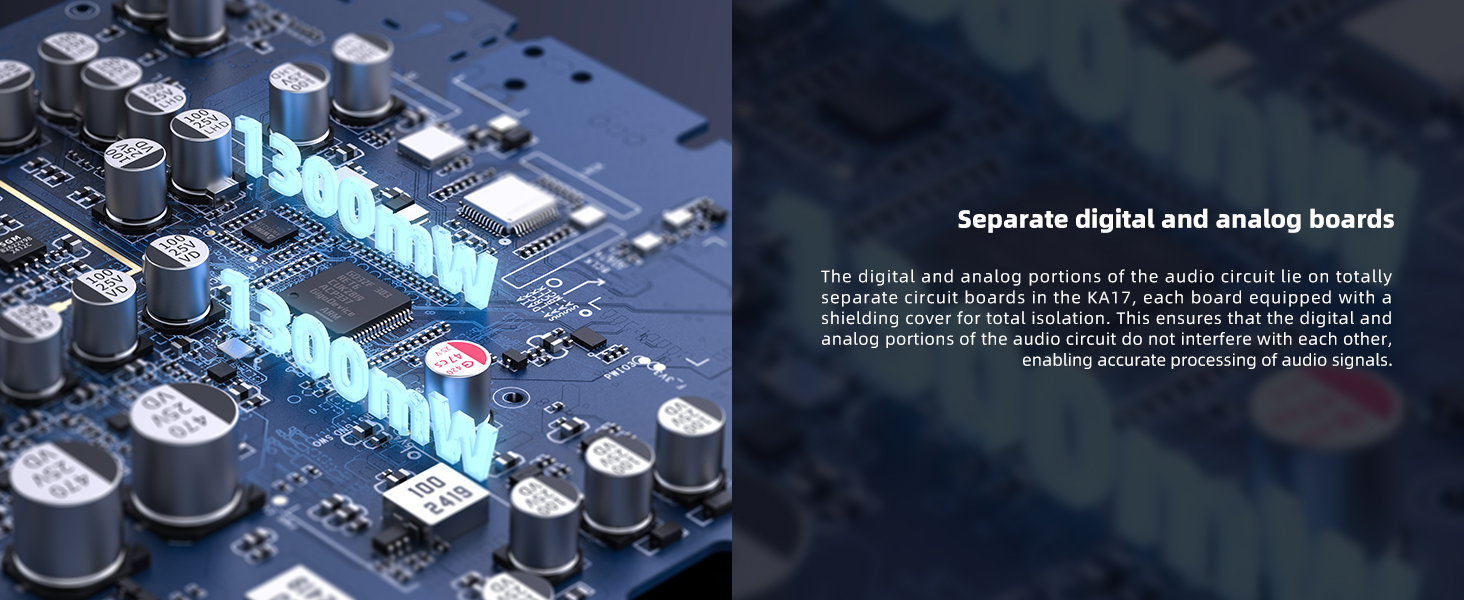
| Maximum Output Power | Up to 1300mW x 2 |
| Supported PCM | Up to 32-bit/384kHz |
| Supported DSD | DSD256 (Native mode required) |
| DAC Architecture | Fully-Differential 24-Bit R2R Resistor Array |
| Operating Modes | NOS (Non-Oversampling), OS (Oversampling) |
| Power Supply | External 12V DC |

8. Warranty and Support
8.1 Warranty Information
For detailed warranty terms and conditions, please refer to the warranty card included in your product package or visit the official FiiO website. Warranty coverage typically includes manufacturing defects for a specified period from the date of purchase.
8.2 Customer Support
Should you require further assistance, technical support, or have questions not covered in this manual, please contact FiiO customer support through their official website:
- FiiO Official Website: www.fiio.com
Please have your product model (K11) and purchase information ready when contacting support.


