
Thomson 145G
Thomson Streaming Stick 4K 145G User Manual
Model: 145G
Introduction
This user manual provides comprehensive instructions for the setup, operation, maintenance, and troubleshooting of your Thomson Streaming Stick 4K 145G. Please read this manual carefully before using the device to ensure proper functionality and to avoid damage.

Image: The Thomson Streaming Stick 4K 145G alongside its remote control, illustrating the main components of the product.
What's in the Box
Upon unboxing your Thomson Streaming Stick 4K 145G, please verify that all components are present:
- Thomson Streaming Stick 4K 145G
- Remote Control
- Power adapter
- USB Cable (for power)
- HDMI Extender (optional, may be included)
- Quick Start Guide
Setup Guide
Follow these steps to set up your Thomson Streaming Stick 4K 145G:
- Connect the Streaming Stick: Plug the Thomson Streaming Stick 4K 145G directly into an available HDMI port on your television. If space is limited, use an HDMI extender if provided.
- Connect Power: Connect the provided USB cable to the power input port on the streaming stick and then connect the other end to the power adapter. Plug the power adapter into a wall outlet.
- Power On TV and Select Input: Turn on your television and select the HDMI input to which the streaming stick is connected.
- Initial Setup: The device will boot up and guide you through the initial setup process on your TV screen. This typically includes:
- Language selection.
- Connecting to your Wi-Fi network.
- Signing in with your Google account (required for Google TV features and app downloads).
- Accepting terms and conditions.
- Remote Control Pairing: The remote control should automatically pair with the device. If not, follow the on-screen instructions or press and hold the Home and Back buttons simultaneously on the remote until pairing is complete.
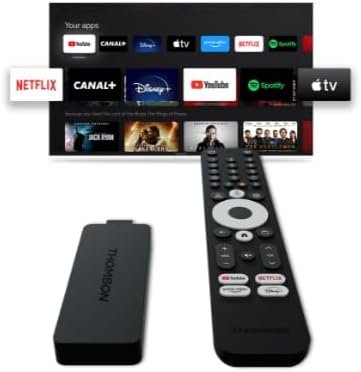
Image: A detailed view of the Thomson Streaming Stick 4K 145G, highlighting its HDMI connector for TV input and the power input port.
Operating Instructions
Once set up, you can begin using your Thomson Streaming Stick 4K 145G to access various streaming services and content.
Remote Control Functions
Familiarize yourself with the remote control buttons:
- Power Button: Turns the device on or off (standby).
- Google Assistant Button: Activates voice commands for search and control.
- Navigation Pad (Circle): Use up, down, left, right to navigate menus.
- OK/Select Button: Confirms selections.
- Back Button: Returns to the previous screen.
- Home Button: Returns to the Google TV home screen.
- Volume Buttons (+/-): Adjusts TV volume.
- Mute Button: Mutes TV volume.
- App Shortcut Buttons: Dedicated buttons for Netflix, Disney+, YouTube, and Prime Video for quick access.

Image: The Thomson Streaming Stick 4K 145G and its remote control, showing the layout of the buttons on the remote.
Navigating Google TV
The Google TV interface organizes content from your streaming services into a single, personalized experience.
- Home Screen: Displays recommended content, installed apps, and your watchlist.
- Apps: Access all your installed applications. You can download more from the Google Play Store.
- Library: Find your purchased movies and TV shows from Google Play.
- Search: Use the search icon or Google Assistant button to find content by title, genre, or actor.
To stream content, simply select an app or a recommended title from the home screen. Ensure you have an active subscription for paid services.
Maintenance
Proper maintenance ensures the longevity and optimal performance of your streaming stick.
- Cleaning: Use a soft, dry, lint-free cloth to clean the device and remote control. Do not use liquid cleaners or aerosols.
- Ventilation: Ensure the streaming stick is placed in a well-ventilated area and not covered, as proper airflow prevents overheating.
- Software Updates: The device will automatically check for and install software updates. Ensure it remains connected to the internet for these updates.
- Storage: When not in use for extended periods, store the device in a cool, dry place away from direct sunlight.
Troubleshooting
If you encounter issues with your Thomson Streaming Stick 4K 145G, refer to the following common problems and solutions:
| Problem | Possible Cause | Solution |
|---|---|---|
| No power/Device not turning on | Power adapter not connected, faulty outlet, or damaged cable. | Ensure power adapter is securely plugged into the device and a working wall outlet. Try a different outlet. |
| No signal on TV | Incorrect HDMI input selected, loose HDMI connection, or device not powered on. | Verify the TV is on the correct HDMI input. Re-seat the HDMI cable. Ensure the streaming stick has power. |
| Remote control not responding | Batteries low/dead, remote not paired, or obstruction. | Replace batteries. Re-pair the remote by holding Home and Back buttons. Ensure no obstructions between remote and device. |
| Buffering or poor streaming quality | Weak Wi-Fi signal, internet speed issues, or network congestion. | Move the device closer to the Wi-Fi router. Restart your router. Check your internet speed. Reduce other network activity. |
| Apps crashing or freezing | Outdated app, insufficient memory, or software glitch. | Restart the device. Check for app updates in the Google Play Store. Clear app cache (Settings > Apps > [App Name] > Clear cache). |
If the issue persists after trying these solutions, you may need to perform a factory reset (Settings > System > About > Factory reset). Note that a factory reset will erase all data and settings on the device.
Specifications
Key technical specifications for the Thomson Streaming Stick 4K 145G:
- Model Name: STREAMING STICK 4K THOMSON 145G
- Model Number: 145G
- Resolution: 4K UHD
- Connectivity: Wi-Fi, USB, Ethernet (via adapter), HDMI, IR
- Connector Type: HDMI
- Supported Internet Services: Netflix, Disney+, Prime Video, YouTube, Spotify (and others via Google Play Store)
- Controller Type: Remote Control
- Form Factor: TV Stick
- Colour: Black
- Product Dimensions: 1.3 x 9.3 x 3.4 cm
- Weight: 460 g
- Manufacturer: Thomson
- First Available: 8 Aug. 2024
Warranty and Support
For warranty information and technical support, please refer to the documentation included with your purchase or visit the official Thomson support website. Keep your proof of purchase for warranty claims.
Manufacturer: Thomson
Guaranteed software updates until: Unknown (as per product data)
Related documents145G


Ask a question about this manual
Ask about setup, troubleshooting, compatibility, parts, safety, or missing instructions. Manuals+ will review the question and use this page’s manual context to help answer it.