
Raddy N80
Raddy N80 Smart Wi-Fi Weather Station User Manual
Model: N80
1. Introduction
Thank you for choosing the Raddy N80 Smart Wi-Fi Weather Station. This device provides comprehensive real-time weather data and forecasts, both indoors and outdoors. With its large color display and seamless integration with the Tuya smart home application, you can easily monitor temperature, humidity, wind, pressure, air quality, and more. This manual will guide you through the setup, operation, and maintenance of your new weather station.
2. Safety Information
- Read all instructions carefully before using the device.
- Do not expose the main unit to extreme temperatures, direct sunlight, or moisture.
- The outdoor sensor is designed for outdoor use but should be protected from direct heavy rain and snow for optimal longevity.
- Use only the provided power adapter for the main unit.
- Keep the device away from strong electromagnetic fields.
- Do not attempt to disassemble or repair the device yourself. Contact customer support if issues arise.
- Dispose of batteries responsibly according to local regulations.
3. Package Contents
- Raddy N80 Main Weather Station Unit
- Wireless Outdoor Sensor
- Power Adapter for Main Unit
- User Manual (this document)
4. Product Overview

Figure 4.1: Raddy N80 Main Unit and Wireless Sensor
This image shows the Raddy N80 weather station's main display unit on the left and its accompanying wireless outdoor sensor on the right, along with a smartphone displaying the connected app interface.

Figure 4.2: Main Display Features
This image highlights the various sections of the Raddy N80's 8-inch color display, with numbered labels pointing to Moon Phase, Humidity, Network Time, Sunrise/Sunset Time, PM2.5, AQI, UVI, Temperature, Feels Like Temp, Wind Direction/Speed, Barometric Pressure, and 5 Days Weather Forecast.
4.1 Main Unit
The main unit features an 8-inch color display that shows all relevant weather data. It is powered by the included power adapter and can also use AAA batteries for backup (backlight turns off after 8 seconds on battery power). It connects to your Wi-Fi network to retrieve network time and advanced weather forecasts.
4.2 Wireless Outdoor Sensor
The wireless outdoor sensor measures outdoor temperature and humidity. It transmits data wirelessly to the main unit. Ensure it is placed in a shaded, well-ventilated area away from direct sunlight and precipitation for accurate readings.
5. Setup
5.1 Powering On
- Connect the power adapter to the main unit and plug it into a power outlet. The unit will power on and emit a beep.
- Insert 2 AAA batteries (not included) into the wireless outdoor sensor, observing polarity.
- The main unit and outdoor sensor will automatically attempt to pair. Once paired, the outdoor temperature and humidity will appear on the main display.

Figure 5.1: Powering the Main Unit and Sensor
This image illustrates the two power options for the Raddy N80: continuous backlight with the power adapter and temporary backlight (8 seconds) with AAA batteries.
5.2 App Installation and Wi-Fi Connection
The Raddy N80 connects to the Tuya Smart app for enhanced features and control. Only compatible with 2.4 GHz Wi-Fi networks.
- Download the Tuya App: Search for "Tuya Smart" in the App Store (iOS) or Google Play (Android), install the app, create an account, and log in.
- Power On the Device: Connect the power adapter to the main unit. The device will power on and beep. After 3 seconds, it will enter Wi-Fi pairing mode and display "AP 01". If it does not enter pairing mode automatically, press and hold the button with the "Sun/Down" graphic for 3 seconds to start pairing manually.
- Add Device in App: Open the Tuya Smart app, tap the "+" icon in the top right corner, and select "Add Device". The app will automatically detect the weather station; select it from the list.
- Complete Pairing: Follow the prompts to enter your Wi-Fi network name and password. Tap "Done" once pairing is complete.
- Successful Connection: The weather station is now connected to the Tuya Smart app.

Figure 5.2: Tuya App Connection Overview
This image provides a visual guide to connecting the Raddy N80 to the Tuya Smart app, showing the main unit, the app interface, and the Wi-Fi connection process.

Figure 5.3: Tuya App Interface
A screenshot of the Tuya Smart app showing the main weather station dashboard with current temperature and humidity readings.

Figure 5.4: Tuya App Device List
Another screenshot of the Tuya Smart app, displaying a list of connected devices, including the Raddy N80 weather station.
6. Operating Instructions
6.1 Understanding the Display
The 8-inch color display provides a wealth of information at a glance. Refer to Figure 4.2 for a visual guide to the display sections.
| Label No. | Information Displayed |
|---|---|
| 1 | Moon Phase |
| 2 | Humidity (Indoor/Outdoor) |
| 3 | Network Time (Auto-updated via Wi-Fi) |
| 4 | Sunrise/Sunset Time |
| 5 | PM2.5 (Particulate Matter 2.5) |
| 6 | AQI (Air Quality Index) |
| 7 | UVI (UV Index) |
| 8 | Temperature (Indoor/Outdoor) |
| 9 | Feels Like Temperature |
| 10 | Wind Direction/Speed |
| 11 | Barometric Pressure |
| 12 | 5 Days Weather Forecast |
6.2 App Control Features
Once connected to the Tuya Smart app, you can manage various settings and view data remotely.
- Data Viewing: Access all temperature and humidity channel data.
- Unit Settings: Easily switch between temperature units (°C/°F) and other measurement units.
- Backlight Control: Adjust backlight levels.
- Alarm Management: Set and manage up to four customizable alarms.
- Data Storage: The app stores data for up to 1 year.
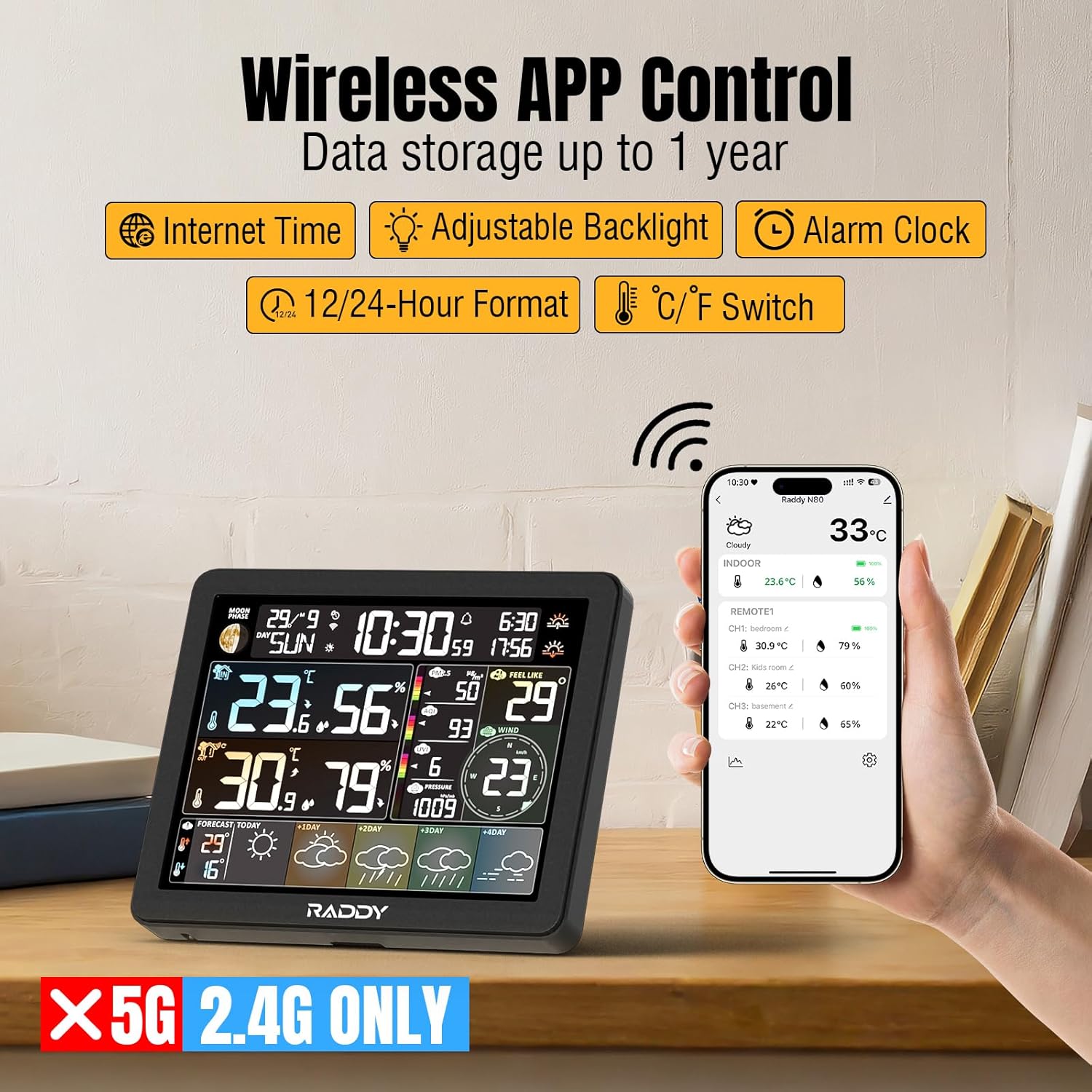
Figure 6.1: Wireless App Control
This image illustrates the Raddy N80's wireless app control capabilities, showing the weather station display alongside a smartphone running the Tuya Smart app, emphasizing features like Internet Time, Adjustable Backlight, Alarm Clock, 12/24-Hour Format, and °C/°F Switch.
6.3 Weather Forecasts
The Raddy N80 provides automatic 5-day weather forecasts once connected to Wi-Fi. It updates the current day's weather and provides forecasts for the next four days, helping you plan your week.

Figure 6.2: Real-Time Weather Updates
This image shows the Raddy N80 display alongside a smartphone app, both displaying real-time weather updates and a 5-day forecast, with various weather icons indicating different conditions.
6.4 Backlight Adjustment
The display features five levels of brightness and automatic light detection for optimal readability in various environments.

Figure 6.3: Backlight Levels
This image demonstrates the five adjustable backlight levels (High, Middle, Low, Night, Closed) of the Raddy N80 display, along with an icon indicating automatic light detection.
6.5 Setting Alarms
You can configure up to four customizable alarms directly from the Tuya Smart app. A convenient snooze function is also available.

Figure 6.4: Alarm Settings
This image shows a smartphone displaying the alarm settings within the Tuya Smart app, allowing users to set up to four customized alarms, with a close-up of the snooze function button on the weather station.
7. Maintenance
- Clean the display and unit surfaces with a soft, dry cloth. Do not use abrasive cleaners or solvents.
- Ensure the outdoor sensor is free from debris, dust, or spiderwebs for accurate readings.
- Replace batteries in the outdoor sensor when the low battery indicator appears on the main unit.
- If storing the device for an extended period, remove batteries from both units.
8. Troubleshooting
| Problem | Possible Cause | Solution |
|---|---|---|
| No display on main unit | Power adapter not connected or faulty. | Ensure power adapter is securely connected and plugged into a working outlet. |
| Outdoor sensor not displaying data | Batteries low or incorrectly inserted; sensor out of range; interference. | Check/replace sensor batteries. Move sensor closer to the main unit. Avoid placing near large metal objects or electronics. Re-pair sensor if necessary. |
| Wi-Fi connection fails | Incorrect Wi-Fi password; 5GHz network; weak signal. | Ensure correct 2.4 GHz Wi-Fi password. Move unit closer to router. Restart router and weather station. |
| Inaccurate readings | Sensor exposed to direct sunlight/rain; poor ventilation. | Relocate outdoor sensor to a shaded, well-ventilated area. Ensure indoor unit is not near heat sources or vents. |
| Alarms not sounding | Alarm not enabled in app; volume too low. | Verify alarm settings in the Tuya Smart app. Check device volume settings if applicable. |
9. Specifications
| Feature | Detail |
|---|---|
| Model Number | N80 |
| Display Size | 8 inches (color screen) |
| Connectivity Technology | Wi-Fi (2.4 GHz only) |
| Power Source (Main Unit) | Power Adapter (included) |
| Power Source (Outdoor Sensor) | Batteries (not included) |
| Temperature Accuracy | 1 °C |
| Special Features | Large screen, Clock, Adjustable brightness, Wireless |
| Package Dimensions | 32.9 x 26.5 x 7.2 cm; 560 grams |
| Manufacturer | Raddy |
| Country of Origin | China |

Figure 9.1: Product Dimensions
This image provides the physical dimensions of the Raddy N80 main unit (17.3cm x 14cm x 2.8cm) and the wireless sensor (9.5cm x 4.8cm), along with the power adapter.
10. Warranty and Support
The Raddy N80 Smart Wi-Fi Weather Station comes with a standard manufacturer's warranty. Please refer to the warranty card included in your package or visit the official Raddy website for detailed warranty terms and conditions.
For technical support, troubleshooting assistance, or any inquiries regarding your product, please contact Raddy customer service through their official website or the contact information provided in your product packaging.
Online Resources: For the latest updates, FAQs, and additional support, please visit the Raddy official website.
Related documentsN80


Ask a question about this manual
Ask about setup, troubleshooting, compatibility, parts, safety, or missing instructions. Manuals+ will review the question and use this page’s manual context to help answer it.