
1. Introduction
Thank you for choosing the Mechkeys VARMILO Muse65 Gaming Keyboard. This manual provides essential information for setting up, operating, and maintaining your new keyboard. The Muse65 features a CNC-machined aluminum alloy chassis, wired magnetic white switches with adjustable trigger, and customizable RGB lighting, designed to enhance your gaming and typing experience.

Image 1.1: Top-down view of the Muse65 Gaming Keyboard.
2. Product Overview
The VARMILO Muse65 keyboard is engineered for performance and aesthetics, featuring:
- CNC-Machined Aluminum Alloy Chassis: Provides exceptional durability and a premium feel.
- Gateron Magnetic White Switches: Offers smooth linear actuation with advanced features.
- Adjustable Trigger: Customize actuation points from 0.1mm to 4.0mm for precise control.
- Rapid Trigger Function: Enables instant input for competitive gaming.
- Dynamic Keystroke Function: Allows for multiple actions on a single keypress.
- Cherry Profile PBT Keycaps: Durable and comfortable for extended use.
- Customizable RGB Lighting: Personalize your keyboard's backlighting.
- UV Glass Back Panel: Features vivid design themes like Asgard.

Image 2.1: Detail of Gateron Magnetic White Switches.

Image 2.2: Rear view showcasing the Asgard UV Mirror Glass Back Panel.

Image 2.3: Internal aluminum plate for structural integrity.

Image 2.4: Various design themes available for the Muse65 keyboard.
3. Setup
3.1 Connecting the Keyboard
The Muse65 is a wired keyboard. To connect it to your computer:
- Locate the USB-C port on the keyboard.
- Connect one end of the provided USB cable to the keyboard's USB-C port.
- Connect the other end of the USB cable to an available USB port on your computer.
- The keyboard should be automatically recognized by your operating system.

Image 3.1: USB-C port for keyboard connection.
3.2 Driver Installation
To unlock the full functionality and customization options of your Muse65 keyboard, including adjustable trigger and dynamic keystrokes, it is necessary to install the dedicated driver software. The driver allows for precise control over key actuation points and lighting effects.
Please follow these steps to install the driver:
- Visit the official VARMILO website. You can find the support section or a direct link for driver downloads.
- Locate the driver for the Muse65 HE model.
- Download the driver file (usually an .exe or a .zip file).
- If it's a .zip file, extract its contents.
- Run the installer and follow the on-screen prompts to complete the installation.
- Ensure your keyboard is connected to the computer during the installation process.
Video 3.1: Guide to VARMILO Driver Installation for Muse65. This video demonstrates the process of downloading and installing the necessary driver software for your keyboard, including connecting the device and launching the driver interface.

Image 3.2: Screenshot of the VARMILO driver download page, indicating where to find the Muse65 driver.
4. Operating Instructions
4.1 Basic Functions
The Muse65 keyboard operates like a standard 65% layout keyboard. All keys perform their labeled functions by default. For combination functions, press the Fn key along with the desired function key.
4.2 Multimedia Functions
Access multimedia controls using the Fn key in combination with specific keys. Refer to the driver software for a detailed layout of multimedia functions, which typically include volume control, play/pause, and track navigation.
4.3 Lighting Effects
The keyboard features customizable RGB backlighting. Lighting effects can be adjusted through the driver software. You can change colors, patterns, brightness, and speed of the effects. Some basic lighting adjustments might be available via Fn key combinations (e.g., Fn + < or Fn + > for brightness, Fn + ? for mode change).
Video 4.1: Let Music Light the Way: Muse65's RGB Magic. This video demonstrates the customizable RGB lighting features of the Muse65 keyboard, showcasing various effects and patterns.
4.4 System Mode Switching
The keyboard may support different system modes (e.g., Windows mode, Mac mode). These modes can typically be switched using Fn key combinations or through the driver software to ensure compatibility with your operating system.
5. Advanced Features
The Muse65 keyboard's Gateron Magnetic Switches offer advanced customization for an optimized user experience, especially for gaming.
5.1 Adjustable Trigger
The magnetic switches allow you to adjust the key trigger point (actuation distance) between 0.1mm and 4.0mm with 0.1mm precision. This feature is crucial for competitive gaming, allowing you to set a shorter actuation for faster responses or a longer one to prevent accidental presses.
5.2 Rapid Trigger Function
The Rapid Trigger function provides instant input. When enabled, a key registers an input as soon as it begins to be pressed and resets as soon as it begins to be released, allowing for extremely fast repeated actions without needing to fully release the key. This is highly beneficial in fast-paced games like FPS titles.
5.3 Dynamic Keystroke Function
With dynamic keystrokes, you can assign different actions to a single key based on how far it is pressed. For example, a light press could perform one action, while a deeper press performs another. This feature offers a new level of control and customization.
Video 5.1: Master Every Move: Elevate Your Game with Varmilo Muse65. This video highlights the advanced gaming features of the Muse65, including adjustable trigger, rapid trigger, and dynamic keystrokes, demonstrating their impact on gameplay.

Image 5.1: Illustration of magnetic switch features like rapid and adjustable trigger response.

Image 5.2: Detail of the 5 independent Hall Effect chips for precise key detection.
6. Maintenance
Proper maintenance ensures the longevity and optimal performance of your keyboard.
6.1 Cleaning the Keyboard
- General Cleaning: Use a soft, lint-free cloth slightly dampened with water or a mild cleaning solution to wipe down the keycaps and chassis. Avoid harsh chemicals.
- Dust Removal: Use compressed air to blow away dust and debris from between the keycaps.
- Deep Cleaning (Keycaps): For thorough cleaning, you can carefully remove the keycaps using the provided keycap puller. Wash them with mild soap and water, rinse thoroughly, and ensure they are completely dry before reattaching.
- Important: Do not immerse the keyboard in any liquid. Avoid spraying cleaning solutions directly onto the keyboard; apply them to a cloth first.
7. Troubleshooting
If you encounter any issues with your Muse65 keyboard, refer to the following common solutions:
7.1 Keyboard Not Responding
- Check Connection: Ensure the USB cable is securely connected to both the keyboard and the computer. Try a different USB port or cable.
- Restart Computer: A simple restart can often resolve connectivity issues.
- Driver Check: Verify that the keyboard driver is correctly installed and up to date. Reinstall the driver if necessary.
7.2 Keys Not Registering / Incorrect Input
- Clean Keycaps/Switches: Ensure no debris is obstructing the key switches.
- Driver Settings: Check the driver software for any custom key assignments or actuation point settings that might be causing unexpected behavior.
- Factory Data Reset: If issues persist, you can perform a factory data reset. Press and hold Fn + B for 3 seconds. The backlight will flash white three times, indicating a successful reset.
7.3 Lighting Issues
- Brightness Adjustment: Ensure the brightness is not set to minimum.
- Driver Settings: Check the lighting settings within the driver software.
8. Specifications
| Feature | Detail |
|---|---|
| Brand | Mechkeys |
| Model | Muse65 |
| Connectivity Technology | USB (Wired) |
| Keyboard Description | Gaming |
| Switches | New-Generation Gateron Magnetic White Switches |
| Actuation Range | 0.1mm - 4.0mm (Adjustable) |
| Accuracy Recognition | 0.02mm |
| Chassis Material | CNC-Machined Aluminum Alloy |
| Keycap Material | Cherry Profile PBT |
| Backlighting | RGB |
| Item Weight | 4.07 pounds |
| Package Dimensions | 14.1 x 6.6 x 2.7 inches |
| Compatible Devices | Laptop, PC |
9. What's in the Box
Upon unboxing your Mechkeys VARMILO Muse65 Gaming Keyboard, you should find the following items:
- Keyboard x 1
- USB Cable x 1
- Keycap Puller x 1
- User Manual x 1
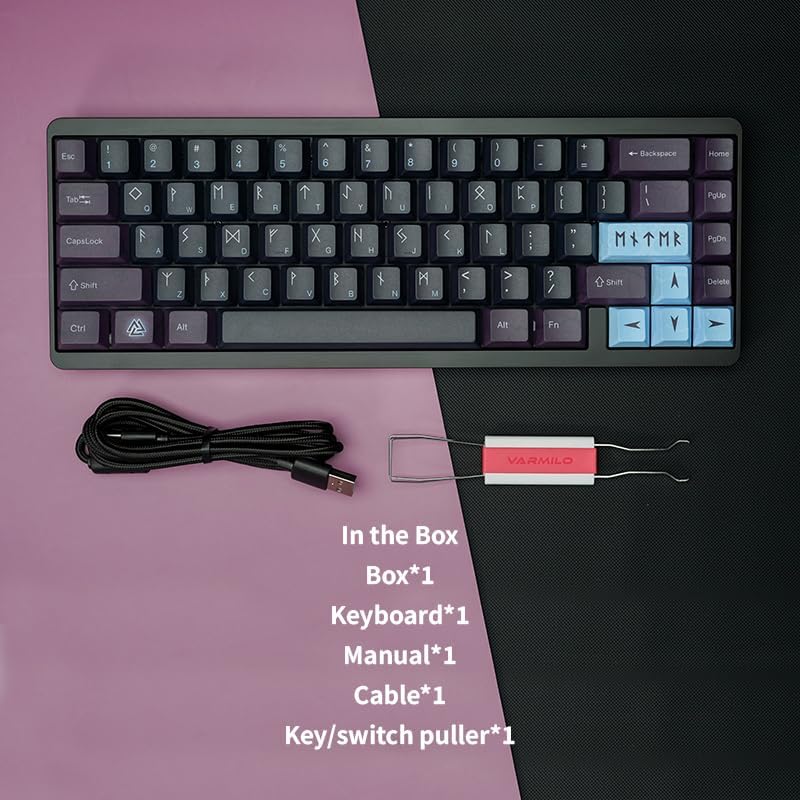
Image 9.1: Contents of the Muse65 keyboard packaging.

Image 9.2: The keyboard, USB cable, and keycap puller.
10. Warranty and Support
10.1 Warranty Information
Varmilo typically offers a one-year warranty service for keyboards and three months for accessories from the date of purchase. The warranty period is based on the purchase date. Please retain your proof of purchase (invoice, receipt) for warranty claims.
The free warranty service is generally applicable to non-human quality problems. Damage caused by improper use, unauthorized disassembly, or natural disasters is not covered. Products with printed patterns on the chassis should avoid wiping with alcohol or other corrosive cleaning products.
10.2 Maintenance Instructions
During the warranty period, you can enjoy free maintenance service. If beyond the warranty period, Varmilo will provide paid maintenance service. For further assistance or warranty service, please contact the seller or Varmilo's official support channels.
10.3 Official Support
For the latest drivers, firmware updates, and support, please visit the official Mechkeys or Varmilo website. You can also refer to the brand's social media channels for updates and community support.
Official Varmilo Website: www.varmilo.com