
1. Introduction
The Accsoon CoMo Wireless Headset Intercom System is a 1.9GHz full-duplex communication solution designed for small to medium-sized teams requiring real-time, clear, and reliable audio communication. This system supports up to 9 users, offering an operating range of 1312 feet (400 meters) and features Environmental Noise Cancellation (ENC) for optimal performance in various environments. This manual provides detailed instructions for setting up, operating, maintaining, and troubleshooting your CoMo intercom system.

Image: The Accsoon CoMo Wireless Headset Intercom System, showcasing one host headset, four remote headsets, and various accessories including batteries, charger, ear cushions, microphone windscreens, and storage solutions.
2. What's in the Box
Upon unboxing your Accsoon CoMo Wireless Headset Intercom System, please verify that all the following components are included:
- 1 Host Headset
- 4 Remote Headsets
- 10 Batteries
- 1 Battery Charger
- 2 Battery Storage Boxes
- 5 Headset Ear Cushions
- 5 Microphones
- 5 Headset Storage Bags
- 1 Storage Container
- 1 User Manual

Image: A visual representation of the package contents, including the host headset, remote headsets, batteries, charger, and other accessories.
3. Product Features
The Accsoon CoMo system is engineered with several key features to enhance your team's communication:
- Wireless Stable Transmission: Utilizes 1.9 GHz frequency for reliable, interference-free communication up to 1312 ft (400 m).
- Crystal-clear Audio with ENC: Features Environmental Noise Cancellation (ENC) technology to actively reduce ambient noise, ensuring clear speech even in loud environments.
- Long-lasting Replaceable Batteries: Each system includes 10 batteries, providing up to 10 hours of runtime for the host headset (with 4 remotes connected) and 13 hours for remote headsets.
- Lightweight and Comfortable Design: Ergonomically designed headsets weighing only 257g (with battery), suitable for long-term wear and adjustable for various head sizes. Can be worn on either the left or right ear.
- Expandable Team Communication: The system can be expanded from 1 host + 4 remotes to support up to 9 users simultaneously.
- Flip-to-Mute Microphone: An intuitive design feature that mutes the microphone when positioned at ±45°, allowing for quick and seamless audio control.

Image: An overview of the Accsoon CoMo system's key features, including wireless stability, transmission range, flip-to-mute microphone, dual-mic ENC, external antenna design, full-duplex communication, extended battery life, and support for up to 9 users.
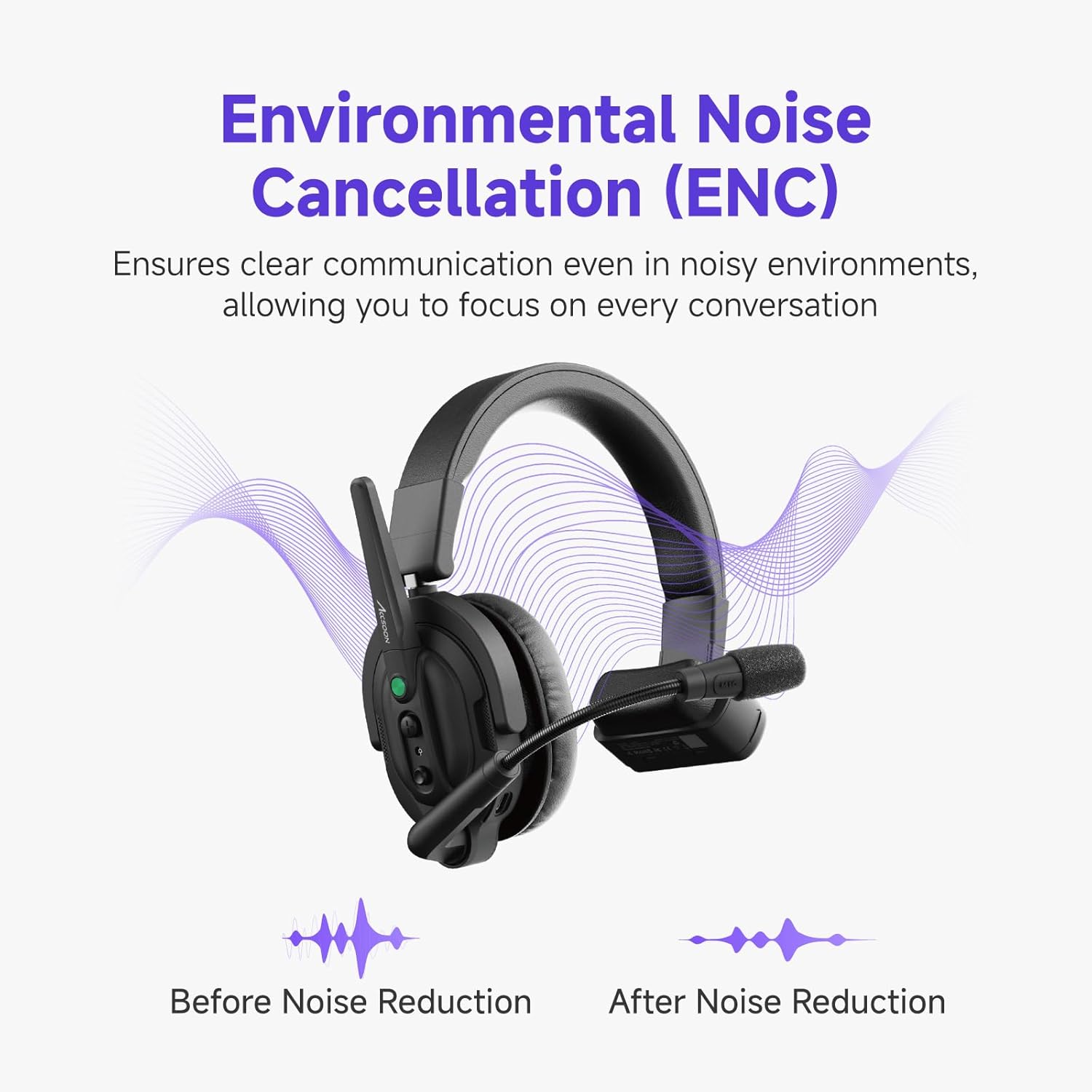
Image: A visual representation of the Environmental Noise Cancellation (ENC) feature, showing sound waves before and after noise reduction, highlighting clearer communication.
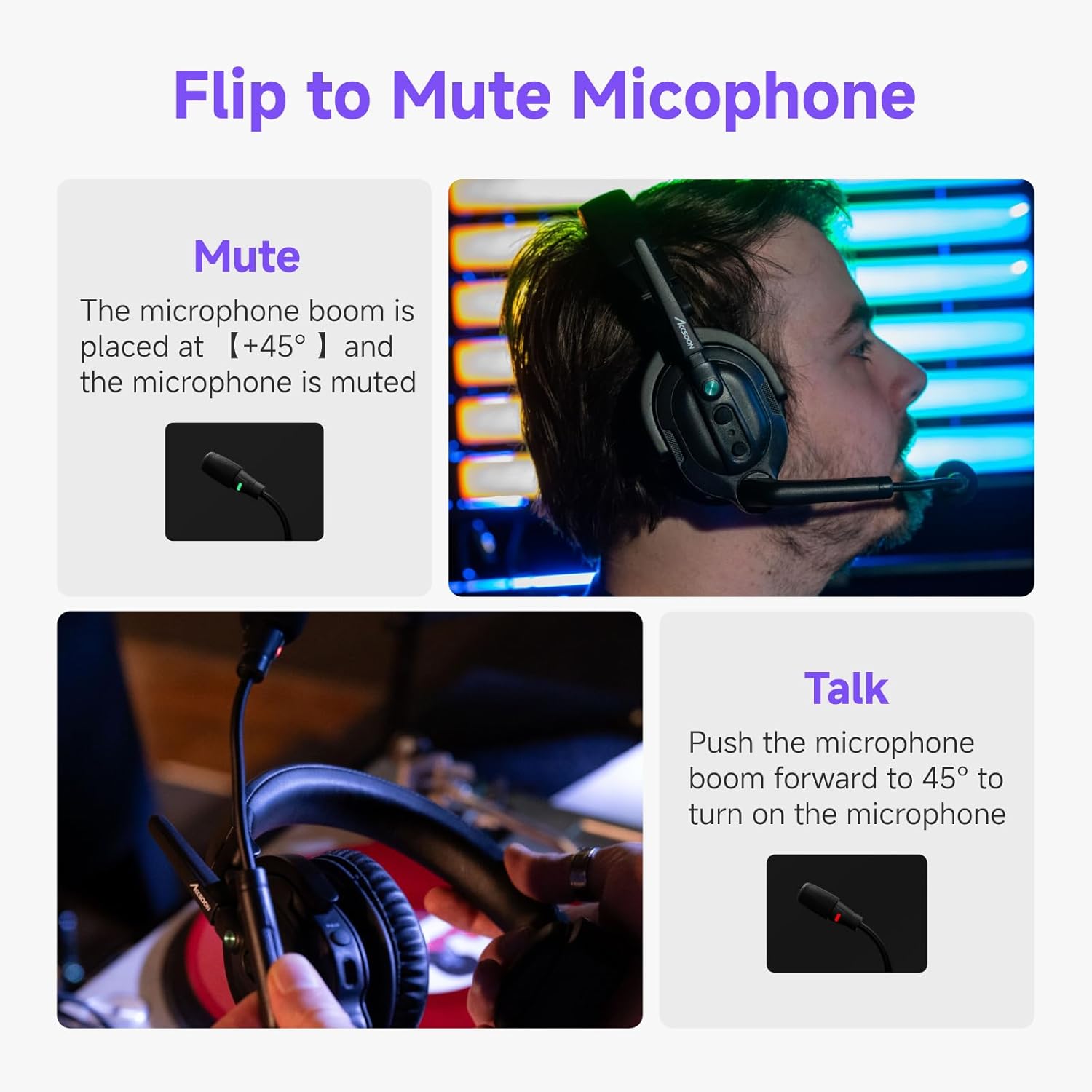
Image: Demonstration of the flip-to-mute microphone feature, showing the microphone in both talk and mute positions.
4. Setup
4.1. Charging the Batteries
- Insert the provided Lithium Ion batteries into the battery charger.
- Connect the charger to a power source. The indicator lights on the charger will show the charging status.
- A full charge typically takes approximately 2 hours. Ensure batteries are fully charged before first use for optimal performance.
4.2. Installing Batteries into Headsets
- Locate the battery compartment on each headset.
- Open the compartment and insert a charged battery, ensuring correct polarity.
- Close the battery compartment securely.
4.3. Powering On/Off
- To power on, press and hold the power button on each headset until the indicator light illuminates.
- To power off, press and hold the power button until the indicator light turns off.
4.4. Initial Pairing (Host and Remote Headsets)
The host headset acts as the central communication hub. Remote headsets connect to the host. Refer to the specific pairing instructions in the included user manual for detailed steps, as pairing procedures can vary slightly.
- Typically, you will power on the host headset first.
- Then, power on the remote headsets.
- The system is designed for automatic connection within range once paired. If manual pairing is required, look for a 'PAIR' button or specific button combination on the headsets.
5. Operating the System
5.1. Communication
- Once headsets are powered on and connected, full-duplex communication is active, allowing all connected users to speak and listen simultaneously.
- Ensure the microphone boom is positioned correctly near your mouth for optimal voice pickup.
5.2. Microphone Mute Function
The CoMo system features a convenient flip-to-mute function:
- To mute your microphone, position the microphone boom upwards to approximately ±45° from its active position. The microphone indicator light will change to confirm mute status.
- To unmute and talk, push the microphone boom forward to its active position (typically straight down or slightly angled towards your mouth).
5.3. Volume Adjustment
Use the volume control buttons located on the headset to adjust the listening volume to a comfortable level.
5.4. Battery Level Indicator
When the battery power is less than 10%, the indicator light on the headset will flash slowly in red, and an audible voice reminder of low power will be provided.
6. Maintenance
6.1. Cleaning
- Wipe the headsets and accessories with a soft, dry cloth.
- Do not use harsh chemicals, cleaning solvents, or strong detergents.
- Regularly replace microphone windscreens and ear cushions for hygiene and optimal audio quality.
6.2. Battery Care
- Always use the provided charger and batteries.
- Store batteries in a cool, dry place when not in use.
- Avoid fully discharging batteries frequently to prolong their lifespan.
6.3. Storage
When not in use, store the headsets and accessories in the provided storage container or bags to protect them from dust and damage.
7. Troubleshooting
| Problem | Possible Cause | Solution |
|---|---|---|
| No audio from headset | Headset not powered on; Low battery; Not connected to host; Volume too low; Microphone muted. | Ensure headset is powered on; Charge or replace battery; Verify connection to host; Increase volume; Check microphone position (flip-to-mute). |
| Intermittent connection or poor audio quality | Out of range; Obstructions (walls, large objects); Interference from other 1.9GHz devices; Low battery. | Move closer to the host headset; Reduce obstructions between headsets; Avoid areas with high 1.9GHz interference; Charge or replace battery. |
| Headset not turning on | Battery not installed correctly; Battery fully discharged; Faulty battery. | Reinstall battery, ensuring correct polarity; Charge battery fully; Try a different charged battery. |
| Microphone not picking up voice | Microphone muted (flipped up); Microphone not positioned correctly; Faulty microphone. | Flip microphone boom down to talk position; Adjust microphone closer to mouth; Contact support if issue persists. |
8. Specifications
| Feature | Detail |
|---|---|
| Model Name | MIC02-1H4R headset |
| Brand | Accsoon |
| Connectivity Technology | Wireless (RF) |
| Frequency Response | 1.9 GHz |
| Frequency Range | 20 Hz to 20,000 Hz |
| Transmission Range | 1312 ft (400 m) line of sight |
| Noise Control | Active Noise Cancellation (ENC) |
| Battery Type | Lithium Ion |
| Host Headset Battery Life | 10 hours (with 4 remotes connected), 8 hours (with 8 remotes connected) |
| Remote Headset Battery Life | 13 hours |
| Earpiece Shape | Over Ear |
| Form Factor | Over Ear |
| Item Weight (single headset with battery) | 257g (approx. 0.57 lbs) |
| Color | Black |
9. Warranty & Support
Accsoon products are designed for reliability and performance. For specific warranty information regarding your Accsoon CoMo Wireless Headset Intercom System, please refer to the warranty card included in your package or visit the official Accsoon website.
For technical support, troubleshooting assistance beyond this manual, or service inquiries, please contact Accsoon customer support through their official channels. You can often find support contact information on the manufacturer's website or through the retailer where the product was purchased.
You may also visit the Accsoon Store on Amazon for additional product information and resources.


