
Attoe AT-T66-HSSB
Attoe Wireless Gaming Mouse User Manual
Model: AT-T66-HSSB
1. Introduction
Thank you for choosing the Attoe Wireless Gaming Mouse. This manual provides detailed instructions on how to set up, operate, and maintain your mouse to ensure optimal performance. Please read this manual thoroughly before using the product.
This gaming mouse features a versatile three-mode connection (Wired, 2.4G Wireless, and Bluetooth 5.3), 6 programmable buttons, 5 adjustable DPI levels, and customizable RGB lighting. Its ergonomic hollow-out design ensures comfort during extended use.
2. Package Contents
Upon opening the package, please verify that all items listed below are present and in good condition:
- 1 x Attoe Three Mode Mouse
- 1 x USB Receiver
- 1 x Type-C Charge Cable (180cm)
- 1 x Instruction Manual (this document)

Image: The Attoe Wireless Gaming Mouse shown alongside its USB receiver. The mouse is black with a honeycomb pattern and RGB lighting along the base.
3. Product Specifications
| Feature | Description |
|---|---|
| Brand | Attoe |
| Product Name | Three Mode Wireless Charging Mouse |
| Model Number | AT-T66-HSSB |
| Sensor | FR 2012+3212 |
| Default Return Rate | BT mode: 125Hz, 2.4G mode: 250Hz, Wired mode: 1000Hz |
| Movement Speed | 30 IPS |
| Refresh Rate | 4800 FPS |
| Acceleration | 10G |
| Operation Mode | Opto-electronic |
| Connectivity Type | Wired / 2.4 GHz Wireless / Bluetooth 5.3 |
| Wire Length | 1.8M (Wear resistant woven data cable) |
| Power Type | Rechargeable |
| Number of Keys | 6 keys |
| Key Life | 10 million switches (Mute Switch) |
| Light Type | 6 RGB lighting modes |
| Wireless Distance | 10m |
| Battery Capacity | 650mAh |
| DPI Levels | 800-1200-1600-2400-3600 (5 levels) |
| Rated Voltage / Current | 3.7V / 15mA |
| Product Weight | 95g |
| Product Size | 13 x 6.7 x 3.8 cm |
| Applicable System | Windows (XP / Vista / 7 / 8 / Server 2003 / 2000 / Win10, etc.), Android (4.3 above), Mac OS (10.10 above recommended) |
| Applicable Equipment | Desktop computers, notebook computers, smart TV with USB interface, etc. |
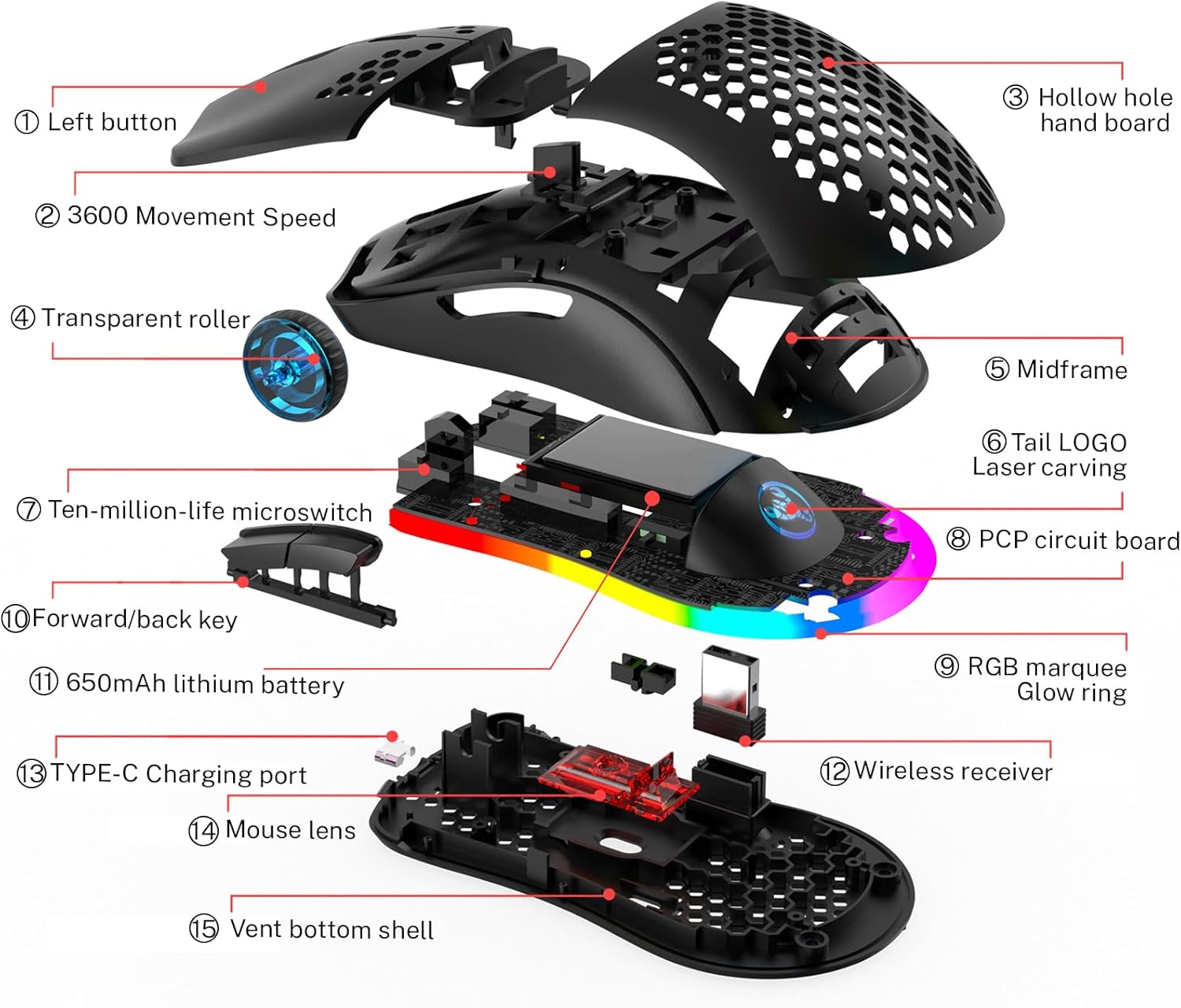
Image: A diagram illustrating the dimensions of the Attoe Wireless Gaming Mouse, showing its length (13cm / 5.118 inches), width (6.7cm / 2.64 inches), and height (3.8cm / 1.5 inches).
4. Setup and Connection
The Attoe Wireless Gaming Mouse supports three connection modes: Wired, 2.4G Wireless, and Bluetooth 5.3. Choose the mode that best suits your needs.
4.1. Wired Connection
- Insert the mouse's USB Type-C cable into the USB port of your computer.
- The mouse will be immediately ready for use. This mode also charges the mouse.
4.2. 2.4G Wireless Connection
- Flip the power switch located at the bottom of the mouse to the "ON" position.
- Plug the 2.4G USB receiver into an available USB port on your computer.
- Hold down the mode switch button on the mouse for 3 seconds to enter the code matching state. The indicator light on the mouse will blink red rapidly.
- Once successfully paired, the indicator light will turn off.
4.3. Bluetooth (BT1/BT2) Connection
- Flip the power switch located at the bottom of the mouse to the "ON" position.
- Hold down the mode switch button on the mouse for 3 seconds to enter the code matching state.
- For BT1: The green light will blink rapidly during code alignment. Once connected, it will blink green during connection back. The indicator will turn off upon successful connection.
- For BT2: The blue light will blink rapidly during code alignment. Once connected, it will blink blue during connection back. The indicator will turn off upon successful connection.
- On your computer or device, navigate to Bluetooth settings and select the Attoe mouse from the list of available devices to pair.
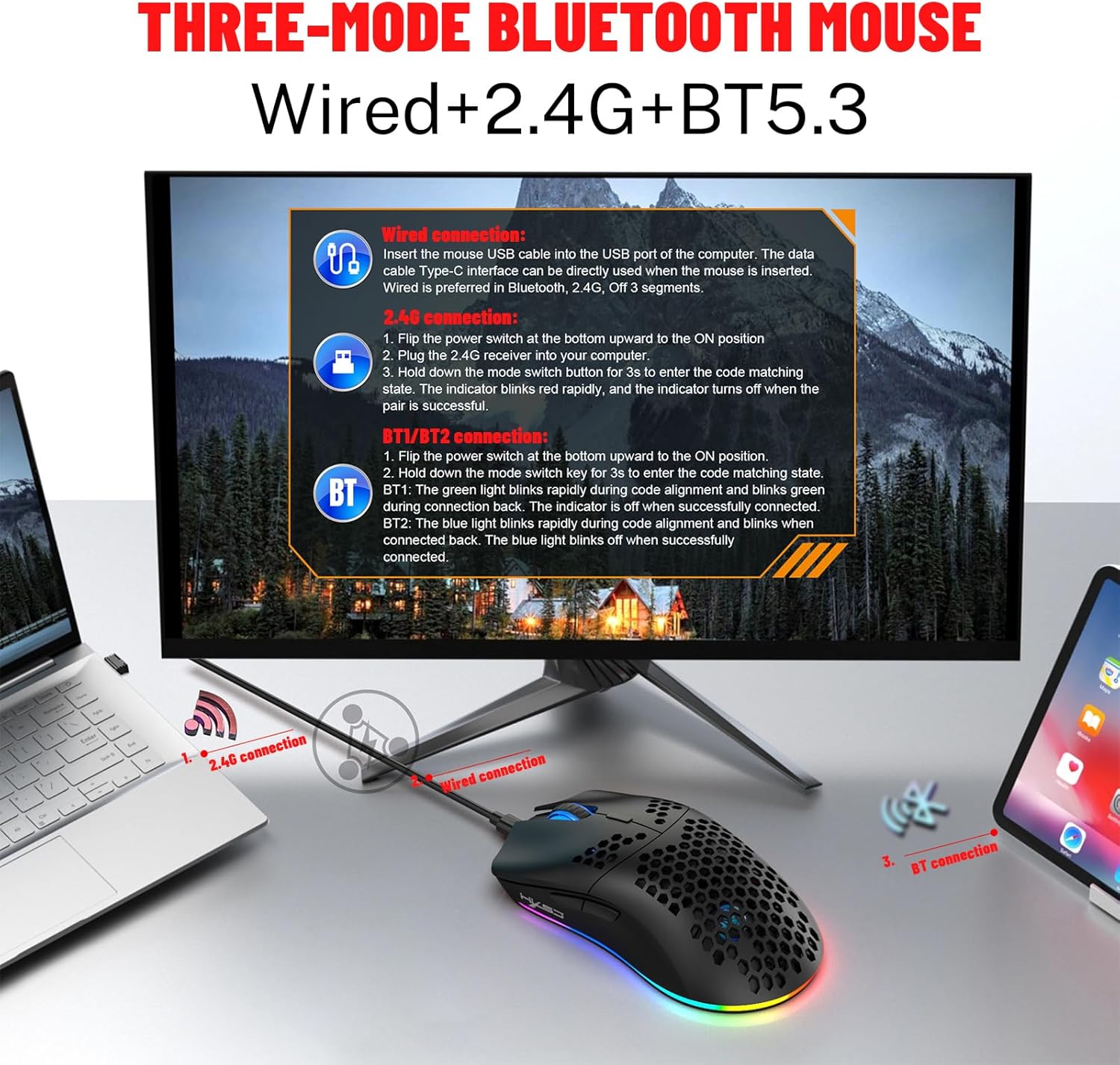
Image: A visual guide demonstrating the three connection methods for the Attoe mouse: wired via USB-C, 2.4G wireless with a USB receiver, and Bluetooth connection to various devices like laptops and tablets.
5. Operating Instructions
5.1. DPI Adjustment
The mouse features 5 adjustable DPI levels: 800, 1200, 1600, 2400, and 3600. You can cycle through these DPI settings by pressing the dedicated DPI button, usually located behind the scroll wheel. Adjust the DPI to match your preference for gaming or general use.
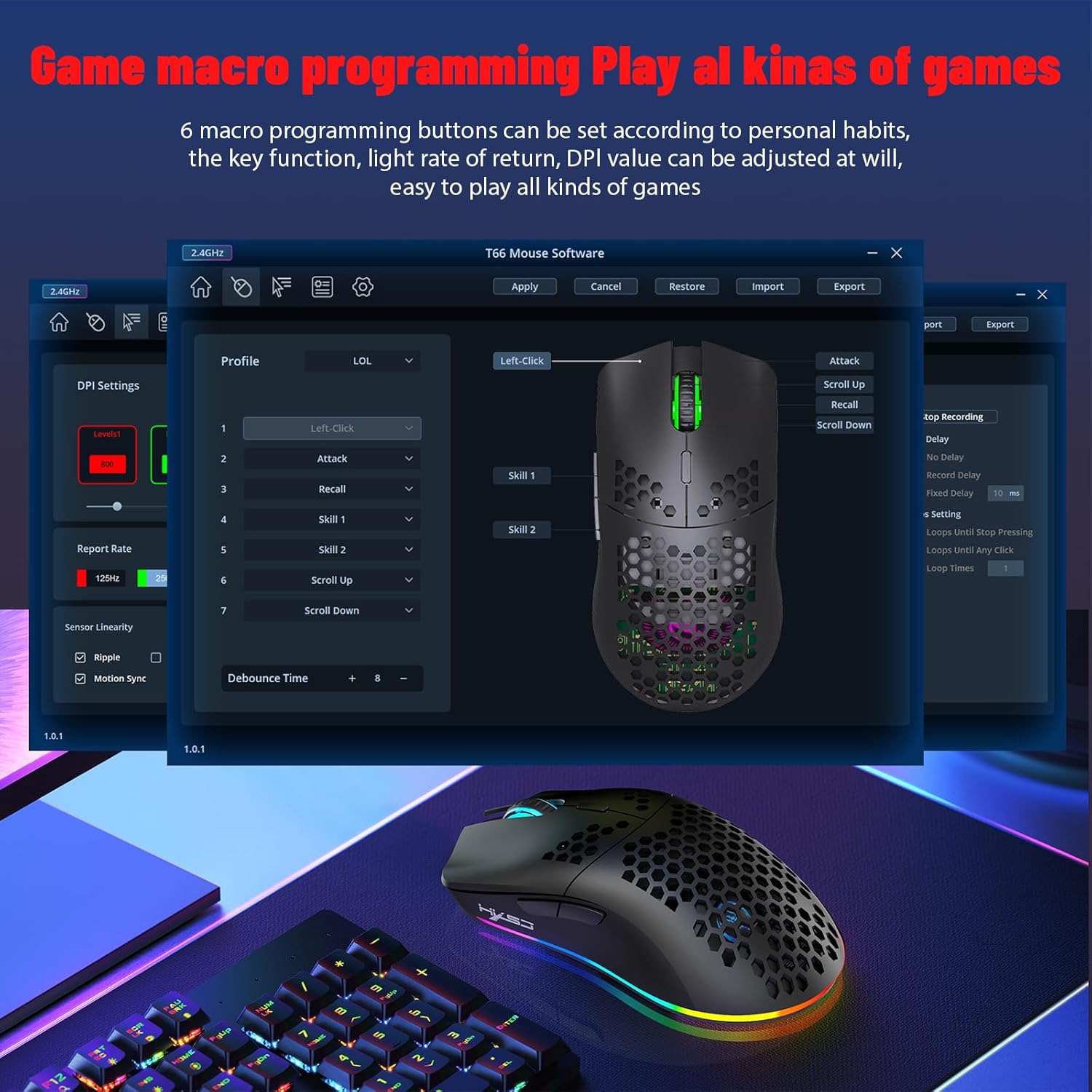
Image: A screenshot of the T66 Mouse Software interface, showing options for game macro programming, DPI settings, and button assignments. This software allows for customization of the mouse's 6 programmable buttons and DPI levels.
5.2. Programmable Buttons
The mouse is equipped with 6 programmable buttons. These buttons can be customized using the dedicated T66 Mouse Software to assign macros, key functions, or other commands. Refer to the software's instructions for detailed programming steps.
5.3. RGB Lighting Modes
The Attoe gaming mouse features 6 RGB lighting modes. You can adjust or turn off the lighting effects by pressing the dedicated LED button on the mouse. The lighting enhances the aesthetic appeal and can be customized to your preference.
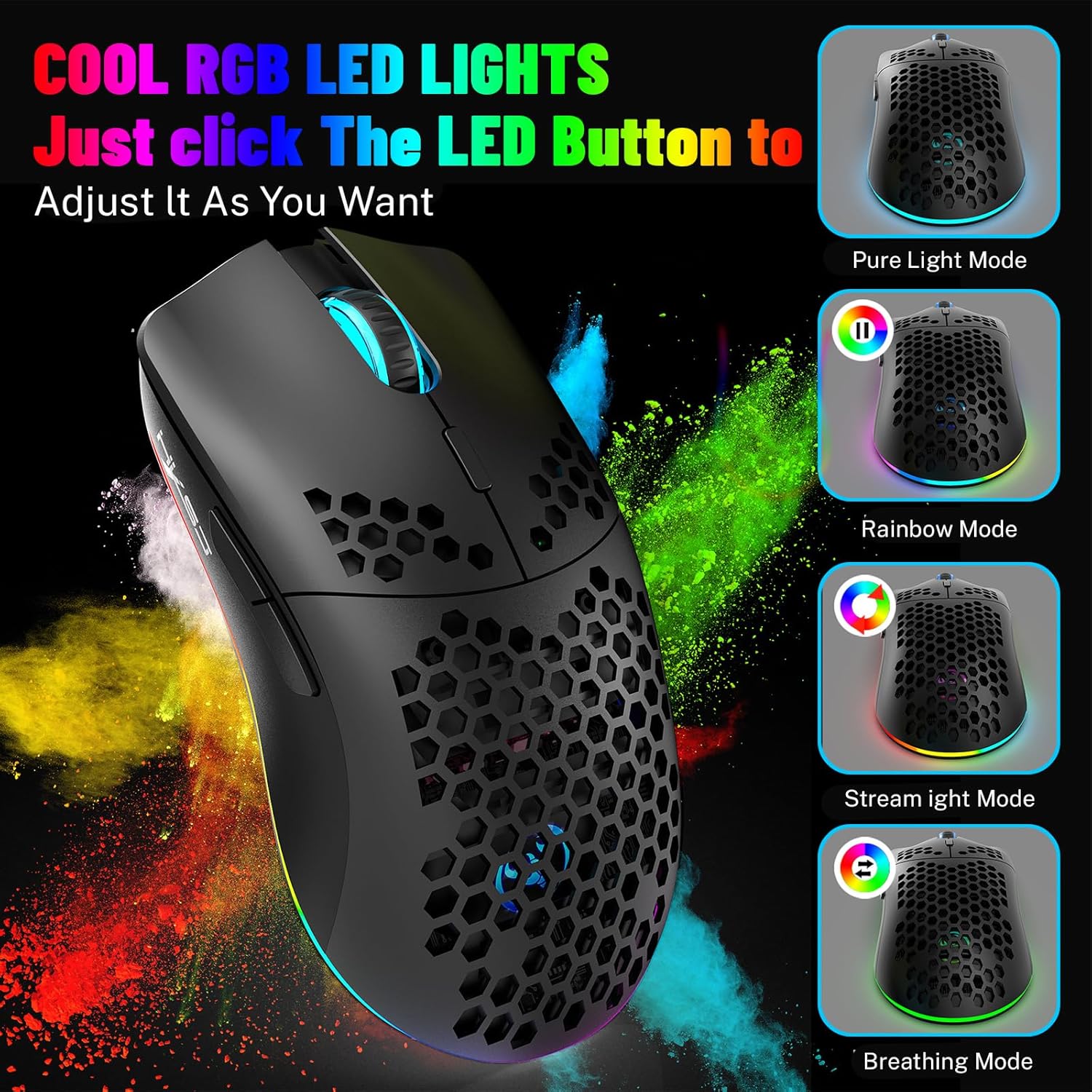
Image: The Attoe Wireless Gaming Mouse illuminated with vibrant RGB lighting, showcasing different lighting effects such as Pure Light Mode, Rainbow Mode, Stream Light Mode, and Breathing Mode.
6. Charging the Mouse
The Attoe Wireless Gaming Mouse has a built-in 650mAh rechargeable battery. When the battery is low, you may experience slow, unstable, or non-responsive cursor movement. It is recommended to charge the mouse promptly.
- Connect the provided Type-C charge cable to the mouse's charging port.
- Connect the other end of the cable to a USB power source (e.g., computer USB port, USB wall adapter).
- The mouse will function normally while charging in wired mode.
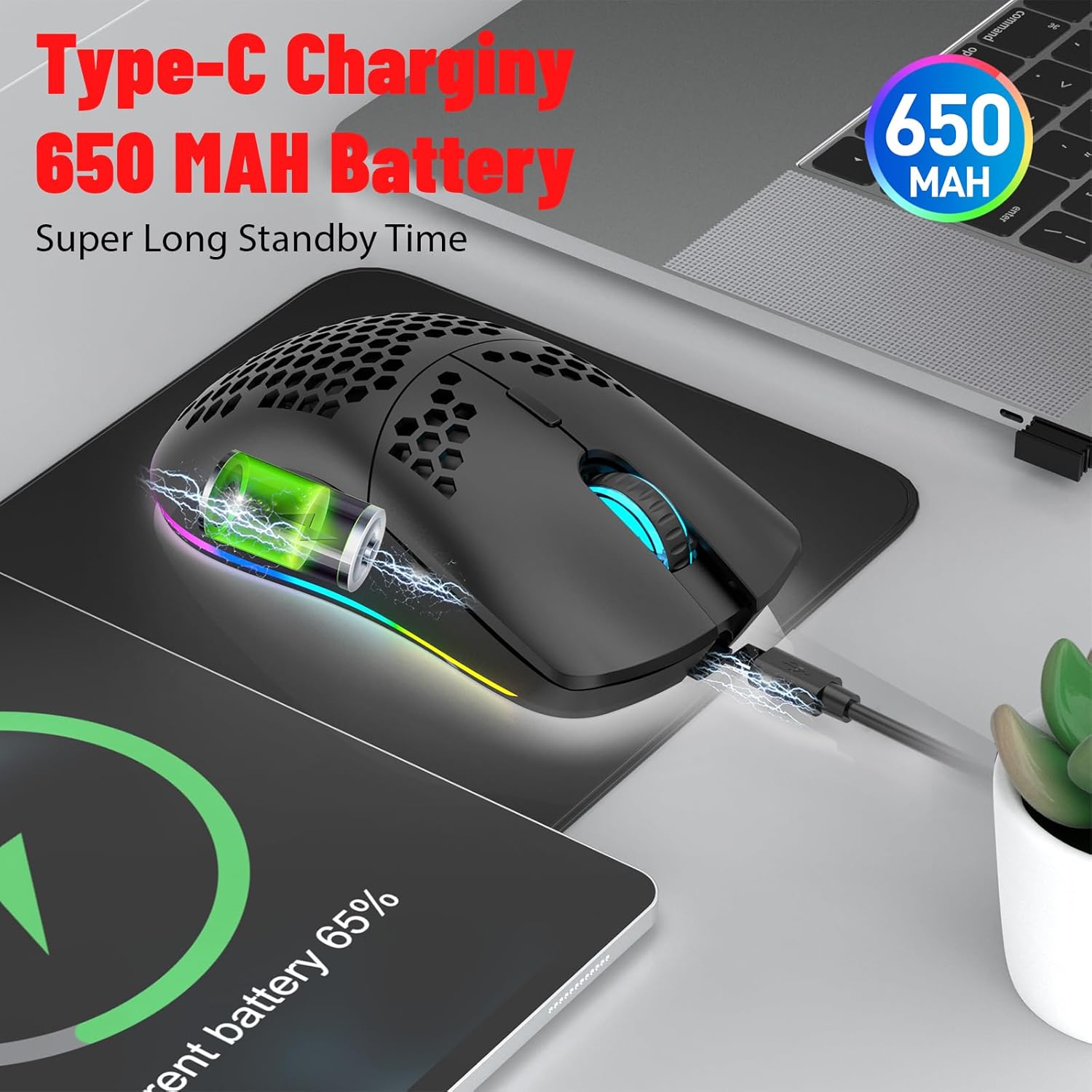
Image: The Attoe Wireless Gaming Mouse connected to a laptop via its Type-C charging cable, illustrating the charging process. A battery icon on a screen indicates the 650mAh battery capacity.
7. Universal Compatibility
This mouse is designed for broad compatibility with various operating systems and devices:
- Operating Systems: Windows (XP / Vista / 7 / 8 / Server 2003 / 2000 / Win10, etc.), Android (4.3 above), Mac OS (10.10 above is recommended).
- Equipment: Suitable for desktop computers, notebook computers, smart TVs with USB interfaces, and other devices supporting USB or Bluetooth input.

Image: The Attoe Wireless Gaming Mouse positioned between a laptop and a tablet, demonstrating its universal compatibility with various operating systems including Windows and Mac OS.
8. Maintenance and Care
To ensure the longevity and optimal performance of your Attoe Wireless Gaming Mouse, please follow these maintenance guidelines:
- Cleaning: Use a soft, dry cloth to wipe the surface of the mouse. For stubborn dirt, a slightly damp cloth can be used, but ensure no liquid enters the mouse. Avoid using harsh chemicals or abrasive cleaners.
- Storage: Store the mouse in a cool, dry place away from direct sunlight and extreme temperatures.
- Handling: Avoid dropping the mouse or subjecting it to strong impacts. Do not disassemble the mouse, as this may void the warranty and cause damage.
- Battery Care: For best battery life, avoid fully discharging the mouse frequently. Charge it when the low battery indicator appears.
9. Troubleshooting
If you encounter any issues with your Attoe Wireless Gaming Mouse, please refer to the following common solutions:
| Problem | Possible Cause / Solution |
|---|---|
| Mouse not responding / No movement |
|
| Cursor movement is slow or erratic |
|
| Buttons not working |
|
| RGB lighting not working or stuck |
|
10. Warranty and Support
Attoe products are designed and manufactured to the highest quality standards. For information regarding warranty coverage, technical support, or service inquiries, please visit the official Attoe store or contact customer support through the platform where you purchased the product.
Attoe Store: https://www.amazon.com/stores/ATTOE/page/AD07F0DA-D143-4C54-83CB-5F14AEF4DC63
Please have your product model number (AT-T66-HSSB) and purchase details ready when contacting support.
Ask a question about this manual
Ask about setup, troubleshooting, compatibility, parts, safety, or missing instructions. Manuals+ will review the question and use this page’s manual context to help answer it.