
Logitech G 920-012696
Logitech G915 X LIGHTSPEED Wireless Mechanical Gaming Keyboard User Manual
Model: 920-012696
1. Introduction
The Logitech G915 X LIGHTSPEED Wireless Mechanical Gaming Keyboard is engineered for advanced gaming performance, combining sophisticated design with cutting-edge technology. This full-size keyboard features low-profile GL mechanical switches, LIGHTSPEED wireless technology, and customizable RGB lighting, providing a premium and responsive user experience for both gaming and productivity.
This manual provides comprehensive instructions for setting up, operating, and maintaining your Logitech G915 X keyboard, ensuring optimal performance and longevity.

Figure 1.1: Top-down view of the Logitech G915 X LIGHTSPEED Wireless Mechanical Gaming Keyboard, showcasing its full layout and sleek design.
2. Key Features
- LIGHTSPEED Wireless Technology: Offers pro-grade 1 ms report rate for ultra-fast and reliable wireless performance.
- Low-Profile GL Mechanical Switches: Available in Linear, Tactile, and Clicky variants, providing a fast 1.3mm actuation point and a comfortable typing experience.
- Tri-Mode Connectivity: Connects via 2.4 GHz LIGHTSPEED wireless, Bluetooth, or wired USB-C for versatile compatibility with Mac and PC.
- Double-Shot PBT Keycaps: Engineered for durability and resistance to wear, ensuring long-lasting key legends.
- LIGHTSYNC RGB Lighting: Fully customizable per-key RGB illumination with approximately 16.8 million colors, synchronizable with other Logitech G devices via G HUB software.
- Programmable G-Keys: Five dedicated G-keys (G1-G5) and additional programmable keys via KEYCONTROL, allowing up to 15 functions per key for personalized commands and macros.
- Dedicated Media Controls: Integrated soft-touch media keys and a precision-engineered aluminum volume roller for convenient audio control.
- Durable Construction: Features a sleek brushed aluminum top plate and a slim 23mm height for a robust yet elegant design.
- Long Battery Life: Provides up to 36 hours of continuous use on a single charge, with quick recharging via USB-C.
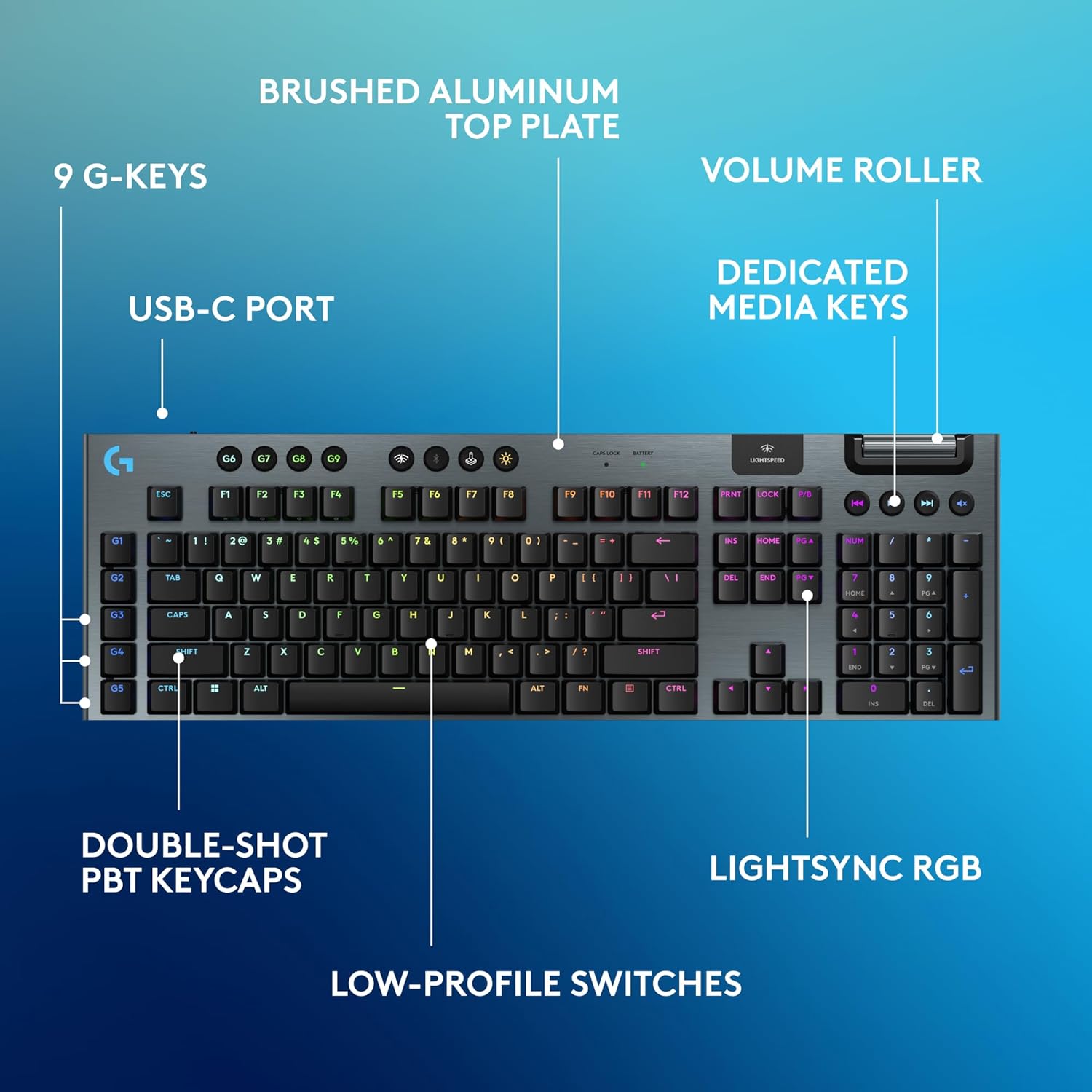
Figure 2.1: Diagram illustrating key features of the Logitech G915 X keyboard, including G-keys, USB-C port, double-shot PBT keycaps, low-profile switches, brushed aluminum top plate, volume roller, dedicated media keys, and LIGHTSYNC RGB.
3. Setup
3.1. What's in the Box
Before you begin, ensure all components are present:
- Logitech G915 X LIGHTSPEED Wireless Mechanical Gaming Keyboard
- LIGHTSPEED USB Wireless Receiver
- USB Extender
- USB-A to USB-C Charging and Data Cable

Figure 3.1: Contents of the G915 X LIGHTSPEED keyboard package, including the keyboard, USB wireless receiver, USB extender, and USB-A to USB-C cable.
3.2. Initial Connection
The G915 X offers three connectivity options: LIGHTSPEED wireless, Bluetooth, and wired USB-C.
- LIGHTSPEED Wireless (Recommended for Gaming):
- 1. Plug the LIGHTSPEED USB wireless receiver into an available USB-A port on your computer.
- 2. For optimal signal strength, use the included USB extender to position the receiver closer to the keyboard.
- 3. Ensure the keyboard's power switch (located on the top edge) is in the ON position.
- 4. Press the LIGHTSPEED button (indicated by a Wi-Fi-like icon) on the keyboard to activate LIGHTSPEED mode. The indicator light above the button will turn blue.
- Bluetooth:
- 1. Ensure the keyboard's power switch is ON.
- 2. Press and hold the Bluetooth button (indicated by a Bluetooth icon) on the keyboard until the indicator light above it blinks blue rapidly, indicating pairing mode.
- 3. On your computer or device, navigate to Bluetooth settings and select "G915 X" from the list of available devices to pair.
- Wired USB-C:
- 1. Connect the USB-C end of the charging cable to the keyboard's USB-C port.
- 2. Connect the USB-A end of the cable to an available USB-A port on your computer.
- 3. The keyboard will automatically switch to wired mode and begin charging.

Figure 3.2: Close-up view of the tri-mode connectivity buttons on the Logitech G915 X keyboard, showing the LIGHTSPEED, Bluetooth, and wired mode indicators.
4. Operating Instructions
4.1. G HUB Software
For full customization and advanced features, download and install the Logitech G HUB software from the official Logitech G website (www.logitechg.com/ghub). G HUB allows you to:
- Customize LIGHTSYNC RGB lighting effects and colors.
- Program G-keys and other keys with macros, commands, and system functions using KEYCONTROL.
- Create and save multiple profiles for different games and applications.
- Adjust keyboard settings and update firmware.

Figure 4.1: Screenshot of the Logitech G HUB software interface, demonstrating the options for customizing commands per key on the G915 X keyboard.
4.2. Media Controls
The dedicated media controls are located on the top right of the keyboard:
- Volume Roller: A smooth aluminum roller for precise volume adjustment.
- Mute Button: Instantly mutes/unmutes audio.
- Previous/Play-Pause/Next Buttons: Control media playback.
4.3. Battery Management
The G915 X keyboard features a battery indicator light near the LIGHTSPEED logo. When the battery is low, the light will blink red. Connect the USB-C cable to charge the keyboard. A full charge takes approximately 4 hours and provides up to 36 hours of continuous use with lighting enabled.
Video 4.1: Official Logitech G915 X Product Video. This video provides a brief overview of the keyboard's design, features, and functionality, including its low-profile switches, LIGHTSYNC RGB, and wireless capabilities.
5. Maintenance
5.1. Cleaning the Keyboard
To maintain the appearance and functionality of your G915 X keyboard:
- Use a soft, lint-free cloth to wipe down the surface.
- For dust and debris between keycaps, use compressed air.
- Avoid using harsh chemicals, abrasive cleaners, or solvents, as these can damage the finish and keycap legends.
5.2. Keycap Care
The double-shot PBT keycaps are designed for durability. While robust, avoid excessive force when removing or reattaching keycaps to prevent damage to the switches or keycap stems.
6. Troubleshooting
| Issue | Possible Cause | Solution |
|---|---|---|
| Keyboard not responding (Wireless) | Low battery, receiver disconnected, incorrect mode. | Charge keyboard, ensure receiver is securely plugged in, switch to LIGHTSPEED or Bluetooth mode. |
| Bluetooth pairing issues | Keyboard not in pairing mode, interference, device limit reached. | Ensure keyboard is blinking rapidly (pairing mode), move closer to device, remove other paired Bluetooth devices. |
| RGB lighting not working/customizing | G HUB not installed/running, software glitch. | Install/restart G HUB, check for software updates, try a different profile. |
| Keys not registering or double-typing | Dust/debris under keycap, switch malfunction, firmware issue. | Clean under keycap with compressed air, update keyboard firmware via G HUB. If issue persists, contact support. |
7. Specifications
| Attribute | Detail |
|---|---|
| Brand | Logitech G |
| Model Number | 920-012696 |
| Connectivity Technology | Bluetooth, RF (LIGHTSPEED), USB-A (Wired) |
| Keyboard Description | Gaming, Full-Size Mechanical |
| Switch Type | Low-Profile GL Mechanical (Linear, Tactile, Clicky variants available) |
| Keycaps | Double-Shot PBT |
| Backlighting | LIGHTSYNC RGB (16.8M colors) |
| Battery Life | Up to 36 hours (with lighting) |
| Charging Time | Approx. 4 hours |
| Operating System Compatibility | Mac OS, PC |
| Item Weight | 2.38 pounds |
| Dimensions (L x W x H) | 18.7 x 5.9 x 0.9 inches (approx. based on image) |
8. Warranty and Support
Logitech G products typically come with a limited hardware warranty. For specific warranty terms and conditions, please refer to the warranty information included with your product or visit the official Logitech G support website.
For technical assistance, troubleshooting, or to access drivers and software updates, please visit the Logitech G support page:
You can also find additional resources and community forums on the Logitech G website.
Related documents920-012696


Ask a question about this manual
Ask about setup, troubleshooting, compatibility, parts, safety, or missing instructions. Manuals+ will review the question and use this page’s manual context to help answer it.