
Introduction
This manual provides detailed instructions for the installation, operation, and maintenance of your BTQILEYOO Q28 Motorcycle Helmet Bluetooth Headset with 1080P Camera. Please read this manual thoroughly before use to ensure proper function and safety.
Safety Information
- Do not submerge the device in water beyond its IP66 rating. While water-resistant, it is not designed for prolonged submersion.
- Use only the recommended charger for optimal performance and to prevent damage to the battery.
- Ensure the device is securely mounted to the helmet before riding.
- Operating the device while riding should be done with caution to avoid distraction. Prioritize road safety.
Package Contents
Please verify that all items are present in the package:
- BTQILEYOO Q28 Main Unit
- Helmet Mounting Bracket (Adhesive/Clip)
- Speakers and Microphone Kit
- USB Type-C Charging Cable
- 32GB TF Card (Pre-installed or separate)
- User Manual
Setup and Installation
1. Charging the Device
Before first use, fully charge the Q28 unit. Connect the provided USB Type-C cable to the charging port on the device and to a suitable USB power adapter. The charging indicator (red) will illuminate during charging and turn off when fully charged.
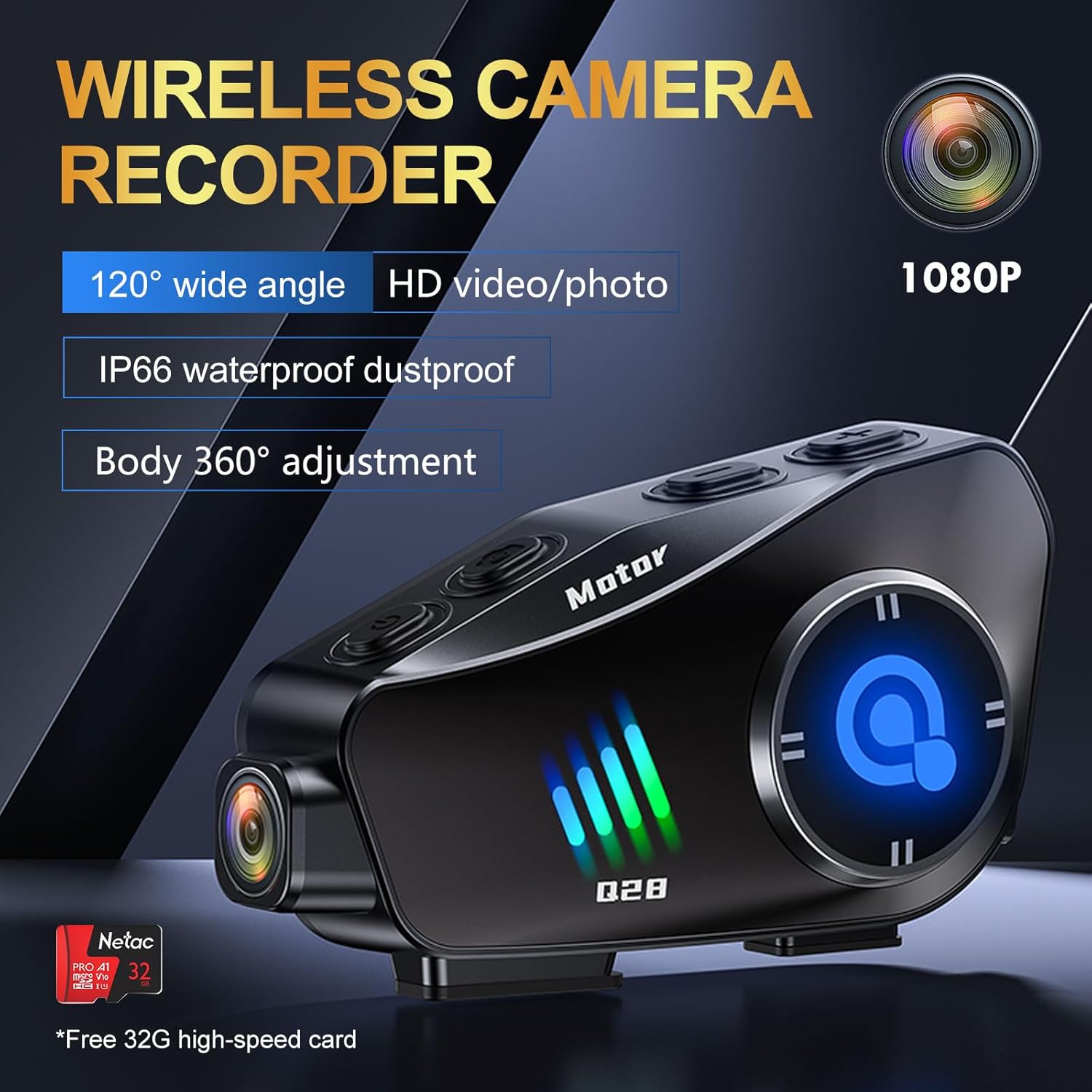 Image: The BTQILEYOO Q28 unit connected to a charging cable, illustrating the charging process.
2. Inserting the TF Card
Locate the TF card slot on the device. Gently insert the provided 32GB TF card (or another compatible card up to 256GB) into the slot until it clicks into place. Ensure the card is inserted correctly to avoid damage.
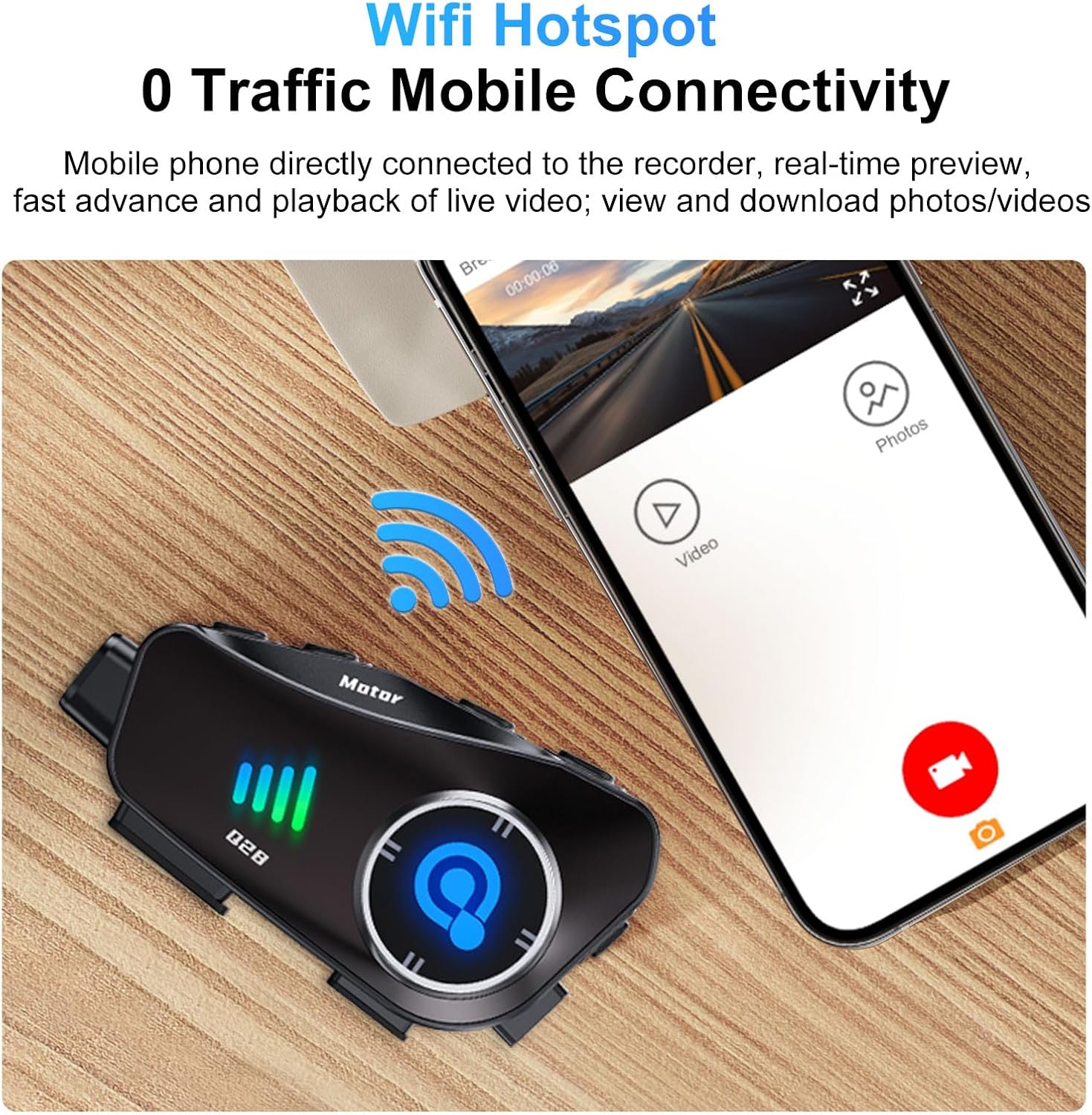 Image: A close-up of the BTQILEYOO Q28 unit showing a TF card being inserted into its designated slot.
3. Helmet Mounting
Attach the mounting bracket to the side of your helmet using either the adhesive pad or the clip mechanism. Ensure the bracket is firmly secured. Then, slide the Q28 main unit onto the bracket until it locks into place. The camera body can be rotated 360 degrees for optimal recording angle.
 Image: The BTQILEYOO Q28 unit mounted on the side of a motorcycle helmet, demonstrating its placement.
4. Speaker and Microphone Installation
Insert the speakers into the helmet's ear pockets and route the microphone towards your mouth. Connect the speaker/microphone cable to the speaker/marker connector on the Q28 unit. Ensure cables are tucked away neatly to avoid interference or discomfort.
5. Bluetooth Pairing
- With the device off, press and hold the Power/Answer button until the Bluetooth indicator (blue) flashes rapidly, indicating pairing mode.
- On your mobile phone, enable Bluetooth and search for available devices.
- Select "BTQILEYOO Q28" from the list. Once connected, the blue indicator will flash slowly.
6. WiFi Hotspot and App Connection
The Q28 features a WiFi hotspot for mobile connectivity, allowing real-time preview, playback, and download of videos/photos via a dedicated app.
- Download the companion app (refer to the quick start guide for app name and download instructions).
- Press the Photo/WiFi button on the Q28 to activate the WiFi hotspot.
- On your phone, connect to the Q28's WiFi network (SSID and password typically found in the quick start guide or on the device itself).
- Open the app to access camera functions, view recordings, and manage files.
 Image: The BTQILEYOO Q28 unit next to a smartphone displaying the companion app interface, indicating WiFi connectivity for media management.
Operating Instructions
Device Controls Overview
Familiarize yourself with the device's buttons:
 Image: A diagram illustrating the various function buttons on the BTQILEYOO Q28 unit, with corresponding numbers and descriptions.
- 1. Switch on/off/answer/hang up/play/pause: Multi-function button for power and call/music control.
- 2. Voice assistant key: Activates voice assistant (Siri, Google Assistant).
- 3. Speaker/Marker connector: Port for connecting speakers and microphone.
- 4. Charging port: USB Type-C port for charging.
- 5. Logger marker: Not explicitly defined, likely for marking specific points in recordings.
- 6. Recorder memory card: TF card slot.
- 7. Volume +/Next song: Increases volume or skips to the next track.
- 8. Volume -/Previous song: Decreases volume or goes to previous track.
- 9. Photo/WiFi on or off: Toggles photo mode or WiFi hotspot.
- 10. Recorder on/off button / turn on or stop recording: Controls video recording.
- 11. Logger indicator light (blue) / WiFi on light (green): Status indicators.
- 12. Surveillance camera: The camera lens.
Camera Operation (Video/Photo)
The Q28 features a 1080P 120° ultra-wide-angle lens for recording high-definition video and capturing 2MP images.
- Start/Stop Recording: Press the "Recorder on/off button / turn on or stop recording" (10) to start or stop video recording. The logger indicator light (11) will change to indicate recording status.
- Take Photo: Press the "Photo/WiFi on or off" button (9) briefly to take a still photograph.
- Adjust Camera Angle: The camera body can be rotated 360 degrees to achieve the desired horizontal or vertical shooting angle.
 Image: The BTQILEYOO Q28 unit highlighting its 1080P HD camera lens and wide-angle capabilities.
Music Playback
- Once paired with your phone, open your music player.
- Press the Power/Answer button (1) to play or pause music.
- Use Volume +/Next song (7) to increase volume or skip track.
- Use Volume -/Previous song (8) to decrease volume or go to previous track.
Call Management
- Auto Answer: Incoming calls will be automatically answered after 10 seconds.
- Manual Answer/End Call: Briefly press the Power/Answer button (1) to answer or end a call.
- Voice Control: Press the Voice assistant key (2) to activate your phone's voice assistant (Siri, Google Assistant) for hands-free commands.
 Image: A motorcycle rider wearing a helmet with the BTQILEYOO Q28, illustrating the automatic call answering feature.
Noise Reduction
The Q28 incorporates CVC algorithm and DSP hardware for effective noise reduction, ensuring clear audio during calls by minimizing environmental sounds.
Maintenance
- Cleaning: Wipe the device with a soft, damp cloth. Avoid using harsh chemicals or abrasive materials. Ensure the camera lens is clean for optimal video quality.
- Storage: Store the device in a cool, dry place when not in use. Avoid extreme temperatures.
- Battery Care: To prolong battery life, avoid fully discharging the battery frequently. Charge the device regularly, even if not in constant use.
- Water Resistance: While IP66 rated, avoid direct high-pressure water jets. Ensure all ports are securely closed before exposure to water.
Troubleshooting
| Problem | Possible Cause | Solution |
|---|---|---|
| Device does not power on. | Low battery. | Charge the device fully using the provided USB Type-C cable. |
| Cannot pair with phone via Bluetooth. | Device not in pairing mode; phone's Bluetooth off; interference. | Ensure Q28 is in pairing mode (rapid blue flash). Turn phone's Bluetooth off and on. Move closer to the device. |
| Camera not recording or app connection fails. | TF card issue; WiFi hotspot off; incorrect app connection. | Check TF card insertion. Ensure WiFi hotspot is active (green light). Reconnect phone to Q28's WiFi. Restart app and device. |
| Poor audio quality or excessive noise. | Microphone placement; environmental factors. | Adjust microphone closer to your mouth. Ensure helmet padding does not obstruct microphone. |
Specifications
- Model: Q28
- Camera Resolution: 1080P HD (1920*1080 @ 30FPS)
- Lens Angle: 120° Ultra-Wide Angle
- Photo Resolution: 2MP (4032*3024)
- Bluetooth Version: 5.3
- Noise Reduction: CVC algorithm + DSP hardware
- Battery Capacity: 1500mAh
- Music Playback Time: Up to 50 hours
- Video Recording Time: Up to 6.5 hours
- Standby Time: Up to 18 months
- Charging Port: USB Type-C (supports fast charging)
- TF Card Support: Up to 256GB (32GB card included)
- Waterproof Rating: IP66
- Material: Aluminum
- Item Weight: 10.8 ounces
- Package Dimensions: 5.24 x 4.06 x 3.03 inches
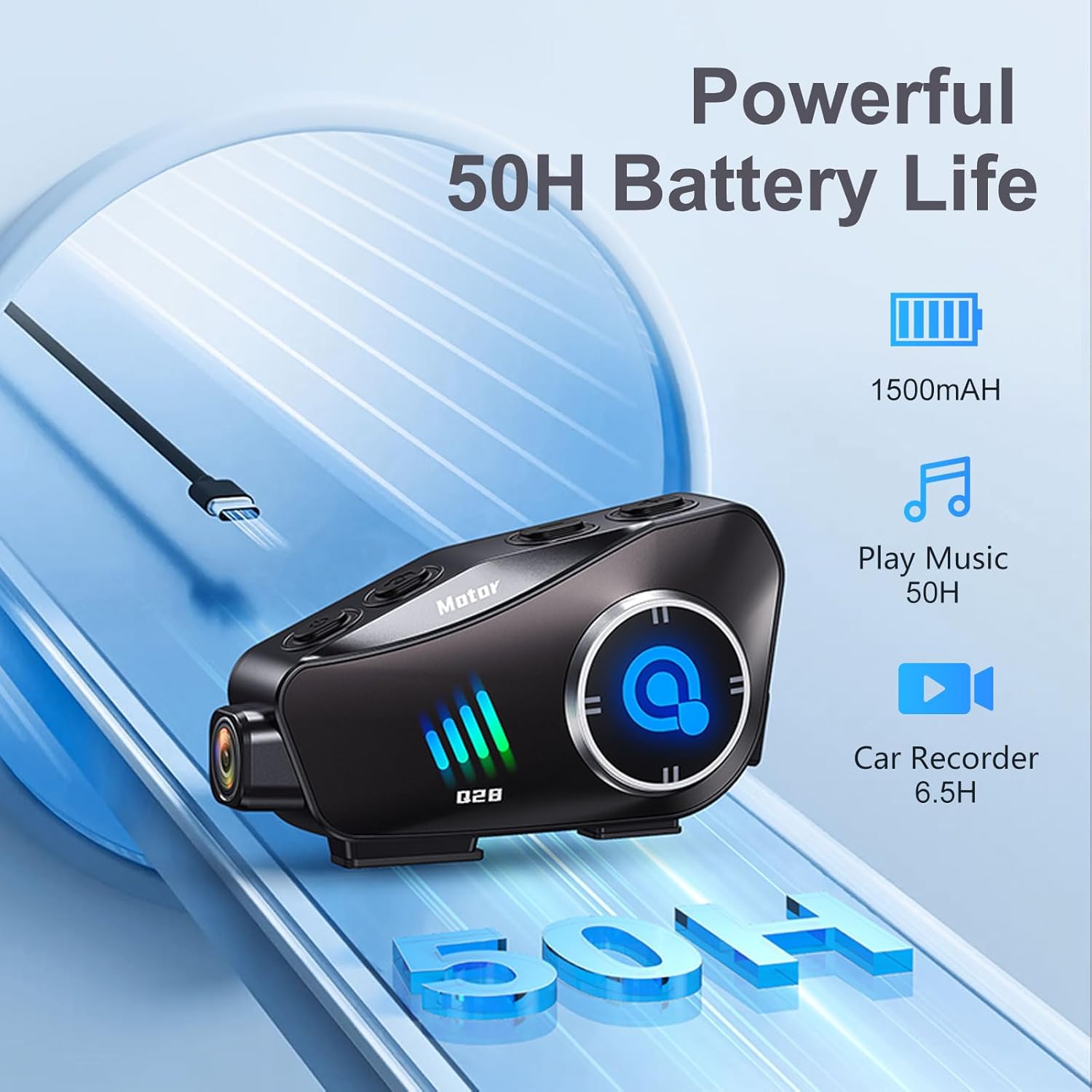 Image: The BTQILEYOO Q28 unit illustrating its powerful 1500mAh battery, offering 50 hours of music playback and 6.5 hours of video recording.
Warranty and Support
For warranty information, please refer to the documentation provided with your purchase or contact the seller directly. For technical support or further assistance, please reach out to BTQILEYOO customer service through their official channels.