
1. Introduction
The Dohaeris AX1800 series dual band wireless USB network card is designed to provide convenient and fast wireless internet access for desktop PCs and other compatible devices. This adapter supports the latest WiFi6 (IEEE 802.11ax) standard, offering enhanced speed, efficiency, and security for your wireless network connection. It features automatic detection functionality, allowing it to adjust speed automatically for optimal performance. This specific model, AX1808, utilizes the MT7921 chip and includes a CD drive for driver installation.
Note: This device is compatible with Windows 10 and Windows 11 operating systems only.
2. Package Contents
Please verify that all items are present in your package:
- 1x WiFi6 USB Adapter (AX1808 with CD drive)
3. Setup and Installation
3.1 Hardware Connection
Insert the USB adapter directly into an available USB port on your computer. For desktop PCs, it is recommended to use a rear USB 3.0 port on the computer chassis for optimal power and signal stability. Front USB interfaces may sometimes be underpowered or unavailable.

Image: Hardware Connection and Driver CD. This image illustrates the simple process of plugging the WiFi adapter into a USB port on either a laptop or a desktop computer. It also shows the included driver CD, indicating the method for driver installation.
3.2 Driver Installation (for AX1808 MT7921 chip)
This model requires driver installation using the provided CD. Follow these steps:
- Insert the driver CD into your computer's CD-ROM drive.
- Navigate to the CD drive in 'This PC' or 'My Computer'.
- Locate and run the setup file (e.g., 'setup.exe' or 'install.exe').
- Follow the on-screen prompts to complete the driver installation.
- Restart your computer if prompted.
Once the drivers are installed, your computer should recognize the WiFi adapter, and you will be able to connect to wireless networks.
4. Operating Instructions
4.1 Connecting to a Wi-Fi Network
- After successful driver installation, click on the network icon in your Windows taskbar (usually located in the bottom-right corner).
- A list of available Wi-Fi networks will appear.
- Select your desired network and click 'Connect'.
- Enter the network security key (password) if prompted, then click 'Next' or 'Connect'.
- Your computer should now be connected to the Wi-Fi network.
4.2 AP Hotspot Transmission
The adapter supports AP (Access Point) hotspot transmission, allowing your computer to act as a Wi-Fi hotspot and share its internet connection with other devices. This feature can typically be configured through your Windows network settings:
- Go to Settings > Network & Internet > Mobile hotspot.
- Toggle the 'Mobile hotspot' switch to On.
- You can customize the network name (SSID) and password by clicking 'Edit'.
5. Key Features
5.1 1800Mbps High-Speed Transmission
Experience faster wireless speeds with up to 574Mbps on the 2.4GHz band and up to 1201Mbps on the 5GHz band, totaling approximately 1800Mbps. This high-speed capability is ideal for demanding online activities such as streaming 4K video, online gaming, and large file transfers.

Image: Speed Comparison. This image visually compares the theoretical maximum speeds of WiFi 6 (1800Mbps) and WiFi 5 (1200Mbps), highlighting that WiFi 6 offers a 1.5 times faster experience.
5.2 Dual Band Wireless (2.4GHz & 5GHz)
The adapter operates on both 2.4GHz and 5GHz frequency bands. The 2.4GHz band provides wider coverage and better penetration through walls, while the 5GHz band offers higher speeds and less interference, suitable for bandwidth-intensive tasks.

Image: Dual Band Capability. This image illustrates the adapter's dual-band functionality, showing distinct speed capabilities for the 2.4GHz (574Mbps) and 5GHz (1201Mbps) frequencies, emphasizing simultaneous operation.
5.3 USB 3.0 Interface
Equipped with a USB 3.0 interface, the adapter ensures high-speed data transfer between the adapter and your computer. USB 3.0 offers theoretical transmission bandwidth of up to 5Gbps, which is significantly faster than USB 2.0's 480Mbps, ensuring that the adapter's high wireless speeds are not bottlenecked by the USB connection. It is also backward compatible with USB 2.0 and USB 2.1 ports.
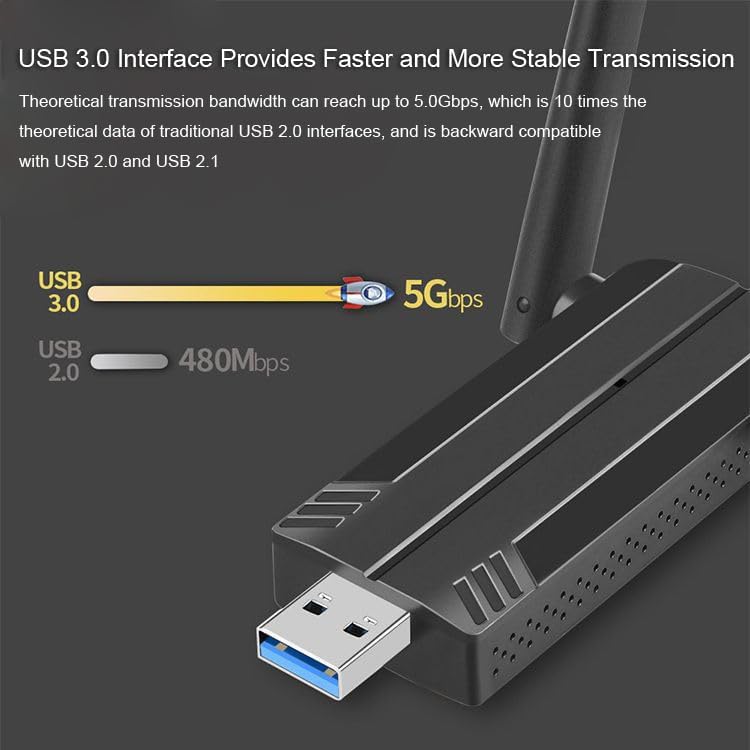
Image: USB 3.0 Interface. This image highlights the USB 3.0 interface of the adapter, visually comparing its 5Gbps data transfer rate with the 480Mbps of USB 2.0, demonstrating the significant speed advantage.
5.4 External Rotating Antennas
The adapter features two external 2dBi antennas with a flexible rotation design. These antennas can be rotated 180° horizontally and 90° vertically, allowing you to adjust their position to optimize signal strength and sensitivity, ensuring a stable and high-speed network connection.

Image: External Rotating Antenna. This diagram illustrates the flexibility of the adapter's external antennas, showing their ability to rotate 180 degrees horizontally and 90 degrees vertically for optimal signal adjustment.
5.5 Advanced Security (WPA3)
The adapter supports advanced security mechanisms including WPA, WPA2, and the latest WPA3 encryption. WPA3 provides enhanced security for your wireless network connections, offering stronger encryption and protection against brute-force attacks.
5.6 MU-MIMO Technology
MU-MIMO (Multi-User, Multiple-Input, Multiple-Output) technology improves network efficiency by allowing the router to communicate with multiple devices simultaneously, rather than sequentially. This reduces latency and increases throughput for all connected devices, especially in busy network environments.

Image: MU-MIMO and Beamforming. This image explains MU-MIMO technology, showing how multiple devices can connect efficiently to a router. It also depicts beamforming, which directs stronger signals to specific devices, improving connection stability and range.
5.7 Efficient Heat Dissipation Design
The adapter incorporates a side heat dissipation hole design. This design helps to manage internal temperatures, preventing overheating during long periods of operation, which contributes to product stability and extends its service life.
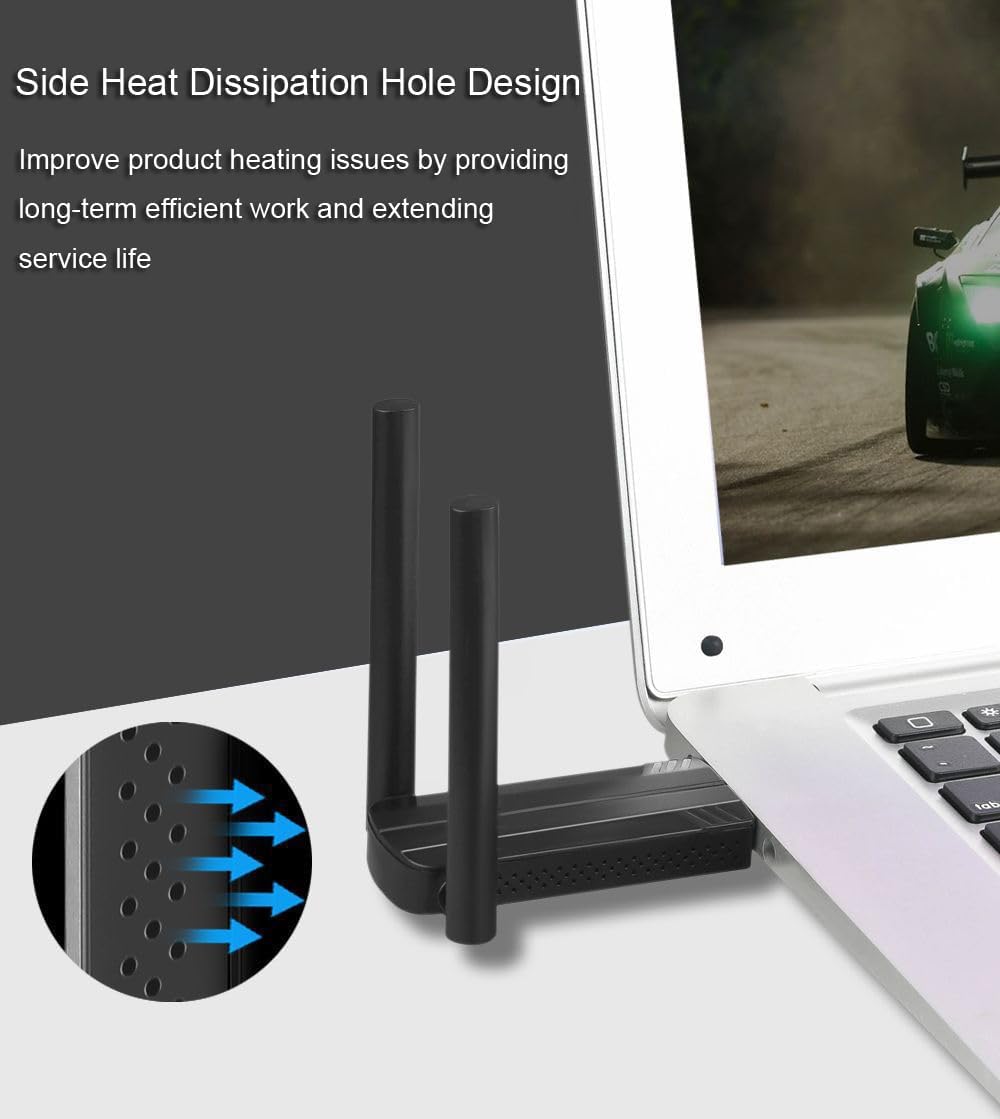
Image: Side Heat Dissipation. This image provides a close-up view of the adapter's side, highlighting the strategically placed heat dissipation holes and illustrating the airflow designed to prevent overheating and ensure stable performance.
5.8 MT7921 Chipset
The AX1808 model is powered by the MT7921 chipset, a high-quality solution that effectively enhances the sending and receiving functions of the adapter, resulting in faster and more reliable data transmission across both 2.4GHz and 5GHz bands.

Image: Powerful Core (MT7921 Chip). This image offers a view of the adapter's internal components, specifically highlighting the MT7921 chipset, which is central to its dual-band 2.4G/5G functionality and overall performance.
6. Specifications
| Feature | Detail |
|---|---|
| Model | AX1808 |
| Chipset | MT7921 |
| Interface | USB 3.0 (compatible with USB 2.0) |
| Antenna | 2 * 2dBi External Antennas |
| Wireless Standards | IEEE 802.11a/ac, IEEE 802.11b, IEEE 802.11g, IEEE 802.11n, IEEE 802.1ax (WiFi6) |
| Frequency Bands | 2.4GHz and 5GHz |
| Data Transfer Rate | Up to 574Mbps (2.4GHz), Up to 1201Mbps (5GHz) |
| Encryption Methods | WPA, WPA2, WPA3 |
| Indicator Light | Working status indicator light |
| Driver | CD drive required |
| Compatible OS | Windows 10/11 Only |
| Color | Black |
| UPC | 754172893846 |
7. Troubleshooting
If you encounter issues with your WiFi adapter, please refer to the following common solutions:
- No Wi-Fi Networks Detected:
- Ensure the adapter is securely plugged into a USB port.
- Verify that the drivers are correctly installed. Check Device Manager for any yellow exclamation marks next to the network adapter.
- Make sure your computer's Wi-Fi is enabled (check Windows network settings).
- Slow Connection Speed:
- Ensure you are connected to the 5GHz band if available, as it generally offers higher speeds.
- Check for interference from other electronic devices.
- Adjust the position of the external antennas for better signal reception.
- Ensure the adapter is plugged into a USB 3.0 port for optimal performance.
- Intermittent Connection:
- Try plugging the adapter into a different USB port.
- Update your router's firmware.
- Ensure there are no physical obstructions between the adapter and your Wi-Fi router.
- Driver Installation Issues:
- Confirm you are using the correct driver for the AX1808 MT7921 chip.
- Temporarily disable antivirus software during installation if it interferes.
- Ensure your operating system is Windows 10 or 11.
8. Maintenance
To ensure the longevity and optimal performance of your WiFi adapter, consider the following maintenance tips:
- Keep Drivers Updated: Periodically check the manufacturer's website for the latest driver updates to ensure compatibility and performance improvements.
- Proper Handling: Avoid bending or applying excessive force to the USB connector or antennas.
- Cleanliness: Keep the adapter free from dust and debris, especially around the heat dissipation holes, to maintain effective cooling.
- Storage: When not in use, store the adapter in a cool, dry place away from direct sunlight and extreme temperatures.
9. Warranty and Support
Specific warranty details for this product are not provided in the available information. Please refer to the product packaging, the retailer's return policy, or the manufacturer's official website for comprehensive warranty information and customer support contacts.