
MINIX CA480
MINIX CarPlay Android AI Box User Manual
Model: CA480 | Brand: MINIX
1. Introduction
The MINIX CarPlay Android AI Box (Model CA480) is an advanced 3-in-1 media hub designed to transform your wired CarPlay or Android Auto system into a full Android operating system. This device allows you to enjoy wireless CarPlay, wireless Android Auto, and access a wide range of Android applications directly on your car's touchscreen display.
Equipped with an 8-core processor, 8GB RAM, and 128GB ROM, it ensures seamless and reliable performance. It also supports 4G LTE connectivity and dual Bluetooth, with expandable storage via a TF card (up to 256GB, sold separately).

Figure 1.1: The MINIX CarPlay Android AI Box (Model CA480).
2. Package Contents
Please verify that all items are present in your package:
- MINIX CA480 AI Box
- USB Cable (Type-A to C)
- USB Cable (Type-C to C)
- Bypass Power Cable
- Product Packaging
- User Manual
- Installation Guide
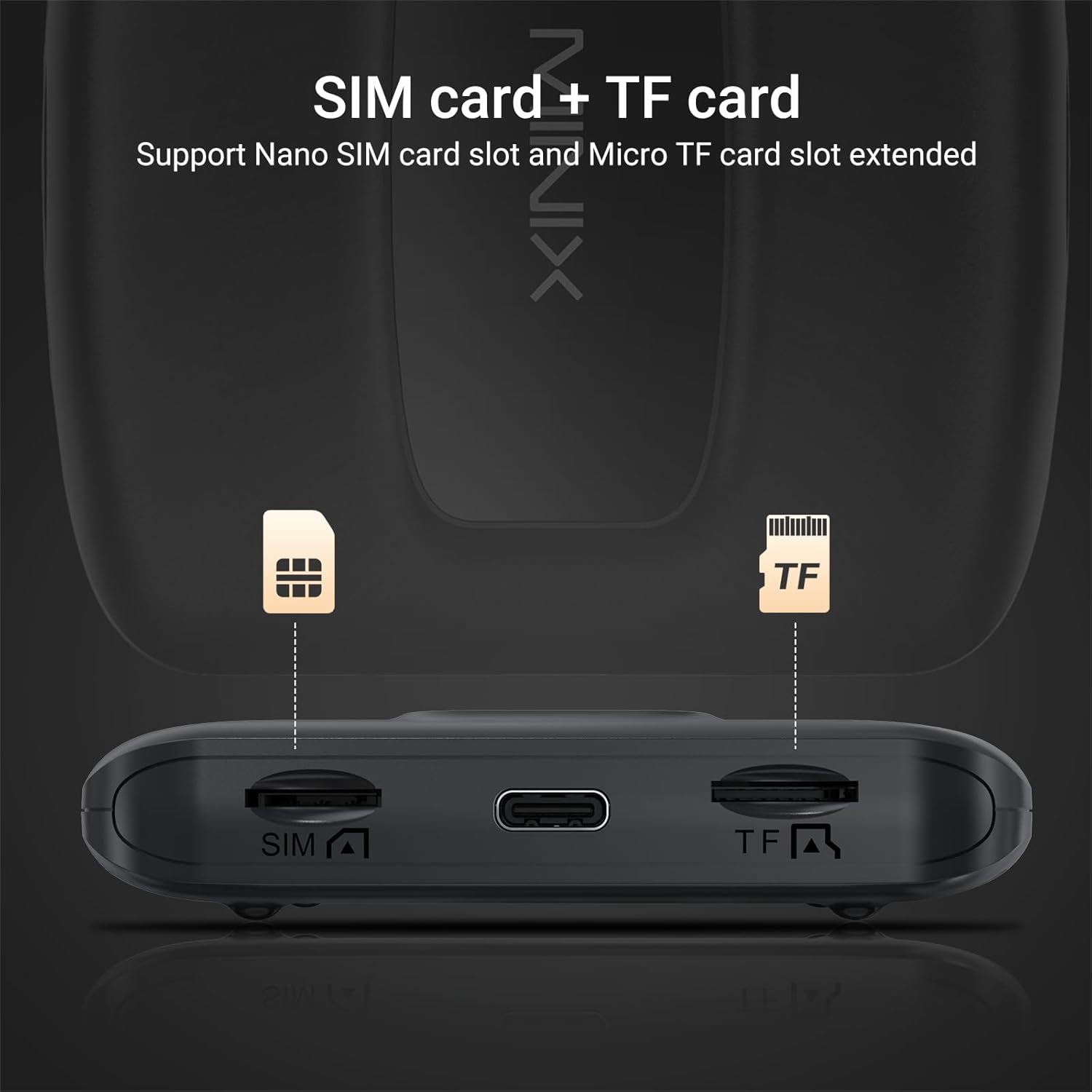
Figure 2.1: Included items in the MINIX CA480 package.
3. Setup and Installation
The MINIX CarPlay Android AI Box features a plug-and-play installation process. Ensure your vehicle has an OEM wired CarPlay or Android Auto system for compatibility.
- Locate your car's original USB port that supports wired CarPlay or Android Auto.
- Connect the MINIX CA480 AI Box to this USB port using one of the provided USB cables.
- Wait approximately 1-2 minutes for the device to initialize.
- On your car's multimedia system menu, select the CarPlay or Android Auto option. The system will seamlessly switch to the Android interface provided by the AI Box.
Video 3.1: Demonstrates connecting the MINIX CA480 to a CarPlay-compatible vehicle. The video also highlights the device's fast and smooth operation, support for SIM/TF cards, and various interface features.

Figure 3.1: The MINIX CA480 features slots for a Nano SIM card and a Micro TF card for expanded functionality and storage.
4. Operating the MINIX CA480
The MINIX CA480 offers a versatile operating experience with its Android system, allowing seamless switching between wireless CarPlay, wireless Android Auto, and the full Android environment.
4.1 System Modes
- Wireless CarPlay: Connect your iPhone wirelessly for navigation, music, messages, and more.
- Wireless Android Auto: Connect your Android device wirelessly for Google Maps, Spotify, and other Android Auto features.
- Full Android System: Access the Google Play Store to download popular apps like Netflix, YouTube, Spotify, TikTok, and use Google Assistant.
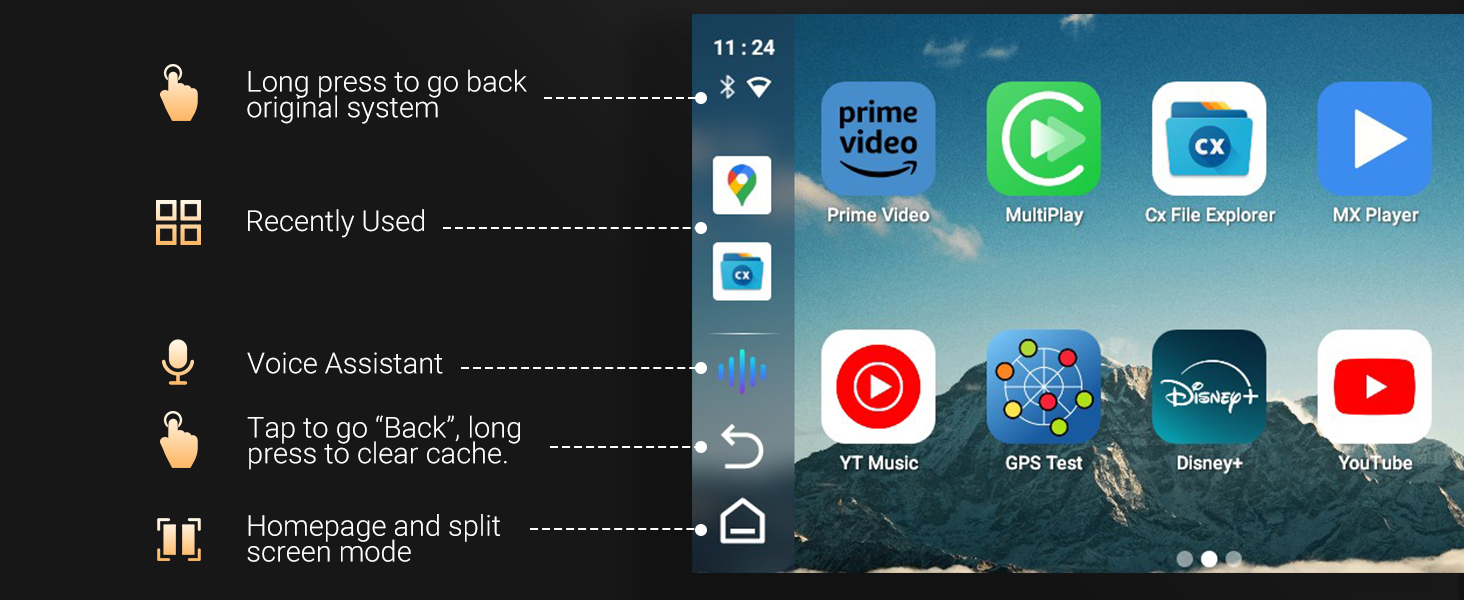
Figure 4.1: The 3-in-1 system allows seamless switching between Custom Android, CarPlay, and Android Auto.
4.2 Interface and Controls
The system is designed for fast and smooth operation, providing an intuitive user experience on your car's touchscreen.
- Split Screen: Utilize the split-screen feature to run two applications simultaneously, such as navigation and video playback.
- Voice Assistant: Use voice commands for hands-free control and navigation.
- Customizable Homepage: Personalize your homepage with frequently used applications.
- Online Updates: The system supports online upgrades to ensure you always have the latest features and improvements.
- Variable Interface: Choose from different interface styles to suit your preference.
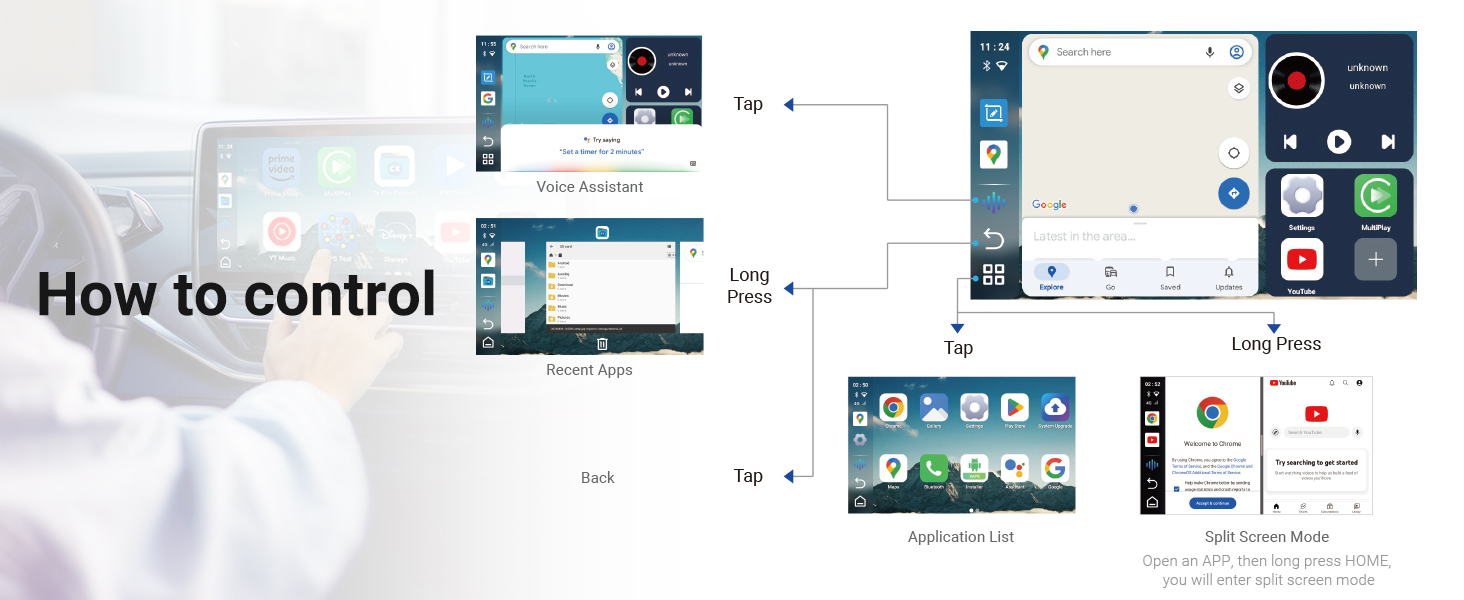
Figure 4.2: Visual guide to controlling the MINIX CA480 interface, including gestures for back, recent apps, voice assistant, and split screen mode.

Figure 4.3: The Android system allows access to popular applications like Google Play, Netflix, YouTube, Spotify, and TikTok.
5. Specifications
| Feature | Detail |
|---|---|
| Brand Name | MINIX |
| Item Weight | 7.8 ounces |
| Product Dimensions | 3.26 x 0.68 x 3.27 inches |
| Item Model Number | CA480 |
| Color Name | black |
| Special Features | 4G/ LTE Support, Android Auto, Apple CarPlay, SD Card Input, Voice Control |
| Connectivity Technology | Bluetooth, USB, Wi-Fi |
| Connector Type | USB Type A, USB Type C |
| Resolution | 720p |
| Supported Internet Services | Google TV, Hulu, Netflix, Prime Video, Skype, YouTube |
| Controller Type | App Control |
| Form Factor | TV Box |

Figure 5.1: Detailed dimensions and port layout of the MINIX CA480.
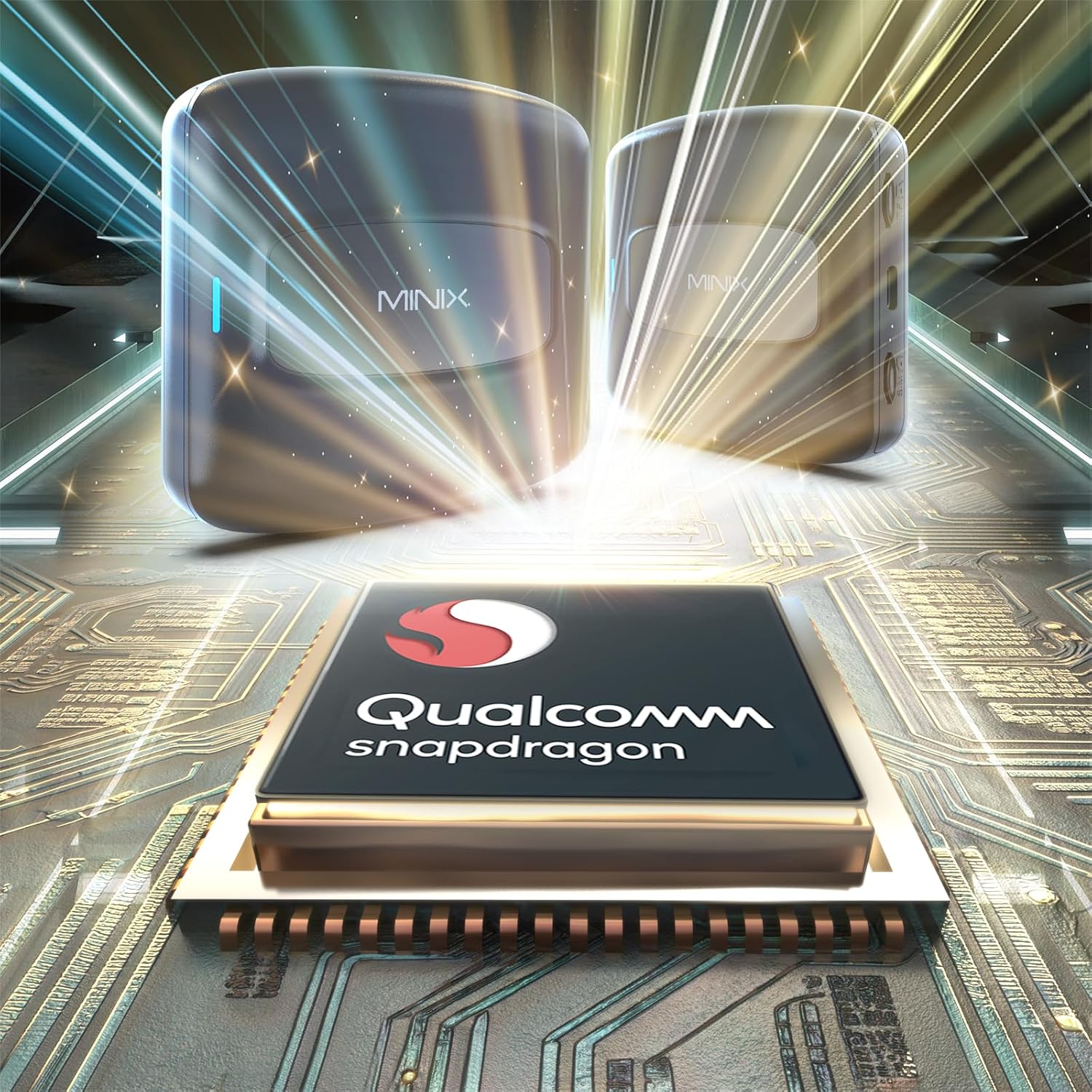
Figure 5.2: The MINIX CA480 is powered by a Qualcomm Snapdragon processor, ensuring robust performance.
6. Maintenance
To ensure the longevity and optimal performance of your MINIX CarPlay Android AI Box, follow these general maintenance guidelines:
- Keep the device clean and free from dust. Use a soft, dry cloth for cleaning.
- Avoid exposing the device to extreme temperatures, direct sunlight, or high humidity.
- Do not attempt to disassemble or repair the device yourself. This may void the warranty.
- Ensure proper ventilation around the device when in use.
7. Troubleshooting
If you encounter issues with your MINIX CarPlay Android AI Box, try the following troubleshooting steps:
- Device Not Powering On: Ensure the USB cable is securely connected to both the AI Box and the car's USB port. Verify that the car's USB port is active.
- No Display on Car Screen: Confirm that your car's multimedia system is set to CarPlay or Android Auto mode. Try restarting both the car's infotainment system and the AI Box by unplugging and re-plugging the device.
- Intermittent Connection: Check for loose cable connections. Ensure there are no other devices interfering with the wireless signal (e.g., other Bluetooth devices).
- App Performance Issues: Close unused applications to free up memory. Ensure the device's software is up to date via the online upgrade feature.
- No Sound: Check the volume settings on both the car's system and the AI Box. Ensure the correct audio output is selected on your car's infotainment system.
If the issue persists after attempting these steps, please contact MINIX Technical Support for further assistance.
8. Warranty and Support
MINIX provides dedicated technical support for the CarPlay Android AI Box. If you require assistance with product questions or needs, our support team is available 24/7.
For support, please refer to the contact information provided in your product packaging or visit the official MINIX website.
Warranty Information: Specific warranty details are typically included with your product documentation. Please retain your proof of purchase for warranty claims.
Related documentsCA480


Ask a question about this manual
Ask about setup, troubleshooting, compatibility, parts, safety, or missing instructions. Manuals+ will review the question and use this page’s manual context to help answer it.