Introduction
This manual provides detailed instructions for the installation, operation, and maintenance of your Jancane WiFi Extender Signal Booster. Please read this manual thoroughly before using the device to ensure proper setup and optimal performance.

Image: The Jancane WiFi Extender Signal Booster, a white device with four external antennas, designed to plug directly into a wall outlet.
Package Contents
- Jancane WiFi Extender Signal Booster (US Plug)
- RJ45 Ethernet Cable
- User Manual (this document)
Key Features
- Extended Coverage: Boosts wireless coverage up to 10,000 sq.ft, supporting over 50 devices.
- High Speed: Transmission rate up to 300Mbps, compatible with 2.4GHz networks (802.11N/B/G).
- Multiple Modes: Supports Repeater, Access Point (AP), and Router modes.
- Ethernet Port: Includes an Ethernet port for wired connections or converting wired internet to wireless.
- Wide Compatibility: Works with various wireless network devices including routers, modems, smartphones, tablets, laptops, and smart TVs.
- Enhanced Security: Supports WPA/WPA2 wireless security protocols to protect your network.
- Easy Setup: Features a one-tap WPS setup and web browser configuration for convenience.

Image: An infographic highlighting the key features of the WiFi Extender, including stable chipsets, 2.4GHz support, home WiFi extension, Ethernet port, 300Mbps speed, antenna design, durability, and easy setup.
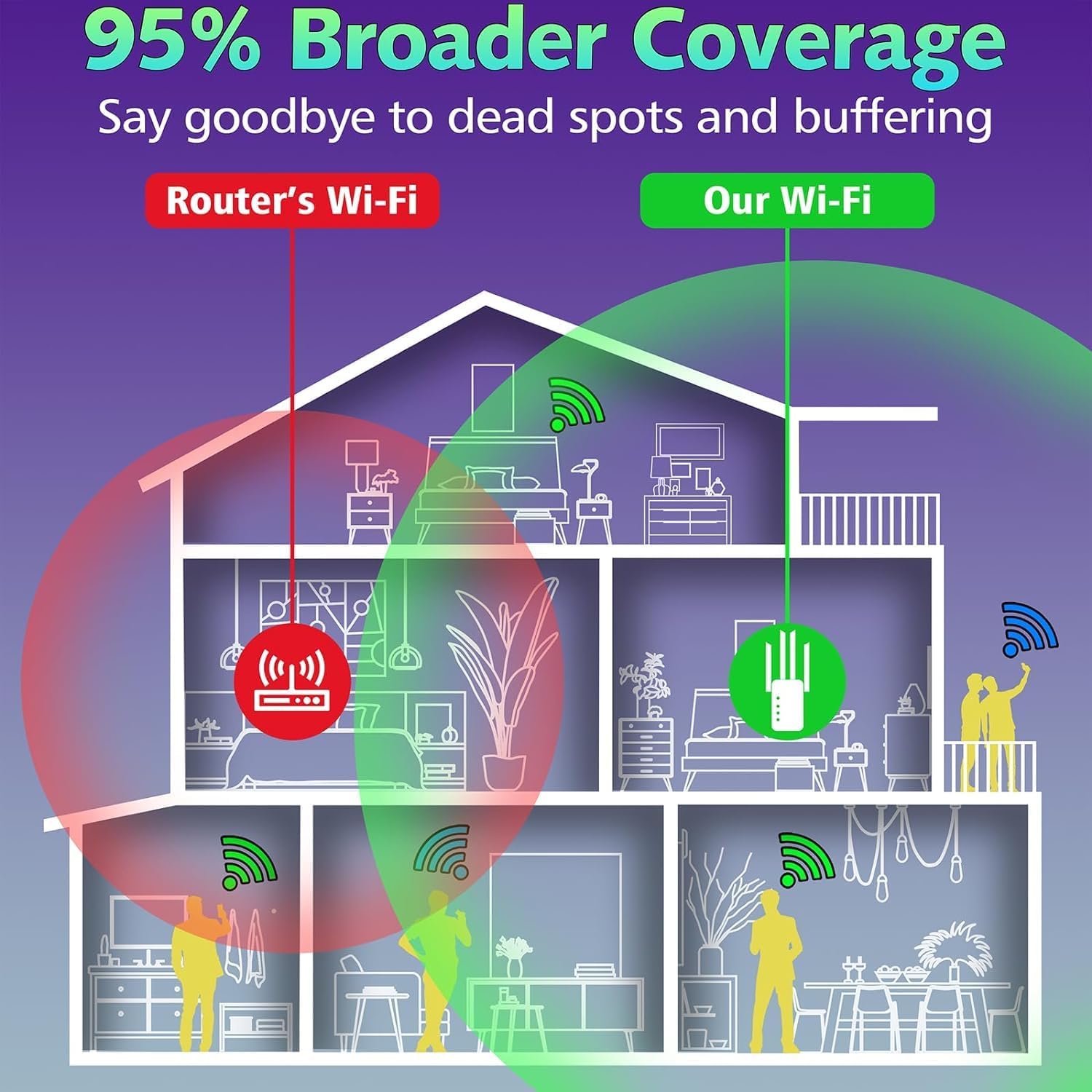
Image: A diagram showing a house with a router's limited Wi-Fi coverage (red) versus expanded coverage with the extender (green), illustrating how it eliminates dead spots.

Image: A graphic titled 'Say Goodbye to WiFi Dead Zones' depicting Wi-Fi signals extending through walls and floors in a multi-story house, covering up to 10,000 square feet.
Setup Instructions
1. Initial Power On
- Plug the WiFi Extender into a power outlet.
- Wait for the Power LED indicator to light up steadily. This indicates the device is powered on and ready for configuration.
Video: Demonstrates plugging in the WiFi Extender and waiting for the power indicator to stabilize. This video also shows connecting an Ethernet cable to the router and the extender.
Note: The video above also illustrates connecting the extender to your modem/router via an Ethernet cable, which is part of the setup process for certain modes (e.g., AP mode).
2. Connecting to Your Network (Repeater Mode - Recommended)
There are two primary methods for connecting the extender to your existing Wi-Fi network:
Method A: WPS (Wi-Fi Protected Setup) - One-Tap Setup
WPS is the quickest way to connect if your main router supports it.
- Plug the Jancane WiFi Extender into a power outlet near your main router.
- Press the WPS/RST button on the Jancane WiFi Extender for 1-2 seconds. The WPS LED will start blinking.
- Within 2 minutes, press the WPS button on your main router.
- Wait for the Signal LED on the extender to light up steadily. This indicates a successful connection.
- Unplug the extender and relocate it to a desired area within your home where you need improved Wi-Fi coverage. Ensure the Signal LED remains steady after relocation for optimal performance.

Image: Close-up of the Jancane WiFi Extender showing the WPS/RST button for one-touch setup.

Image: Visual guide illustrating the three steps for WPS setup: pressing the extender's WPS button, then the router's WPS button, and finally relocating the extender.
Method B: Web Browser Setup (Manual Configuration)
Use this method if your router does not have a WPS button or if WPS setup fails.
- Plug the Jancane WiFi Extender into a power outlet near your main router.
- On your computer or smartphone, connect to the extender's default Wi-Fi network (e.g., "WiFi-Repeater-xxxx"). No password is required initially.
- Open a web browser and enter the default IP address (usually
192.168.11.1) or the setup URL provided in the quick start guide. - Follow the on-screen instructions to select "Repeater Mode".
- Scan for available Wi-Fi networks and select your main router's network (SSID).
- Enter your main router's Wi-Fi password when prompted.
- Complete the configuration. The extender will restart.
- Once restarted, the Signal LED should light up steadily. You can now unplug and relocate the extender.

Image: Step-by-step screenshots demonstrating wireless configuration via a smartphone's web browser.
3. Optimal Placement for the Extender
After successful setup, relocate the extender to a location between your main router and the Wi-Fi dead zone. Ensure the Signal LED remains steady to confirm it's receiving a strong signal from your router.
- Ideal: Place it halfway between the router and the dead zone.
- Avoid: Placing it too close to the router (no extension) or too far (weak signal from router).

Image: Visual guide showing correct and incorrect placements of the WiFi Extender relative to the main router and dead zones.
Operating Modes
The Jancane WiFi Extender supports three operating modes:
1. Repeater Mode (Default)
Extends the coverage of an existing wireless network. The extender connects wirelessly to your main router and broadcasts the signal further.
- Use Case: Eliminating Wi-Fi dead zones in larger homes or offices.
- Connection: Wireless uplink to router, wireless downlink to client devices.
2. Access Point (AP) Mode
Converts a wired internet connection into a wireless access point. The extender connects to your router via an Ethernet cable and creates a new Wi-Fi network.
- Use Case: Providing Wi-Fi in areas with only wired internet access, or creating a separate Wi-Fi network.
- Connection: Wired uplink to router, wireless downlink to client devices.

Image: The Jancane WiFi Extender highlighting its Ethernet port, demonstrating how a wired connection can be used to create a Wi-Fi hotspot.

Image: Detailed view of the Ethernet port on the Jancane WiFi Extender.
3. Router Mode
Functions as a primary router, creating a new private network from a modem connection. This mode is typically used when you don't have an existing router.
- Use Case: Setting up a new network from a modem.
- Connection: Wired uplink to modem, wireless downlink to client devices.

Image: A diagram illustrating the three working modes: AP Mode, Repeater Mode, and Router Mode, showing how the extender connects in each scenario.

Image: A collage showing various devices like mobile phones, security cameras, smart TVs, gaming consoles, and desktops being used, illustrating the extender's ability to keep a family connected.
Maintenance
General Care
- Keep the device in a cool, dry place, away from direct sunlight and heat sources.
- Avoid placing the device near obstructions that could block the Wi-Fi signal.
- Clean the device periodically with a soft, dry cloth. Do not use liquid cleaners.
Factory Reset
If you encounter persistent issues or wish to reconfigure the device from scratch, you can perform a factory reset:
- With the extender powered on, use a paperclip or a thin object to press and hold the WPS/RST button for approximately 5-8 seconds until all LEDs flash.
- Release the button. The extender will restart with factory default settings.
- You will need to reconfigure the extender as if it were new.
Troubleshooting
No Internet Access After Setup
- Ensure the extender is placed within the range of your main router. The Signal LED should be steady.
- Verify that the Wi-Fi password entered during setup is correct.
- Check if your main router has internet access.
- Try restarting both your main router and the extender.
Slow Connection Speed
- Relocate the extender closer to your main router to ensure a stronger signal.
- Avoid physical obstructions like thick walls or large metal objects between the extender and your devices.
- Ensure there are no other devices causing interference (e.g., microwaves, cordless phones).
Cannot Access Web Management Page
- Ensure your device is connected to the extender's Wi-Fi network (e.g., "WiFi-Repeater-xxxx").
- Verify the IP address or URL entered in the browser is correct (e.g.,
192.168.11.1). - Clear your browser's cache and cookies, or try a different browser.
- Perform a factory reset if the issue persists.
Product Specifications
| Brand | Jancane |
| Model | B0DB18J38V |
| Wireless Communication Standard | 802.11a/b/g/n |
| Data Transfer Rate | 300 Megabytes Per Second |
| Frequency Band Class | Single-Band (2.4GHZ) |
| Special Features | 300Mbps, 2.4GHZ, 802.11N/B/G, Safe Internet Environment, Supports 3 Modes: Repeater/AP/Router, Long Range Amplifier with Ethernet Port, WiFi Extender Signal Booster Up to 10000sq.ft and 50+ Devices, Compatible with Router, Modem and Wi-Fi devices like Smartphone, Tablet, Laptop, Smart TV etc. |
| Item Weight | 5.9 ounces |
| Package Dimensions | 7.36 x 3.9 x 3.15 inches |
Warranty Information
Jancane products are designed for reliability and performance. For specific warranty details, please refer to the warranty card included in your product packaging or visit the official Jancane website. Please retain your proof of purchase for warranty claims.
Customer Support
If you encounter any issues or have questions regarding your Jancane WiFi Extender Signal Booster, please contact our customer support team. Contact information can be found on the Jancane official website or on the product packaging.
For additional resources and FAQs, please visit the Jancane Store on Amazon.