
Introduction
The Garmin dēzl™ Headset 210 is a versatile 2-in-1 premium trucking headset designed for clear communication and immersive audio. It features active noise cancellation, a long-lasting battery, and a convertible design to adapt to various usage scenarios, from professional driving to personal entertainment.
This manual provides detailed instructions for setting up, operating, and maintaining your dēzl™ Headset 210 to ensure optimal performance and longevity.
Safety Information
Please read all safety warnings and instructions carefully before using this product. Failure to do so may result in injury or damage to the device.
- Hearing Safety: Prolonged exposure to loud sounds can cause permanent hearing damage. Set the volume to a moderate level.
- Driving Safety: Always prioritize safe driving. Do not operate the headset in a way that distracts you from the road.
- Battery Safety: Do not attempt to replace the battery yourself. Refer to qualified service personnel. Avoid extreme temperatures.
- Water Exposure: The device is not waterproof. Avoid exposure to liquids.
Package Contents
Ensure all items are present in your dēzl™ Headset 210 package:
- dēzl™ 210 headset
- Storage hook
- USB cable
- Documentation (this manual)
Product Overview
The dēzl™ Headset 210 features a robust design with intuitive controls. Below is an overview of its main components.

Key Components:
- Ear Cups: Plush memory foam ear cups for comfort and active noise cancellation.
- Adjustable Headband: Allows for a customized fit.
- Boom Microphone: Features noise cancellation and a built-in dual-color LED flashlight.
- Control Buttons: Located on the ear cups for power, volume, mute, and AI assistant activation.
- USB-C Port: For charging the headset.
Setup
1. Charging the Headset
Before initial use, fully charge your dēzl™ Headset 210. The headset provides up to 60 hours of continuous talk time on a full charge.
- Connect the supplied USB cable to the USB-C port on the headset.
- Connect the other end of the USB cable to a compatible USB charging port (e.g., computer, wall adapter).
- The LED indicator on the headset will show charging status. It will typically turn solid when fully charged.
2. Powering On/Off
- To Power On: Press and hold the Power button (usually located on one of the ear cups) for approximately 2 seconds until the LED indicator lights up.
- To Power Off: Press and hold the Power button for approximately 4 seconds until the LED indicator turns off.
3. Bluetooth Pairing
The dēzl™ Headset 210 can connect wirelessly to two devices simultaneously via Bluetooth technology.
- Ensure the headset is powered off.
- Press and hold the Power button for approximately 5-7 seconds until the LED indicator flashes blue and red, indicating pairing mode.
- On your smartphone or other Bluetooth-enabled device, go to the Bluetooth settings and search for available devices.
- Select "dēzl Headset 210" from the list.
- Once connected, the LED indicator will typically show a solid blue light or flash blue periodically.
- To connect a second device, repeat steps 1-4. The headset will automatically manage connections between the two paired devices.
4. Convertible Design (2-in-1 to Single-Ear)
The headset can be converted from a full stereo (2-in-1) configuration to a single-ear headset for driving or when you need to hear your surroundings.
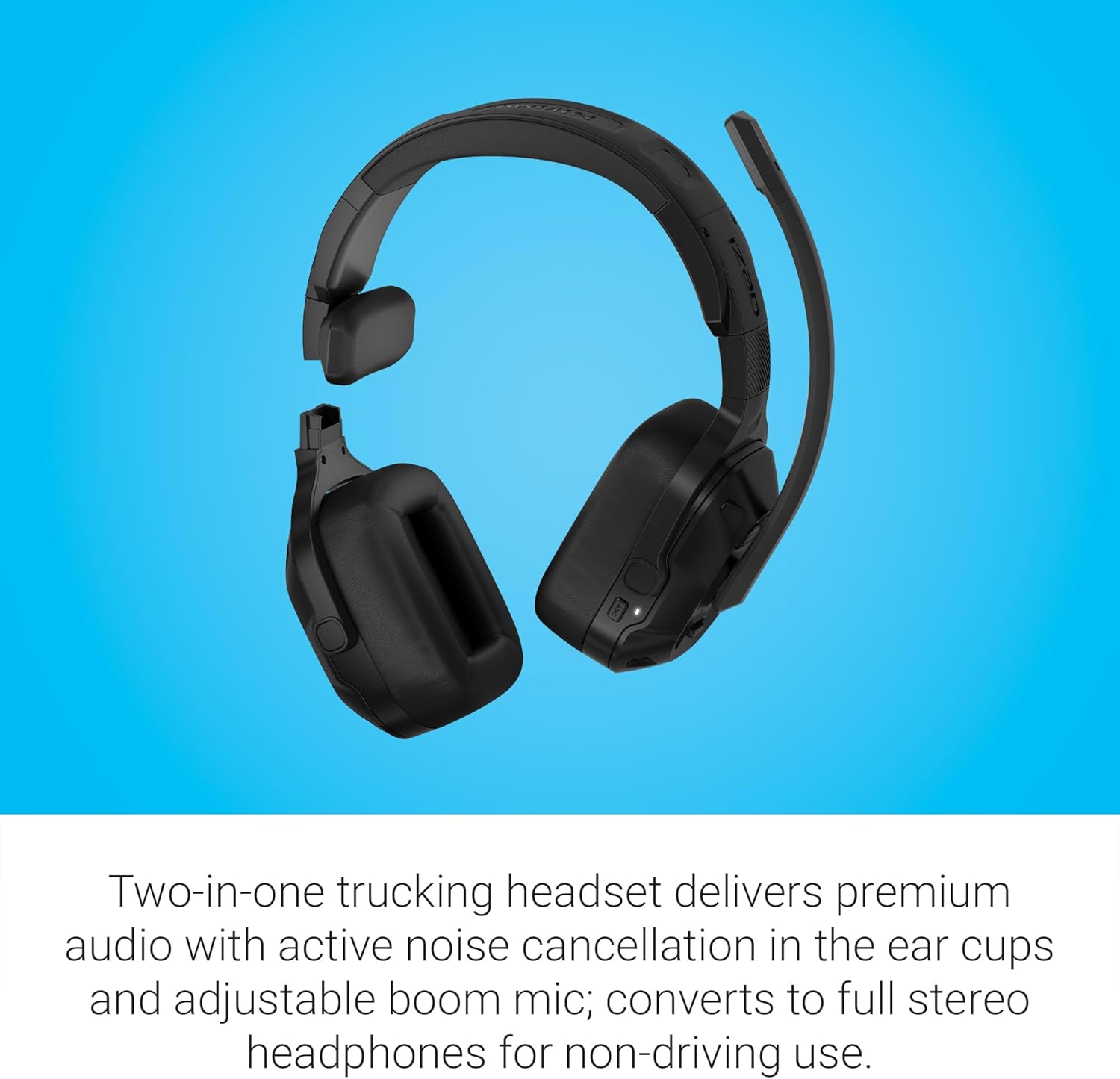
- To remove an earcup, locate the release button or mechanism on the headband near the earcup you wish to detach.
- Gently press the button and slide the earcup off the headband.
- Attach the provided single-ear padded piece to the exposed connector on the headband.
- To reattach the earcup, align it with the connector and slide it back into place until it clicks securely.
Operating Instructions
1. Call Management
- Answer/End Call: Press the multi-function button once.
- Reject Call: Press and hold the multi-function button for 2 seconds.
- Redial Last Number: Double-press the multi-function button.
- Mute/Unmute Microphone: Press the dedicated mute button on the microphone boom.
2. Volume Control
Use the volume up (+) and volume down (-) buttons located on the ear cup to adjust the audio level.
3. Active Noise Cancellation (ANC)
The headset features active noise cancellation in both the ear cups and the boom mic to reduce ambient noise for clearer audio and calls.
- ANC is typically active by default when the headset is powered on.
- Refer to the specific button layout on your headset for a dedicated ANC toggle, if available.
4. Built-in LED Flashlight
The microphone boom includes a dual-color LED flashlight for hands-free illumination.

- Activate Flashlight: Press the dedicated flashlight button (refer to your headset's button layout).
- Cycle Modes: Press the flashlight button repeatedly to cycle through red, white, and extra-bright white LED modes.
- Turn Off: Continue cycling until the light turns off, or press and hold the button.
5. Integration with dēzl™ OTR Navigator
For enhanced navigation, the headset can seamlessly integrate with a dēzl™ OTR truck navigator (sold separately).
- Navigation prompts will blend into your headset audio stream.
- Control your navigator with voice commands through the headset. This functionality requires the dēzl app on your compatible smartphone.
6. Media Playback
When connected to a device, you can stream music or other media. Use the multi-function button for playback controls:
- Play/Pause: Press the multi-function button once.
- Next Track: Double-press the multi-function button.
- Previous Track: Triple-press the multi-function button.
Maintenance
1. Cleaning
- Wipe the headset with a soft, damp cloth.
- Do not use harsh chemicals or abrasive cleaners.
- Ensure the USB-C port is dry before charging.
2. Storage
When not in use, store the headset in a cool, dry place. Utilize the included storage hook with ear cup cradle for convenient and secure stowage in your truck cab.

3. Battery Care
- Avoid fully discharging the battery frequently.
- Charge the headset regularly, even if not in constant use, to maintain battery health.
Troubleshooting
| Problem | Solution |
|---|---|
| Headset does not power on. | Ensure the battery is charged. Connect to a power source using the USB cable. |
| Cannot pair with a device. | Ensure the headset is in pairing mode (flashing blue/red LED). Turn off and on Bluetooth on your device. Move closer to the device. |
| Poor audio quality during calls. | Check microphone position. Ensure ANC is active. Reduce background noise if possible. Check device's audio settings. |
| LED flashlight not working. | Ensure the headset is powered on. Check battery level. |
| Headset disconnects frequently. | Ensure the headset is within range of the paired device. Avoid obstacles between the headset and device. |
Specifications
| Feature | Detail |
|---|---|
| Model Name | dēzl™ Headset 210 |
| Item Model Number | 010-02870-00 |
| Connectivity Technology | Bluetooth, USB |
| Wireless Communication Technology | Bluetooth |
| Bluetooth Version | 5.0 |
| Battery Life | Up to 60 Hours (Talk Time) |
| Noise Control | Active Noise Cancellation |
| Style | 2-IN-1 (Convertible) |
| Ear Placement | On Ear |
| Form Factor | Over Ear |
| Item Weight | 11.6 ounces (330 Grams) |
| Product Dimensions | 7.5 x 3.3 x 7.1 inches |
| Material | Plastic |
| Manufacturer | Garmin |
| Compatible Devices | Smartphones, Laptops, Tablets, Navigation Devices |
Official Product Video
Watch this official product summary video for a visual overview of the Garmin dēzl™ Headset 210's features and benefits.
Video Description: This video provides a concise summary of the Garmin dēzl™ Headset 210, showcasing its 2-in-1 convertible design, active noise cancellation, long battery life, and integrated LED flashlight. It highlights how these features enhance communication and entertainment for professional drivers.
Warranty and Support
The Garmin dēzl™ Headset 210 comes with a standard manufacturer's warranty. For detailed warranty information, product support, or service inquiries, please visit the official Garmin website or contact Garmin customer service.
Garmin Official Website: www.garmin.com