
1. Introduction
Thank you for choosing the CASIRIS Omnistar Projector. This manual provides essential information for the safe and efficient use of your device. Please read it thoroughly before operation and retain it for future reference.
Safety Guidelines
- Do not block ventilation openings.
- Use only the power adapter provided.
- Avoid direct eye exposure to the projector lens when the lamp is on.
- Keep the projector away from water or other liquids.
- Do not attempt to repair the device yourself. Contact qualified service personnel.
2. Package Contents
Verify that all items are present in the package:
- CASIRIS Omnistar Projector
- Remote Control
- Power Adapter

Image: The CASIRIS Omnistar Projector with its remote control and power adapter, illustrating the standard package contents.
3. Product Overview
The CASIRIS Omnistar Projector SHP-K4EN is designed for home cinema and office use, offering high brightness and advanced features. It supports 1080P Full HD and 4K decoding, providing a clear and immersive viewing experience.
Key Features:
- 1500 ANSI Lumen Brightness: Delivers vivid images even in moderately lit environments.
- Automatic Focus and Keystone Correction: Ensures a clear, rectangular image without manual adjustments.
- Dual 15W Speakers: Provides robust audio output, eliminating the need for external soundbars.
- 5G/2.4G WiFi and Bluetooth 5.0: Offers stable and fast wireless connectivity for streaming and audio.
- Versatile Connectivity: Includes HDMI, USB, AV, and 3.5mm headphone jack ports.
- Integrated Apps: Runs on Android 9.0, supporting various streaming applications (note HDCP restrictions for Netflix/Prime Video).
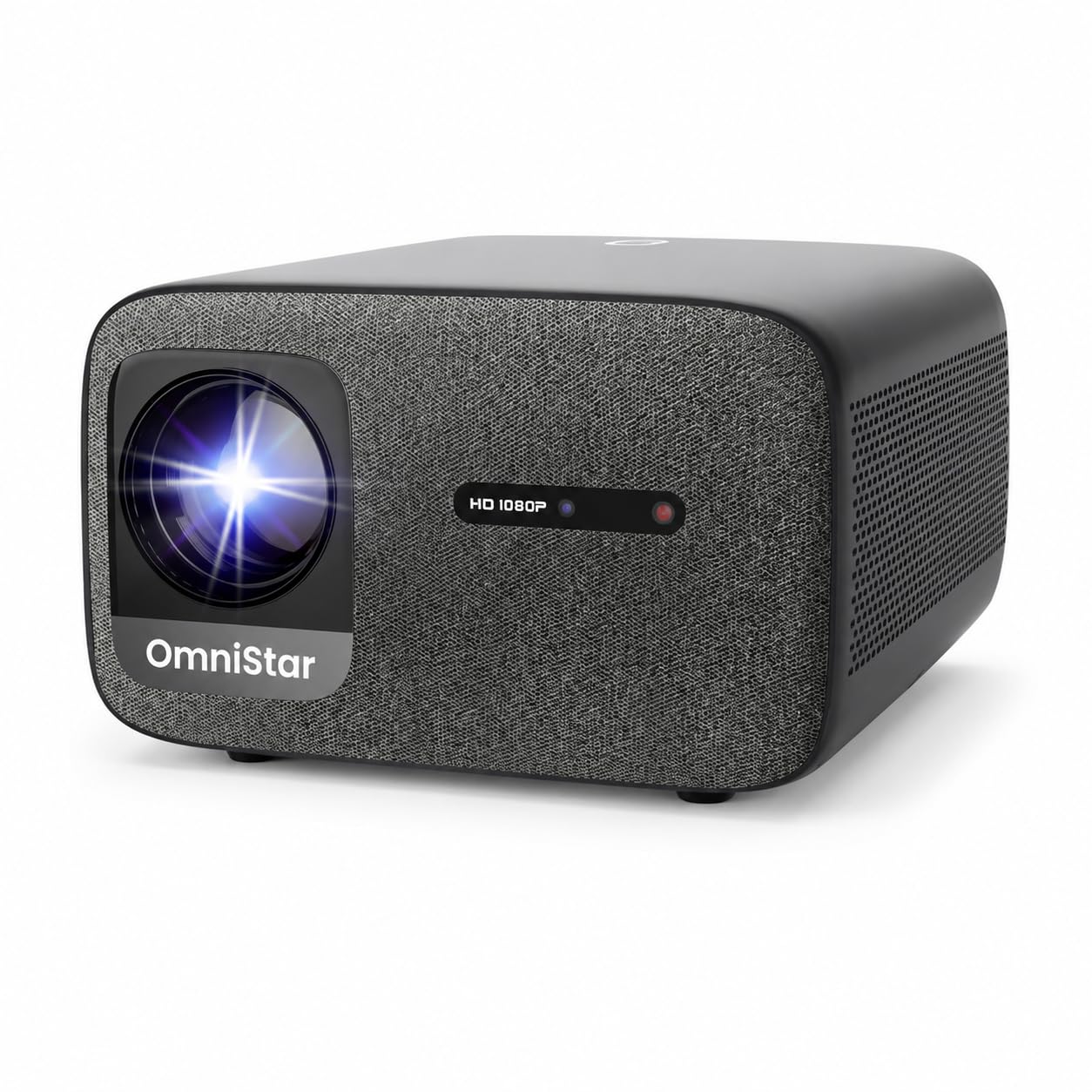
Image: A front view of the CASIRIS Omnistar Projector, highlighting its compact design and lens.
4. Setup
4.1 Unpacking
Carefully remove the projector and all accessories from the packaging.
4.2 Placement
Place the projector on a stable, flat surface or mount it on a tripod or ceiling. Ensure there is adequate ventilation around the device. The projection distance influences the screen size. For optimal viewing, consider the following approximate distances for various screen sizes:
- 60 inches: Approximately 1.81 meters (6 feet)
- 100 inches: Approximately 3.01 meters (9.9 feet)
- 120 inches: Approximately 3.61 meters (11.8 feet)
- 150 inches: Approximately 4.52 meters (14.8 feet)

Image: A diagram illustrating recommended projection distances for different screen sizes, from 60 to 150 inches.
4.3 Power Connection
Connect the power adapter to the DC IN port on the projector and then plug it into a power outlet.
4.4 Initial Power On
Press the power button on the projector or the remote control to turn on the device. The projector will perform an automatic focus and keystone correction upon startup.
4.5 Network Connection (WiFi)
Navigate to the settings menu, select 'Network', and connect to your preferred 5G or 2.4G WiFi network. A stable connection is crucial for streaming content.

Image: A visual representation of the projector's dual-band WiFi capabilities (5G and 2.4G), ensuring fast and stable internet access.
4.6 Bluetooth Pairing
To connect Bluetooth devices like external speakers or headphones, go to the settings menu, select 'Bluetooth', and pair your device. The projector can also function as a standalone Bluetooth speaker.
5. Operating Instructions
5.1 Basic Controls
Use the included remote control to navigate the projector's interface. The remote allows you to power on/off, adjust volume, select input sources, and access settings.
5.2 Focus and Keystone Correction
The projector features automatic focus and four-angle keystone correction. This system automatically adjusts the image for clarity and a rectangular shape, even if the projector is placed at an angle. If manual adjustment is needed, access the 'Image Settings' menu.

Image: A visual guide demonstrating the projector's intelligent screen adaptation technology, including automatic focus, keystone correction, and obstacle avoidance.
5.3 Digital Zoom
Adjust the image size from 50% to 100% using the digital zoom function in the 'Image Settings' menu. This allows for flexible screen sizing without moving the projector.
5.4 Input Sources
The projector supports multiple input sources:
- HDMI: Connect laptops, gaming consoles, Blu-ray players, and TV sticks.
- USB: Play videos, view photos, and access files from USB drives.
- AV: Connect older devices using an AV cable.
- USB-C: For fast connection with modern devices.

Image: A close-up view of the projector's rear panel, displaying the HDMI, USB, USB-C, RJ45, and DC IN ports for various connections.
5.5 App Usage
The projector runs on Android 9.0 and comes with integrated apps. You can download additional popular apps. Due to HDCP restrictions, Netflix and Prime Video cannot be streamed directly from the projector's built-in apps. For these services, use a TV stick connected via HDMI.

Image: A projector screen showing a grid of application icons, indicating the projector's support for various streaming and utility apps.
5.6 Audio Settings
The projector is equipped with dual 15W speakers for clear and powerful audio. When using a TV stick and experiencing no sound, ensure the audio mode on the TV stick's remote control is set to PCM.
6. Maintenance
6.1 Cleaning the Lens
Use a soft, lint-free cloth specifically designed for optical lenses to gently wipe the projector lens. Avoid using abrasive cleaners or excessive force, which can scratch the lens.
6.2 Cleaning the Exterior
Wipe the exterior of the projector with a soft, dry cloth. For stubborn dirt, slightly dampen the cloth with water. Do not use chemical cleaners.
6.3 Software Updates
Periodically check for software updates in the settings menu to ensure optimal performance, including improvements in noise reduction and heat management.
7. Troubleshooting
If you encounter issues with your projector, refer to the following common problems and solutions:
- No Image: Ensure the power cable is securely connected and the projector is turned on. Check the input source selection.
- Blurred Image: The projector has automatic focus. If the image remains blurry, try restarting the projector or manually adjusting focus in the settings. Ensure the lens is clean.
- Distorted Image (not rectangular): The projector features automatic keystone correction. If distortion persists, check for any physical obstructions or try manual keystone adjustment in the settings.
- No Sound: Verify the volume level on both the projector and the connected source device. If using a TV stick, ensure its audio output is set to PCM. Check Bluetooth connections if external speakers are used.
- Fan Noise: The projector's firmware includes updates for noise reduction. Ensure your software is up to date. Some fan noise is normal during operation to dissipate heat.
- Cannot Stream Netflix/Prime Video: Due to HDCP restrictions, these apps are not directly supported by the projector's built-in system. Use an external TV stick (e.g., Amazon Fire TV Stick) connected via HDMI.
8. Specifications
| Feature | Specification |
|---|---|
| Brand | CASIRIS |
| Model Name | SHP-K4EN |
| Brightness | 1500 ANSI Lumens |
| Native Resolution | 1920 x 1080 (Full HD) |
| Max Display Resolution | 3840 x 2160 (4K Supported) |
| Display Type | LCD |
| Connectivity Technology | HDMI, USB, Bluetooth 5.0, 5G/2.4G WiFi |
| Special Features | Auto Focus, Auto Keystone Correction, Digital Zoom, Noise & Heat Reduction Software |
| Product Dimensions | 28.8L x 29.1W x 18H cm |
| Item Weight | 4.08 Kilograms |
| Max Projection Distance | 4.3 Meters |
| Max Image Size | 150 Inches |
| Control Type | Remote Control |
| Compatible Devices | Laptops, Gaming Consoles, Blu-ray Players, Smartphones, TV Sticks |
9. Warranty and Support
For warranty information and technical support, please refer to the documentation included with your purchase or visit the official CASIRIS website. Keep your purchase receipt as proof of purchase for warranty claims.

