
Redragon K686, M612 PRO
Redragon K686 RGB Keyboard and M612 PRO Wireless Gaming Mouse Bundle User Manual
Model: K686 Keyboard, M612 PRO Mouse
Introduction
This manual provides comprehensive instructions for the setup, operation, and maintenance of your Redragon K686 RGB Keyboard and M612 PRO Wireless Gaming Mouse Bundle. Please read this manual carefully before use to ensure optimal performance and longevity of your devices.

Setup
Package Contents
- Redragon K686 RGB Mechanical Keyboard
- Redragon M612 PRO Wireless Gaming Mouse
- USB-C Cable (for keyboard and wired mouse connection/charging)
- 2.4G USB Receiver
- User Manual (this document)
Connecting the Keyboard
The K686 keyboard supports three connection modes: USB-C wired, 2.4G wireless, and Bluetooth (BT 3.0/5.0).

- USB-C Wired Mode: Connect the provided USB-C cable from the keyboard to an available USB port on your computer. The keyboard will be automatically recognized.
- 2.4G Wireless Mode: Insert the 2.4G USB receiver into an available USB port on your computer. Ensure the keyboard's mode switch is set to 2.4G. The keyboard should connect automatically.
- Bluetooth Mode: Ensure the keyboard's mode switch is set to BT. On your computer or device, search for Bluetooth devices and select 'Redragon K686' to pair. The keyboard supports BT 3.0 and BT 5.0.
Connecting the Mouse
The M612 PRO mouse also supports three connection modes: USB-C wired, 2.4G wireless, and Bluetooth.

- USB-C Wired Mode: Connect the provided USB-C cable from the mouse to an available USB port on your computer. The mouse will be automatically recognized.
- 2.4G Wireless Mode: Insert the 2.4G USB receiver (shared with keyboard or separate if provided) into an available USB port. Ensure the mouse's mode switch is set to 2.4G. The mouse should connect automatically.
- Bluetooth Mode: Ensure the mouse's mode switch is set to BT. On your computer or device, search for Bluetooth devices and select 'Redragon M612 PRO' to pair.
Operating the Keyboard (K686)

Gasket Design and Typing Feel
The K686 features a GASKET design with precision-locked covers and gaskets. This structure provides even feedback, reduces rigid noise, and delivers a crisp, clean, and softer typing feel. It incorporates 3-layer noise dampening for an enhanced acoustic experience.

RGB Lighting Control
The keyboard features customizable RGB backlighting. Specific key combinations (e.g., Fn + various keys) are used to cycle through lighting modes, adjust brightness, and change colors. Refer to the quick start guide or Redragon software for detailed instructions on lighting customization.

Hot-Swap Sockets
The K686 keyboard is equipped with hot-swap sockets, allowing users to change mechanical switches without soldering. This provides flexibility for customizing the typing feel and sound.
Dual System Compatibility
The keyboard supports both Windows and Mac operating systems, offering seamless switching for users with different setups.
Operating the Mouse (M612 PRO)

DPI Adjustment
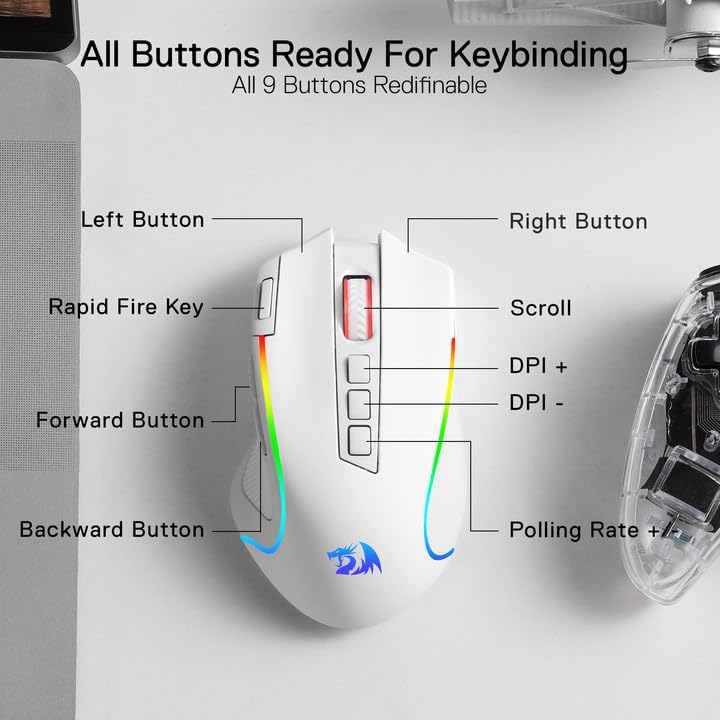
The M612 PRO mouse features 5 redefinable DPI levels, allowing you to switch sensitivity on the fly. Default DPI levels are 500, 1000, 2000, 3000, and 8000. You can adjust these levels using the dedicated DPI buttons on the mouse or through the Redragon software.

Programmable Buttons
The mouse is equipped with 9 programmable buttons, including a rapid fire button and two side macro buttons. These buttons can be customized using the Redragon software to assign specific functions, macros, or keybinds for gaming or productivity tasks.
Backlit Modes
The M612 PRO mouse features 7 backlit modes. These can typically be cycled through using a dedicated button or via the Redragon software to match your aesthetic preferences.
Maintenance
Cleaning
- Disconnect devices before cleaning.
- Use a soft, lint-free cloth slightly dampened with water or a mild cleaning solution.
- Avoid harsh chemicals, abrasives, or solvents.
- For the keyboard, use compressed air to remove debris from between keycaps.
Battery Care
To prolong battery life for both the keyboard and mouse:
- Avoid fully discharging the battery frequently.
- Charge the devices using the provided USB-C cable.
- Store devices in a cool, dry place when not in use for extended periods.
Troubleshooting
Connection Issues
- Device not responding: Ensure the device is charged and the mode switch (wired/2.4G/BT) is set correctly. Try reconnecting the USB receiver or cable.
- Bluetooth pairing failure: Ensure the device is in pairing mode. Remove previous pairings from your computer's Bluetooth settings and try again.
- Interference: Move the devices closer to the USB receiver or computer. Avoid placing them near other wireless devices that might cause interference.
Performance Issues
- Keys/Buttons not responding: Clean the area around the affected key/button. If using wireless, check battery level. For keyboard, ensure hot-swap switch is seated correctly.
- DPI/Sensitivity issues (Mouse): Ensure you are on the desired DPI level. Adjust settings via the mouse buttons or Redragon software.
- RGB lighting not working: Check lighting settings via key combinations or software. Ensure the device has sufficient power.
Specifications
| Feature | Redragon K686 Keyboard | Redragon M612 PRO Mouse |
|---|---|---|
| Connectivity | USB-C Wired, 2.4G Wireless, Bluetooth (BT 3.0/5.0) | USB-C Wired, 2.4G Wireless, Bluetooth |
| Design | Gasket Design, 3-Layer Noise Dampening | Ergonomic, PRO Optical Sensor |
| Key/Button Count | 98 Keys Layout | 9 Programmable Buttons |
| DPI Levels | N/A | 500/1000/2000/3000/8000 (Customizable) |
| Backlighting | RGB | 7 Backlit Modes |
| Special Features | Hot-Swap Sockets, Dual System (Win/Mac) | Rapid Fire Key, 10M Click Lifespan |
| Color | White | |
Warranty and Support
Warranty Information
Redragon products typically come with a limited warranty. Please refer to the warranty card included with your product or visit the official Redragon website for detailed warranty terms and conditions specific to your region.
Customer Support
For technical assistance, troubleshooting, or product inquiries, please contact Redragon customer support through their official website or the contact information provided on the product packaging. When contacting support, please have your product model number (K686, M612 PRO) and purchase details ready.
Related documentsK686, M612 PRO


Ask a question about this manual
Ask about setup, troubleshooting, compatibility, parts, safety, or missing instructions. Manuals+ will review the question and use this page’s manual context to help answer it.