
Jazmm CD-W16
Jazmm CD-W16 Boombox CD Cassette Player with Bluetooth User Manual
Model: CD-W16
Introduction
Thank you for purchasing the Jazmm CD-W16 Boombox CD Cassette Player. This versatile audio system combines multiple playback options including CD, cassette, FM radio, Bluetooth, USB, TF card, and AUX-IN. It features 10W HiFi stereo speakers, a built-in rechargeable battery, and a convenient remote control for an enhanced listening experience. Please read this manual carefully before use to ensure proper operation and to maximize the product's lifespan.
Important Safety Instructions
- Read all instructions before operating the device.
- Keep this manual for future reference.
- Do not expose the unit to rain or moisture to prevent fire or electric shock.
- Do not block any ventilation openings. Install in accordance with the manufacturer's instructions.
- Do not install near any heat sources such as radiators, heat registers, stoves, or other apparatus (including amplifiers) that produce heat.
- Protect the power cord from being walked on or pinched, particularly at plugs, convenience receptacles, and the point where they exit from the apparatus.
- Only use attachments/accessories specified by the manufacturer.
- Unplug this apparatus during lightning storms or when unused for long periods of time.
- Refer all servicing to qualified service personnel. Servicing is required when the apparatus has been damaged in any way, such as power-supply cord or plug is damaged, liquid has been spilled or objects have fallen into the apparatus, the apparatus has been exposed to rain or moisture, does not operate normally, or has been dropped.
- Do not open the casing. There are no user-serviceable parts inside.
Package Contents
- Jazmm CD-W16 Boombox CD Cassette Player
- Remote Control
- Type-C USB Charging Cable
- User Manual
Product Overview
The Jazmm CD-W16 offers a comprehensive audio experience with its multi-functional design. Below is an overview of its key features and components.

Image: Front view of the Jazmm CD-W16 Boombox, highlighting its seven playback modes: CD Player, FM Radio, TF Card Playback, USB Playback, Tape Player, AUX-IN Playback, and Bluetooth 5.1.
Key Features:
- 7-in-1 Playback: CD, Cassette, FM Radio, Bluetooth 5.1, USB, TF Card, AUX-IN.
- CD Compatibility: Supports CD, CDR, CDRW, MP3, WMA formats.
- Cassette Player & Recorder: Play tapes and record audio.
- FM Radio: Automatic scanning, 30 preset stations.
- High-Fidelity Sound: Dual 10W HiFi speakers with advanced noise reduction.
- 5 EQ Sound Modes: NORMAL, ROCK, POP, JAZZ, CLASS.
- Rechargeable Battery: Built-in 5000mAh battery for portable use (5-8 hours playback).
- Connectivity: USB port, TF card slot, 3.5mm AUX-IN, 3.5mm Headphone Jack.
- Convenience: Remote control, portable handle, Type-C charging.
Setup
1. Powering On and Charging
The Jazmm CD-W16 features a built-in 5000mAh rechargeable battery. Before first use, it is recommended to fully charge the device.
- Connect the provided Type-C USB charging cable to the Type-C port on the boombox.
- Connect the other end of the cable to a 5V/2A USB power adapter (not included), a power bank, or a car charger.
- The charging indicator will illuminate. Once fully charged, the indicator may change color or turn off, depending on the unit's design.
- A full charge typically provides 5-8 hours of playback time.

Image: The Jazmm CD-W16 Boombox being charged via Type-C USB cable from various sources including a wall charger, power bank, and car charger, illustrating its 5000mAh rechargeable battery.
2. Initial Power On
Press the POWER button on the unit or remote control to turn on the boombox. The display will light up, indicating the current mode.
Operating Instructions
1. General Controls
Familiarize yourself with the control buttons on the unit and the remote control.
- POWER Button: Turns the unit on/off.
- MODE/FUNCTION Button: Switches between CD, TAPE, FM, Bluetooth, USB, TF, AUX-IN modes.
- VOLUME +/-: Adjusts the playback volume.
- PLAY/PAUSE Button: Starts or pauses playback.
- STOP Button: Stops playback.
- PREVIOUS/NEXT Buttons: Skips to the previous or next track/station.
- EQ Button: Cycles through sound equalizer modes (NORMAL, ROCK, POP, JAZZ, CLASS).
- REPEAT Button: Cycles through repeat modes (Repeat One, Repeat All, Repeat Folder).
2. CD Playback
- Press the MODE/FUNCTION button to select CD mode.
- Open the CD compartment cover gently.
- Place a CD (CD, CDR, CDRW, MP3, WMA format) onto the spindle with the label side facing up.
- Close the CD compartment cover. The unit will begin reading the disc and playback will start automatically.
- Use the PLAY/PAUSE, STOP, PREVIOUS/NEXT buttons to control playback.
- Press the REPEAT button to select repeat modes (e.g., repeat one track, repeat all tracks).
3. Cassette Playback and Recording
- Press the MODE/FUNCTION button to select TAPE mode.
- Open the cassette compartment door.
- Insert a cassette tape into the compartment and close the door.
- Press the PLAY button to start playback.
- To record:
- Ensure a blank cassette tape is inserted.
- Select the desired audio source (e.g., FM radio, AUX-IN, or use the built-in microphone).
- Press the RECORD button (usually red) on the unit. Playback from the source will begin, and recording will start simultaneously onto the tape.
- Press the STOP button to end recording.
4. FM Radio Operation
- Press the MODE/FUNCTION button to select FM mode.
- Extend the telescopic antenna for optimal reception.
- Automatic Scan: Press and hold the PLAY/PAUSE button (or a dedicated SCAN button if available) to automatically scan and save available FM stations. The unit can save up to 30 preset stations.
- Manual Tuning: Use the PREVIOUS/NEXT buttons to manually tune to desired frequencies.
- Recalling Presets: Use the number buttons on the remote control or dedicated preset buttons on the unit to select saved stations.
5. Bluetooth Pairing
The boombox supports Bluetooth 5.1 for wireless audio streaming.
- Press the MODE/FUNCTION button to select Bluetooth (BT) mode. The display will show "BT" and an indicator will flash, signifying it's in pairing mode.
- On your Bluetooth-enabled device (smartphone, tablet, laptop), enable Bluetooth and search for available devices.
- Select "Jazmm CD-W16" (or similar name) from the list of devices.
- Once paired, the boombox will emit a confirmation sound, and the Bluetooth indicator will stop flashing.
- You can now play audio from your device through the boombox.
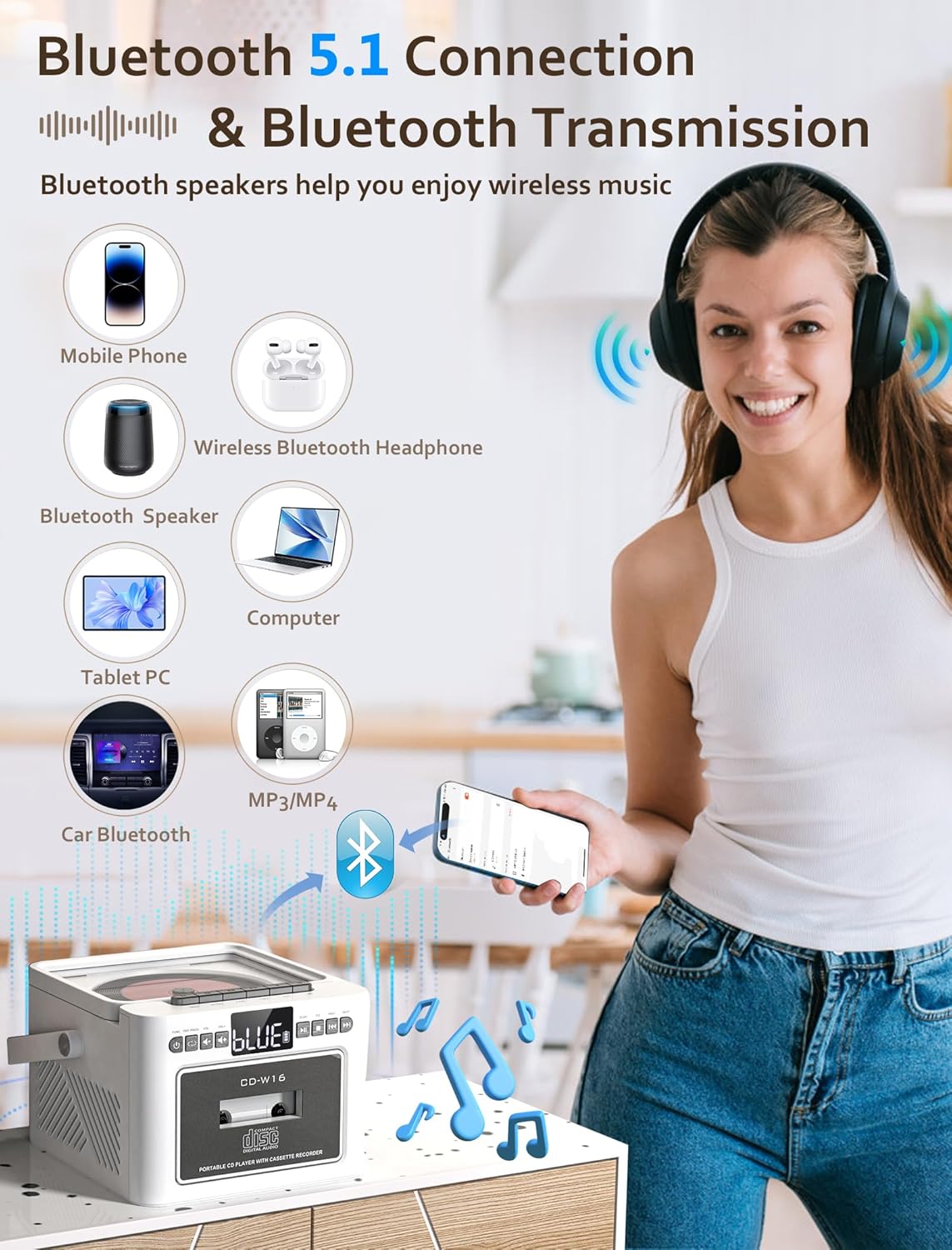
Image: The Jazmm CD-W16 Boombox demonstrating its Bluetooth 5.1 connectivity, wirelessly streaming music from a mobile phone, and connecting to other devices like Bluetooth speakers, headphones, tablets, computers, and car Bluetooth systems.
6. USB / TF Card Playback
- Insert a USB flash drive into the USB port or a TF (Micro SD) card into the TF card slot.
- Press the MODE/FUNCTION button to select USB or TF mode. The unit will automatically detect and begin playing compatible audio files (MP3, WMA).
- Use the PLAY/PAUSE, STOP, PREVIOUS/NEXT buttons to control playback.
7. AUX-IN Playback
- Connect an external audio device (e.g., MP3 player, smartphone) to the AUX-IN port on the boombox using a 3.5mm audio cable (not included).
- Press the MODE/FUNCTION button to select AUX-IN mode.
- Control playback directly from your connected external device. The boombox will act as a speaker.
8. EQ Sound Modes
The Jazmm CD-W16 offers 5 equalizer presets to optimize your listening experience for different music genres.
- Press the EQ button repeatedly to cycle through the available modes: NORMAL, ROCK, POP, JAZZ, CLASS.
- Select the mode that best suits your audio content.
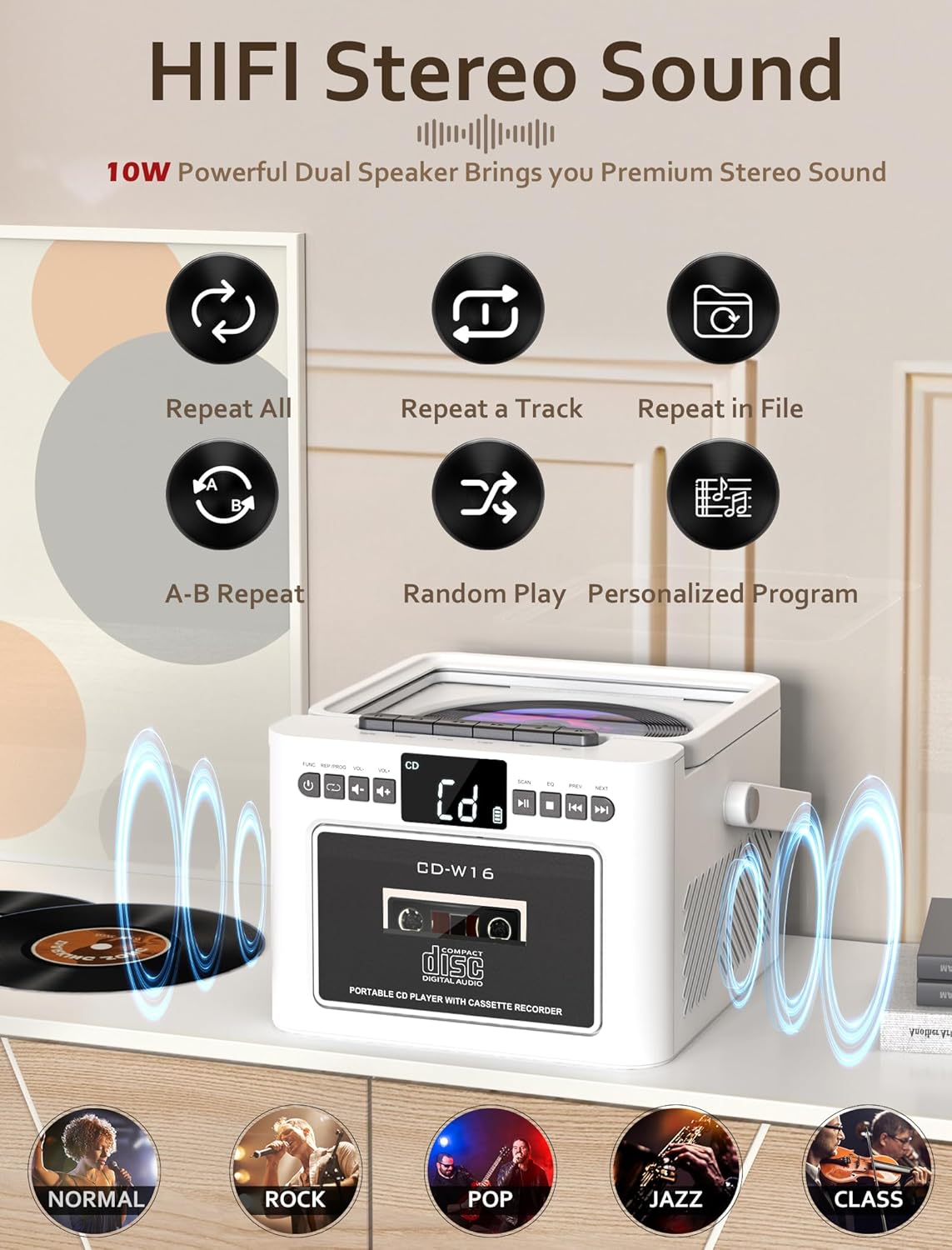
Image: The Jazmm CD-W16 Boombox illustrating its 10W HIFI stereo sound output and the five available EQ sound modes: Normal, Rock, Pop, Jazz, and Class.
9. Using the Remote Control
The included remote control allows convenient operation from a distance of up to 7 meters. Ensure there are no obstructions between the remote and the boombox's IR receiver.
- Insert batteries into the remote control (type usually AAA, refer to remote's battery compartment).
- The remote control duplicates most functions available on the main unit, including power, mode selection, volume, track skipping, play/pause, stop, EQ, and repeat.
- For FM radio, the remote may also offer direct number input for station frequencies or preset recall.
Maintenance
1. Cleaning
- Always unplug the unit from the power source before cleaning.
- Use a soft, dry cloth to wipe the exterior surfaces.
- For stubborn marks, lightly dampen the cloth with water and a mild detergent, then wipe dry immediately.
- Do not use abrasive cleaners, waxes, or solvents as they may damage the finish.
- For the CD lens, use a specialized CD lens cleaning kit. Do not touch the lens directly.
- For the cassette head, use a cassette head cleaning solution and swab.
2. Storage
- When not in use for extended periods, store the boombox in a cool, dry place, away from direct sunlight and extreme temperatures.
- Remove any discs or tapes from the compartments before storage.
- If storing for a very long time, it is advisable to periodically charge the built-in battery to maintain its health.
Troubleshooting
| Problem | Possible Cause | Solution |
|---|---|---|
| No power | Battery depleted; Power cable not connected; Unit off. | Charge the battery; Ensure power cable is securely connected; Press the POWER button. |
| No sound | Volume too low; Mute activated; Incorrect mode selected; Headphone connected. | Increase volume; Check if mute is active; Select correct playback mode; Disconnect headphones. |
| CD not playing | Disc dirty/scratched; Disc inserted incorrectly; Unsupported disc format; CD compartment not closed. | Clean or replace disc; Insert disc label-side up; Ensure disc is CD/CDR/CDRW/MP3/WMA; Close compartment firmly. |
| Cassette not playing/recording | Tape damaged; Tape inserted incorrectly; Cassette heads dirty. | Use a functional tape; Insert tape correctly; Clean cassette heads. |
| Poor FM reception | Antenna not extended; Weak signal area; Interference. | Fully extend the telescopic antenna; Reposition the unit; Move away from electronic devices causing interference. |
| Bluetooth pairing failed | Boombox not in pairing mode; Device Bluetooth off; Out of range; Already paired to another device. | Ensure boombox is in BT pairing mode; Enable Bluetooth on your device; Move device closer; Disconnect from other devices. |
| Remote control not working | Batteries depleted/incorrectly inserted; Obstruction between remote and unit; Remote sensor blocked. | Replace/reinsert batteries; Remove obstructions; Ensure remote sensor on unit is clear. |
Specifications
| Feature | Detail |
|---|---|
| Model | CD-W16 |
| Brand | Jazmm |
| Playback Modes | CD, Cassette, FM Radio, Bluetooth, USB, TF Card, AUX-IN |
| CD Compatibility | CD, CDR, CDRW, MP3, WMA |
| Bluetooth Version | 5.1 |
| Speaker Output | 2 x 10W (Stereo) |
| Power Source | Built-in 5000mAh Rechargeable Battery, Type-C 5V/2A Input |
| Battery Life | Approx. 5-8 hours (depending on usage) |
| Connectivity | USB Port, TF Card Slot, 3.5mm AUX-IN, 3.5mm Headphone Jack |
| Remote Control Range | Up to 7 meters |
| Compatible Devices | Smartphones, Laptops, Tablets, MP3 Players |
Warranty and Support
Jazmm offers a lifetime warranty on this portable CD player boombox. For any product inquiries, technical support, or warranty claims, please contact our customer service team. We provide 24/7 world-class customer service to assist you.
Please refer to your purchase documentation or the seller's information for specific contact details.
Ask a question about this manual
Ask about setup, troubleshooting, compatibility, parts, safety, or missing instructions. Manuals+ will review the question and use this page’s manual context to help answer it.