
1. Introduction
This manual provides detailed instructions for the installation, operation, and maintenance of your SIXWIN 1 Din Wireless CarPlay Android Auto Autoradio. Please read this manual thoroughly before using the product to ensure proper function and to prevent damage. Keep this manual for future reference.
2. Package Contents
Verify that all items listed below are included in your package. If any items are missing or damaged, please contact your retailer.
- SIXWIN 1 Din Wireless CarPlay Android Auto Autoradio Unit
- Power Cable
- 3.5mm Microphone (MIC)
- 12LED Rear Camera
- Antenna
- Steering Wheel Control Interface
- User Manual (this document)
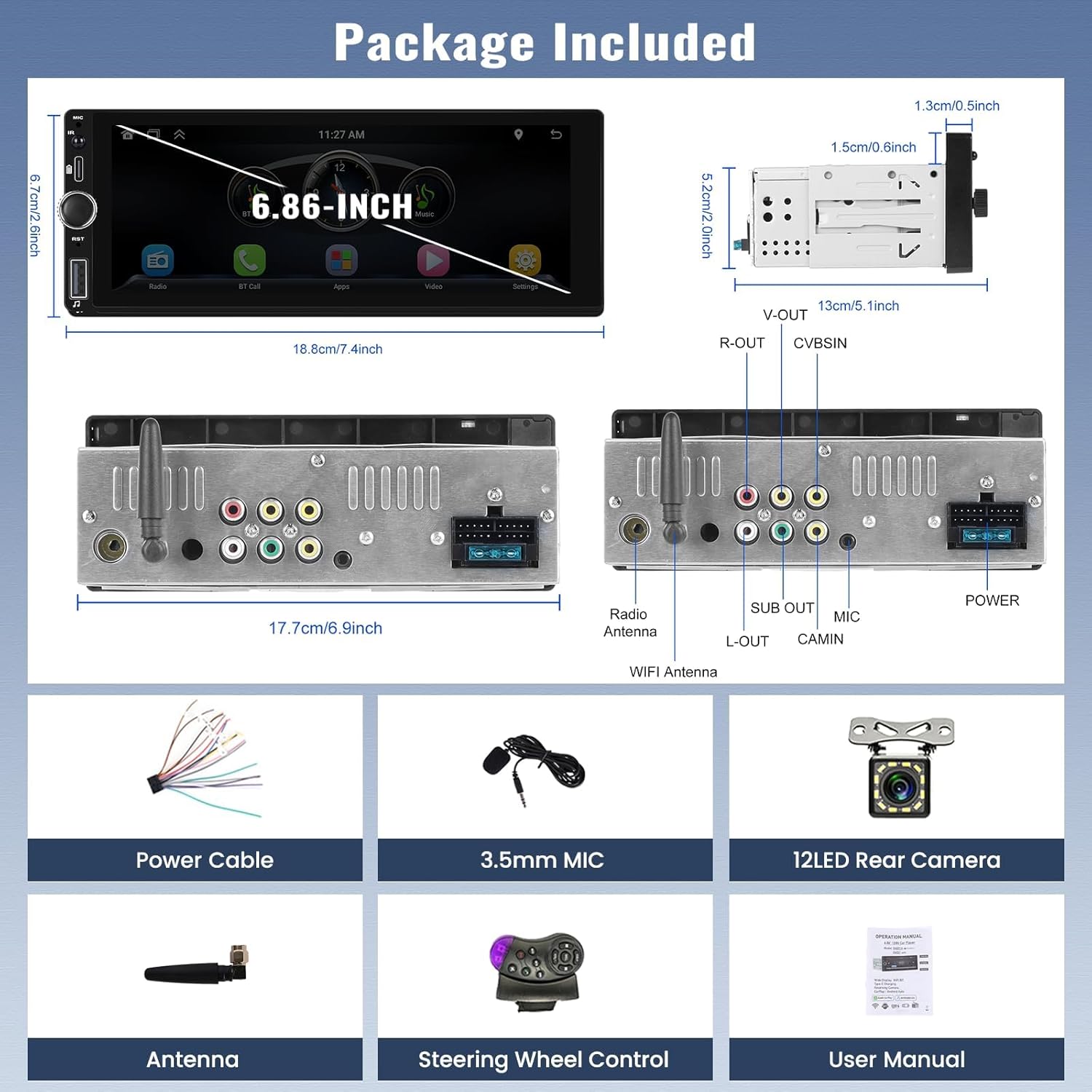
Image 2.1: Overview of included accessories and rear connection ports.
3. Product Overview
The SIXWIN Autoradio is a versatile 1 Din car media receiver featuring a 6.86-inch touchscreen. It supports wireless CarPlay and Android Auto, Bluetooth 5.1, FM radio, USB, AUX, SD card inputs, and Mirror Link functionality. It is designed to enhance your in-car entertainment and connectivity.
3.1 Key Features
- Wireless CarPlay & Android Auto: Seamless integration with your smartphone for navigation, music, calls, and voice control.
- 6.86-inch Touch Screen: High-resolution display (1280x480) for clear visuals and intuitive control.
- Bluetooth 5.1: For hands-free calling and wireless audio streaming.
- FM Radio: Access to local radio stations.
- Multiple Media Inputs: USB, AUX, and SD card slots for various audio and video playback options.
- Mirror Link: Wired screen mirroring for compatible Android and iOS devices.
- Steering Wheel Control Support: Integrate with your vehicle's existing steering wheel controls.
- Backup Camera Input: Automatic display of rear view when reversing.
- EQ Function: Customizable audio equalizer settings.

Image 3.1: Display showing Wireless CarPlay and Android Auto functionality with navigation and media apps.
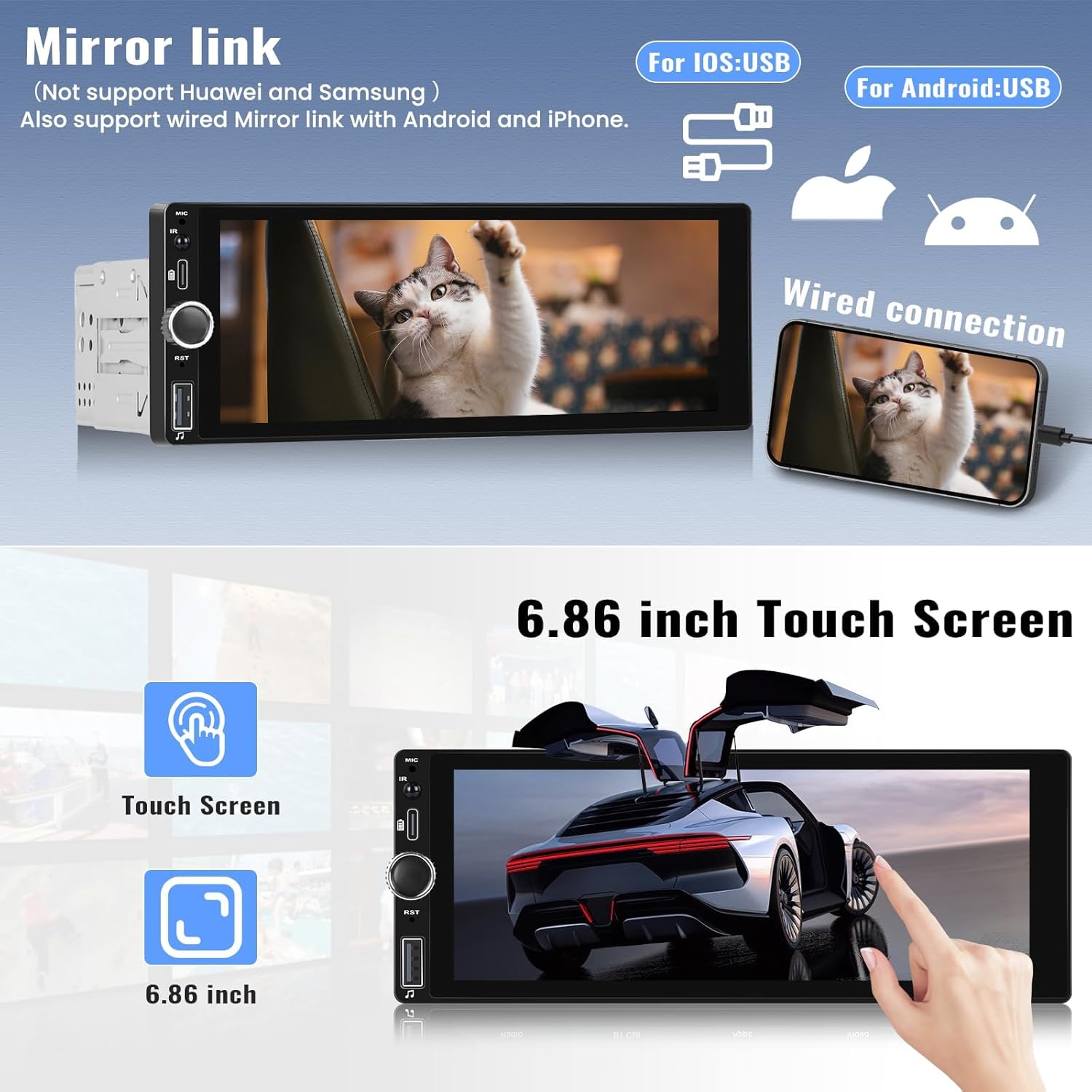
Image 3.2: Illustration of the Mirror Link function, showing wired connection for smartphone screen mirroring.

Image 3.3: Screenshots demonstrating Bluetooth call interface, music playback, and FM radio tuning.

Image 3.4: Display showing the steering wheel control learning interface and the automatic backup camera view.

Image 3.5: Visuals of the high-resolution touchscreen and the customizable audio equalizer settings.
4. Setup and Installation
Proper installation is crucial for the optimal performance and safety of your autoradio. It is highly recommended to have this unit installed by a qualified professional.
4.1 Wiring Connections
Refer to the wiring diagram provided with your unit and consult Image 2.1 for an overview of the rear connection ports. Ensure all connections are secure and correctly matched to your vehicle's wiring harness.
- Power Cable: Connect the yellow wire to constant 12V power, the red wire to accessory 12V (switched ignition), and the black wire to ground.
- Speaker Outputs: Connect the speaker wires to your vehicle's speakers. Ensure correct polarity.
- Radio Antenna: Connect your vehicle's FM antenna to the designated port.
- 3.5mm Microphone: Plug the external microphone into the MIC input for improved call quality.
- Rear Camera (CAMIN): Connect the video output of the backup camera to the CAMIN RCA input. Connect the camera's power to the reverse light circuit for automatic activation.
- Steering Wheel Control: Connect the steering wheel control wires to your vehicle's SWC interface, if applicable.
- RCA Outputs (V-OUT, R-OUT, L-OUT, SUB OUT): For connecting external amplifiers or monitors.
4.2 Mounting the Unit
Install the 1 Din unit into your vehicle's dashboard opening. Secure it using the provided mounting hardware. Ensure the unit is firmly in place and does not obstruct any vehicle controls or airbags.
5. Operating Instructions
5.1 Power On/Off
Press the power button (usually located on the front panel) to turn the unit on or off. The unit will automatically power on when the vehicle's ignition is turned on, if wired correctly.
5.2 Touch Screen Operation
The 6.86-inch capacitive touch screen allows for intuitive control. Tap icons to select functions, swipe to navigate menus, and use pinch-to-zoom gestures where supported.
5.3 Wireless CarPlay / Android Auto
- Ensure Bluetooth is enabled on your smartphone.
- On the autoradio, go to the CarPlay/Android Auto menu.
- Search for and pair with your phone via Bluetooth.
- Once paired, the unit will prompt you to connect via Wi-Fi for data transfer. Confirm the connection on your phone.
- CarPlay or Android Auto will launch automatically, mirroring your phone's compatible apps to the screen.
5.4 Bluetooth Function (BT)
- Access the 'BT' or 'Bluetooth' icon from the main menu.
- Enable Bluetooth on your phone and search for available devices.
- Select 'SIXWIN Autoradio' (or similar name) from your phone's list and pair.
- Once connected, you can make/receive calls hands-free and stream audio from your phone.
5.5 FM Radio
- Tap the 'Radio' or 'FM' icon.
- Use the 'Scan' function to automatically search for and save available stations.
- Manually tune using the frequency controls or select from saved presets.
5.6 Mirror Link
- Connect your smartphone to the unit's USB port using a high-quality USB cable.
- Select the 'Mirror Link' function on the autoradio.
- Follow the on-screen prompts on both the autoradio and your phone to establish the connection.
- Note: Compatibility may vary between phone models. Huawei and Samsung devices are noted as not supported for Mirror Link.
5.7 Steering Wheel Control
- Go to the 'Settings' menu and locate the 'Steering Wheel Control' or 'SWC' option.
- Follow the on-screen instructions to program each button on your steering wheel to the desired function on the autoradio.
5.8 Backup Camera
When the vehicle is shifted into reverse gear, the unit will automatically display the video feed from the connected backup camera (if installed and wired correctly).
5.9 Media Playback (USB/SD/AUX)
Insert a USB drive or SD card into the respective slots, or connect an external audio device via the AUX input. The unit will automatically detect the media and allow you to browse and play audio/video files.
5.10 EQ Function
Access the 'EQ' or 'Sound Settings' menu to adjust audio parameters such as bass, treble, balance, fader, and select from various preset equalizer modes (e.g., Pop, Rock, Classical).
6. Maintenance
To ensure the longevity and optimal performance of your autoradio, follow these maintenance guidelines:
- Cleaning the Screen: Use a soft, lint-free cloth to gently wipe the touchscreen. For stubborn smudges, slightly dampen the cloth with water or a screen-safe cleaner. Avoid harsh chemicals or abrasive materials.
- General Cleaning: Keep the unit free from dust and debris. Use a soft brush or compressed air to clean around buttons and ports.
- Avoid Extreme Temperatures: Do not expose the unit to extreme heat or cold, as this can affect its electronic components and screen.
- Firmware Updates: Check the manufacturer's website periodically for any available firmware updates to improve performance and add new features.
7. Troubleshooting
If you encounter issues with your autoradio, refer to the following common problems and solutions before contacting support.
7.1 No Power
- Check Fuses: Verify the vehicle's fuse for the radio and the fuse on the autoradio's power cable. Replace if blown.
- Wiring: Ensure the yellow (constant 12V), red (accessory 12V), and black (ground) wires are correctly connected and have proper voltage.
- Ignition: Confirm the vehicle's ignition is on.
7.2 No Sound
- Volume Level: Increase the volume on the autoradio.
- Mute Function: Check if the unit is muted.
- Speaker Connections: Verify all speaker wires are securely connected and not short-circuited.
- Source Selection: Ensure the correct audio source (FM, Bluetooth, USB, AUX) is selected.
7.3 Bluetooth Connection Issues
- Enable Bluetooth: Ensure Bluetooth is active on both the autoradio and your smartphone.
- Forget Device: Delete the autoradio from your phone's Bluetooth device list and re-pair.
- Proximity: Keep your phone close to the autoradio.
- Restart: Restart both the autoradio and your phone.
7.4 CarPlay / Android Auto Not Connecting
- Bluetooth & Wi-Fi: Ensure both are enabled and connected.
- Phone Compatibility: Verify your phone's operating system is up-to-date and supports CarPlay/Android Auto.
- Permissions: Check phone settings for necessary permissions for CarPlay/Android Auto.
- Restart: Restart both devices.
7.5 Screen Not Responding
- Restart: Turn the unit off and on again.
- Reset: Locate the small reset button (often recessed) and press it with a non-metallic pointed object.
8. Specifications
| Feature | Specification |
|---|---|
| Brand | SIXWIN |
| Model Number | SIXWIN-WCA1DIN |
| Screen Size | 6.86 inches |
| Screen Resolution | 1280 x 480 |
| Connectivity | Wireless CarPlay, Wireless Android Auto, Bluetooth 5.1, FM, USB, AUX, SD, Mirror Link |
| Connector Type | RCA |
| Number of Channels | 2 |
| Warranty | 1 year manufacturer warranty |
9. Warranty and Support
9.1 Warranty Information
This SIXWIN Autoradio comes with a 1-year manufacturer warranty from the date of purchase. This warranty covers defects in materials and workmanship under normal use. It does not cover damage caused by improper installation, accident, misuse, abuse, neglect, unauthorized modification, or normal wear and tear.
Please retain your proof of purchase for warranty claims.
9.2 Customer Support
For technical assistance, warranty claims, or any questions not covered in this manual, please contact SIXWIN customer support through your retailer or the official SIXWIN website. Provide your product model number (SIXWIN-WCA1DIN) and purchase details when contacting support.