
1. Introduction
Welcome to the user manual for your new ZTE Blade A55 Smartphone. This guide provides comprehensive instructions on how to set up, operate, maintain, and troubleshoot your device. Please read this manual carefully to ensure optimal performance and longevity of your smartphone.
2. What's in the Box
Upon unboxing your ZTE Blade A55, please verify that all the following items are included:
- ZTE Blade A55 Smartphone
- USB Cable
- Charger
- SIM Ejector Tool (SIM Needle)
- Quick Start Guide
3. Product Overview
Familiarize yourself with the physical components of your ZTE Blade A55.

Figure 3.1: Front and Back View of the ZTE Blade A55. This image displays both the front screen with its waterdrop notch and the rear panel featuring the camera module and ZTE branding.

Figure 3.2: Side View of the ZTE Blade A55. This image highlights the power button and volume rocker located on the side of the device.
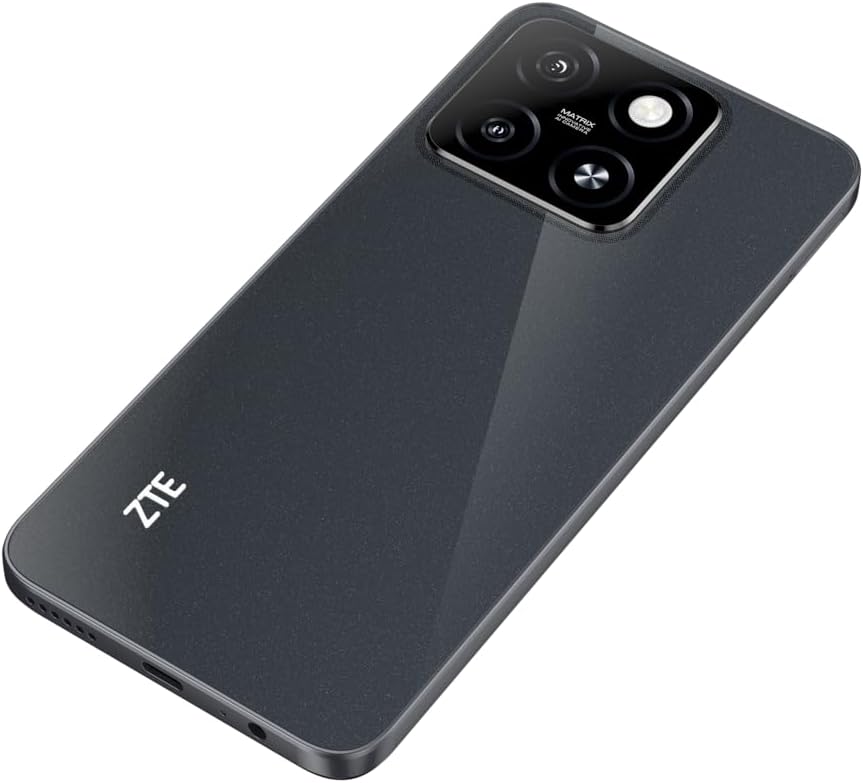
Figure 3.3: Back View of the ZTE Blade A55. This image provides a clear view of the 13MP main camera and its associated module on the rear of the phone.
4. Setup
4.1 Inserting SIM Card and microSD Card
Your ZTE Blade A55 supports Dual-SIM functionality and expandable storage via a microSD card.
- Locate the SIM tray on the side of the device.
- Insert the SIM ejector tool into the small hole next to the tray to open it.
- Carefully pull out the SIM tray.
- Place your Nano-SIM card(s) and/or microSD card into the designated slots on the tray. Ensure the gold contacts are facing down.
- Gently push the tray back into the slot until it clicks into place.
4.2 Charging the Battery
Before first use, it is recommended to fully charge the device battery.
- Connect the USB cable to the charger.
- Plug the charger into a power outlet.
- Connect the other end of the USB cable to the USB-C port on your phone.
- The charging indicator will appear on the screen. Disconnect the charger once the battery is full.
4.3 Powering On/Off
- To Power On: Press and hold the Power button (located on the side) until the ZTE logo appears.
- To Power Off: Press and hold the Power button until the power options menu appears, then tap "Power off".
- To Restart: Press and hold the Power button until the power options menu appears, then tap "Restart".
5. Operating Your Device
5.1 Basic Navigation
Your ZTE Blade A55 runs on Android 14, offering an intuitive user experience.
- Tap: Touch an icon or option to select it.
- Swipe: Drag your finger across the screen to scroll or navigate.
- Pinch: Use two fingers to zoom in or out on photos and web pages.
- Long Press: Press and hold an item for more options.
5.2 Making Calls
- Tap the Phone icon on the home screen.
- Enter the phone number using the dial pad.
- Tap the Call button to initiate the call.
5.3 Sending Messages
- Tap the Messages icon.
- Tap the Start chat or New message button.
- Enter the recipient's number or select from contacts.
- Type your message in the text field.
- Tap the Send button.
5.4 Connecting to Wi-Fi
- Go to Settings > Network & internet > Internet.
- Turn on Wi-Fi.
- Select your desired Wi-Fi network from the list.
- Enter the password if prompted, then tap Connect.
5.5 Camera Usage
Your ZTE Blade A55 features a 13MP main camera and an 8MP front camera.
- Tap the Camera icon.
- Frame your shot.
- Tap the Shutter button to take a photo.
- Switch between photo and video modes as needed.
- Tap the Switch Camera icon to use the front camera for selfies.
6. Maintenance
6.1 Cleaning the Device
- Use a soft, lint-free cloth to clean the screen and body.
- Avoid using harsh chemicals, abrasive cleaners, or aerosol sprays.
- Do not expose the device to excessive moisture.
6.2 Battery Care
The ZTE Blade A55 is equipped with a 5000 mAh battery.
- Avoid extreme temperatures, as they can degrade battery life.
- Do not leave the phone charging for extended periods after it's fully charged.
- For optimal battery health, try to keep the charge between 20% and 80%.
6.3 Software Updates
Regularly check for and install software updates to ensure your device has the latest features, security patches, and performance improvements.
- Go to Settings > System > System update.
- Follow the on-screen instructions to check for and install updates.
7. Troubleshooting
If you encounter issues with your device, try the following common solutions:
| Problem | Solution |
|---|---|
| Device not turning on | Ensure the battery is charged. Press and hold the Power button for at least 10 seconds. |
| Poor signal or no network | Check SIM card insertion. Restart the device. Verify network settings. Contact your mobile carrier. |
| Apps crashing or freezing | Close and reopen the app. Clear the app's cache (Settings > Apps > [App Name] > Storage & cache). Restart the phone. |
| Slow performance | Close unused apps. Clear cache. Free up storage space. Restart the device. |
| Cannot connect to Wi-Fi | Ensure Wi-Fi is enabled. Restart your router. Forget and reconnect to the network. |
If the issue persists, consider performing a factory reset (backup your data first) or contact customer support.
8. Specifications
Key technical specifications for the ZTE Blade A55 Smartphone:
| Feature | Detail |
|---|---|
| Model Name | Blade A55 Starry Black |
| Model Number | 123441801018 |
| Operating System | Android 14 |
| Display | 6.75 inches HD+ (1600 x 720 resolution) Waterdrop Display, 60 Hz refresh rate |
| Processor | Unisoc SC9863A1, 1.6 GHz CPU clock frequency |
| RAM | 4 GB |
| Internal Storage | 64 GB (expandable via microSD) |
| Rear Camera | 13 MP AI Camera |
| Front Camera | 8 MP |
| Battery | 5000 mAh Lithium-Ion (included) |
| Dimensions | 18.5 x 9.5 x 5 cm |
| Weight | 480 grams |
| Connectivity | 4G LTE, Dual-SIM |
9. Warranty and Support
Your ZTE Blade A55 Smartphone comes with a standard manufacturer's warranty. Please refer to the warranty card included in your product packaging for specific terms and conditions.
For technical support, service, or further inquiries, please visit the official ZTE website or contact their customer service. You can also find more information and products at the ZTE Store on Amazon.


