
1. Introduction
Thank you for purchasing the Jazmm CD-W16 Boombox CD Cassette Player. This device offers multiple audio playback options including CD, cassette, FM radio, Bluetooth, USB, TF card, and AUX-IN. It features a built-in rechargeable battery for portable use and comes with a remote control for convenience. Please read this manual thoroughly to understand the proper operation and care of your new device.

Figure 1.1: Jazmm CD-W16 Boombox with remote control and a visual indicator of its 5000mAh rechargeable battery.
2. Important Safety Instructions
To ensure safe operation and prevent damage, please observe the following precautions:
- Do not expose the unit to rain or moisture to prevent fire or electric shock.
- Do not block any ventilation openings. Install in accordance with the manufacturer's instructions.
- Do not install near any heat sources such as radiators, heat registers, stoves, or other apparatus (including amplifiers) that produce heat.
- Protect the power cord from being walked on or pinched, particularly at plugs, convenience receptacles, and the point where they exit from the apparatus.
- Only use attachments/accessories specified by the manufacturer.
- Unplug this apparatus during lightning storms or when unused for long periods of time.
- Refer all servicing to qualified service personnel. Servicing is required when the apparatus has been damaged in any way.
- Do not open the casing. There are no user-serviceable parts inside.
3. Product Overview and Components
The Jazmm CD-W16 is a versatile audio system designed for various playback needs. It integrates multiple functions into a single portable unit.
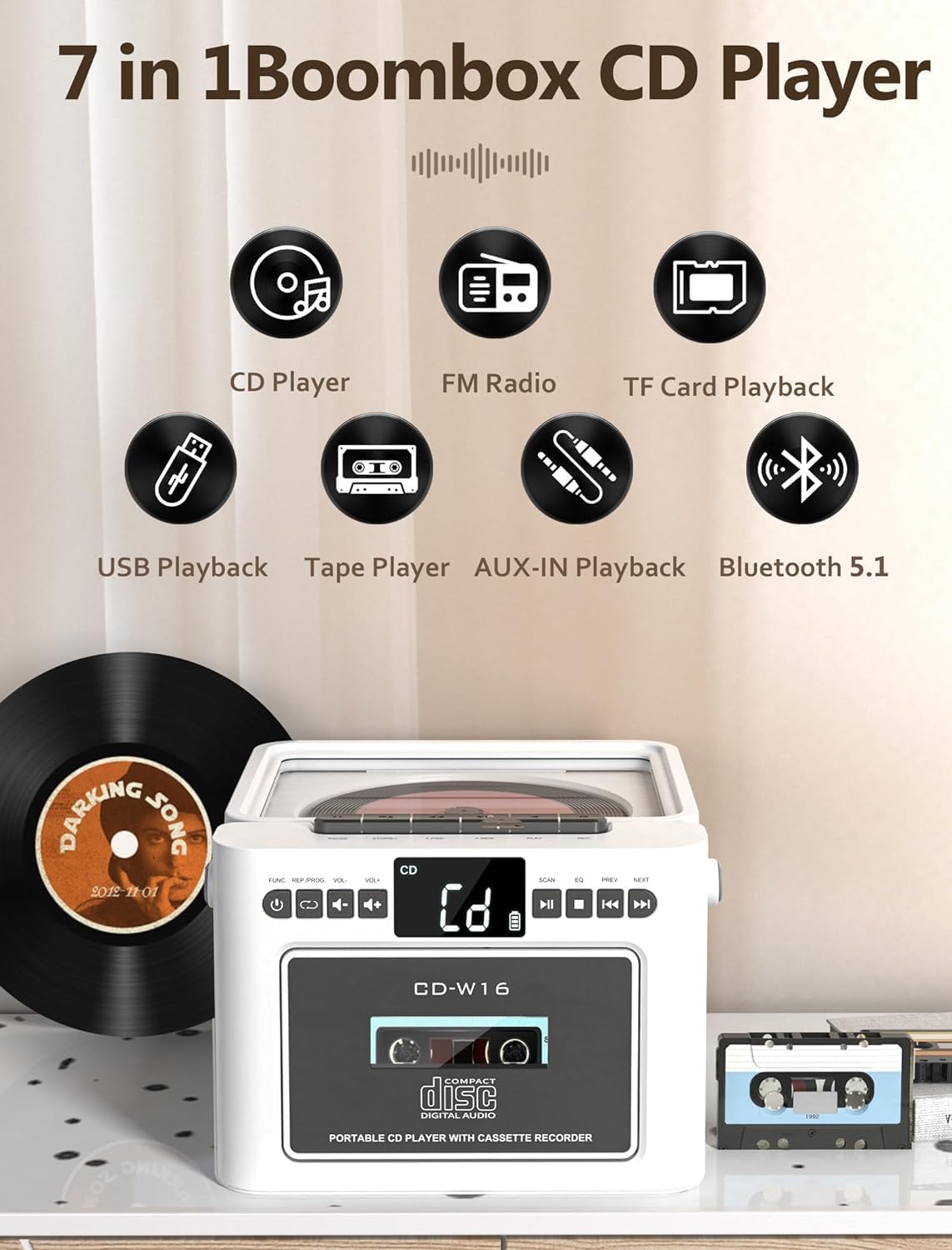
Figure 3.1: Overview of the 7-in-1 functions: CD Player, FM Radio, TF Card Playback, USB Playback, Tape Player, AUX-IN Playback, and Bluetooth 5.1.
3.1 Front Panel Controls
- POWER/MODE Button: Turns the unit on/off and switches between modes (CD, Tape, FM, Bluetooth, USB, TF, AUX).
- VOLUME +/- Buttons: Adjusts the audio output level.
- PLAY/PAUSE Button: Starts or pauses playback.
- STOP Button: Stops playback.
- SKIP/SEARCH Buttons (PREV/NEXT): Skips tracks or searches within a track.
- SCAN Button: For FM radio auto-scanning.
- EQ Button: Cycles through equalizer presets.
- CD Compartment: For inserting compact discs.
- Cassette Compartment: For inserting audio cassettes.
3.2 Rear/Side Panel Connections
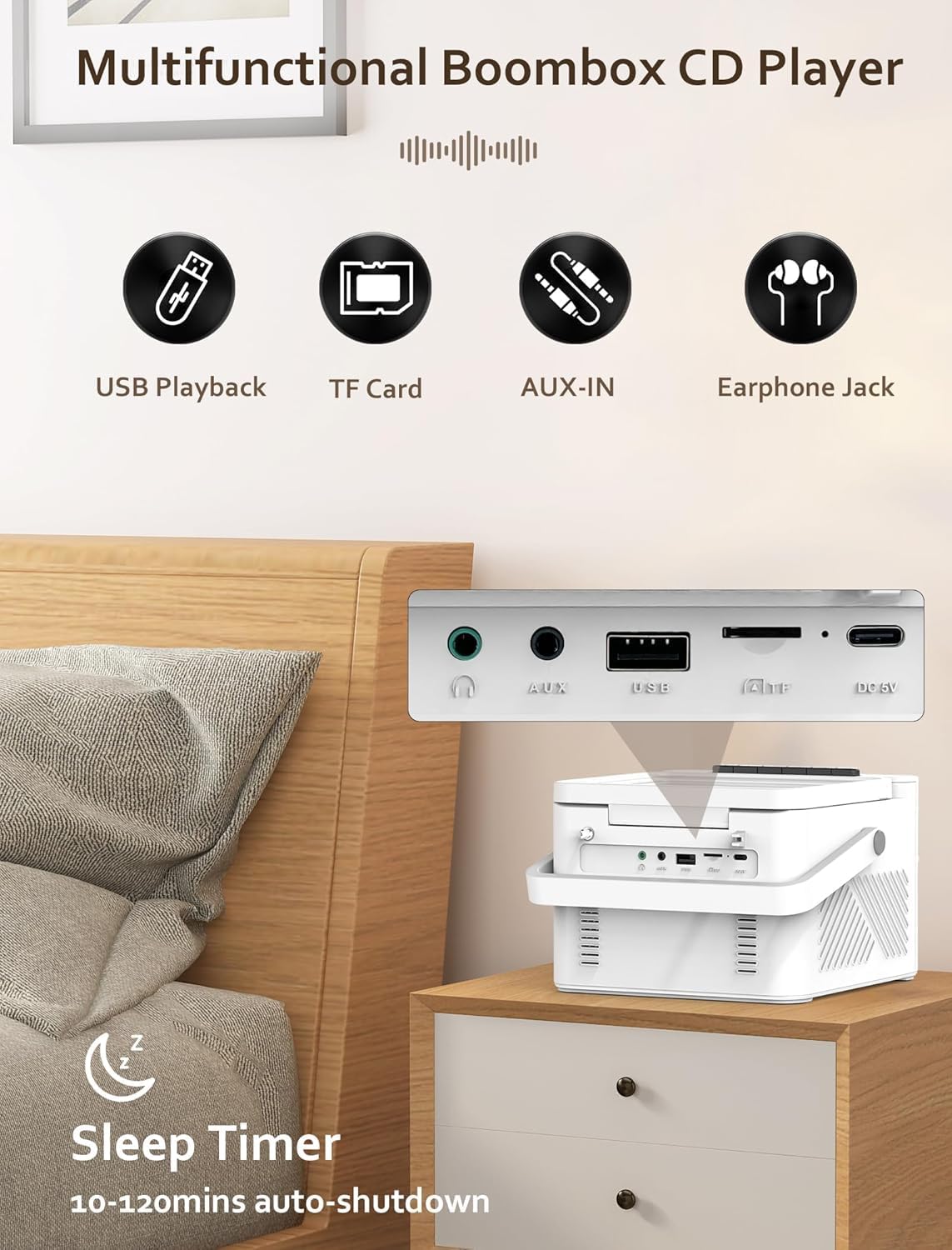
Figure 3.2: Rear view displaying the USB port, TF card slot, AUX-IN jack, and DC 5V charging port. Also shows the 3.5mm headphone jack on the side.
- USB Port: For USB flash drive playback.
- TF Card Slot: For Micro SD card playback.
- AUX-IN Jack: For connecting external audio devices.
- DC 5V Input: Type-C port for charging the internal battery.
- 3.5mm Headphone Jack: For private listening.
- FM Antenna: Extendable antenna for radio reception.
3.3 Remote Control
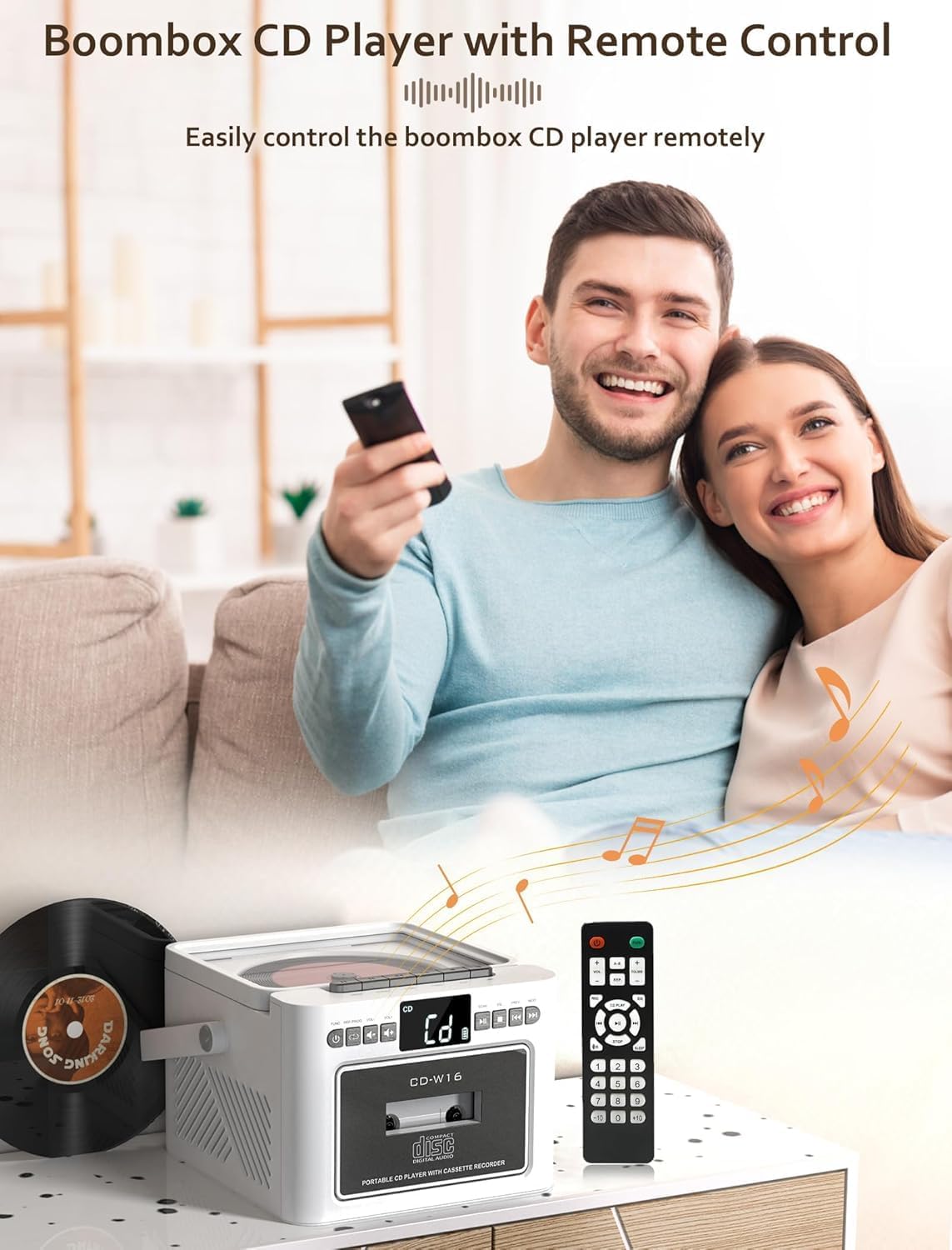
Figure 3.3: The Jazmm CD-W16 Boombox shown with its included remote control, enabling convenient operation from a distance.
The remote control allows for convenient operation of all major functions from a distance. Ensure the remote control's line of sight to the boombox is clear for optimal performance.
4. Setup
4.1 Powering the Unit
The Jazmm CD-W16 can be powered by its internal rechargeable battery or via a Type-C 5V/2A power adapter.

Figure 4.1: The 5000mAh rechargeable battery can be charged using a Type-C 5V adapter, power bank, or car charger.
- Initial Charge: Before first use, fully charge the boombox for approximately 5-8 hours. Connect the provided Type-C cable to the DC 5V input on the unit and the other end to a compatible USB power adapter (not included).
- Battery Life: A full charge provides approximately 5-8 hours of playback, depending on volume and mode.
- Power On/Off: Press and hold the POWER/MODE button to turn the unit on or off.
4.2 Extending the FM Antenna
For optimal FM radio reception, fully extend the telescopic antenna located on the rear of the unit.
5. Operation
5.1 Switching Modes
Press the POWER/MODE button repeatedly to cycle through the available playback modes: CD, TAPE, FM, BT (Bluetooth), USB, TF, AUX-IN.
5.2 CD Playback
- Open the CD compartment lid.
- Place a CD (CD/CDR/CDRW/MP3/WMA format) onto the spindle with the label side facing up.
- Close the CD compartment lid securely.
- Press the POWER/MODE button until "CD" mode is selected.
- The CD will begin playing automatically. If not, press the PLAY/PAUSE button.
- Use PREV/NEXT buttons to skip tracks. Press and hold to fast forward/rewind.
- Press STOP to stop playback.
5.2.1 CD Repeat and Program Functions
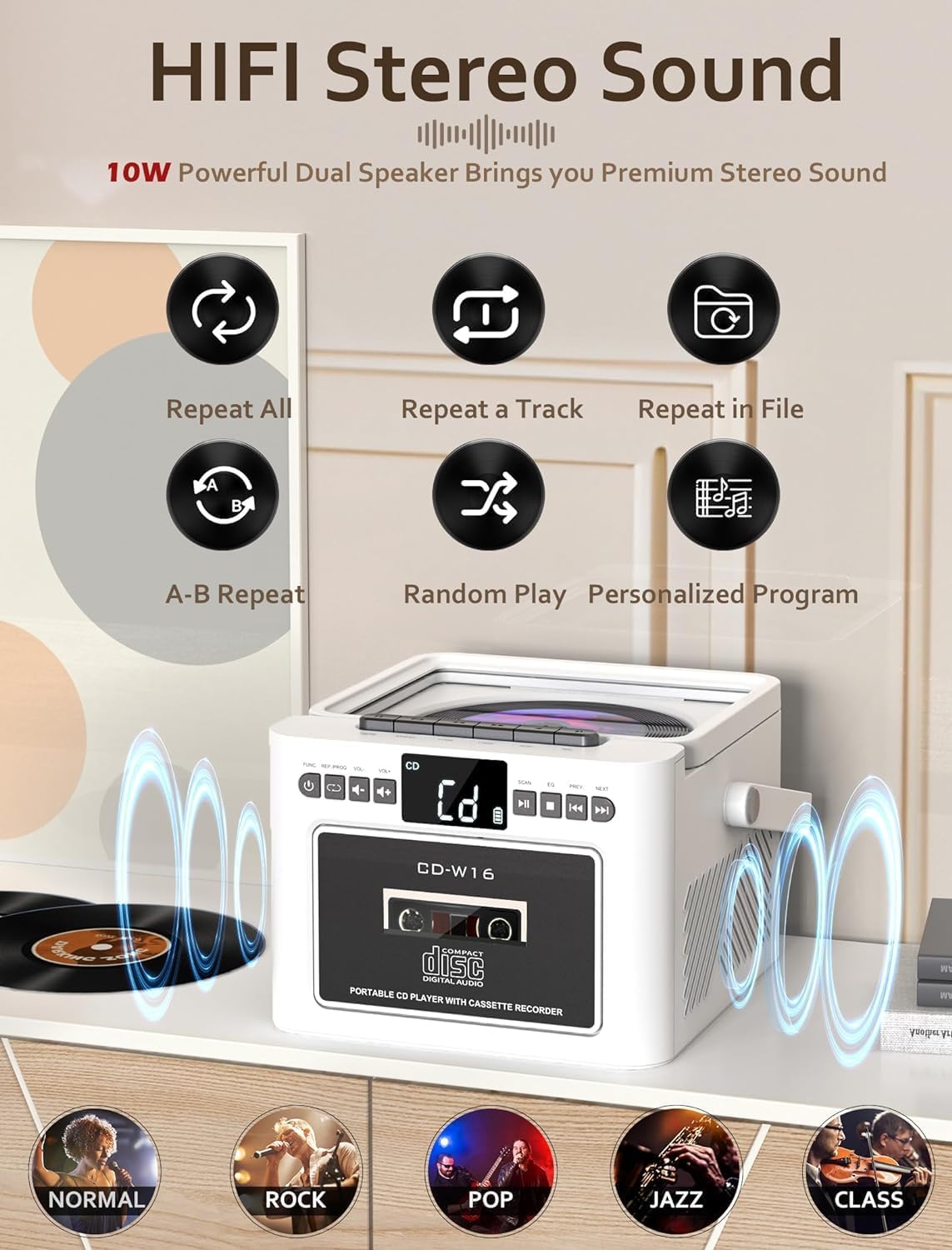
Figure 5.1: Icons representing repeat all, repeat a track, repeat in file, A-B repeat, random play, and personalized program functions for CD playback.
- Repeat: Press the repeat button on the remote to cycle through repeat modes (e.g., repeat one, repeat all).
- Program: In STOP mode, press the PROGRAM button on the remote to select tracks for programmed playback.
5.3 Cassette Playback and Recording

Figure 5.2: The Jazmm CD-W16 Boombox with a cassette tape inserted, highlighting its capability for both cassette playback and recording.
- Open the cassette compartment door.
- Insert a cassette tape.
- Close the cassette compartment door.
- Press the POWER/MODE button until "TAPE" mode is selected.
- Press the PLAY button on the unit to start playback.
- Recording: To record, insert a blank cassette tape. Select the desired source (e.g., FM radio, CD, Bluetooth). Press the RECORD button (usually red) on the unit. The unit will record the audio from the selected source onto the cassette.
5.4 FM Radio Operation

Figure 5.3: The Jazmm CD-W16 Boombox tuned to an FM frequency (87.5 MHz), with its telescopic antenna extended for improved reception.
- Extend the FM antenna fully.
- Press the POWER/MODE button until "FM" mode is selected.
- Auto Scan: Press the SCAN button to automatically search and save available FM stations (up to 30 presets).
- Manual Tuning: Use the PREV/NEXT buttons to manually tune to desired frequencies or cycle through saved presets.
5.5 Bluetooth (BT) Playback and Transmission
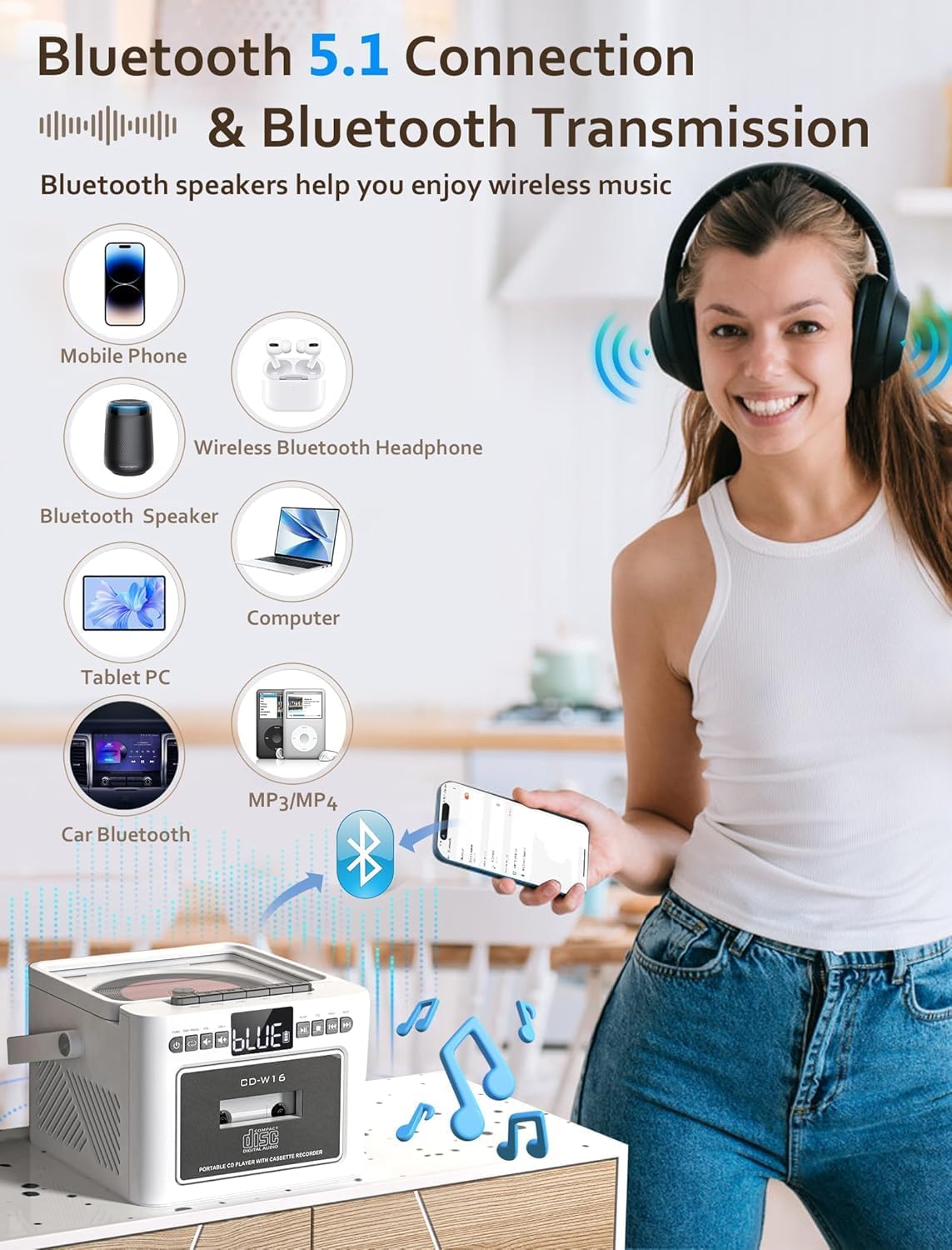
Figure 5.4: The boombox can connect to mobile phones, tablets, and computers as a Bluetooth speaker, and also transmit audio to Bluetooth headphones or other Bluetooth speakers.
- Press the POWER/MODE button until "BT" mode is selected. The display will show "BT" and a pairing indicator will flash.
- Receiving (Bluetooth Speaker Mode): On your external device (e.g., smartphone, tablet), enable Bluetooth and search for "CD-W16". Select it to pair. Once connected, you can play audio from your device through the boombox.
- Transmitting (Bluetooth Transmitter Mode): To transmit audio from the boombox (e.g., CD, FM) to Bluetooth headphones or another Bluetooth speaker, ensure the receiving device is in pairing mode. The boombox will automatically search for and connect to nearby Bluetooth audio receivers.
5.6 USB/TF Card Playback
- Insert a USB flash drive into the USB port or a TF (Micro SD) card into the TF card slot.
- Press the POWER/MODE button until "USB" or "TF" mode is selected.
- The unit will automatically detect and begin playing compatible audio files (MP3/WMA).
- Use PREV/NEXT buttons to skip tracks.
5.7 AUX-IN Playback
- Connect one end of a 3.5mm audio cable (not included) to the AUX-IN jack on the boombox.
- Connect the other end to the headphone jack or audio output of an external audio device (e.g., MP3 player, smartphone).
- Press the POWER/MODE button until "AUX" mode is selected.
- Control playback and volume from your external device.
5.8 Headphone Use
Plug 3.5mm headphones into the headphone jack on the side of the unit for private listening. The main speakers will be muted automatically.
5.9 Equalizer (EQ) Settings
Press the EQ button on the unit or remote control to cycle through different sound presets: NORMAL, ROCK, POP, JAZZ, CLASS.
5.10 Sleep Timer
The unit features a sleep timer function, allowing it to automatically shut down after a set period (10-120 minutes). Refer to the remote control instructions for setting the sleep timer.
6. Maintenance
6.1 Cleaning the Unit
- Wipe the exterior of the unit with a soft, dry cloth.
- Do not use abrasive cleaners, waxes, or solvents as they may damage the finish.
- For the CD lens, use a specialized CD lens cleaner disc.
- For the cassette head, use a cotton swab lightly dampened with isopropyl alcohol.
6.2 Battery Care
- To prolong battery life, avoid fully discharging the battery frequently.
- If the unit will not be used for an extended period, charge it fully and then store it in a cool, dry place. Recharge every 3-6 months to prevent deep discharge.
7. Troubleshooting
| Problem | Possible Cause | Solution |
|---|---|---|
| Unit does not power on. | Battery is depleted. Power adapter not connected or faulty. | Connect the unit to a power source and charge the battery. Ensure the power adapter is working correctly. |
| No sound from speakers. | Volume is too low. Headphones are connected. Incorrect mode selected. | Increase the volume. Disconnect headphones. Ensure the correct playback mode is selected. |
| CD does not play or skips. | CD is dirty or scratched. CD is inserted incorrectly. CD compartment lid is not closed. | Clean the CD with a soft cloth. Insert the CD with the label side up. Close the CD compartment lid firmly. |
| Poor FM radio reception. | Antenna not extended. Weak signal in the area. | Fully extend the telescopic antenna. Try repositioning the unit for better reception. |
| Bluetooth device cannot pair. | Boombox not in Bluetooth pairing mode. Device too far away. Bluetooth on external device is off. | Ensure the boombox is in BT mode and flashing. Move the device closer. Enable Bluetooth on your external device. |
| Cassette tape not playing. | Tape inserted incorrectly. Play button not pressed. | Ensure the tape is inserted correctly. Press the PLAY button. |
| Remote control not working. | Batteries are depleted. Obstruction between remote and unit. | Replace remote control batteries. Ensure clear line of sight to the unit's sensor. |
8. Specifications
- Model: CD-W16
- Power Input: DC 5V/2A (Type-C)
- Battery: Built-in 5000mAh Rechargeable Battery
- Playback Modes: CD, Cassette, FM Radio, Bluetooth 5.1, USB, TF Card, AUX-IN
- Speaker Output: 2 x 5W (10W total) HiFi Stereo
- FM Frequency Range: 87.5 - 108 MHz
- Bluetooth Version: 5.1 (Transmitting & Receiving)
- Supported Disc Formats: CD, CDR, CDRW, MP3, WMA
- Supported USB/TF Formats: MP3, WMA
- Headphone Jack: 3.5mm Stereo
- Remote Control Distance: Up to 7 meters (line of sight)
- Dimensions (L x W x H): Approximately 7.56 x 61.92 x 7.56 inches (Note: 61.92 inches seems unusually large for width, please verify product dimensions if possible.)
9. Warranty and Support
Jazmm offers a lifetime warranty for the CD-W16 Boombox. For any questions, technical assistance, or warranty claims, please contact our customer service team. We provide 24/7 world-class customer support to ensure your satisfaction.
Please refer to the contact information provided with your purchase or visit the official Jazmm website for support details.