
Introduction
This manual provides detailed instructions for the setup, operation, and maintenance of your GMK87 TKL Mechanical Keyboard. The GMK87 is a versatile keyboard featuring tri-mode connectivity, hot-swappable switches, PBT keycaps, a multi-media rotary knob, and a customizable TFT-LCD screen. It is designed to enhance your typing and gaming experience with its gasket-mounted structure and VIA programmability.

Overview of the GMK87 TKL Mechanical Keyboard, highlighting its key features such as tri-mode connectivity, multi-layer noise-absorbing pads, RGB backlighting, multi-media rotary knob, 3000mAh lithium battery, TKL layout, gasket structure, south-facing LED, TFT-LCD customized screen, and VIA programmability.
Setup
Package Contents
- GMK87 TKL Mechanical Keyboard
- USB-C Cable
- 2.4GHz USB Receiver
- Keycap Puller / Switch Puller (Tool)
- User Manual
Initial Charging
Before first use, it is recommended to fully charge the keyboard. Connect the provided USB-C cable to the keyboard's Type-C Connectivity Port and the other end to a USB power source (e.g., computer USB port, wall adapter). The TFT-LCD screen will indicate charging status.

The side of the keyboard showing the Mode Switch (2.4GHz/USB/BT), 2.4GHz Storage slot for the USB receiver, Device System Switch (Mac/Win), and the Type-C Connectivity Port.
Connectivity Modes
The GMK87 keyboard supports three connectivity modes: 2.4GHz wireless, Bluetooth, and USB-C wired.
- 2.4GHz Wireless Mode:
1. Locate the 2.4GHz USB receiver stored in the keyboard's side slot.
2. Plug the receiver into an available USB port on your computer.
3. Toggle the Mode Switch on the keyboard to the '2.4GHz' position (often indicated by 'R' or a wireless icon).
4. Press Fn + R on the keyboard to activate 2.4GHz pairing. The keyboard should connect automatically. - Bluetooth Mode:
1. Toggle the Mode Switch on the keyboard to the 'BT' position.
2. Press and hold Fn + Q, Fn + W, or Fn + E to enter pairing mode for Bluetooth device 1, 2, or 3 respectively. The indicator light will flash.
3. On your device (computer, tablet, phone), search for Bluetooth devices and select 'GMK87' to pair.
4. Once paired, the indicator light will stop flashing. - USB-C Wired Mode:
1. Connect the provided USB-C cable to the keyboard's Type-C Connectivity Port and the other end to your computer.
2. Toggle the Mode Switch on the keyboard to the 'USB' position.
3. The keyboard will be recognized as a wired device and is ready for use.

The GMK87 keyboard demonstrating its tri-mode connectivity options, allowing connection to multiple devices.
System Compatibility Switch
The keyboard features a Device System Switch (Mac/Win) located next to the connectivity mode switch. Ensure this switch is set to the correct operating system for optimal functionality.
Operating Instructions
Multi-media Rotary Knob
The rotary knob provides convenient control over media functions:
- Rotate Clockwise: Increase volume.
- Rotate Counter-clockwise: Decrease volume.
- Press the Knob: Play/Pause media.

Detailed view of the multi-media rotary knob and its functions for volume adjustment and media playback control.
TFT-LCD Screen Customization
The integrated TFT-LCD screen can display various information and custom images/GIFs.
- Change Screen Pages: Press Fn + Enter to cycle through different display pages on the screen.
- Customization: To upload custom pictures or GIFs, you will need the 'Image Custom Tool' software. Please contact Cmokifuly customer service to obtain this software and the necessary VIA JSON file for advanced customization.

The VIA software interface for keyboard programming and the Image Custom Tool for personalizing the TFT-LCD screen.
RGB Backlighting
The keyboard features customizable RGB backlighting. Specific key combinations (often involving the Fn key) can be used to change lighting modes, brightness, and speed. Refer to the VIA software for advanced customization of lighting effects.
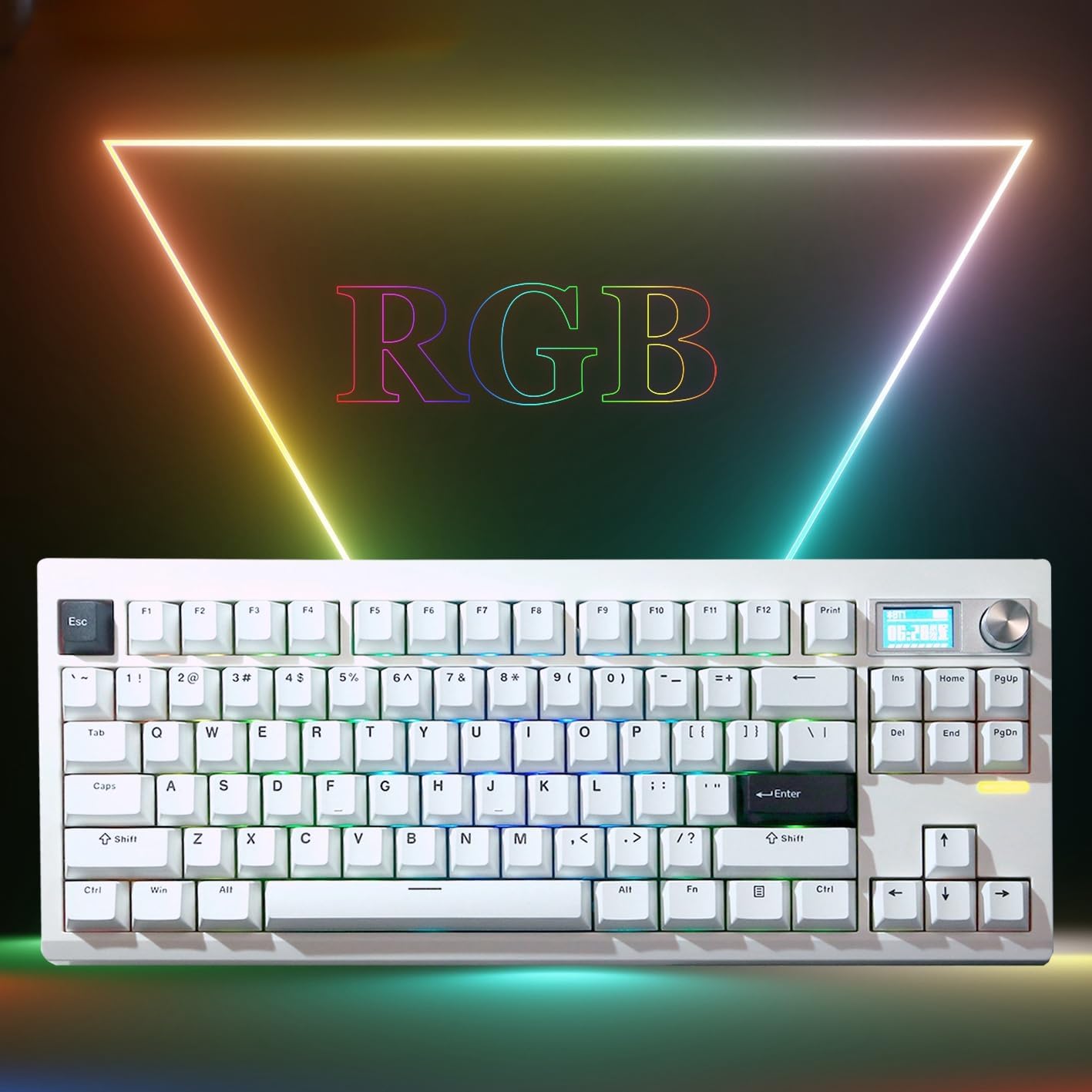
The GMK87 keyboard illuminated with customizable RGB backlighting.
VIA Programmability
The GMK87 keyboard is VIA programmable, allowing for extensive customization of key functions, macros, and lighting. To use VIA, you will need the specific VIA JSON file for the GMK87. Please contact Cmokifuly customer service to obtain this file and instructions for loading it into the VIA software.
Maintenance
Cleaning the Keyboard
- Disconnect the keyboard from all power sources before cleaning.
- Use a soft, lint-free cloth slightly dampened with water or a mild cleaning solution to wipe the keycaps and casing. Avoid excessive moisture.
- For dust and debris between keycaps, use compressed air or a small brush.
- Do not use harsh chemicals, abrasives, or solvents as they may damage the keyboard's finish.
Switch and Keycap Replacement
The GMK87 features hot-swappable sockets, allowing you to easily replace switches without soldering. The PBT keycaps are also removable for cleaning or customization.

A mechanical switch being removed from the hot-swappable PCB of the GMK87 keyboard.
- Removing Keycaps: Use the provided keycap puller tool. Gently hook the puller onto the keycap and pull straight up.
- Removing Switches: Use the provided switch puller tool. Align the prongs of the puller with the clips on the top and bottom of the switch. Squeeze the clips and pull the switch straight up.
- Installing Switches: Ensure the new switch has 3 or 5 pins. Align the pins with the holes on the PCB and press down gently until the switch clicks into place. Do not force the switch, as bent pins can occur.
- Installing Keycaps: Align the keycap with the switch stem and press down firmly until it is seated.

A close-up view of a lubricated stabilizer on the keyboard's PCB, indicating attention to detail in the build.

A view of the absorbing Poron cotton layer, part of the keyboard's noise reduction system.
Troubleshooting
| Problem | Possible Cause | Solution |
|---|---|---|
| Keyboard not responding (wired) | Loose USB-C cable; incorrect mode switch setting; driver issue. | Ensure USB-C cable is securely connected. Set Mode Switch to 'USB'. Try a different USB port or computer. |
| Keyboard not responding (2.4GHz/Bluetooth) | Low battery; incorrect mode switch setting; pairing issue; receiver not connected (2.4GHz). | Charge the keyboard. Set Mode Switch to '2.4GHz' or 'BT'. Re-pair the device (Fn+R for 2.4GHz, Fn+Q/W/E for BT). Ensure 2.4GHz receiver is plugged in. |
| Keys misfiring or missing keystrokes | Faulty switch; debris under keycap/switch; software glitch. | Remove keycap and switch, inspect for debris, clean, and reinsert. If issue persists, replace the switch. Restart keyboard/computer. |
| TFT-LCD screen not displaying correctly | Software issue; incorrect settings. | Press Fn+Enter to cycle screen pages. Ensure correct software/firmware is installed if customizing. Contact support for software files. |
| VIA software not recognizing keyboard | Missing or incorrect VIA JSON file; software version incompatibility. | Ensure you have the correct VIA JSON file for GMK87. Contact Cmokifuly customer service for the latest files and instructions. Ensure VIA software is up to date. |
Specifications
| Feature | Detail |
|---|---|
| Model | GMK87 |
| Connectivity | Tri-Mode (2.4GHz Wireless, Bluetooth, USB-C Wired) |
| Layout | TKL (Tenkeyless) 85 Keys + Rotary Knob |
| Switch Type | Linear (Brown Switch variant), Hot-swappable (3-pin/5-pin compatible) |
| Keycaps | PBT Cherry Profile Double Shot Keycaps |
| Mounting Style | Gasket Mounted |
| Backlighting | RGB, South-facing LEDs |
| Screen | TFT-LCD Customizable Screen |
| Battery | 3000mAh Lithium Ion (included) |
| Programmability | VIA Compatible |
| Noise Reduction | Multiple layers of noise-absorbing foam |
| Item Weight | 1.76 pounds |
| Package Dimensions | 15.86 x 7.28 x 2.32 inches |
| Compatible Devices | Laptop, PC (Windows, macOS) |
Warranty and Support
For warranty information, technical support, or to request the VIA JSON file and screen customization software, please contact Cmokifuly customer service. Details can typically be found on the product packaging or the official Cmokifuly website.
Contact Information: Refer to your purchase documentation or the manufacturer's official website for the most current support contact details.


