1. Introduction
The SHREYANS SRS58-201 is a portable monochrome thermal printer designed for printing labels and receipts. It features Bluetooth and USB connectivity, an auto-cutter function, and is compatible with various mobile and desktop applications. This manual provides detailed instructions for setting up, operating, and maintaining your printer.
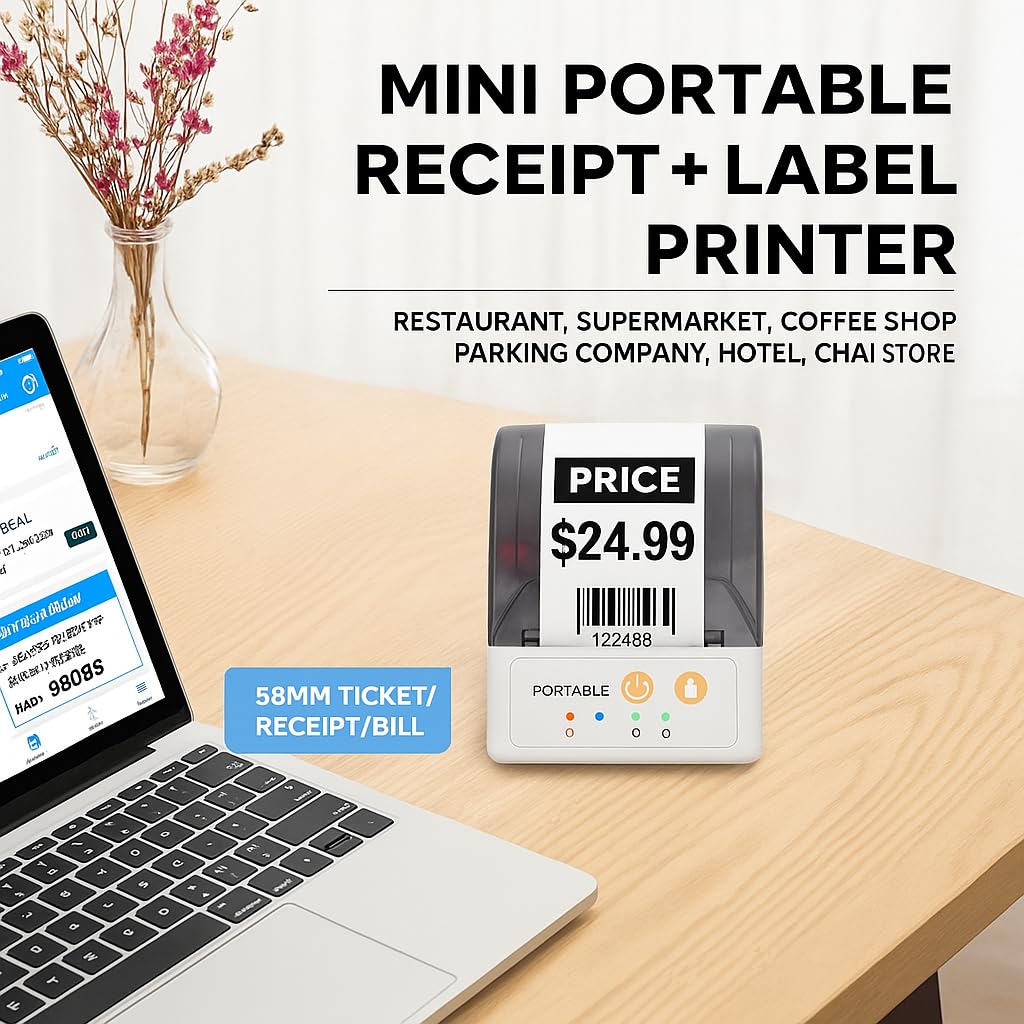
Image: The SHREYANS SRS58-201 printer on a desk, illustrating its compact size and versatility for various business environments like restaurants, supermarkets, and coffee shops.

Image: The SHREYANS SRS58-201 printer being carried in a pocket, highlighting its portability and ease of transport.

Image: The SHREYANS SRS58-201 printer held in a hand, demonstrating its lightweight and mini body design for convenient carrying.
2. Safety Information
Please read all safety instructions before using the printer to ensure safe and proper operation.
- Do not disassemble or modify the printer. This may cause damage or electric shock.
- Keep the printer away from water, moisture, and direct sunlight.
- Use only the specified power adapter and battery.
- Avoid dropping the printer or subjecting it to strong impacts.
- Do not touch the print head immediately after printing, as it may be hot.
- Ensure proper ventilation when operating the printer.
3. Package Contents
Verify that all items are present in the package:
- SHREYANS SRS58-201 Printer
- USB Cable
- Thermal Paper Roll (starter)
- User Manual
4. Product Overview
Familiarize yourself with the main components of the SHREYANS SRS58-201 printer.
4.1. Printer Components
- Paper Cover Release Button: Opens the paper compartment.
- Paper Compartment: Holds the thermal paper roll.
- Power Button: Turns the printer on/off.
- Feed Button: Feeds paper manually.
- Status Indicators: LEDs indicating power, Bluetooth, and error status.
- USB Port: For charging and data connection to a computer.
- Print Head: Generates thermal prints.
- Auto-Cutter: Automatically cuts the paper after printing.
5. Setup
5.1. Charging the Battery
The printer is equipped with a 1500mAh lithium battery. Before first use, fully charge the printer.
- Connect the USB cable to the printer's USB port and the other end to a power adapter (not included) or a computer's USB port.
- The charging indicator light will illuminate.
- A full charge typically takes 2-3 hours. The indicator light will change or turn off when charging is complete.

Image: The SHREYANS SRS58-201 printer next to a battery icon, detailing battery capacity (1500mAh), charging time (2-3 hrs), standby time (7 days), and continuous printing time (7 hrs).
5.2. Loading Paper/Labels
- Press the paper cover release button to open the paper compartment.
- Insert a 58mm thermal paper roll, ensuring the printing side faces the print head.
- Pull a small amount of paper out past the cutter.
- Close the paper cover firmly until it clicks into place.
5.3. Connecting via Bluetooth (Mobile Devices)
The printer connects to smartphones and tablets via Bluetooth using the "Shreyans Label Edit" app.
- Ensure the printer is powered on. The Bluetooth indicator light should be blinking.
- Download and install the "Shreyans Label Edit" app from your device's app store (Android/iOS).
- Enable Bluetooth on your mobile device.
- Open the "Shreyans Label Edit" app and navigate to the printer connection settings.
- Search for available Bluetooth devices and select "SRS58-201" or a similar name.
- If prompted, enter the pairing PIN (usually 0000 or 1234).
- Once connected, the Bluetooth indicator light on the printer will become solid.

Image: A smartphone displaying a label editing app connected via Bluetooth to the SHREYANS SRS58-201 printer, demonstrating wireless label editing capabilities.
5.4. Installing Drivers (Windows System PC)
To use the printer with a Windows computer, you need to install the printer driver.
- Connect the printer to your PC using the provided USB cable.
- Obtain the latest printer driver from the SHREYANS official website or the provided installation CD (if applicable).
- Follow the on-screen instructions to complete the driver installation.
- After installation, the printer should appear in your device manager.
6. Operating Instructions
6.1. Powering On/Off
- To Power On: Press and hold the Power button until the power indicator light illuminates.
- To Power Off: Press and hold the Power button until the power indicator light turns off.
6.2. Printing Labels/Receipts
- Ensure the printer is connected to your device (via Bluetooth or USB) and has paper loaded.
- Open your desired application (e.g., "Shreyans Label Edit" app, POS software, or a document editor on PC).
- Create or select the label/receipt you wish to print.
- Initiate the print command from the application. The printer will automatically print and cut the output.
6.3. Using the Auto-Cutter
The SRS58-201 features an integrated auto-cutter for clean and precise cuts.
- The auto-cutter activates automatically after each print job is completed.
- This feature enhances efficiency and provides a professional finish to your labels and receipts.
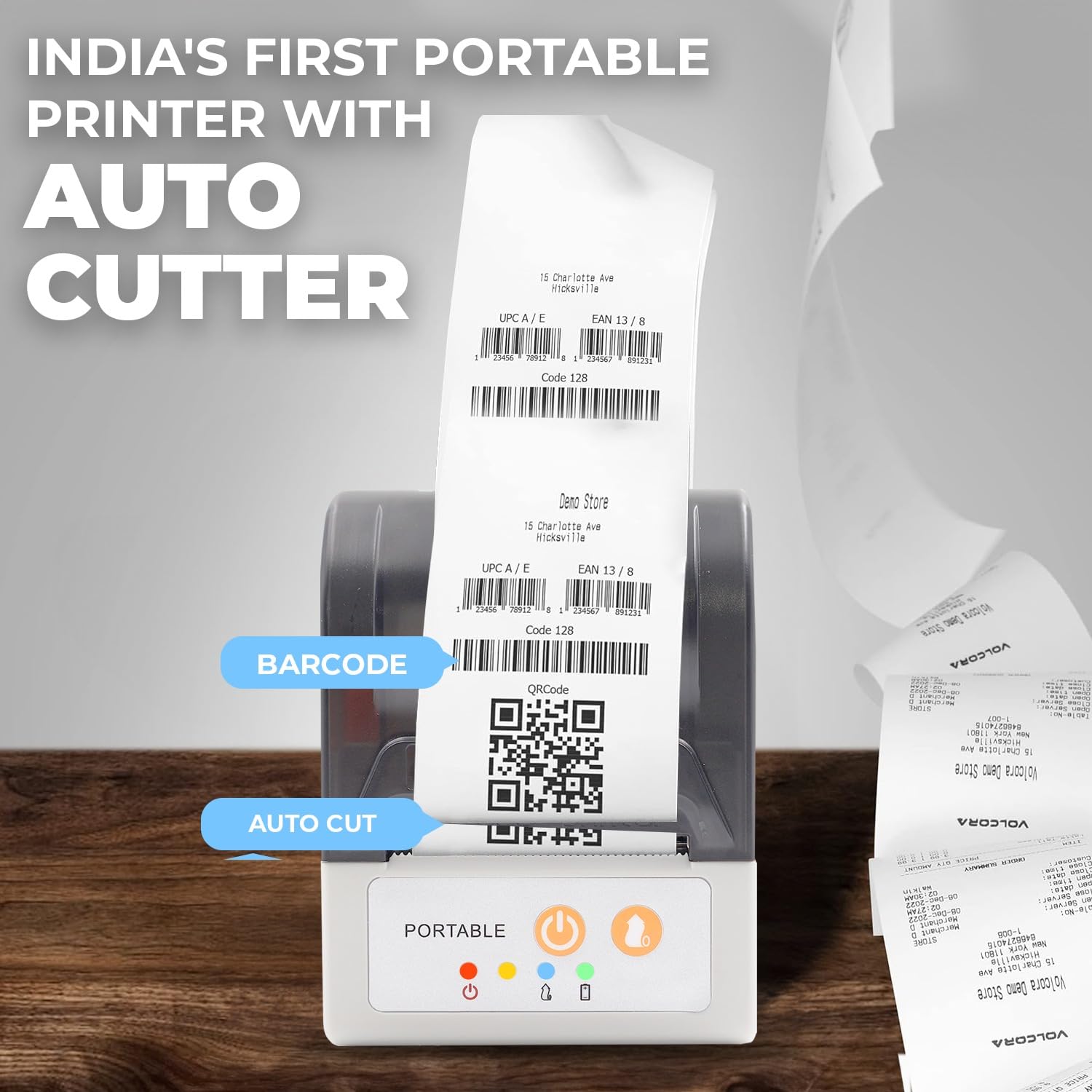
Image: The SHREYANS SRS58-201 printer showing a printed receipt with a barcode and QR code, highlighting the auto-cut feature for clean separation of documents. Example links: Volcora test QRcode, VolcoraTest128, 1234567891231, 0123456789128.
6.4. Compatible POS Software
The SHREYANS SRS58-201 supports various POS software for seamless integration:
- Vyappar
- Mybillbook
- Zomato
- Swiggy
- PayTM
- PhonePay
- Gpay
- And other custom applications.
7. Maintenance
7.1. Cleaning the Printer
Regular cleaning helps maintain print quality and extends the printer's lifespan.
- Turn off the printer and disconnect it from power before cleaning.
- Use a soft, lint-free cloth dampened with isopropyl alcohol to gently wipe the print head.
- Clean the paper path and rollers to remove any paper dust or debris.
- Allow all components to dry completely before re-using the printer.
7.2. Battery Care
- Avoid fully discharging the battery frequently.
- Store the printer in a cool, dry place if not used for extended periods.
- Charge the battery periodically (e.g., every 3 months) to prevent deep discharge.
8. Troubleshooting
Refer to the table below for common issues and their solutions.
| Problem | Possible Cause | Solution |
|---|---|---|
| Printer does not power on | Low battery; Power button not pressed correctly | Charge the printer; Press and hold the Power button for a few seconds. |
| Cannot connect via Bluetooth | Bluetooth not enabled; Incorrect pairing; Printer out of range | Ensure Bluetooth is on; Re-pair the device; Move closer to the printer; Restart both devices. |
| Poor print quality | Low battery; Dirty print head; Incorrect paper type | Charge the printer; Clean the print head; Ensure you are using thermal paper. |
| Paper jam or no paper feed | Paper incorrectly loaded; Paper compartment not closed; Obstruction | Re-load paper correctly; Ensure cover is latched; Remove any obstructions. |
| Printer auto-feeds excessively | Software setting; Firmware issue | Check print settings in your application; Update printer firmware if available; Contact customer support if issue persists. |
9. Specifications
| Feature | Detail |
|---|---|
| Model Name | SRS58-201 |
| Printing Technology | Thermal |
| Printer Output | Monochrome |
| Connectivity Technology | Bluetooth, USB |
| Maximum Media Size | 58 mm |
| Maximum Print Speed (Monochrome) | 30 ppm |
| Maximum Black and White Print Resolution | 1200 dpi |
| Special Feature | Auto-Cutter |
| Battery Capacity | 1500mAh |
| Charging Time | 2-3 hours |
| Continuous Printing Time | 7 hours |
| Standby Time | 7 days |
| Compatible Devices | Smartphones (Android, iOS), Windows PC |
| Product Dimensions | 4D x 8W x 11H Centimeters |
| Item Weight | 340 Grams |
| Manufacturer | Shreyans Retail Solution |
| Country of Origin | India |
10. Warranty and Support
For warranty information and technical support, please refer to the documentation provided with your purchase or visit the official SHREYANS website. Contact details for customer service are typically available on the product packaging or the brand's online portal.


