
Yoidesu Yoidesuhtiy9v8brw
Yoidesu 5G WiFi6 LTE Mobile Hotspot User Manual
Model: Yoidesuhtiy9v8brw
1. Introduction
This manual provides comprehensive instructions for the setup, operation, and maintenance of your Yoidesu 5G WiFi6 LTE Mobile Hotspot. Please read this manual carefully before using the device to ensure optimal performance and longevity.
2. Product Features
- High-Speed Network: Compatible with Fidelity 6 and Fidelity 5 standards for enhanced speed, range, and performance.
- Dual Band Support: Operates on 2.4GHz and 5.8GHz bands, supporting 802.11 a/b/g/n/ac protocols.
- Compact and Portable: Designed for easy transport, ideal for business trips and travel.
- Long-Lasting Battery: Equipped with a 4400mAh high-capacity battery for extended use.
- Shared Connection: Supports simultaneous connection for up to 16 devices, including phones, laptops, tablets, and game consoles.
3. Package Contents
Please check the package for the following items:
- Yoidesu 5G WiFi6 LTE Mobile Hotspot
- USB Type-C Charging Cable
- Screen Protector
- User Manual (this document)

Image: The Yoidesu Mobile Hotspot device shown alongside its USB Type-C charging cable and a screen protector.
4. Device Layout

Image: A diagram illustrating the various ports and buttons on the Yoidesu Mobile Hotspot, including the SIM card slot, Type-C port, power button, menu button, force power off button, and the display.
- SIM Card Insertion Port: Slot for inserting your Nano-SIM card.
- Type-C Port: Used for charging the device.
- Force Power Off Button: Forcibly shuts down the device.
- Power On Button: Turns the device on or off.
- Menu Button: Navigates through the device's on-screen menu.
- Display: Shows network status, battery level, connected users, and data usage.
5. Setup
5.1. Inserting the SIM Card
- Ensure the device is powered off.
- Locate the SIM card insertion port on the side of the device.
- Carefully insert a Nano-SIM card into the slot with the gold contacts facing down and the notched corner aligned correctly.
- Push the SIM card gently until it clicks into place.
5.2. Powering On/Off
- To Power On: Press and hold the Power On button until the display illuminates.
- To Power Off: Press and hold the Power On button until the power-off option appears on the display, then confirm. Alternatively, use the Force Power Off button if the device is unresponsive.
5.3. Initial Configuration
Upon first power-on or after inserting a new SIM card, the device may automatically detect network settings. If manual configuration is required, use the Menu button to navigate the on-screen options for APN settings or network selection. Refer to your SIM card provider for specific APN details if needed.
6. Operating the Device
6.1. Connecting to the Hotspot
- Ensure the hotspot is powered on and has an active network connection (indicated on the display).
- On your Wi-Fi enabled device (phone, laptop, tablet), search for available Wi-Fi networks.
- Select the network name (SSID) displayed on the hotspot's screen.
- Enter the Wi-Fi password (key) also displayed on the hotspot's screen.
- Your device should now be connected to the internet via the hotspot.
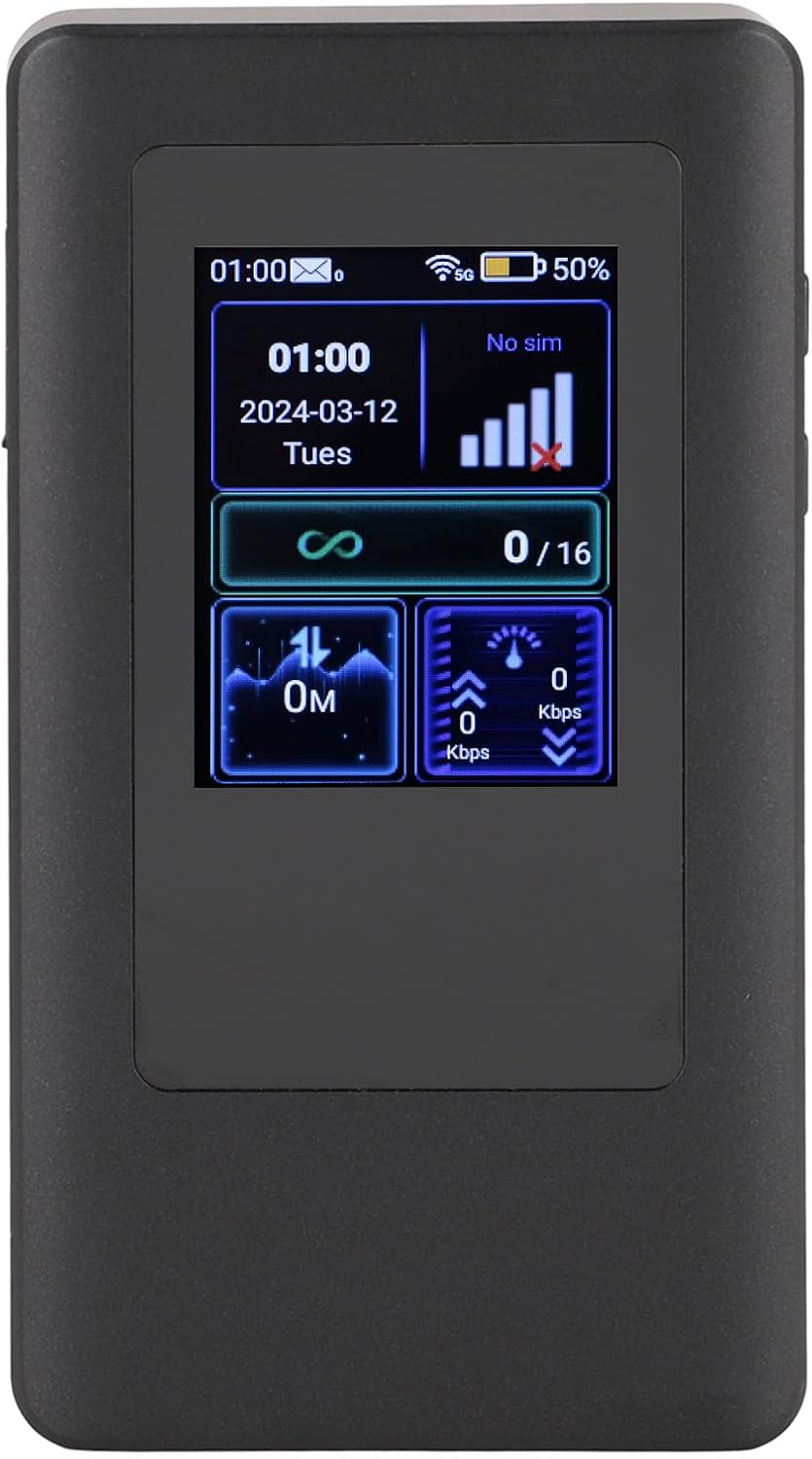
Image: The Yoidesu Mobile Hotspot's display showing network signal strength, battery level, and connection status.
6.2. Managing Connected Devices
The hotspot supports up to 16 simultaneous connections. The display shows the number of currently connected users. You can manage connected devices and view their status through the device's menu or a web interface (if available, check device documentation for IP address and login details).
6.3. Battery Management
The device features a 4400mAh battery. The battery level is indicated on the display. To charge, connect the device to a power source using the provided USB Type-C cable.

Image: The Yoidesu Mobile Hotspot next to a graphic of a battery with "4400mAh" indicating its capacity.
7. Maintenance
- Keep the device clean and free from dust. Use a soft, dry cloth for cleaning.
- Avoid exposing the device to extreme temperatures, direct sunlight, or moisture.
- Do not attempt to disassemble the device, as this will void the warranty.
- Charge the device regularly, even if not in use, to maintain battery health.
8. Troubleshooting
| Problem | Possible Cause | Solution |
|---|---|---|
| No network signal / "No SIM" displayed | SIM card not inserted correctly; SIM card not activated; no network coverage; incorrect APN settings. | Reinsert SIM card; contact your service provider to activate SIM; move to an area with better coverage; check APN settings via device menu. |
| Cannot connect to Wi-Fi | Incorrect Wi-Fi password; device too far from hotspot; hotspot Wi-Fi disabled. | Verify Wi-Fi password; move closer to the hotspot; ensure Wi-Fi is enabled on the hotspot. |
| Slow internet speed | Poor network signal; too many connected devices; network congestion; data limit reached. | Move to an area with better signal; disconnect some devices; check data plan with service provider. |
| Device not powering on | Low battery; device malfunction. | Charge the device for at least 30 minutes; if still unresponsive, contact customer support. |
| Difficulty with setup/instructions unclear | Unfamiliarity with mobile hotspot setup; unclear documentation. | Follow the step-by-step instructions in Section 5. If issues persist, refer to the manufacturer's website for updated guides or contact customer support. |
9. Specifications
| Feature | Detail |
|---|---|
| Model Name | Yoidesuhtiy9v8brw |
| Connectivity Technology | Wi-Fi 6, 5, LTE |
| Wireless Communication Standard | 802.11a/b/g/n/ac |
| Frequency Band Class | Dual-Band (2.4GHz, 5.8GHz) |
| Battery Capacity | 4400mAh |
| Max Connected Devices | 16 Users |
| Item Weight | 10.7 ounces (303 Grams) |
| Package Dimensions | 6.3 x 3.94 x 1.97 inches |
| Manufacturer | Yoidesu |
10. Warranty and Support
Yoidesu products come with a standard manufacturer's warranty. For specific warranty terms and conditions, please refer to the warranty card included with your purchase or visit the official Yoidesu website. For technical support, troubleshooting assistance, or service inquiries, please contact Yoidesu customer support through their official channels.
You can visit the Yoidesu store on Amazon for more information: Yoidesu Amazon Store
Ask a question about this manual
Ask about setup, troubleshooting, compatibility, parts, safety, or missing instructions. Manuals+ will review the question and use this page’s manual context to help answer it.