
Introduction
This manual provides detailed instructions for the operation and maintenance of your CPTEA F400 Wireless Bluetooth Headset. Please read this manual thoroughly before using the product to ensure proper function and longevity.
Package Contents
- CPTEA F400 Wireless Bluetooth Headset
- USB Charging Cable
- Instruction Manual
Product Overview
The CPTEA F400 headset is designed for clear communication and comfortable wear, featuring a noise-canceling microphone and dual-device connectivity.

Adjustable Design: The headset features an adjustable headband and earcups, along with a 270-degree rotatable microphone for optimal positioning and comfort.

Control Buttons: The earcup includes a dedicated button for muting the microphone during calls, along with touch controls for volume and other functions.
Setup
1. Charging the Headset
Before initial use, fully charge the headset. Connect the USB charging cable to the headset's charging port and to a compatible USB power source. The charging indicator light will show the charging status.
- Charging Time: Approximately 2 hours for a full charge.
- Battery Life: Up to 35 hours of listening time, 30 hours of talk time, and 1500 hours of standby time.

Image of the CPTEA F400 headset with graphics indicating battery performance: 2 hours charging time, 1500 hours standby time, 35 hours working time, and 30 hours talking time.
2. Pairing with a Single Device
- Ensure the headset is powered off.
- Press and hold the Power/Multifunction button until the indicator light flashes blue and red, indicating pairing mode.
- On your device (smartphone, laptop, etc.), enable Bluetooth and search for available devices.
- Select "F400" from the list of devices.
- Once connected, the indicator light will flash blue slowly.
3. Multipoint Connection (Connecting to Two Devices)
The F400 headset supports connecting to two Bluetooth devices simultaneously.
- Pair the headset with the first device following the steps above.
- Disable Bluetooth on the first device.
- Put the headset back into pairing mode and pair it with the second device.
- Re-enable Bluetooth on the first device. The headset should automatically connect to both devices.

Image demonstrating the CPTEA F400 headset connected simultaneously to a laptop and a smartphone, illustrating dual connectivity via Bluetooth V5.4 and a 15-meter (49 feet) wireless range.
Operating Instructions
1. Power On/Off
- Power On: Press and hold the Power/Multifunction button until the indicator light flashes blue.
- Power Off: Press and hold the Power/Multifunction button until the indicator light flashes red and then turns off.
2. Call Management
- Answer Call: Short press the Power/Multifunction button.
- End Call: Short press the Power/Multifunction button during a call.
- Reject Call: Press and hold the Power/Multifunction button for 2 seconds.
- Mute/Unmute Microphone: Press the dedicated Mute button on the earcup.
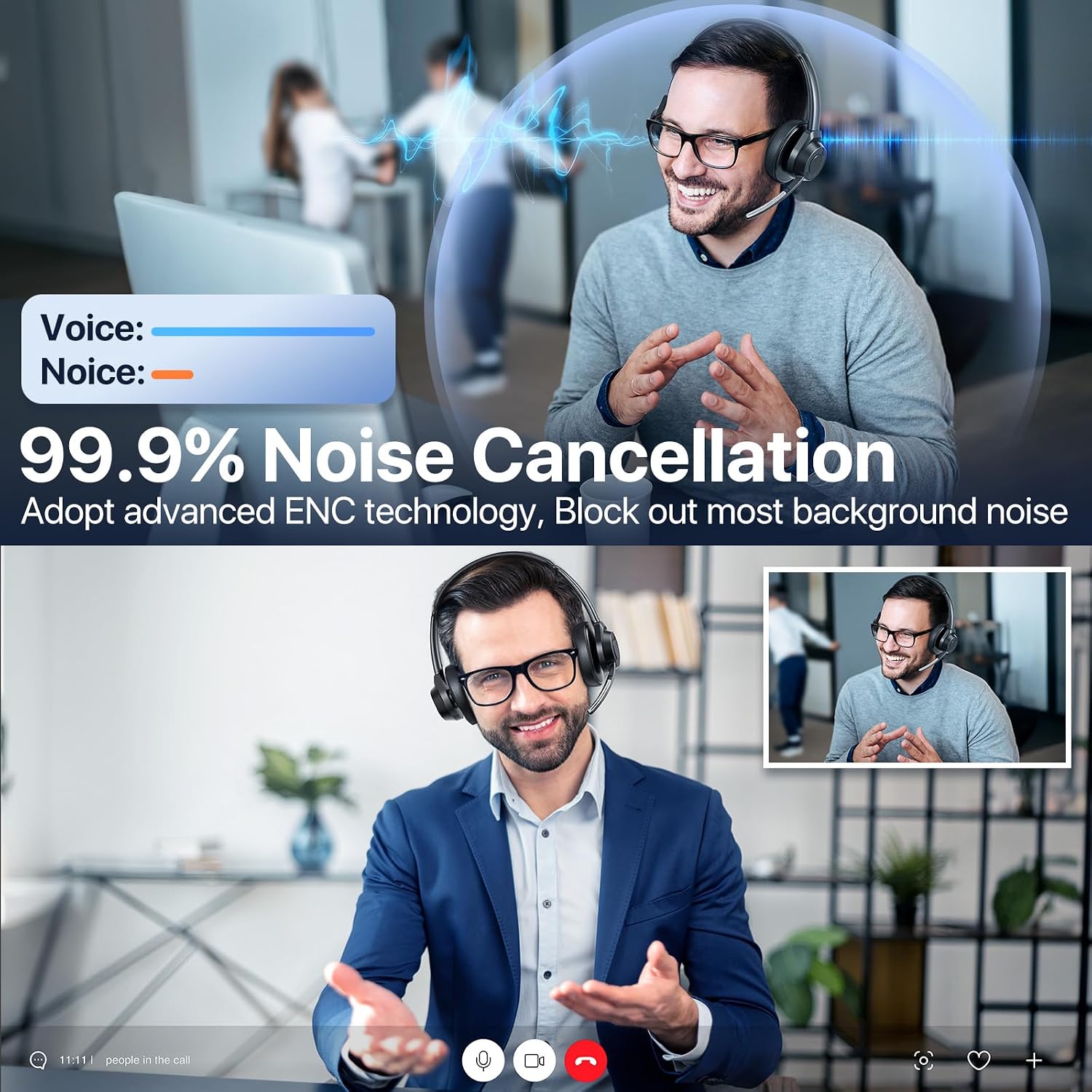
Image showing a person using the CPTEA F400 headset during a video call, with a graphic illustrating 99.9% noise cancellation. The graphic highlights the reduction of background noise compared to voice clarity.
3. Volume Control
- Increase Volume: Tap the Volume Up area on the earcup.
- Decrease Volume: Tap the Volume Down area on the earcup.
4. Music Playback
- Play/Pause: Short press the Power/Multifunction button.
- Next Track: Double-tap the Volume Up area.
- Previous Track: Double-tap the Volume Down area.
5. Microphone Adjustment
The microphone can be rotated 270 degrees to be worn on either the left or right ear. Position the microphone approximately 1-2 inches from your mouth for optimal voice pickup and noise cancellation.
Comfort and Fit
The CPTEA F400 headset is designed for extended wear. Adjust the padded headband to fit your head comfortably. The soft ear cushions provide pressure-free comfort.

Image of the CPTEA F400 headset resting on a soft, wavy fabric, emphasizing its pressure-free comfort and pillow-like softness earpads.
Maintenance
1. Cleaning
- Wipe the headset with a soft, dry cloth.
- Do not use abrasive cleaners or solvents.
- Avoid getting moisture into any openings.
2. Storage
- Store the headset in a cool, dry place away from direct sunlight and extreme temperatures.
- Avoid placing heavy objects on the headset.
Troubleshooting
- Headset does not power on: Ensure the headset is fully charged.
- Cannot pair with device: Make sure the headset is in pairing mode (flashing blue and red). Ensure Bluetooth is enabled on your device and it is within the 15-meter range. Try restarting both the headset and your device.
- No sound: Check the volume levels on both the headset and your connected device. Ensure the headset is properly connected via Bluetooth.
- Microphone not working: Ensure the microphone is not muted. Check microphone settings on your connected device.
- Poor audio quality: Move closer to your connected device to ensure you are within the wireless range. Avoid obstacles that may interfere with the Bluetooth signal.
Specifications

Diagram illustrating the internal components of the CPTEA F400 earcup, highlighting the 40mm large-aperture speaker for high-definition audio.
| Feature | Detail |
|---|---|
| Model Number | F400 |
| Bluetooth Version | 5.4 |
| Wireless Range | Up to 15 meters (49 feet) |
| Battery Charge Time | 2 Hours |
| Listening Time | Up to 35 Hours |
| Talk Time | Up to 30 Hours |
| Standby Time | Up to 1500 Hours |
| Audio Driver Size | 40 Millimeters |
| Microphone | Noise-Canceling, 270° Rotatable |
| Weight | 144 Grams (5 oz) |
| Compatibility | Bluetooth-enabled devices (iOS, Android, Laptop, Tablet), Microsoft Teams, Zoom, Google Meet, Go To Meeting |
| Material | Metal, Plastic, Rubber |

Image of the CPTEA F400 headset with icons representing wide compatibility across various devices (iOS, Android, Laptop, Tablet) and communication platforms (Microsoft Teams, Zoom, Google Meet, Go To Meeting).
Warranty and Support
For warranty information or technical support, please refer to the contact details provided with your purchase or visit the official CPTEA website. Keep your proof of purchase for warranty claims.