Introduction
Thank you for choosing the WEILY Android 11.0 TV Box. This device transforms your television into a smart entertainment hub, offering access to a wide range of applications, streaming services, and media content. Featuring Android 11.0, 4GB RAM, 32GB ROM, and a powerful RK3318 Quad-Core 64bit Cortex-A53 processor, it supports 4K UHD video playback, dual-band Wi-Fi (2.4GHz/5GHz), and Bluetooth 4.0. This manual provides essential information for setting up, operating, and maintaining your TV box to ensure optimal performance.
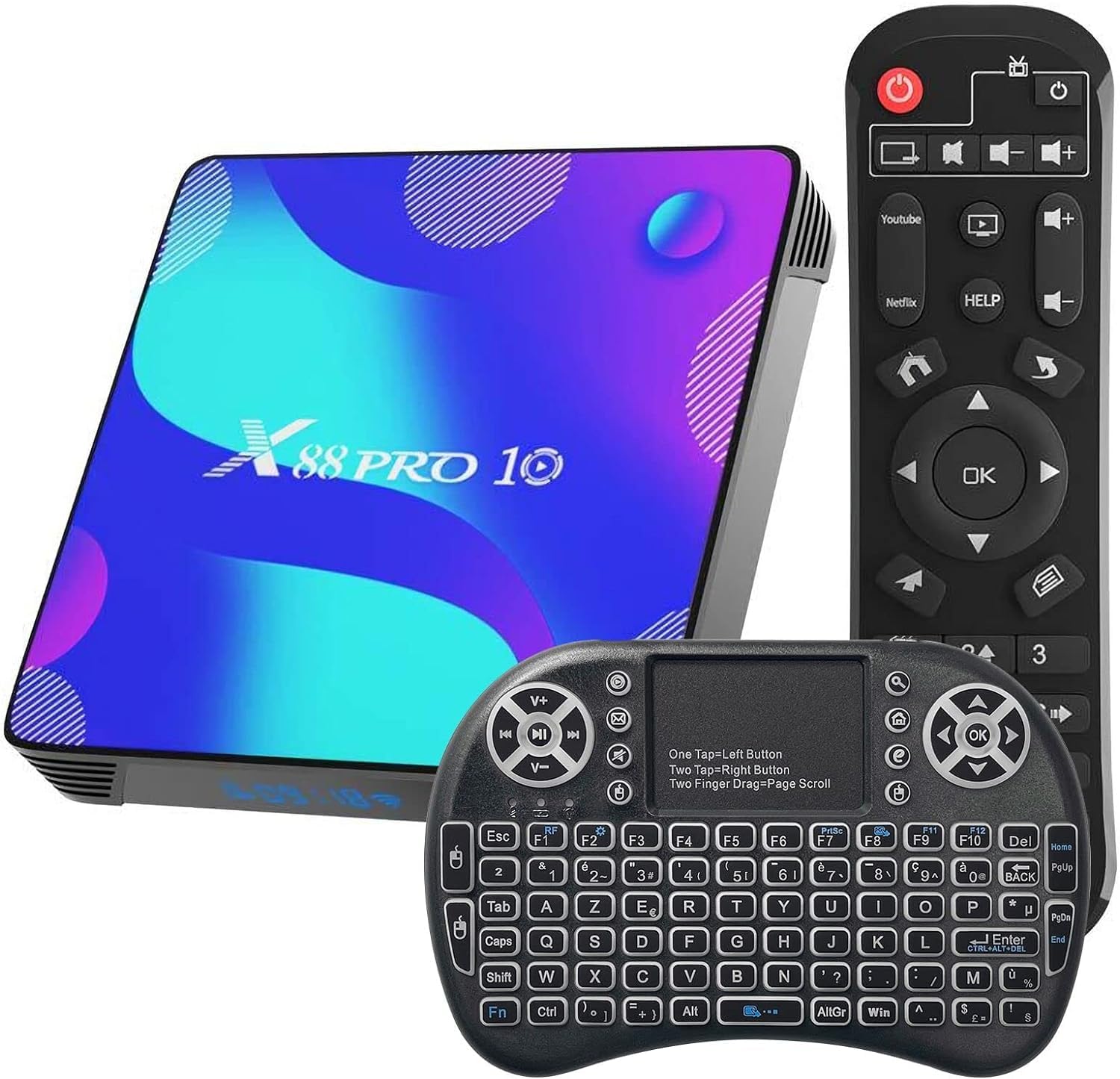
Image: The WEILY Android 11.0 TV Box displaying its user interface with various applications and the included remote control.
What's in the Box
Please check the package contents carefully. If any items are missing or damaged, contact customer support.
- 1 x WEILY Android TV Box
- 1 x Mini Wireless Keyboard
- 1 x Remote Control
- 1 x HD Cable
- 1 x EU Power Supply
- 1 x User Manual (this document)

Image: All components included in the WEILY Android TV Box package.
Setup Guide
- Connect Power: Plug the EU power supply into the DC 5V/2.5A port on the TV box and then into a wall outlet.
- Connect to TV: Use the provided HD cable to connect the TV box's HD port to an available HDMI input on your television.
- Power On: The TV box should power on automatically. If not, press the power button on the remote control.
- Select Input: On your TV, select the correct HDMI input source corresponding to where you connected the TV box.
- Initial Setup: Follow the on-screen instructions to select your language, connect to a Wi-Fi network (or connect an Ethernet cable), and complete the initial Android setup.
- Mini Keyboard Setup: The mini wireless keyboard typically connects via a USB dongle. Insert the USB dongle into one of the USB ports on the TV box. The keyboard should automatically pair.
Operating Instructions
Navigation
Use the included remote control or the mini wireless keyboard to navigate the Android interface. The remote control offers directional buttons, an 'OK' button for selection, and dedicated buttons for Home, Back, and Menu functions. The mini keyboard provides a full QWERTY layout and a touchpad for mouse-like control.
Connecting to the Internet
- Wi-Fi: Go to Settings > Network & Internet > Wi-Fi. Select your network from the list, enter the password, and connect. The device supports 2.4GHz and 5GHz dual-band Wi-Fi.
- Ethernet: Connect an Ethernet cable from your router to the LAN port on the TV box. The connection will be established automatically.
Installing Applications
Access the Google Play Store from the home screen to download and install various applications, including streaming services, games, and utilities. You will need a Google account to use the Play Store.
Media Playback
The TV box supports 4K Ultra HD video playback at 60fps and HDR content, providing a high-quality visual experience. It also features a 3D graphic accelerator for compatible content. You can play media from USB drives, Micro SD cards, or network sources using pre-installed media players or downloaded apps.

Image: The WEILY Android TV Box delivering a 4K visual experience on a television screen.
Bluetooth Pairing
To connect Bluetooth devices (e.g., headphones, game controllers), go to Settings > Connected devices > Pair new device. Ensure your Bluetooth device is in pairing mode.
Maintenance
- Cleaning: Use a soft, dry cloth to clean the exterior of the TV box. Do not use liquid cleaners or abrasive materials.
- Software Updates: Periodically check for system updates to ensure optimal performance and security. Go to Settings > About > System update.
- Storage Management: The device has 32GB of internal storage. If you need more space for apps or media, you can expand it using a Micro SD card inserted into the dedicated slot. Regularly clear cache for apps to free up space.

Image: Illustration of the TV Box's memory capacity (4GB RAM + 32GB eMMC).
Troubleshooting
- No Power: Ensure the power adapter is securely connected to both the TV box and a working power outlet. Try a different outlet.
- No Display on TV: Verify that the HD cable is properly connected to both the TV box and the TV. Ensure your TV is set to the correct HDMI input source. Try a different HD cable if available.
- Wi-Fi Connection Issues: Check if your router is working correctly. Restart both the TV box and your router. Ensure you have entered the correct Wi-Fi password.
- Remote Control / Mini Keyboard Not Responding: For the remote, ensure batteries are correctly inserted and charged. For the mini keyboard, verify the USB dongle is securely plugged into the TV box. Try plugging the dongle into a different USB port.
- Applications Crashing or Buffering: Close background applications. Clear the cache of the problematic app (Settings > Apps > [App Name] > Storage > Clear cache). Ensure you have a stable and fast internet connection.
- System Slowdown: Restart the TV box. Uninstall unused applications to free up storage space.
Specifications
| Chipset | RK3318 Quad-Core 64bit Cortex-A53 |
| GPU | Penta-Core Mali-450 |
| FLASH | 32GB EMMC |
| SDRAM | 4GB |
| USB Ports | 1 x USB3.0, 1 x USB2.0 |
| LAN | Ethernet 10/100M standard RJ-45 |
| Wireless | 2.4G/5G Dual Band 802.11 A/b/g/n |
| Bluetooth | 4.0 |
| DisplayPort | HD (HD 2.0a for 4K @ 60Hz) |
| Operating System | Android 11.0 |
| Video Decoder | 4K VP9, H.265/H.264, VC-1, MPEG-1/2/4, VP6/8 |
| High Definition Video Output | 4K (3840x2160 pixels) |
| Power Supply | Input: 100-240V, 50/60Hz; Output: DC 5V/2.5A |
| Operating Temperature | 10℃ to 45℃ |

Image: Visual summary of the WEILY Android TV Box's core features and specifications.
Warranty and Support
For technical assistance, troubleshooting beyond this manual, or inquiries regarding warranty coverage, please contact WEILY customer service. Refer to your purchase documentation for specific warranty terms and contact information.


