
1. Product Overview
The GHome Smart Outdoor Smart Plug (Model WP7-B) is a versatile and durable smart home device designed for outdoor use. It features two independently controlled AC outlets, allowing you to manage multiple outdoor appliances, lighting, and decorations with ease. With IP64 weather resistance, it can withstand various outdoor conditions. This smart plug offers convenient control via voice commands through Amazon Alexa and Google Assistant, as well as remote management through the GHome Smart app, making your outdoor living smarter and more energy-efficient.
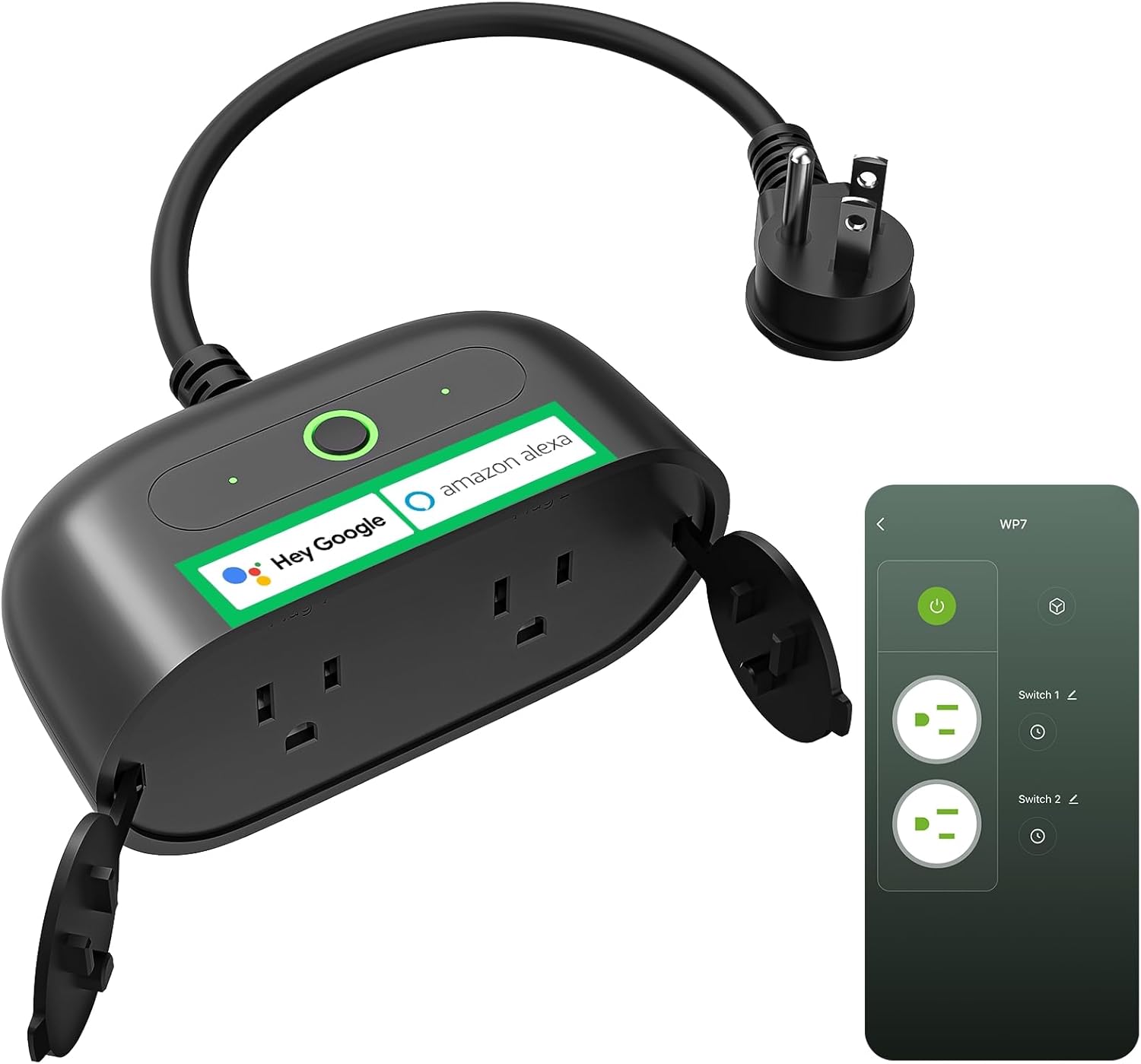
Figure 1: GHome Smart Outdoor Smart Plug (Model WP7-B)
2. Key Features
- Individual Control of 2-in-1 Outlets: Two AC outlets operate and are controlled independently, each supporting up to 15A/1800W. Includes waterproof covers for protection when not in use.
- IP64 Weather Resistance: Designed to withstand rain, snow, dust, and other inclement weather conditions, ensuring reliable outdoor performance.
- Voice & Remote Control: Compatible with Amazon Alexa, Google Assistant, and SmartThings for convenient voice commands and remote control via the GHome Smart app. No hub required.
- Strong Wi-Fi Signal: Features a built-in power amplifier for stable connection over longer distances (up to 300 feet), supporting 2.4GHz Wi-Fi networks.
- Easy Setup and Use: Simple installation process with clear instructions. Allows for setting schedules and utilizing sunset/sunrise offset features for automated control.
- Multi-scene Application: Ideal for automating garden lighting, holiday decorations, pool pumps, fountains, patio fans, grills, and remote operation for security.

Figure 2: Multi-functional Smart Plug Features
3. What's in the Box
- 1 x GHome Smart Outdoor Smart Plug
- 1 x Installation Manual
- 1 x Binding Voice Assistants Guide
4. Setup
4.1 Physical Installation
- Unpack the GHome Smart Outdoor Smart Plug and ensure all components are present.
- Choose a suitable outdoor location for the smart plug, ensuring it is within range of your 2.4GHz Wi-Fi network.
- Plug the smart plug into a standard outdoor electrical outlet. Ensure the outlet is protected from direct water exposure if possible, even though the plug itself is IP64 rated.
- Close the protective covers over any unused outlets on the smart plug to prevent dirt and water ingress.

Figure 3: Product Dimensions for Installation Planning
4.2 App Setup and Wi-Fi Connection
To fully utilize your GHome Smart Outdoor Smart Plug, you need to connect it to the GHome Smart app and your home Wi-Fi network. Follow these steps:
- Download the App: Search for "GHome Smart" in your smartphone's app store (iOS or Android) and download the application.
- Register/Log In: Open the app and register for a new account or log in if you already have one.
- Add Device: Tap the "+" icon or "Add Device" button in the app. Select "Electrical" then "Socket" and choose the WP7 model.
- Pairing Mode: Ensure your smart plug is in pairing mode (the indicator light should be blinking). If not, press and hold the power button on the plug for 5-10 seconds until it blinks rapidly.
- Connect to Wi-Fi: Enter your 2.4GHz Wi-Fi network name and password in the app. The app will then search for and connect to your smart plug.
- Name Device: Once connected, you can name your smart plug and assign it to a specific room (e.g., "Patio Plug"). You can also name each individual outlet (e.g., "Patio Lights," "Fountain Pump").

Figure 4: How to Connect Outdoor Smart Plug in the GHome App
4.3 Setup Video Guide
Video 1: Real User Experience of Ghome Smart Plug. This video demonstrates the unboxing, physical setup, and app connection process for the smart plug.
Video 2: GHome Smart WP7 Outdoor Smart Plug. This video provides an overview of the product's features and capabilities, including its weather resistance and smart control options.
5. Operating Instructions
5.1 Individual Outlet Control
The GHome Smart Outdoor Smart Plug allows you to control each of its two outlets independently. In the GHome Smart app, you will see separate controls for "Switch 1" and "Switch 2" (or whatever custom names you assigned). Tap the power icon next to each switch to turn the connected device on or off.

Figure 5: Independent Control of Two Outlets
5.2 Voice Control
Once linked with Amazon Alexa, Google Assistant, or SmartThings, you can control your smart plug using voice commands. Ensure your smart plug is named clearly in the GHome Smart app (e.g., "Patio Lights").
- For Amazon Alexa: Say, "Alexa, turn on Patio Lights." or "Alexa, turn off Fountain Pump."
- For Google Assistant: Say, "Hey Google, turn on Patio Lights." or "Hey Google, turn off Fountain Pump."

Figure 6: Voice Control Integration
5.3 Remote Control
Control your outdoor devices from anywhere using the GHome Smart app on your smartphone. As long as your smart plug is connected to Wi-Fi and your phone has internet access, you can turn devices on/off, set schedules, and monitor status remotely.
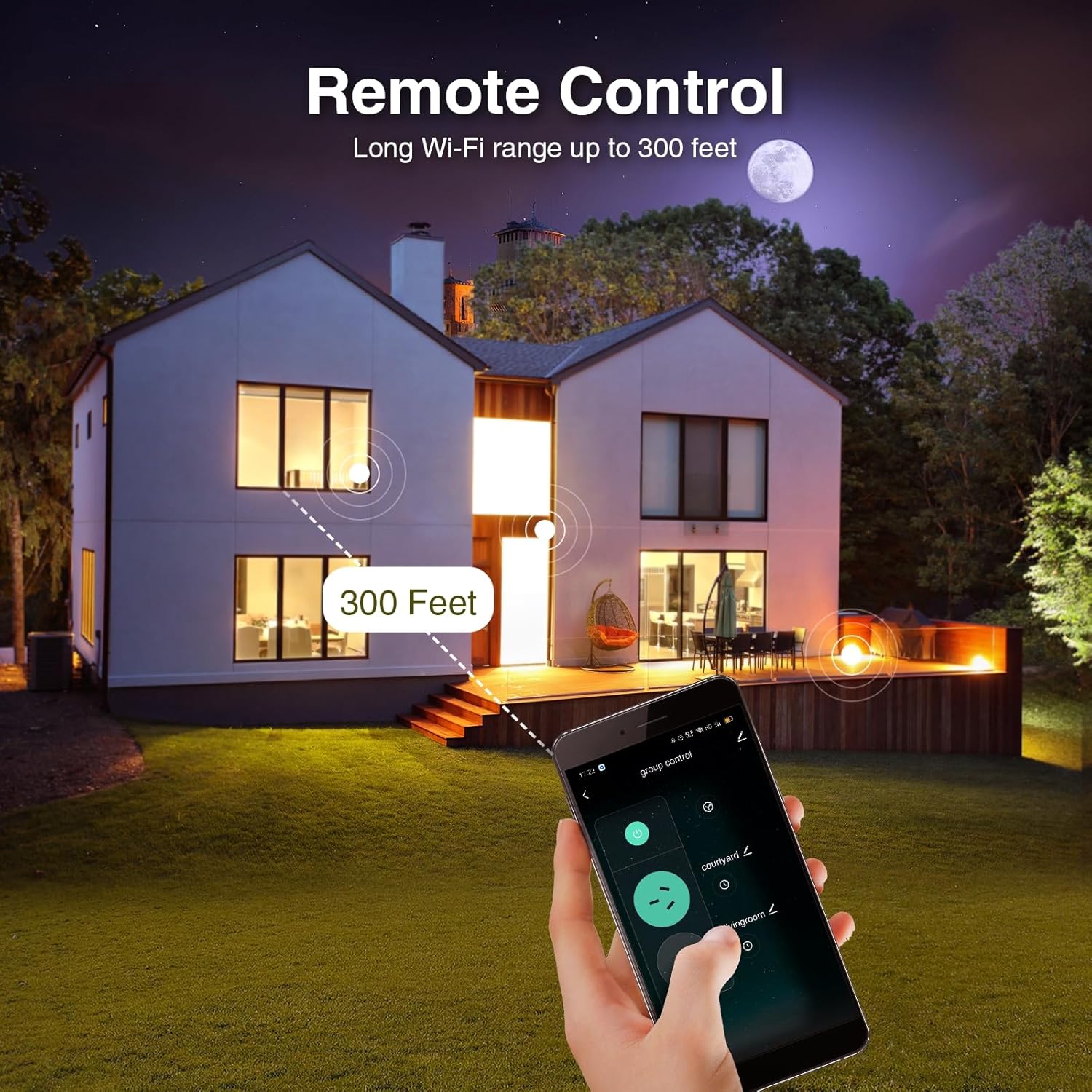
Figure 7: Remote Control Functionality
5.4 Scheduling and Timers
Automate your outdoor devices by setting schedules and timers within the GHome Smart app. This feature allows you to turn devices on or off at specific times, or based on sunrise/sunset.
- Schedule: Set specific times for devices to turn on or off daily, on certain days of the week, or for specific events.
- Timer: Set a countdown timer for a device to turn off after a set duration.
- Sunset/Sunrise Offset: Configure devices to activate or deactivate relative to local sunrise or sunset times, adjusting automatically with the seasons.

Figure 8: Schedules and Timers in the App
6. Maintenance
To ensure the longevity and optimal performance of your GHome Smart Outdoor Smart Plug, follow these maintenance guidelines:
- Keep Covers Closed: Always ensure the protective covers over unused outlets are securely closed to prevent water and dust from entering.
- Regular Cleaning: Periodically wipe down the smart plug with a damp cloth to remove any dirt or debris. Do not use harsh chemicals or abrasive cleaners.
- Inspect for Damage: Regularly check the power cord and the plug body for any signs of damage, such as cracks, fraying, or discoloration. If any damage is found, discontinue use and contact customer support.
- Avoid Submersion: While IP64 rated for weather resistance, the smart plug is not designed for submersion in water. Ensure it is installed in a location where it will not be submerged.

Figure 9: IP64 Weatherproof Design
7. Troubleshooting
If you encounter issues with your GHome Smart Outdoor Smart Plug, try the following troubleshooting steps:
| Problem | Possible Cause | Solution |
|---|---|---|
| Device not connecting to Wi-Fi | Incorrect Wi-Fi password, 5GHz Wi-Fi network, device too far from router, not in pairing mode. | Double-check Wi-Fi password. Ensure you are connecting to a 2.4GHz network. Move the plug closer to the router. Put the device back into pairing mode (blinking light). |
| Device offline in app | Wi-Fi signal lost, power outage, device unplugged. | Check your home Wi-Fi network. Verify the smart plug is powered on and plugged in. If power was lost, it should reconnect automatically. |
| Voice control not working | Incorrect device name, skill not enabled, voice assistant not linked. | Ensure the device name is recognized by your voice assistant. Verify the GHome Smart skill is enabled in your Alexa/Google Home app. Relink your voice assistant account if necessary. |
| Outlets not responding | Device malfunction, power surge. | Try unplugging and replugging the smart plug. If the issue persists, contact customer support. |
8. Specifications
| Feature | Specification |
|---|---|
| Model Number | WP7-B |
| Operation Mode | Remote/Voice Control |
| Current Rating | 15 Amps |
| Operating Voltage | 120 Volts |
| Connector Type | Plug In |
| Item Dimensions (L x W x H) | 4.88 x 2.46 x 2.31 inches |
| International Protection Rating | IP64 |
| Number of Positions | 2 |
| Upper Temperature Rating | 40 Degrees Celsius |
| Controller Type | Google Assistant, Amazon Alexa, SmartThings |
| Control Method | Voice |
| Item Weight | 11.3 ounces |
| Material | Plastic |
9. Warranty & Support
GHome Smart products are designed for reliability and performance. This product comes with a standard manufacturer's warranty covering defects in materials and workmanship. For specific warranty details, please refer to the documentation included with your purchase or visit the official GHome Smart website.
For technical support, troubleshooting assistance, or warranty claims, please contact GHome Smart customer service through their official channels. You can find more information and contact details on the GHome Smart Store on Amazon.


