
1. Introduction
Thank you for choosing the OMOTON Wired Keyboard for Mac. This keyboard is designed to provide a comfortable and stable typing experience for your Mac devices. It features a dual interface for versatile connectivity and optimized function keys for enhanced productivity.
Video: An overview of the OMOTON Wired Keyboard for Mac, highlighting its space-saving design, Mac OS layout, quick response keys, convenient function keys, and easy plug-and-play functionality.
2. Product Overview
The OMOTON Wired Keyboard for Mac is compact and designed for efficiency. Below are its key dimensions and a visual representation.

Image: The OMOTON Wired Keyboard shown with its dimensions (11.2 inches x 4.7 inches) next to a MacBook Air 13 inch and a smartphone for scale.
3. Setup and Connection
The OMOTON Wired Keyboard offers easy plug-and-play functionality with both USB-A and USB-C interfaces, ensuring a stable connection without the need for Bluetooth pairing or battery charging.
3.1 Connecting the Keyboard
- Identify the appropriate port on your Mac device (USB-A or USB-C).
- The keyboard comes with a dual interface cable. If your device has a USB-A port, ensure the Type-C end is plugged into the USB-A adapter, then plug the adapter into your device. If your device has a USB-C port, you can plug the Type-C end directly into the port.
- Once connected, your Mac may automatically detect the keyboard.
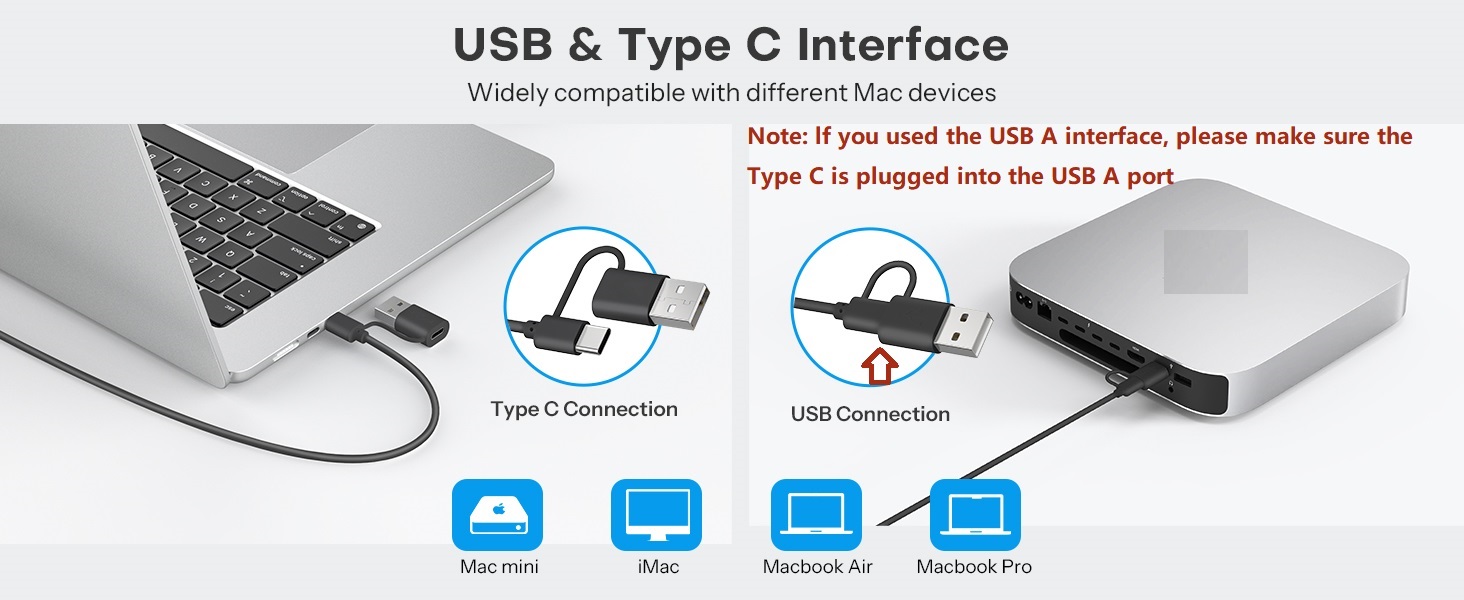
Image: Illustration of the keyboard's dual interface, showing how to connect via USB-C directly or via a USB-A adapter for compatibility with various Mac devices.

Image: The OMOTON Wired Keyboard connected to a Mac mini, demonstrating the simple plug-in process.
3.2 Keyboard Setup Assistant (macOS)
Upon initial connection, macOS may launch the Keyboard Setup Assistant to identify your keyboard type. Follow the on-screen prompts to ensure correct functionality.
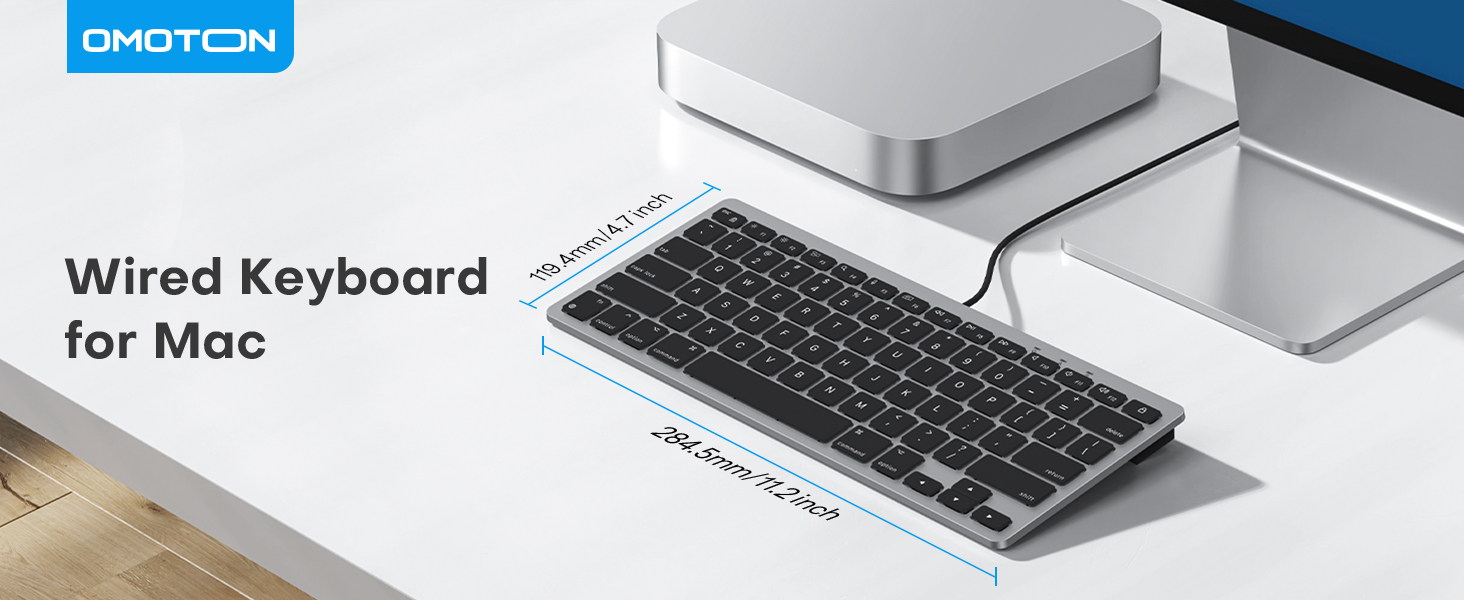
Image: A guide illustrating how to configure input sources and specify the keyboard type (ANSI layout) on macOS to ensure proper keyboard function.
4. Function Keys
The OMOTON Wired Keyboard features 14 optimized multimedia keys designed for the latest versions of macOS, allowing quick access to common functions.

Image: A detailed table outlining the 14 multimedia function keys (F1-F12, Esc, Delete) and their respective actions such as Brightness Down/Up, Play/Pause, Volume Up/Down, etc.
5. Ergonomic Design
This keyboard is engineered for comfort during extended typing sessions. It features an 8° ergonomic lift and a scissor-foot key design.
- 8° Lift: Provides an optimal wrist angle to reduce strain and promote comfortable typing posture.
- Scissor-Foot Design: Ensures each keystroke is smooth, quiet, and responsive, enhancing your typing experience.
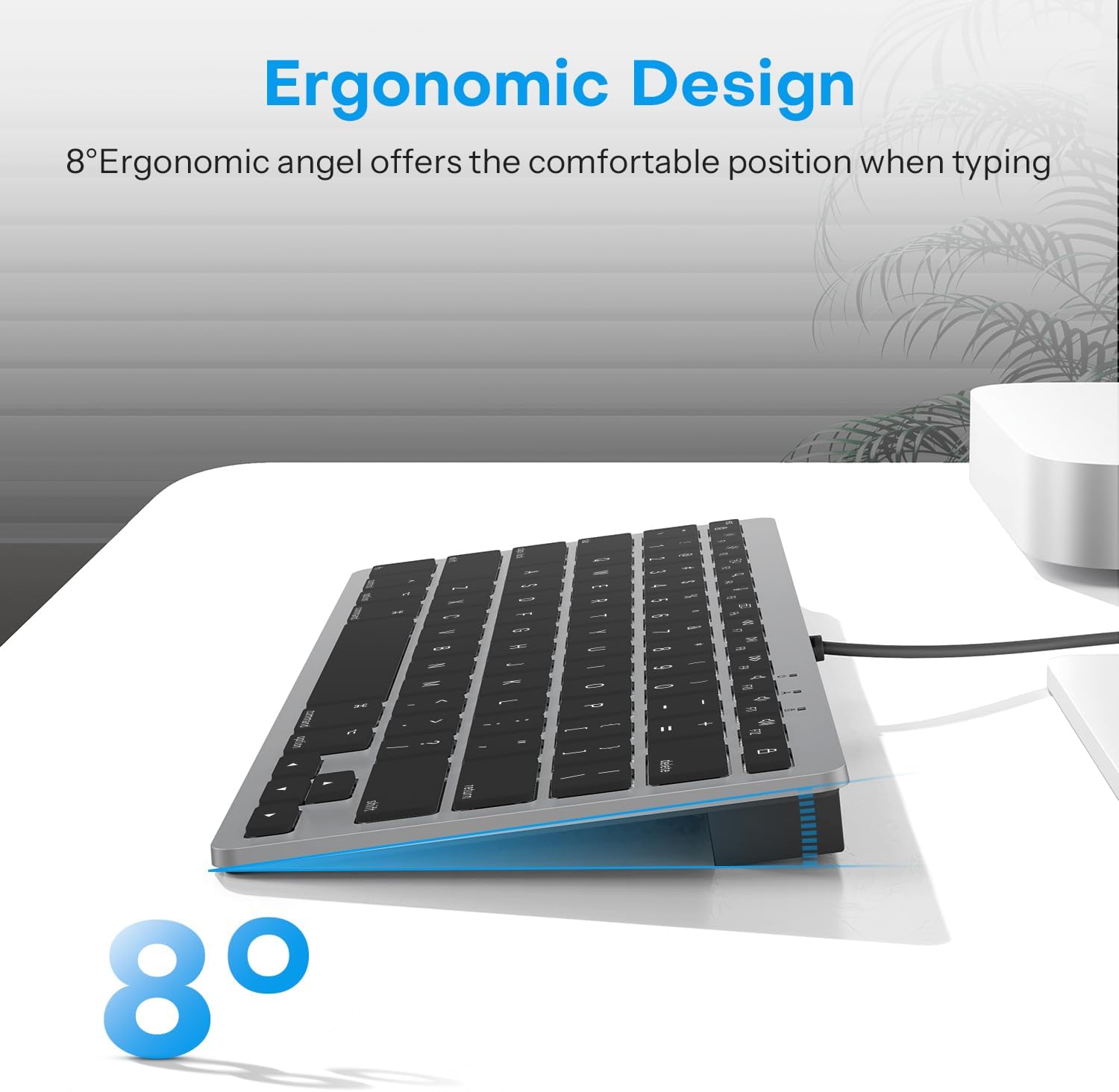
Image: A side profile of the keyboard illustrating the 8-degree ergonomic angle designed for comfortable typing.

Image: A close-up of a keycap removed, revealing the scissor-foot mechanism that provides stable and responsive keystrokes.
6. Compatibility
The OMOTON Wired Keyboard is specifically designed for macOS and is compatible with the following devices running macOS version 11.3 or later:
- MacBook Pro
- MacBook Air
- iMac
- iMac Pro
- Mac Mini
- Mac Pro
Note: This keyboard is not fully functional with non-Mac devices.
7. Troubleshooting
If you encounter any issues with your keyboard, please refer to the following common solutions:
- No Response: Ensure the keyboard is securely plugged into a functional USB-A or USB-C port on your Mac. Try a different port if available.
- Incorrect Key Input: If keys are not producing the expected characters, verify your keyboard layout settings in macOS. Refer to the "Keyboard Setup Assistant" section (3.2) for guidance on configuring the ANSI layout.
- Function Keys Not Working: Ensure your macOS is updated to version 11.3 or later. Some function keys may require specific system settings or applications to be active.
- Intermittent Connection: As a wired keyboard, connectivity issues are rare. Ensure the cable is not damaged and is firmly connected. Avoid using faulty USB hubs.
8. Specifications
| Feature | Detail |
|---|---|
| Brand | OMOTON |
| Model | KB066-A |
| Connectivity Technology | Wired (USB-A, USB-C via adapter) |
| Compatible Devices | MacBook Pro/Air, iMac, iMac Pro, Mac Mini, Mac Pro (macOS 11.3+) |
| Special Features | Ergonomic (8° lift), Scissor-foot keys, Multimedia Function Keys |
| Color | A-Grey |
| Material | Plastic |
| Item Weight | 11.3 ounces |
| Package Dimensions | 12.2 x 6.38 x 1.18 inches |
9. Warranty and Support
For warranty information and customer support, please refer to the product packaging or contact OMOTON customer service directly through their official website or the retailer where the product was purchased. Keep your purchase receipt for warranty claims.
