
WIITHINK WTB-978
WIITHINK HD Blu-Ray DVD Player User Manual
Model: WTB-978
1. Introduction
This manual provides detailed instructions for the setup, operation, and maintenance of your WIITHINK HD Blu-Ray DVD Player (Model WTB-978). This player is designed to deliver a high-definition cinematic experience with versatile disc and multimedia playback capabilities. Please read this manual thoroughly before using the product to ensure proper operation and to maximize your enjoyment.
2. Package Contents
Please verify that all items listed below are included in your package:
- 1 x WIITHINK Blu-Ray DVD Player (Model WTB-978)
- 1 x Remote Control (Batteries not included)
- 1 x HDMI Cable
- 1 x AV Cable
- 1 x Instruction Manual

Image: Contents of the WIITHINK Blu-Ray DVD Player package. This image displays the Blu-ray DVD player, its remote control, an HDMI cable, an RCA (AV) cable, and the instruction manual, illustrating all items included in the box.
3. Setup
3.1 Connecting to Your Television
The WIITHINK Blu-Ray DVD Player offers multiple connectivity options to suit your television or home theater system.
- HDMI Connection (Recommended for HD Quality):
For the best audio and video quality, connect the included HDMI cable from the HDMI OUT port on the player to an HDMI IN port on your television. Select the corresponding HDMI input on your TV.
- AV (RCA) Connection:
Use the included AV cable to connect the player to your TV. Match the colored plugs (Yellow for Video, White for Left Audio, Red for Right Audio) from the player's AV OUT ports to the corresponding AV IN ports on your TV. Select the AV input on your TV.
- Coaxial Audio Connection:
For digital audio output to a compatible receiver or sound system, connect a coaxial cable (not included) from the Coaxial OUT port on the player to the Coaxial IN port on your audio device.
3.2 Power Connection
After connecting the player to your TV, plug the player's power cord into a standard electrical outlet.
3.3 Remote Control Batteries
Insert two AAA batteries (not included) into the remote control, ensuring correct polarity.
4. Operating Instructions
4.1 Powering On/Off
Press the POWER button on the front panel of the player or on the remote control to turn the unit on or off.
4.2 Disc Playback
This player supports a wide range of disc formats, including Blu-ray Discs (Region A/1), standard DVDs (Region Free), CDs, and VCDs.
- Press the OPEN/CLOSE button on the front panel or remote control to open the disc tray.
- Place a disc gently onto the disc tray with the label side facing up.
- Press the OPEN/CLOSE button again to close the tray. The player will automatically begin reading the disc.
- Use the remote control's navigation buttons (UP, DOWN, LEFT, RIGHT, OK) to select options from the disc menu.
- Press PLAY/PAUSE to start or pause playback.
- Press STOP to end playback.
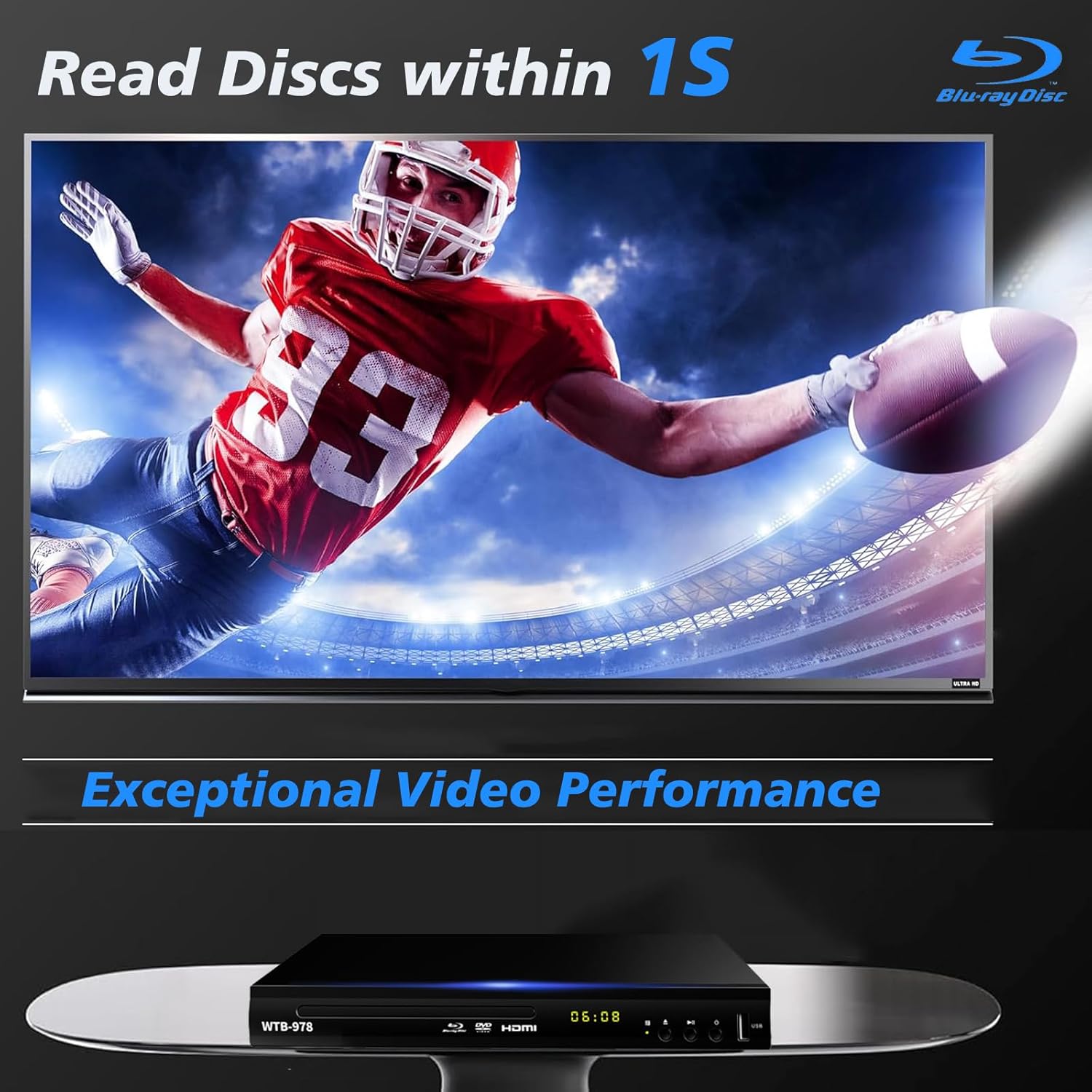
Image: The Blu-Ray DVD player is shown with a screen displaying a high-definition football game, emphasizing its exceptional video performance and quick disc reading capabilities.

Image: A Blu-Ray DVD player with its disc tray open, revealing a Blu-ray disc. The image highlights the player's ability to deliver 1080P HD picture quality, with a film strip graphic above suggesting movie playback.

Image: The Blu-Ray DVD player is positioned in front of a world map, illustrating its "ALL Region Free" capability for DVD playback across multiple countries, while also specifying support for Blu-ray Discs from Region A/1.
4.3 USB Multimedia Playback
The player features a USB input for playing multimedia files from external storage devices (up to 2TB USB flash drives/HDDs).
- Insert your USB flash drive or external HDD into the USB port on the front of the player.
- The player should automatically detect the USB device and display a menu. If not, navigate to the USB input using the remote control.
- Use the navigation buttons to browse through your files (MP4, AVI, MP3, etc.) and press OK to select and play.
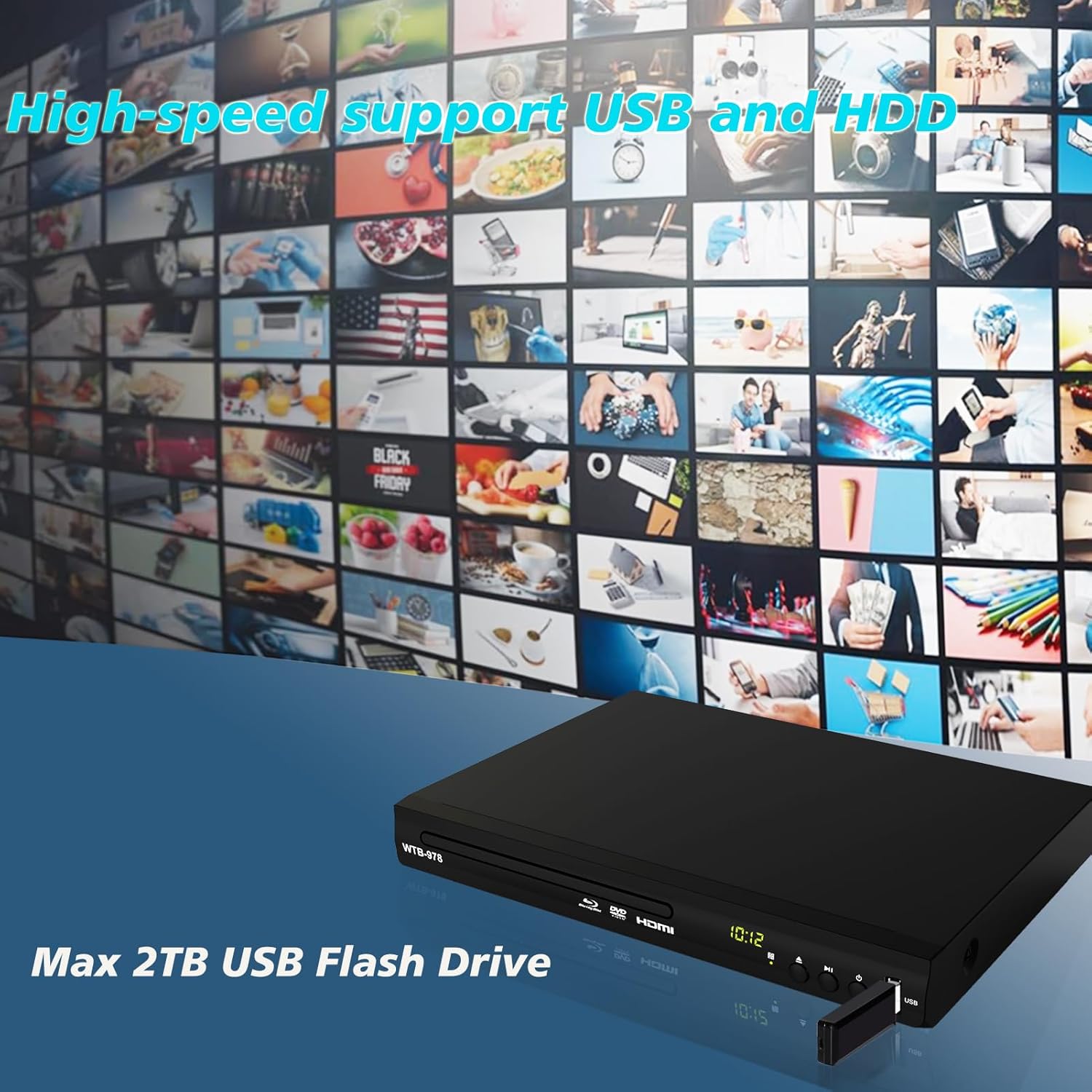
Image: The Blu-Ray DVD player is shown with a USB flash drive inserted into its port, set against a background of numerous video thumbnails, illustrating its high-speed support for USB and HDD multimedia playback.
4.4 Audio Features (Dolby & DTS)
The player supports Dolby and DTS audio formats for an immersive sound experience. Ensure your audio receiver or sound system is properly connected and configured to utilize these features.
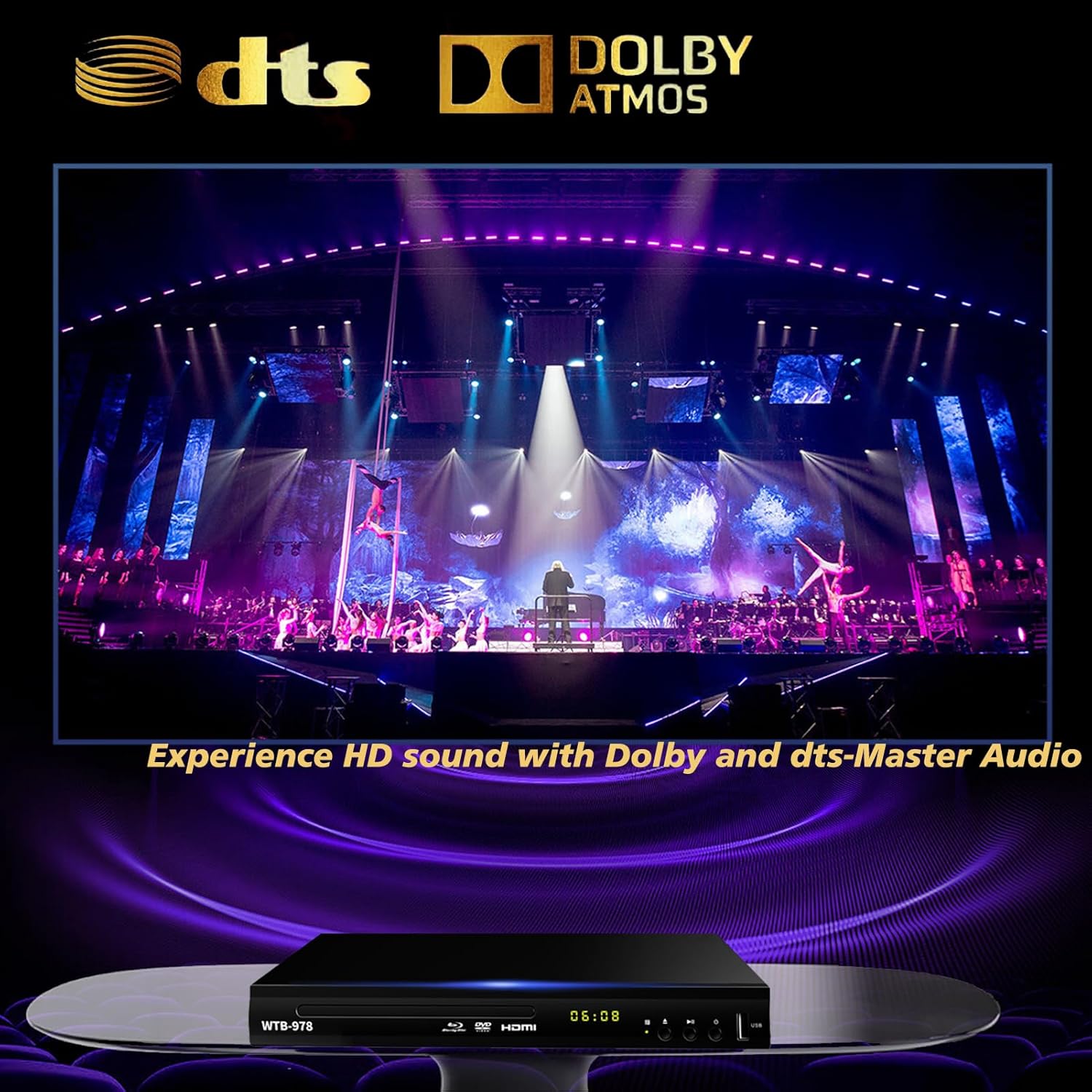
Image: The Blu-Ray DVD player is displayed with prominent DTS and Dolby logos, and a concert scene on the screen, highlighting its capability to deliver HD sound with Dolby and DTS-Master Audio.
4.5 Resume Playback
The player features a resume function, allowing it to continue playback from where it was last paused, even after being powered off.

Image: Two television screens illustrate the resume playback feature. The first screen shows a video paused, and the second shows the video resuming from the exact point after the player was powered off, demonstrating seamless continuity.
5. Maintenance
- Cleaning: Use a soft, dry cloth to clean the exterior of the player. Do not use liquid cleaners or abrasive chemicals.
- Disc Care: Handle discs by their edges. Keep them clean and free of scratches. Use a soft, lint-free cloth to wipe discs from the center outwards.
- Ventilation: Ensure the player has adequate ventilation. Do not block the ventilation openings.
- Storage: Store the player in a cool, dry place away from direct sunlight and extreme temperatures.
6. Troubleshooting
| Problem | Possible Cause | Solution |
|---|---|---|
| No power | Power cord not connected; Power outlet not active. | Ensure power cord is securely plugged in. Test the outlet with another device. |
| No picture | Incorrect input selected on TV; Loose HDMI/AV cable connection. | Select the correct HDMI or AV input on your TV. Check cable connections at both ends. |
| No sound | Audio cables not connected; TV/receiver volume too low or muted. | Ensure audio cables (HDMI/AV/Coaxial) are properly connected. Increase volume and check mute settings on TV/receiver. |
| Disc not playing | Disc is dirty, scratched, or inserted incorrectly; Incorrect disc region. | Clean the disc. Ensure the disc is inserted label-side up. Verify Blu-ray disc region (Region A/1 supported). DVDs are region-free. |
| Remote control not working | Batteries are dead or inserted incorrectly; Obstruction between remote and player. | Replace batteries, ensuring correct polarity. Remove any obstructions and point the remote directly at the player's sensor. |
7. Specifications
- Model: WTB-978
- Resolution: 1920x1080 (1080p)
- Compatible Devices: Television
- Special Features: Surround Sound, Standard DVDs All-Region Free, Anti-Shock, Noise Reduction Technology, Blu-Ray Region A discs support
- Audio Output Mode: Surround
- Supported Audio Formats: DTS, Dolby
- Connector Types: RCA, USB, HDMI, Coaxial
- Media Types Supported: CD, DVD, VCD, Blu-Ray Disc (BD, BD-R, BD-RE, DVD-R/RW, DVD+R/RW, DVD-Video, VCD, CD, CD-R/RW)
- Supported File Formats (USB): MP4, AVI, MP3
- USB Drive Support: Max 2TB USB Flash Drive/HDD
- Dimensions (L x W x H): Approximately 10.24 in x 7.56 in x 1.57 in
- Weight: Approximately 1.62 kg
8. Warranty and Support
For warranty information and technical support, please refer to the contact details provided on the product packaging or visit the official WIITHINK website. Keep your purchase receipt as proof of purchase.
For further assistance, you may contact WIITHINK customer service through their official channels.
Ask a question about this manual
Ask about setup, troubleshooting, compatibility, parts, safety, or missing instructions. Manuals+ will review the question and use this page’s manual context to help answer it.