
Introduction
This manual provides detailed instructions for the installation, operation, and maintenance of your SIXWIN Android 13 Car Radio. Designed specifically for Fiat 500L models from 2013 to 2019, this unit features a 7-inch touchscreen, Android 13 operating system, CarPlay, Android Auto, DSP, Wi-Fi, Bluetooth, USB connectivity, FM/RDS radio, and GPS navigation. Please read this manual thoroughly before use to ensure proper functionality and safety.
Product Overview
The SIXWIN Android 13 Car Radio is an advanced multimedia system designed to enhance your driving experience. It integrates seamlessly with your Fiat 500L (2013-2019) and offers a wide range of features for navigation, entertainment, and communication.
- Operating System: Android 13
- Display: 7-inch IPS Touch Screen (Resolution: 1280 x 720)
- Memory: 2GB RAM + 64GB ROM
- Connectivity: Built-in Wi-Fi, Bluetooth 5.1, Dual USB ports
- Features: Wireless CarPlay, Wireless Android Auto, Mirror Link, DSP (Digital Sound Processor), FM/RDS Radio, GPS Navigation, 32-band Equalizer, Split Screen, Steering Wheel Control support.
- Power Output: 4 x 45W Max
- Operating Voltage: DC 12V
Setup and Installation
Before beginning installation, ensure your vehicle's ignition is off and the battery is disconnected to prevent electrical damage. Professional installation is recommended.
Package Contents
Verify that all components are present in the package:

Image: The packing list includes the main unit, power cable, antenna adapter, RCA cable, rear camera input cable, CANBUS box, GPS antenna, USB cables, and a user manual. The image also shows the dimensions of the head unit (200mm/7.8inch width, 153mm/5.9inch height) and the rear connections labeled 1-6 for Power cord, RCA Input/Output, USB Cable, Camera Input, Radio, and GPS Antenna.
- SIXWIN Android Car Radio Unit
- Power Cable Harness
- Antenna Adapter
- RCA Input/Output Cables
- Rear Camera Input Cable (Camera not included)
- CANBUS Decoder Box
- GPS Antenna
- USB Cables (x2)
- User Manual
Installation Steps
- Remove Original Radio: Carefully remove the existing car radio from your Fiat 500L dashboard. Refer to your vehicle's service manual for specific instructions on panel removal.
- Connect Wiring Harness: Connect the provided power cable harness to the car radio and the vehicle's wiring. Ensure all connections are secure. The CANBUS decoder box should be integrated into the wiring as instructed to maintain steering wheel control functionality.
- Connect Antennas: Attach the GPS antenna and the radio antenna adapter to their respective ports on the back of the new unit. Position the GPS antenna in a location with a clear view of the sky, typically on the dashboard or under the windshield.
- Connect USB/RCA Cables: Connect the USB cables and RCA input/output cables as needed for external devices or amplifiers. Route these cables to accessible locations within the vehicle.
- Test Functionality: Before fully reassembling the dashboard, temporarily connect the battery and turn on the ignition to test the basic functions of the radio (power, sound, touchscreen, steering wheel controls).
- Secure Unit: Once tested, carefully mount the SIXWIN car radio into the dashboard opening. Reassemble all removed panels.

Image: This image illustrates the appearance of the Fiat 500L dashboard before and after the installation of the SIXWIN Android 13 Car Radio. The "Before" section shows the empty radio slot, while the "After" section displays the new 7-inch touchscreen unit seamlessly integrated into the dashboard, showing a multimedia interface.
Operating Instructions
Power On/Off
The unit powers on automatically with the vehicle's ignition. To turn off the display, press and hold the power button (usually a physical button or a soft button on the screen). To fully power off, turn off the vehicle's ignition.
Touchscreen Interface
Navigate the system using the responsive 7-inch touchscreen. Swipe, tap, and pinch gestures are supported for various functions, similar to a smartphone or tablet.
CarPlay & Android Auto
The unit supports both wireless CarPlay for iOS devices and wireless Android Auto for Android smartphones. This allows for safe and convenient access to navigation, calls, messages, and music while driving.
- Ensure Bluetooth and Wi-Fi are enabled on your smartphone.
- On the car radio, select the "CarPlay" or "Android Auto" application.
- Follow the on-screen prompts to pair your phone via Bluetooth and establish a Wi-Fi connection for data transfer.
- Once connected, your phone's compatible apps will appear on the car radio display.

Image: This image shows two distinct interfaces on the car radio screen. On the left, the CarPlay interface is displayed, mirroring an iPhone screen with various app icons. On the right, the Android Auto interface is shown, mirroring an Android phone screen with its set of compatible applications. This demonstrates the unit's capability to connect with both iOS and Android devices for integrated car functionality.
Mirror Link Function
Mirror Link allows you to project your smartphone's screen content directly onto the car radio display via USB cable or Wi-Fi connection. This feature supports both iOS and Android devices.
- Connect your smartphone to the car radio using an original USB cable or establish a Wi-Fi connection.
- On the car radio, select the "Mirror Link" application.
- Follow the on-screen instructions to initiate screen mirroring.

Image: This image demonstrates the Mirror Link function. The car radio's 7-inch screen displays the content of a smartphone, which is shown below the unit. Both screens feature a blue sports car wallpaper, indicating successful screen mirroring. This function allows users to project their mobile phone screen to the car player via USB data cable or WiFi connection.
Wi-Fi Connection
Connect the car radio to the internet via a Wi-Fi hotspot from your smartphone or a dedicated Wi-Fi device. This enables online navigation, app downloads, streaming, and web browsing.
- Go to "Settings" on the car radio and select "Wi-Fi".
- Turn on Wi-Fi and select your desired network from the list.
- Enter the password if prompted and connect.

Image: This image shows the car radio screen connected to Wi-Fi, displaying a web browser with the Google search page. Around the main screen, various application icons such as YouTube, Spotify, and social media apps are visible, illustrating the high-speed internet access, application download, and online content streaming capabilities provided by the Wi-Fi connection.
GPS Navigation
The built-in GPS module supports both online and offline navigation. You can use pre-installed maps or download your preferred navigation apps from the Google Play Store (requires Wi-Fi connection).
- Access navigation apps from the main menu.
- Enter your destination to receive real-time directions and traffic information (online maps).
- Voice guidance is available to assist with navigation.
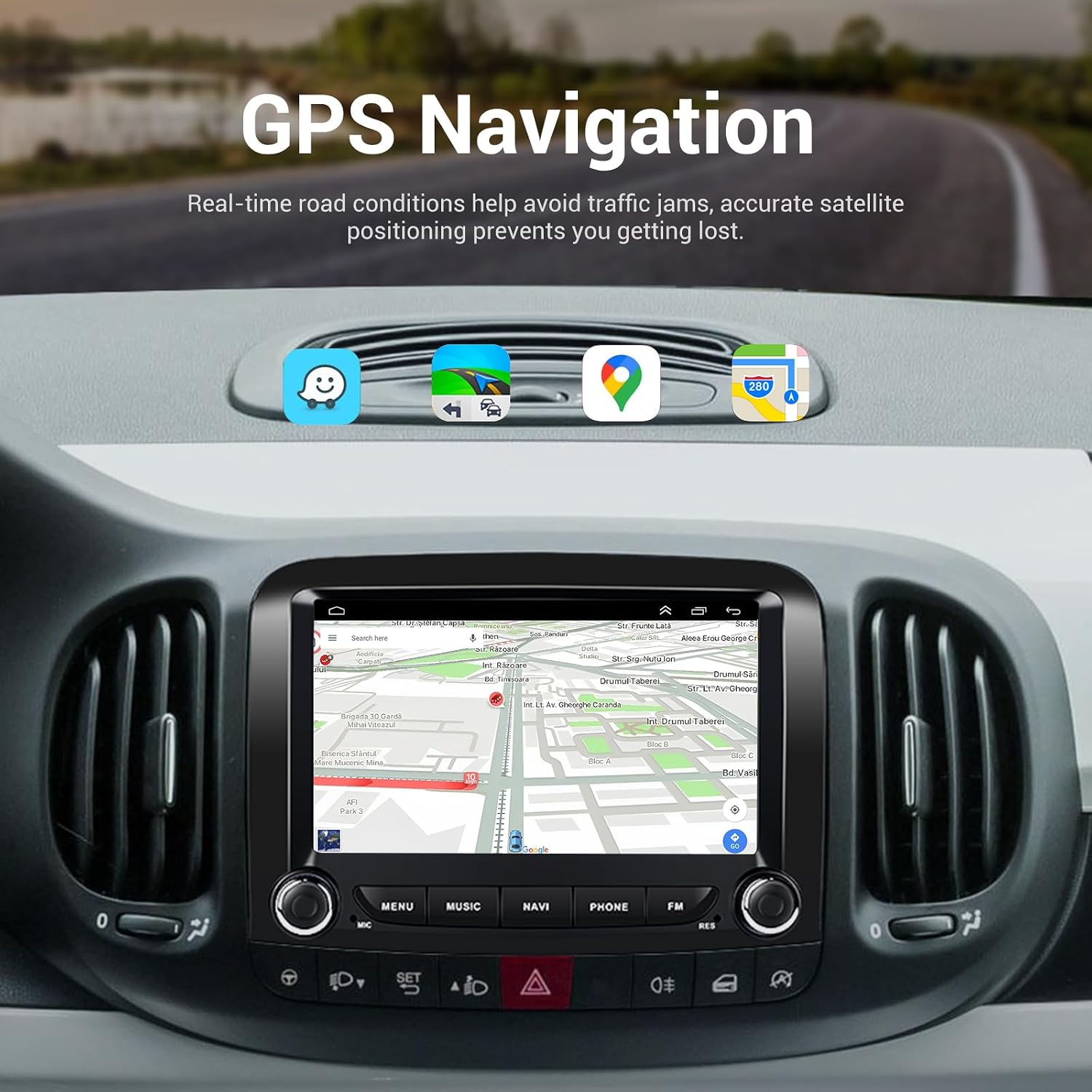
Image: This image displays the car radio screen displaying a detailed GPS navigation map. A route is highlighted, and various map features are visible, indicating real-time road conditions and accurate satellite positioning. Icons for popular navigation apps are also shown above the map.
Bluetooth 5.1 Connectivity
The upgraded Bluetooth 5.1 provides a more stable connection for hands-free calling and high-quality audio streaming from your smartphone.
- Enable Bluetooth on your smartphone and the car radio.
- Search for available devices on the car radio and select your phone.
- Confirm the pairing code on both devices.
- Once paired, you can make/receive calls and stream music wirelessly.

Image: This image illustrates the Bluetooth functionality. The car radio screen displays a dialer interface with numbers and call controls, indicating hands-free calling capability. Next to it, a smartphone shows an incoming call, demonstrating how the unit connects to your phone for communication and music playback, reducing driving risks.
FM / RDS Radio
Enjoy your favorite radio stations with clear reception. The RDS (Radio Data System) feature displays station information, song titles, and other relevant data.
- Select the "Radio" application from the main menu.
- Use the scan function to find available stations or manually tune to a frequency.
- Save your favorite stations as presets for quick access.

Image: This image displays the FM/RDS radio interface on the car radio screen, showing various station frequencies and options to save presets. Below, a 32-band equalizer is visible, demonstrating the unit's audio customization capabilities. This allows users to listen to online music or transfer music to the car audio and enjoy the original car stereo experience.
Digital Sound Processor (DSP) & Equalizer
The integrated DSP enhances audio quality by reducing noise, distortion, and interference. The 32-band equalizer allows for precise customization of sound output to match your preferences.
- Access the "Sound Settings" or "Equalizer" menu.
- Adjust individual frequency bands or select from preset sound effects (e.g., Pop, Rock, Jazz).
Steering Wheel Control
The unit supports the original steering wheel controls of your Fiat 500L, allowing you to manage volume, tracks, and calls without taking your hands off the wheel. This functionality is enabled via the CANBUS decoder.
- After installation, the steering wheel controls should function automatically.
- If not, navigate to "Settings" > "Steering Wheel Control" to configure the buttons manually.
Optional Functions
The unit supports several optional functions that may require additional accessories or applications:
- Tachograph: For recording driving data.
- Smart Voice Assistant: For voice commands and control.
- Network Radio: Access to online radio stations.
- Global Weather Display: Real-time weather information.
- DAB+: Digital Audio Broadcasting (requires external DAB+ tuner).
Maintenance
- Cleaning the Screen: Use a soft, lint-free cloth to gently wipe the touchscreen. Do not use abrasive cleaners or solvents, as they may damage the screen.
- Software Updates: Periodically check for software updates through the system settings (requires Wi-Fi connection). Updates can improve performance and add new features.
- Avoid Extreme Temperatures: Do not expose the unit to extreme heat or cold, as this can affect its performance and lifespan.
- Cable Connections: Ensure all cables are securely connected. Loose connections can lead to intermittent issues.
Troubleshooting
| Problem | Possible Cause | Solution |
|---|---|---|
| Unit does not power on. | Loose power connection, blown fuse, vehicle battery issue. | Check power cable connections. Inspect vehicle fuses. Ensure vehicle battery is charged. |
| No sound output. | Volume too low, mute activated, incorrect audio source, loose speaker wires. | Increase volume. Check mute status. Select correct audio source. Verify speaker wire connections. |
| GPS signal lost or inaccurate. | GPS antenna obstructed or improperly placed, poor satellite reception. | Ensure GPS antenna has a clear view of the sky. Check antenna connection. Move to an open area. |
| Bluetooth connection issues. | Phone not discoverable, incorrect pairing, interference. | Ensure phone's Bluetooth is on and discoverable. Delete previous pairings and re-pair. Move phone closer to the unit. |
| CarPlay/Android Auto not connecting. | Incorrect USB cable, phone settings, Wi-Fi/Bluetooth issues. | Use original USB cable. Check phone's CarPlay/Android Auto settings. Ensure Wi-Fi and Bluetooth are active and paired. |
| Steering wheel controls not working. | CANBUS connection issue, incorrect configuration. | Verify CANBUS decoder is correctly connected. Check steering wheel control settings in the unit. |
If problems persist after attempting these solutions, please contact customer support.
Specifications
| Feature | Detail |
|---|---|
| Brand | SIXWIN |
| Model Number | 1 |
| Operating System | Android 13 |
| RAM | 2GB |
| Internal Storage (ROM) | 64GB |
| Screen Size | 7 inches |
| Screen Resolution | 1280 x 720 |
| Connectivity Technology | Wi-Fi, Bluetooth 5.1 |
| Control Method | Touch |
| Special Features | CarPlay, Android Auto, Mirror Link, DSP, GPS, FM/RDS Radio, 32-band Equalizer |
| Compatible Devices | Smartphone |
| Output Power (per channel) | 45 Watts |
| Number of Channels | 4 |
| Total Power Output | 180 Watts |
| Product Dimensions | 1 x 1 x 1 cm; 1.18 kg (Approx. 200mm x 153mm for head unit) |
Warranty and Support
For warranty information and technical support, please refer to the documentation included with your purchase or contact SIXWIN customer service directly. Keep your purchase receipt as proof of purchase for warranty claims.
- Customer Service: Refer to the contact information provided on the product packaging or the official SIXWIN website.
- Online Resources: Check the manufacturer's website for FAQs, updated manuals, and software downloads.

