
1. Introduction
Thank you for choosing the CUIUIC 15.6-inch Portable Monitor. This manual provides essential information for setting up, operating, and maintaining your new display. Please read it thoroughly before use to ensure optimal performance and longevity of the product.
This portable monitor features a 15.6-inch Full HD (1920x1080) IPS display with a 60Hz refresh rate and a wide 178° viewing angle. It is designed for versatility, offering connectivity via USB-C and HDMI, and is compatible with a wide range of devices including laptops, smartphones, PCs, and gaming consoles.

Image: The CUIUIC 15.6-inch portable monitor showcasing its key features including 1080p Full HD, 2000:1 contrast, 16.7 million colors, 100% sRGB, HDR support, built-in speakers, HDMI, USB-C, DP, IPS 178°, and 400 cd/m2 brightness.
2. Package Contents
Please check the package for the following items. If any items are missing or damaged, contact customer support.
- CUIUIC 15.6-inch Portable Monitor
- User Manual
- 5V 3A Power Adapter
- USB-A to USB-C Cable
- USB-C to USB-C Cable (Full-featured)
- Standard HDMI to Mini HDMI Cable
- Protective Cover (doubles as a stand)
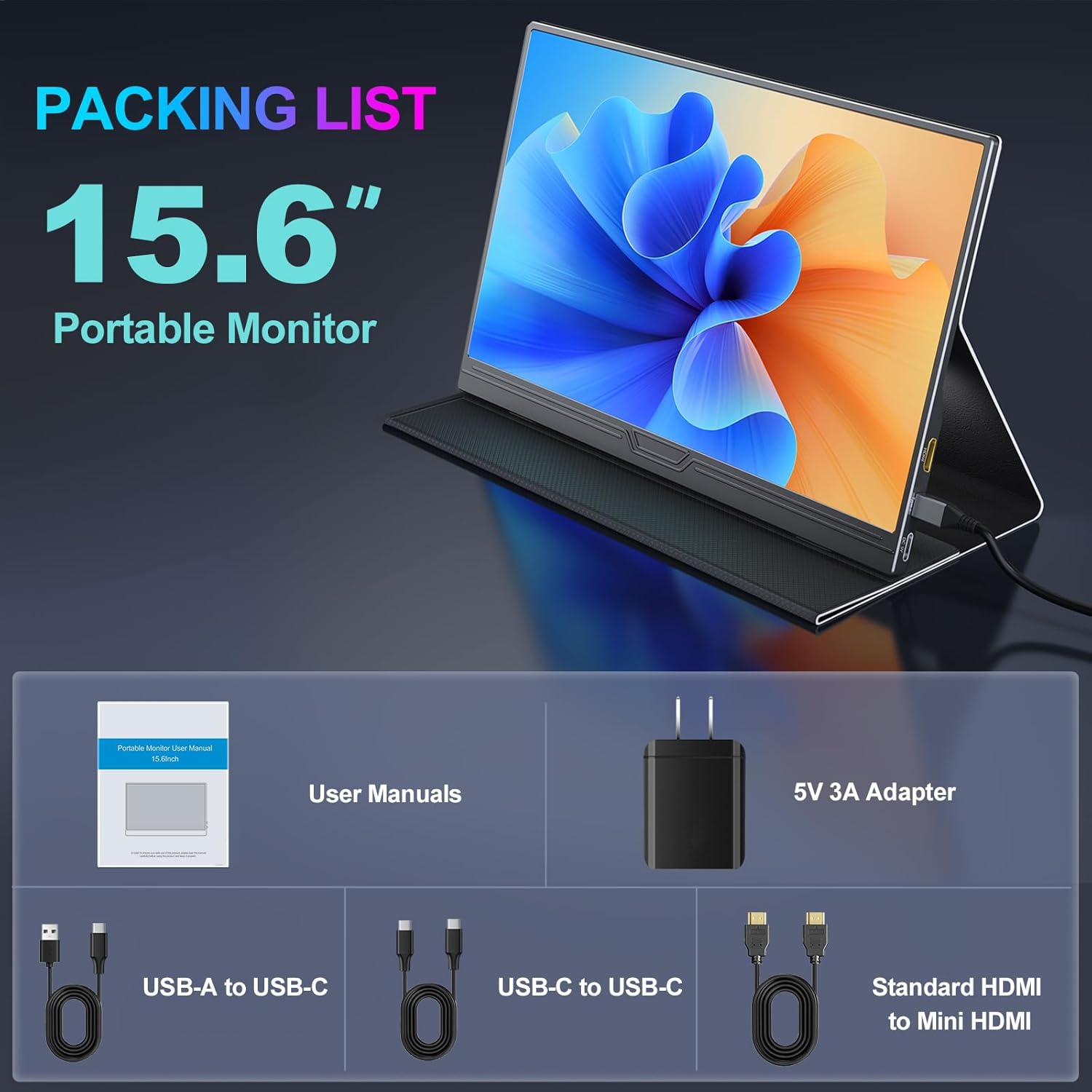
Image: Visual representation of the items included in the package: the 15.6-inch portable monitor, user manuals, 5V 3A adapter, USB-A to USB-C cable, USB-C to USB-C cable, and Standard HDMI to Mini HDMI cable.
3. Product Overview
Familiarize yourself with the monitor's ports and controls before use.

Image: Diagram illustrating the monitor's side panel with labels for Exit/Power button, LED Indicator, Menu +/- buttons, Audio Output, Power supply only USB Type-C port, and Mini HDMI port. It also indicates compatibility with Laptop, Switch, Phone via USB Type-C, and PC, Laptop, PS4/5, Xbox via Mini HDMI.
Ports and Buttons:
- Exit/Power Button: Press and hold to power on/off. Short press to exit menu or confirm selection.
- LED Indicator: Shows power status.
- Menu +/- Buttons: Navigate through the On-Screen Display (OSD) menu and adjust settings.
- Audio Output (3.5mm Jack): Connect external headphones or speakers.
- USB Type-C (Full-featured): For video, audio, and power transmission with compatible devices (USB Type-C 3.1/3.2, Thunderbolt 3/4).
- USB Type-C (Power Supply Only): For providing power to the monitor.
- Mini HDMI Port: For video and audio input from devices.
4. Setup and Connections
The monitor supports both USB-C and HDMI connections. Ensure your device has the necessary ports.

Image: Diagrams illustrating two connection methods. The top diagram shows a single USB-C cable connection between a laptop and the monitor. The bottom diagram shows an HDMI to mini HDMI cable connection for video/audio and a separate DC-5V power cable for power, connecting a laptop to the monitor.
4.1. USB-C Connection (Single Cable)
For devices with a full-featured USB Type-C port (supporting video, audio, and power delivery, e.g., USB Type-C 3.1/3.2, Thunderbolt 3/4).
- Connect one end of the provided USB-C to USB-C cable to your device's full-featured USB-C port.
- Connect the other end of the USB-C to USB-C cable to the monitor's full-featured USB Type-C port.
- The monitor should automatically detect the signal and power on. If not, press the Power button.
Note: If your device's USB-C port does not supply enough power, you may need to connect the monitor to an external power source using the 5V 3A adapter and the USB-A to USB-C cable.
4.2. HDMI Connection
For devices with an HDMI output (e.g., PCs, gaming consoles).
- Connect one end of the provided Standard HDMI to Mini HDMI cable to your device's HDMI output.
- Connect the Mini HDMI end of the cable to the monitor's Mini HDMI port.
- Connect the 5V 3A power adapter to the monitor's dedicated USB Type-C power input using the USB-A to USB-C cable.
- Power on the monitor using the Power button.
Note: The HDMI connection transmits video and audio signals, but requires external power for the monitor.
5. Operating Instructions
5.1. On-Screen Display (OSD) Menu
Use the Menu +/- buttons to navigate and adjust settings in the OSD menu. Press the Exit/Power button to confirm selections or exit the menu.
Common OSD settings include:
- Brightness/Contrast: Adjust display luminance and contrast levels.
- Color Settings: Modify color temperature, hue, and saturation.
- Input Source: Manually select between USB-C and HDMI inputs.
- Audio: Adjust volume for built-in speakers or connected headphones.
- HDR Mode: Enable or disable High Dynamic Range.
- Language: Select OSD menu language.
5.2. Display Modes
When connected to a computer, you can configure the display mode through your operating system's display settings.

Image: A laptop connected to the CUIUIC portable monitor, demonstrating two display modes: "Expansion Mode" where the monitor extends the desktop, and "Replication Mode" where the monitor mirrors the laptop's display.
- Extension Mode: Extends your desktop across both screens, allowing for more workspace.
- Duplicate/Mirror Mode: Duplicates the content of your primary screen onto the portable monitor.
- Second Screen Only Mode: Displays content only on the portable monitor, turning off the primary screen.
6. Supported Devices
The CUIUIC portable monitor is compatible with a wide array of devices.
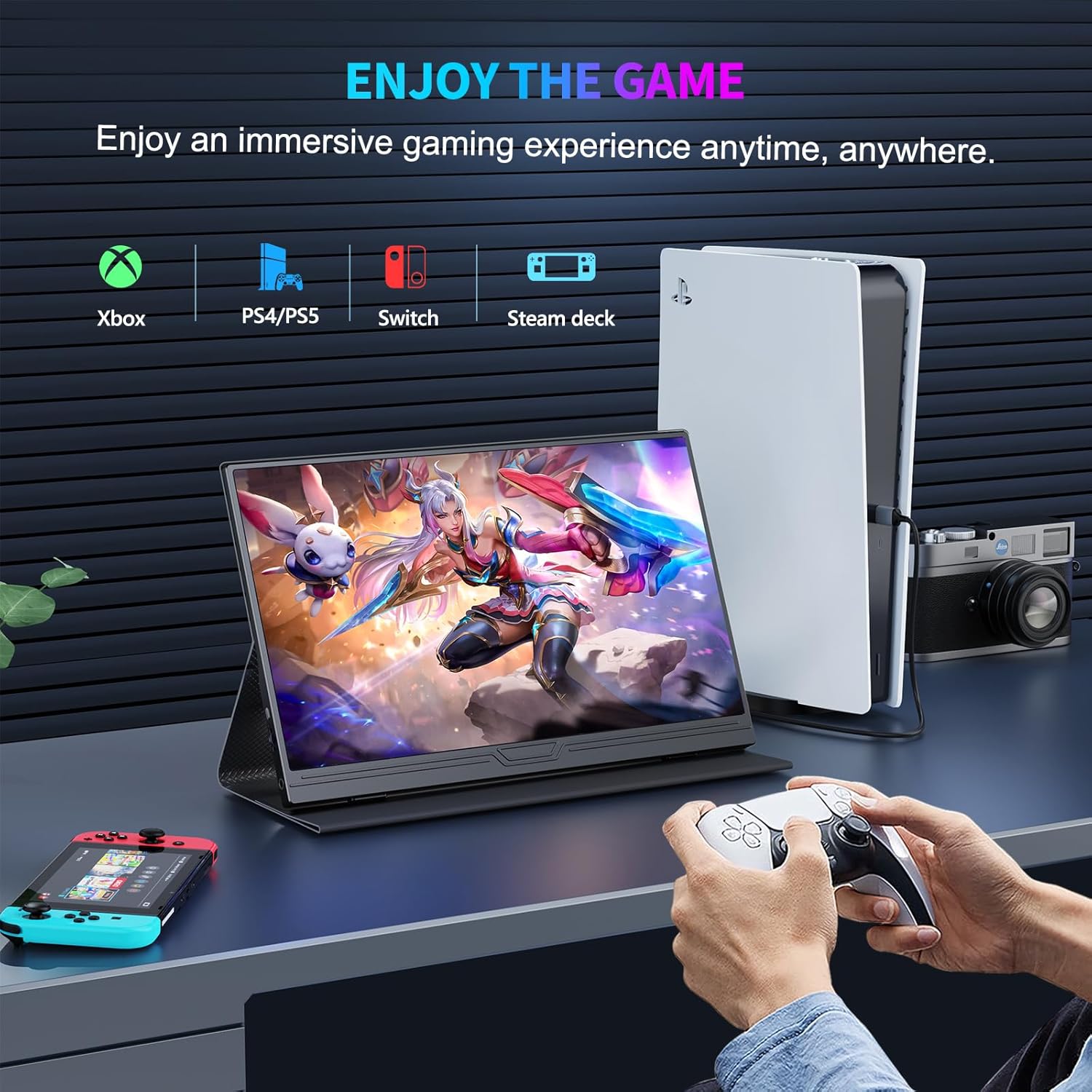
Image: A gaming setup featuring the CUIUIC portable monitor displaying a game, with icons for Xbox, PS4/PS5, Nintendo Switch, and Steam Deck, indicating compatibility with these gaming platforms.
- Laptops: Windows, macOS (with appropriate adapters if needed for older models).
- Smartphones: Android phones with full-featured USB-C ports (e.g., Samsung DeX, Huawei EMUI Desktop).
- Desktop PCs: Via HDMI connection.
- Gaming Consoles: PlayStation 4/5, Xbox One/Series X|S, Nintendo Switch, Steam Deck (via HDMI or USB-C).
7. Maintenance and Care
Proper care ensures the longevity of your monitor.
- Cleaning: Use a soft, lint-free cloth to gently wipe the screen. For stubborn marks, lightly dampen the cloth with water or a screen-cleaning solution. Avoid harsh chemicals or abrasive materials.
- Handling: Always handle the monitor by its edges. Avoid applying pressure to the screen.
- Storage: When not in use, store the monitor in its protective cover to prevent scratches and dust accumulation.
- Environment: Keep the monitor away from extreme temperatures, direct sunlight, and high humidity. Ensure adequate ventilation.
- Power: Use only the provided power adapter or a compatible 5V 3A power source.
8. Troubleshooting
If you encounter issues, refer to the following common solutions.
| Problem | Possible Solution |
|---|---|
| No signal / Black screen |
|
| No power |
|
| Flickering screen |
|
| No sound from monitor |
|
9. Specifications
| Feature | Detail |
|---|---|
| Model Number | GS156CM3 |
| Screen Size | 15.6 inches |
| Panel Type | IPS |
| Resolution | 1920 x 1080 (Full HD) |
| Aspect Ratio | 16:9 |
| Refresh Rate | 60 Hz |
| Response Time | 3 milliseconds |
| Surface Description | Matte |
| Connectivity | 1x Mini HDMI, 2x USB Type-C (1x Full-featured, 1x Power only) |
| Audio Output | 3.5mm Headphone Jack |
| Built-in Speakers | Yes |
| Weight | 0.53 kg (approx. 1.17 lbs) |
| Thickness | 0.3 inches (approx. 7.6 mm) |
| Energy Efficiency Class | A |
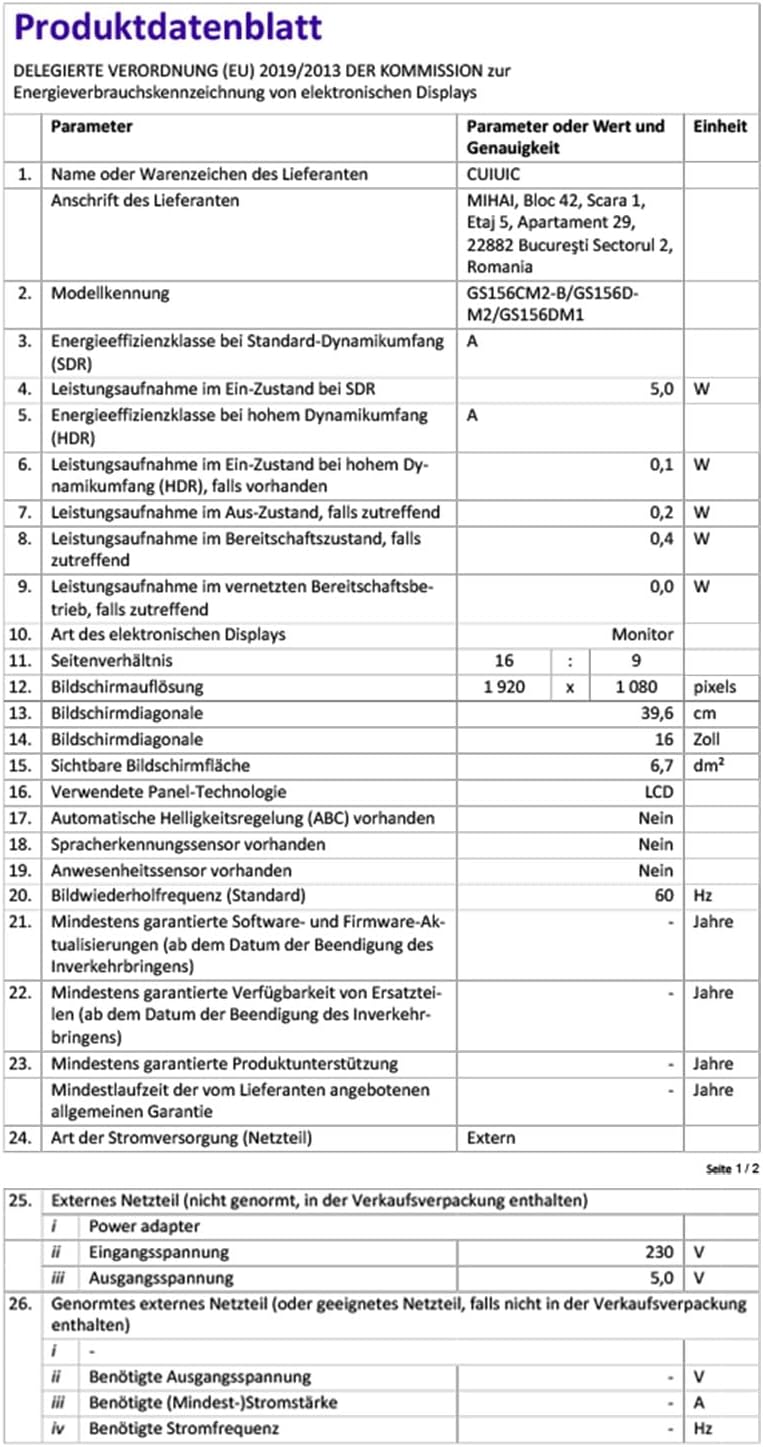
Image: A German product data sheet (Produktdatenblatt) providing detailed technical specifications for the CUIUIC portable monitor, including model number, energy efficiency, screen size, resolution, and manufacturer information.
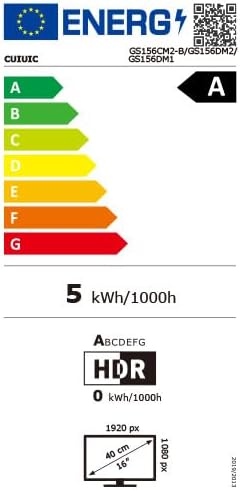
Image: An energy efficiency label for the CUIUIC portable monitor, showing an 'A' rating and power consumption details.
10. Warranty and Support
For warranty information and customer support, please refer to the warranty card included in your package or contact the retailer where you purchased the product. You may also visit the official CUIUIC website for further assistance.
Please retain your proof of purchase for warranty claims.


