
Shimbol M7
Shimbol M7 7-inch 2000 Nits Camera Monitor User Manual
Model: M7
1. Introduction
Thank you for choosing the Shimbol M7 7-inch 2000 Nits Camera Monitor. This professional on-camera field monitor is designed to enhance your filmmaking and photography experience with its high-brightness touchscreen, 1920x1080 IPS display, and comprehensive monitoring tools. This manual provides essential information for the proper setup, operation, and maintenance of your device.

Image 1.1: The Shimbol M7 7-inch 2000 Nits Camera Monitor.
2. Safety Information
Please read all safety instructions carefully before using the Shimbol M7 monitor to prevent damage to the product or injury to yourself. Keep this manual for future reference.
- Do not expose the monitor to rain, moisture, or extreme temperatures.
- Avoid dropping or subjecting the monitor to strong impacts.
- Do not disassemble the monitor. Repairs should only be performed by authorized personnel.
- Use only approved power sources and accessories.
- Clean the screen with a soft, dry cloth. Avoid using harsh chemicals.
- Ensure proper ventilation when operating the monitor.
3. Package Contents
Verify that all items listed below are included in your package. If any items are missing or damaged, please contact your retailer.

Image 3.1: Shimbol M7 monitor and included accessories.
- Shimbol M7 Camera Monitor
- SDI Cable
- HDMI Cable
- Hot Shoe Mount
- Tempered Screen Protector
- Dusting Cloth
- User Manual
- Color Box
- Carry Case
- SD Card (32GB)
4. Product Overview
The Shimbol M7 is a high-performance 7-inch camera monitor designed for professional use. It features a robust aluminum body and a bright, clear display with advanced monitoring capabilities.
4.1 Key Features
- 2000 Nits High Brightness: Ensures clear visibility for outdoor shooting, even in strong sunlight.
- 1920x1080 IPS Display: Provides sharp images and rich colors with a DCI-P3 display.
- Touchscreen Interface: For easy and intuitive navigation of menus and functions.
- 4K HDMI & 3G-SDI Support: Versatile connectivity for various camera setups.
- Custom 3D LUTs: Allows for quick application of desired shooting effects.
- Professional Monitoring Tools: Includes False Color, Waveform, Focus Peaking, Histogram, Vectorscope, RGB adjustments, and more.
- Dual Battery Slots: Extends operating time for prolonged shooting sessions (batteries not included).
- Aviation Aluminum Body: Durable, lightweight, and meticulously crafted using CNC process.

Image 4.1: Overview of Shimbol M7 features including 2000 Nits, 4K HDMI, 3G-SDI, 3D LUT, and IPS display.
4.2 Ports and Controls
Familiarize yourself with the various ports and controls on your Shimbol M7 monitor.

Image 4.2: Rear view of the Shimbol M7 showing HDMI and SDI dual interfaces and battery plate.
- HDMI Input/Output: Connects to cameras or other video sources and outputs to other displays.
- SDI Input/Output: Professional video input/output for high-quality signals.
- DC Power Input: For external power supply.
- Dual Battery Plate: Accommodates two NP-F style batteries for extended power.
- Power Button: Turns the monitor on/off.
- Function Buttons: Customizable buttons for quick access to frequently used features.
5. Setup
Follow these steps for initial setup of your Shimbol M7 monitor.
- Mounting the Monitor: Attach the monitor to your camera rig or hot shoe using the provided hot shoe mount. Ensure it is securely fastened.
- Powering the Monitor:
- Battery Power: Insert one or two compatible NP-F style batteries into the dual battery slots on the rear of the monitor.
- DC Power: Connect an external DC power adapter (not included) to the DC power input port.
- Connecting to a Camera:
- HDMI Connection: Use the provided HDMI cable to connect your camera's HDMI output to the monitor's HDMI input.
- SDI Connection: Use the provided SDI cable to connect your camera's SDI output to the monitor's SDI input.
- Power On: Press and hold the power button until the screen illuminates.
6. Operating Instructions
The Shimbol M7 features an intuitive touchscreen interface and a range of professional monitoring tools.
6.1 Basic Operation
- Touchscreen Navigation: Tap icons to select functions, swipe to navigate menus, and pinch-to-zoom (if supported by specific functions).
- Menu Access: Tap the menu icon on the screen to access the main settings and tools.
- Input Selection: Select the appropriate input source (HDMI or SDI) from the menu or quick access icons.

Image 6.1: The Shimbol M7's new UI design for easy and smooth operation.
6.2 Professional Monitoring Tools
The M7 monitor includes a suite of tools to assist with accurate exposure and focus.
- Focus Peaking: Highlights in-focus areas with a selectable color.
- False Color: Displays exposure levels using a spectrum of colors, helping to identify over/underexposed areas.
- Waveform: Provides a graphical representation of video signal luminance levels.
- Vectorscope: Shows the color information of the video signal.
- Histogram: Illustrates the distribution of tones in your image.
- 3D LUTs: Apply custom Look Up Tables for real-time color grading and monitoring.
- Anamorphic Ratio: De-squeezes anamorphic footage for proper viewing.
- Mask: Applies various aspect ratio masks.

Image 6.2: Examples of professional monitoring tools including False Color, Mask, RGB Custom Settings, and High Precision Oscillogram.

Image 6.3: The Shimbol M7 supporting custom 3D LUTs for quick visual effects.
6.3 Color Calibration
The M7 monitor features professional color calibration to ensure accurate color reproduction.
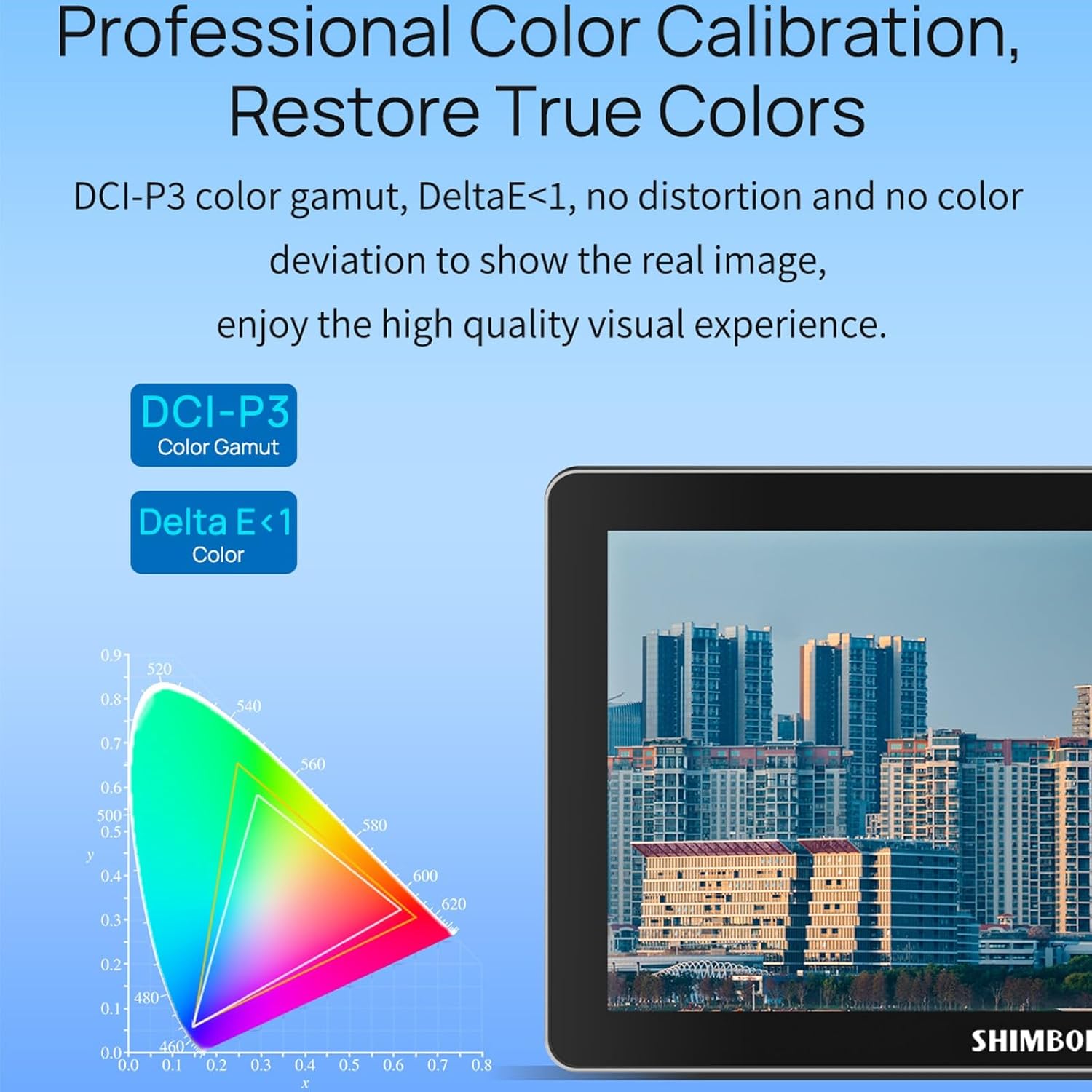
Image 6.4: Professional color calibration on the Shimbol M7, showing DCI-P3 color gamut and Delta E < 1.
7. Maintenance
Proper care and maintenance will ensure the longevity and optimal performance of your Shimbol M7 monitor.
- Cleaning the Screen: Use the provided dusting cloth or a soft, lint-free microfiber cloth to gently wipe the screen. For stubborn smudges, slightly dampen the cloth with water or a screen-safe cleaning solution. Do not spray liquid directly onto the screen.
- Cleaning the Body: Wipe the monitor's aluminum body with a soft, dry cloth.
- Storage: When not in use, store the monitor in its carry case in a cool, dry place away from direct sunlight and extreme temperatures.
- Battery Care: If using batteries, remove them if the monitor will not be used for an extended period.
8. Troubleshooting
If you encounter issues with your Shimbol M7 monitor, refer to the following common problems and solutions.
| Problem | Possible Cause | Solution |
|---|---|---|
| Monitor does not power on. | No power, low battery, faulty power cable. | Ensure batteries are charged and correctly inserted, or connect to a working DC power source. Check power cable connections. |
| No video signal. | Incorrect input selected, faulty cable, camera output issue. | Verify the correct input (HDMI/SDI) is selected on the monitor. Check cable connections. Ensure camera video output is active. Try a different cable. |
| Screen is too dim/bright. | Brightness settings. | Adjust the brightness setting in the monitor's menu. |
| Touchscreen unresponsive. | Temporary software glitch, screen protector issue. | Restart the monitor. Ensure the screen protector is applied correctly and not interfering with touch. |
If the problem persists after attempting these solutions, please contact Shimbol customer support.
9. Specifications
Detailed technical specifications for the Shimbol M7 Camera Monitor.
| Feature | Specification |
|---|---|
| Brand | Shimbol |
| Model Number | M7 |
| Screen Size | 7 Inches |
| Native Resolution | 1920x1080 (FHD 1080p) |
| Display Resolution Maximum | 1920 x 1080 |
| Brightness | 2000 nits |
| Contrast Ratio | 1800:1 |
| Viewing Angle | 170 Degrees |
| Aspect Ratio | 16:9 |
| Display Type | LED IPS |
| Screen Surface Description | Matte |
| Connectivity Technology | HDMI, SDI, Wi-Fi |
| Total Number of HDMI Ports | 1 |
| Number of Component Outputs | 2 |
| Item Weight | 0.8 Kilograms |
| Color | Black |
| Compatible Devices | Camera, Camcorder, Certain Multimedia Devices |
| Additional Features | Portable |
10. Warranty and Support
The Shimbol M7 Camera Monitor comes with a standard manufacturer's warranty. Please refer to the warranty card included in your package for specific terms and conditions. For technical support, troubleshooting assistance, or warranty claims, please contact Shimbol customer service through their official website or your point of purchase.
Keep your purchase receipt as proof of purchase for warranty purposes.
Related documentsM7


Ask a question about this manual
Ask about setup, troubleshooting, compatibility, parts, safety, or missing instructions. Manuals+ will review the question and use this page’s manual context to help answer it.