
BINNUNE BW02
BINNUNE BW02 Wireless Gaming Headset User Manual
1. Introduction
Thank you for choosing the BINNUNE BW02 Wireless Gaming Headset. This manual provides detailed instructions for setting up, operating, and maintaining your headset to ensure optimal performance across various platforms, including PlayStation 5, PlayStation 4, PC, and Mac. The BW02 offers versatile connectivity options, including ultra-low latency 2.4GHz wireless, Bluetooth 5.3, and a wired Type-C connection, along with high-fidelity audio and clear communication features.

Image 1.1: BINNUNE BW02 Wireless Gaming Headset with its 2.4GHz USB dongle.
2. Package Contents
Please verify that all items are present in your package:
- BINNUNE BW02 Wireless Gaming Headset
- 2.4GHz USB Wireless Dongle
- USB Type-C Charging Cable
- User Manual (this document)
3. Product Overview
The BINNUNE BW02 headset is designed for comfort and performance. Familiarize yourself with its components and controls.

Image 3.1: Headset Controls. (1) ON/OFF Button, (2) Volume Up/Down, (3) Microphone Mute/Unmute.
Key Features:
- 50mm Titanium-Plated Drivers: Delivers clear and precise sound with enhanced bass.
- Dual Beamforming Microphones: Provides clear voice communication with noise-canceling technology.
- Multi-Platform Compatibility: Supports PS5, PS4, PC, Mac, smartphones, and tablets.
- Dual Wireless Modes: 2.4GHz ultra-low latency wireless and Bluetooth 5.3.
- Long Battery Life: Up to 48 hours in 2.4GHz mode, 63 hours in Bluetooth mode.

Image 3.2: The 50mm titanium-plated driver for high-quality audio output.
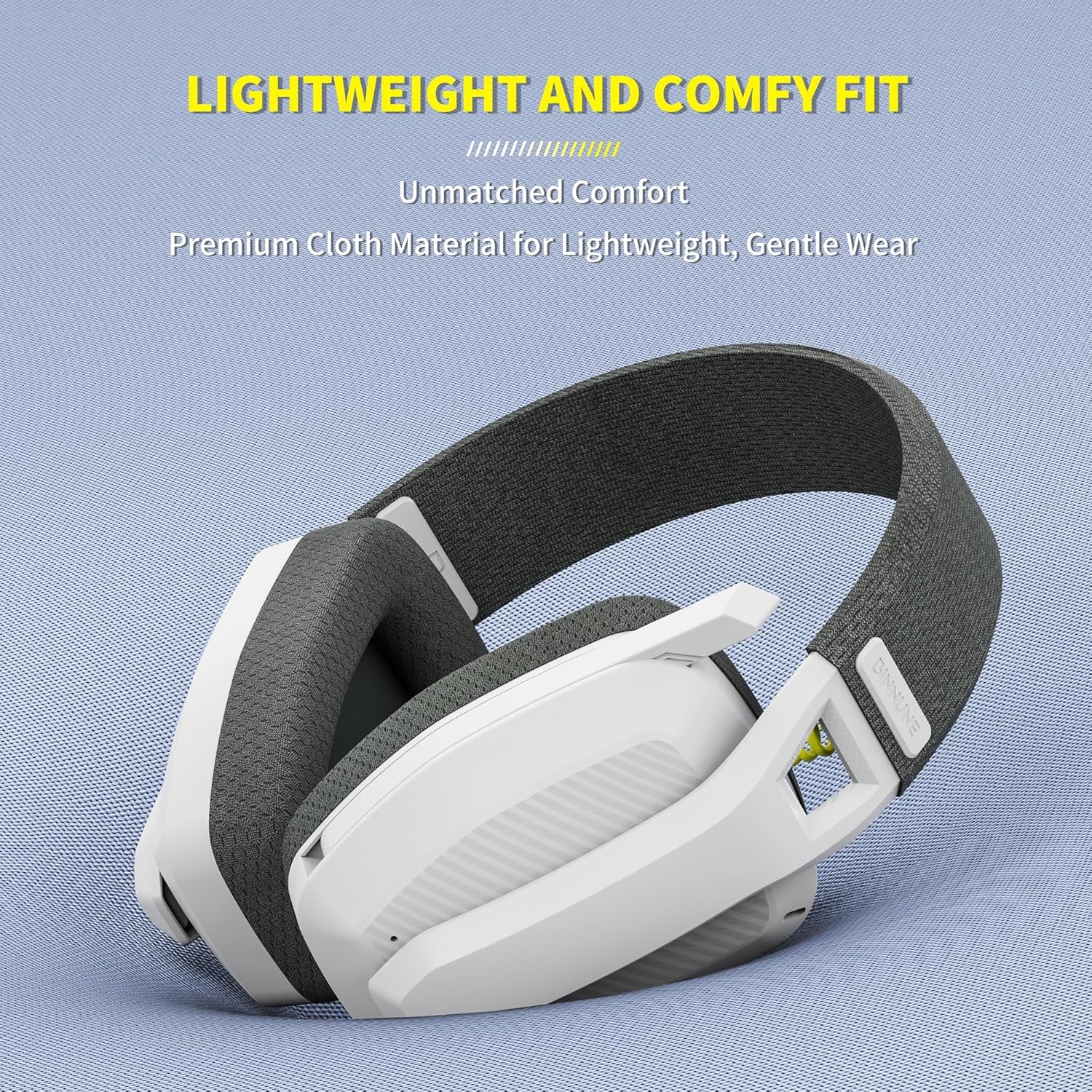
Image 3.3: Lightweight design with premium cloth material for comfort.
4. Setup Instructions
The BINNUNE BW02 headset offers multiple connection methods for various devices.

Image 4.1: Multi-Device Support for the BINNUNE BW02 headset.
4.1. 2.4GHz Wireless Connection (for PS5, PS4, PC, Mac)
- Insert the USB Dongle: Plug the 2.4GHz USB wireless dongle into an available USB port on your PlayStation console (PS5/PS4), PC, or Mac.
- Power On Headset: Press and hold the Power button on the headset until you hear a power-on prompt. The headset will automatically attempt to connect to the dongle.
- Verify Connection: A solid blue indicator light on the headset signifies a successful 2.4GHz connection.
- Audio Settings (PC/Mac): Ensure the BINNUNE BW02 headset is selected as the default audio input and output device in your operating system's sound settings.
- Audio Settings (PS5/PS4): Navigate to your console's audio settings and select the BINNUNE BW02 headset for both input and output audio.
Note: This mode provides ultra-low latency (≤18ms) for optimal gaming performance. The headset is not compatible with Xbox consoles.

Image 4.2: Stable 2.4GHz wireless connection for gaming.
4.2. Bluetooth 5.3 Connection (for Smartphones, Tablets)
- Power On Headset: Ensure the headset is powered on.
- Enter Bluetooth Pairing Mode: If the headset is not already in Bluetooth mode, double-tap the Power button to switch to Bluetooth mode. The indicator light will flash blue and red, indicating pairing mode.
- Enable Bluetooth on Device: On your smartphone or tablet, go to Bluetooth settings and enable Bluetooth.
- Select Headset: Look for "BINNUNE BW02" in the list of available devices and select it to pair.
- Verify Connection: A solid blue indicator light on the headset signifies a successful Bluetooth connection.
Note: Bluetooth 5.3 offers low latency (<32ms) for mobile gaming and media consumption.
4.3. Wired Connection (Type-C)
For a zero-latency connection or when battery is depleted, you can use the Type-C wired mode.
- Connect Cable: Plug one end of the USB Type-C cable into the headset's charging port and the other end into your device's USB port.
- Audio Settings: Ensure your device recognizes the headset as an audio output/input device.
5. Operating Instructions
5.1. Power On/Off
- Power On: Press and hold the Power button for approximately 3 seconds until the indicator light illuminates and you hear a power-on prompt.
- Power Off: Press and hold the Power button for approximately 3 seconds until the indicator light turns off and you hear a power-off prompt.
5.2. Volume Adjustment
- Increase Volume: Press the Volume Up button.
- Decrease Volume: Press the Volume Down button.
5.3. Microphone Control
The headset features a flip-up microphone for convenience and a dedicated mute button.
- Mute/Unmute: Press the Microphone Mute/Unmute button to toggle the microphone on or off. A red indicator light on the microphone boom typically indicates that the microphone is muted.
- Flip-to-Mute: Flipping the microphone boom upwards will also mute the microphone. Flipping it down will unmute it.

Image 5.1: Flip microphone for clear communication and one-click mute.
5.4. Switching Wireless Modes (2.4GHz / Bluetooth)
The headset supports seamless switching between 2.4GHz and Bluetooth modes.
- Switch Mode: Double-tap the Power button to switch between 2.4GHz wireless mode and Bluetooth mode. The headset will indicate the current mode via voice prompts or indicator lights.

Image 5.2: SmartSwitch Dual Wireless allows effortless switching between 2.4GHz and Bluetooth.

Image 5.3: Simultaneous wireless connectivity diagram.
5.5. Charging the Headset
To charge the headset, connect the provided USB Type-C charging cable to the headset's charging port and a USB power source.
- Charging Time: Approximately 2 hours for a full charge.
- Battery Life: Up to 48 hours in 2.4GHz mode, up to 63 hours in Bluetooth mode.
- Low Battery Alert: The headset will provide an audible alert when the battery is low.

Image 5.4: Internal 500mAh battery for extended use.
6. Maintenance
Proper care will extend the life and performance of your BINNUNE BW02 headset.
- Cleaning: Use a soft, dry cloth to wipe the headset. Do not use harsh chemicals or abrasive materials.
- Storage: Store the headset in a cool, dry place away from direct sunlight and extreme temperatures.
- Avoid Moisture: The headset is not water-resistant. Avoid exposure to liquids.
- Handle with Care: Avoid dropping or subjecting the headset to strong impacts.
7. Troubleshooting
If you encounter issues with your headset, refer to the following common solutions:
| Problem | Possible Cause | Solution |
|---|---|---|
| No sound from headset | Headset not powered on Incorrect audio output selected Volume too low 2.4GHz dongle not connected/recognized Bluetooth not paired | Ensure headset is powered on. Check device's audio settings and select BINNUNE BW02. Increase headset and device volume. Reconnect dongle; check device's USB port. Re-pair via Bluetooth. |
| Microphone not working | Microphone muted Incorrect audio input selected Microphone boom not fully down | Press mute button to unmute; ensure red indicator is off. Check device's audio settings and select BINNUNE BW02. Ensure microphone boom is fully lowered. |
| Headset not connecting (2.4GHz) | Dongle not properly inserted Headset too far from dongle Interference | Ensure dongle is firmly inserted into a working USB port. Move headset closer to the dongle (within 32 feet). Avoid other 2.4GHz devices nearby if possible. |
| Headset not connecting (Bluetooth) | Headset not in pairing mode Bluetooth disabled on device Device already connected to another Bluetooth device | Double-tap Power button to enter Bluetooth pairing mode (flashing blue/red). Enable Bluetooth on your device. Disconnect from other Bluetooth devices or forget previous pairings. |
| Short battery life | Not fully charged Aging battery | Ensure headset is charged for the recommended 2 hours. Battery performance may degrade over time. |
8. Specifications
Technical details of the BINNUNE BW02 Wireless Gaming Headset:
| Feature | Detail |
|---|---|
| Model Name | BW02 |
| Connectivity Technology | Wireless (2.4G, Bluetooth) |
| Bluetooth Version | 5.3 |
| Bluetooth Range | 32 Feet (approx. 10 meters) |
| 2.4GHz Latency | ≤18ms |
| Bluetooth Latency | <32ms |
| Audio Driver Type | Dynamic Driver |
| Frequency Response | 20 Hz - 20,000 Hz |
| Sensitivity | 90 dB |
| Battery Capacity | 500mAh (Lithium Ion) |
| Charging Time | 2 Hours |
| Battery Life (2.4GHz) | Up to 48 Hours |
| Battery Life (Bluetooth) | Up to 63 Hours |
| Microphone | Dual Beamforming, Noise-Canceling, Flip-to-Mute |
| Compatible Devices | Desktops, Gaming Consoles (PS4, PS5), Mac OS 10.8-10.11, Windows 7/8/10/11, Smartphones, Tablets |
| Material | Plastic |
| Item Weight | 10.8 ounces (approx. 306 grams) |
| Water Resistance Level | Not Water Resistant |
9. Warranty and Support
For detailed warranty information and customer support, please refer to the official BINNUNE website or contact their customer service directly. Information regarding product registration, warranty claims, and technical assistance can typically be found on the manufacturer's support pages.
Please retain your proof of purchase for any warranty-related inquiries.
Related documentsBW02


Ask a question about this manual
Ask about setup, troubleshooting, compatibility, parts, safety, or missing instructions. Manuals+ will review the question and use this page’s manual context to help answer it.