
1. Product Overview
The Aokeo USB Microphone AK-2 is a versatile, omnidirectional condenser microphone designed for clear audio capture across various applications. Featuring a 48kHz/16bit professional chip, it delivers high-quality sound for recording, podcasting, streaming, gaming, and online communication. Its plug-and-play design ensures easy setup with compatible devices.

Figure 1: Aokeo USB Microphone AK-2
2. Package Contents
Verify that all items are present in your package:
- Microphone (x1)
- Instruction Manual (x1)
- Packing Box (x1)

Figure 2: Included components of the Aokeo AK-2 microphone package.
3. Setup Guide
- Connect the Microphone: Plug the USB connector of the microphone into an available USB port on your computer (PC or Mac). No additional drivers are required for most operating systems. The indicator light on the microphone base will illuminate upon successful connection.
- Adjust Microphone Volume: Rotate the knob on the microphone base to adjust the input volume level according to your needs.
- Monitor Audio (Optional): For real-time audio monitoring, connect headphones to the 3.5mm headphone jack located on the microphone base. This allows you to hear your own voice and the computer's audio output simultaneously.

Figure 3: Connecting the Aokeo USB Microphone to a computer.

Figure 4: Adjusting the microphone's volume level.

Figure 5: Using the real-time monitoring feature with headphones.
4. Operating the Microphone
4.1 Indicator Light Status
- Blue Light: Microphone is active and in working condition.
- Red Light: Microphone is in mute mode.
- Green Light: Noise reduction mode is active.

Figure 6: Microphone indicator light functions.
4.2 Mute Function
To mute the microphone, tap the volume adjustment button on the base. The indicator light will turn red, signifying that the microphone is muted. Tap the button again to unmute, and the light will return to blue (or green if noise reduction is active).
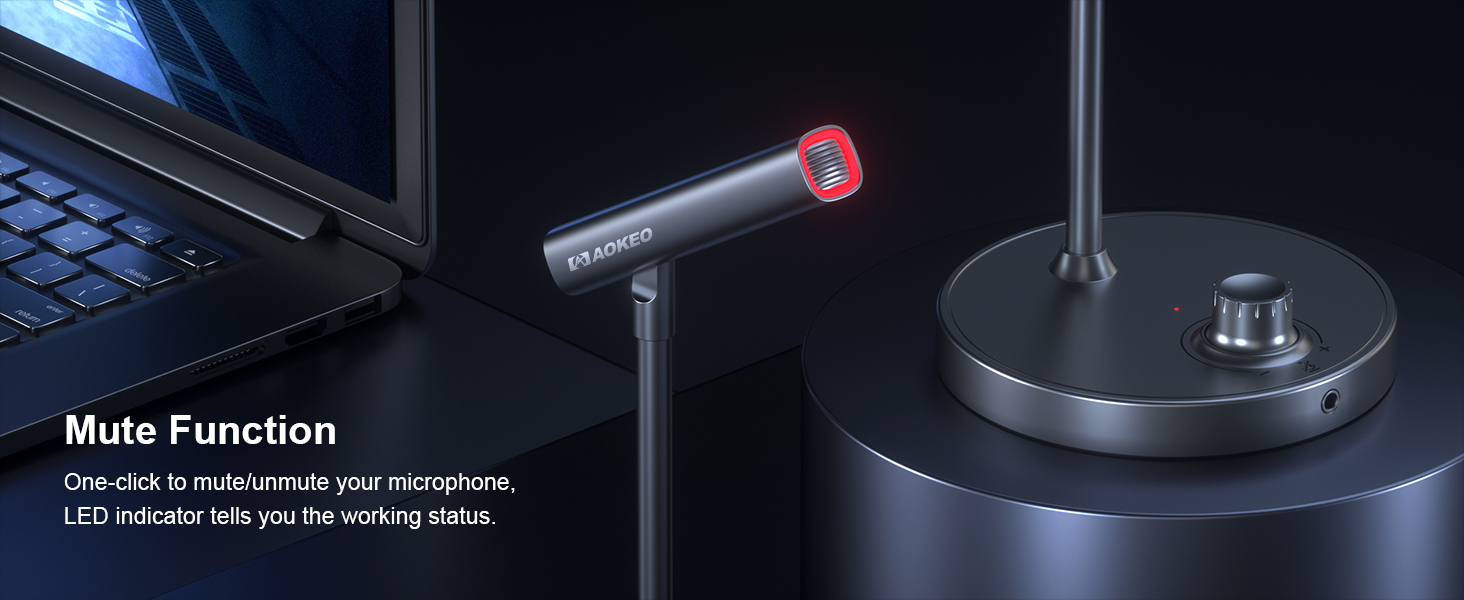
Figure 7: Activating the mute function.
4.3 Noise Reduction Mode
To activate or deactivate the noise reduction mode, long-press the volume adjustment button. The indicator light will turn green when noise reduction is active, minimizing internal microphone noise for clearer audio.
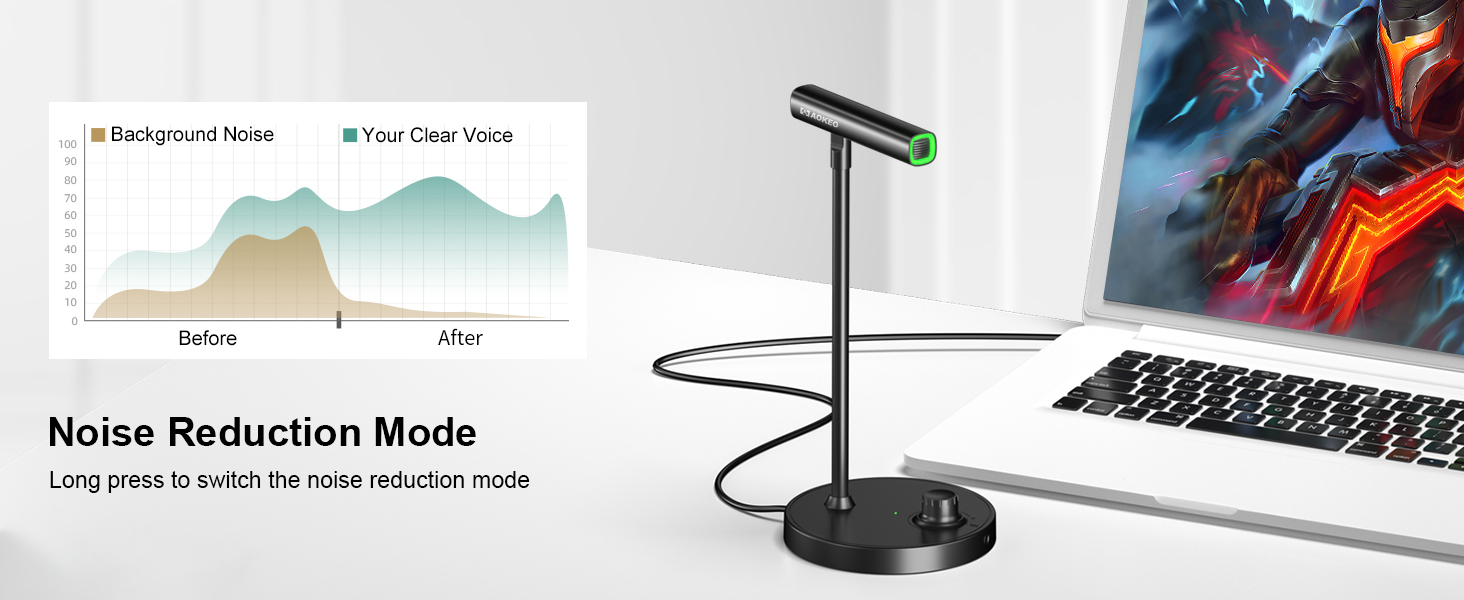
Figure 8: Engaging noise reduction for improved audio clarity.
4.4 Adjusting Microphone Angle
The microphone features a flexible gooseneck design, allowing for up to 60 degrees of angle adjustment. Position the microphone head to optimize sound capture based on your speaking position.

Figure 9: Adjusting the microphone's flexible neck.
5. Maintenance
- Keep the microphone clean by wiping it with a soft, dry cloth.
- Avoid exposing the microphone to extreme temperatures or humidity.
- Do not attempt to disassemble the microphone, as this may void the warranty.
- Ensure the non-slip washers on the base are intact to prevent movement and structural noise.
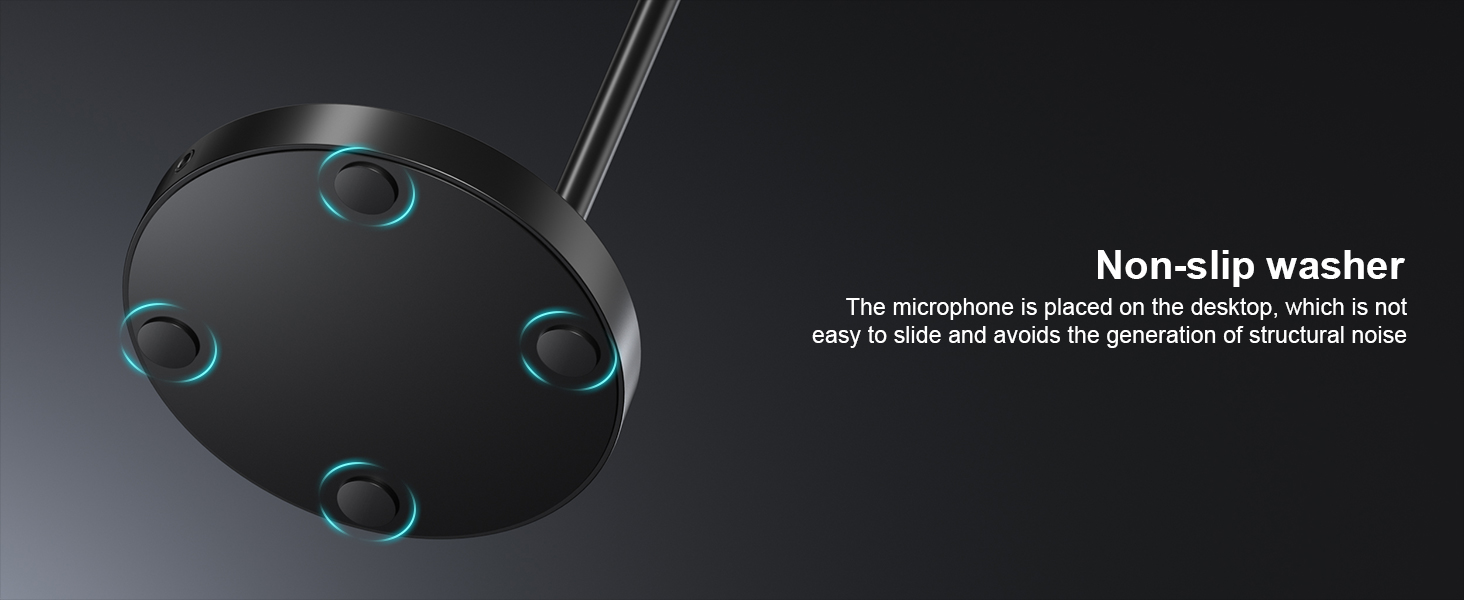
Figure 10: Non-slip base for stable placement.
6. Troubleshooting
- No Sound/Microphone Not Detected:
- Ensure the USB cable is securely connected to both the microphone and your computer.
- Check your computer's sound settings to ensure the Aokeo USB Microphone is selected as the default input device.
- Try connecting the microphone to a different USB port on your computer.
- Restart your computer.
- Poor Audio Quality/Distortion:
- Adjust the microphone's volume knob to an appropriate level.
- Ensure the microphone is positioned correctly, facing the sound source.
- Activate noise reduction mode if background noise is an issue (green indicator light).
- Check for any obstructions around the microphone head.
- Mute Button Not Responding:
- Ensure the microphone is properly connected and powered on (blue or green light).
- Try disconnecting and reconnecting the USB cable.
7. Technical Specifications
| Specification | Detail |
|---|---|
| Brand | Aokeo |
| Model Number | AK-2 (7B-6V4G-HMQS) |
| Connectivity Technology | USB |
| Connector Type | USB |
| Microphone Form Factor | Desktop / Handheld |
| Polar Pattern | Omnidirectional |
| Frequency Response | 48 KHz |
| Audio Sensitivity | 110 Decibels |
| Signal-to-Noise Ratio | 60 dB |
| Impedance | 680 Ohm |
| Special Feature | Volume Control, Mute Button, Noise Reduction, Real-time Monitoring |
| Hardware Platform | PC, Mac, PS4, PS5 |
| Material | Metal, Plastic |
| Item Weight | 10.9 ounces |
| Package Dimensions | 9.65 x 4.13 x 4.09 inches |
8. Official Product Video
Watch this short video from Aokeo US for a quick overview of the USB Computer Microphone's features and functionality.
Video 1: USB Computer Microphone Overview by Aokeo US.
9. Warranty and Support
For warranty information or technical support, please refer to the official Aokeo website or contact their customer service directly. Keep your purchase receipt for any warranty claims.
