
1. Introduction
This manual provides detailed instructions for the installation, operation, and maintenance of your Erisin 8-Core Android 14 Car Stereo. Please read this manual thoroughly before using the product to ensure proper functionality and safety. This unit features a 7-inch IPS touchscreen, Android 14 operating system, 8-core CPU, 4GB RAM, 64GB ROM, built-in GPS, wireless Apple CarPlay, Android Auto, Bluetooth 5.0, Wi-Fi, and DSP.
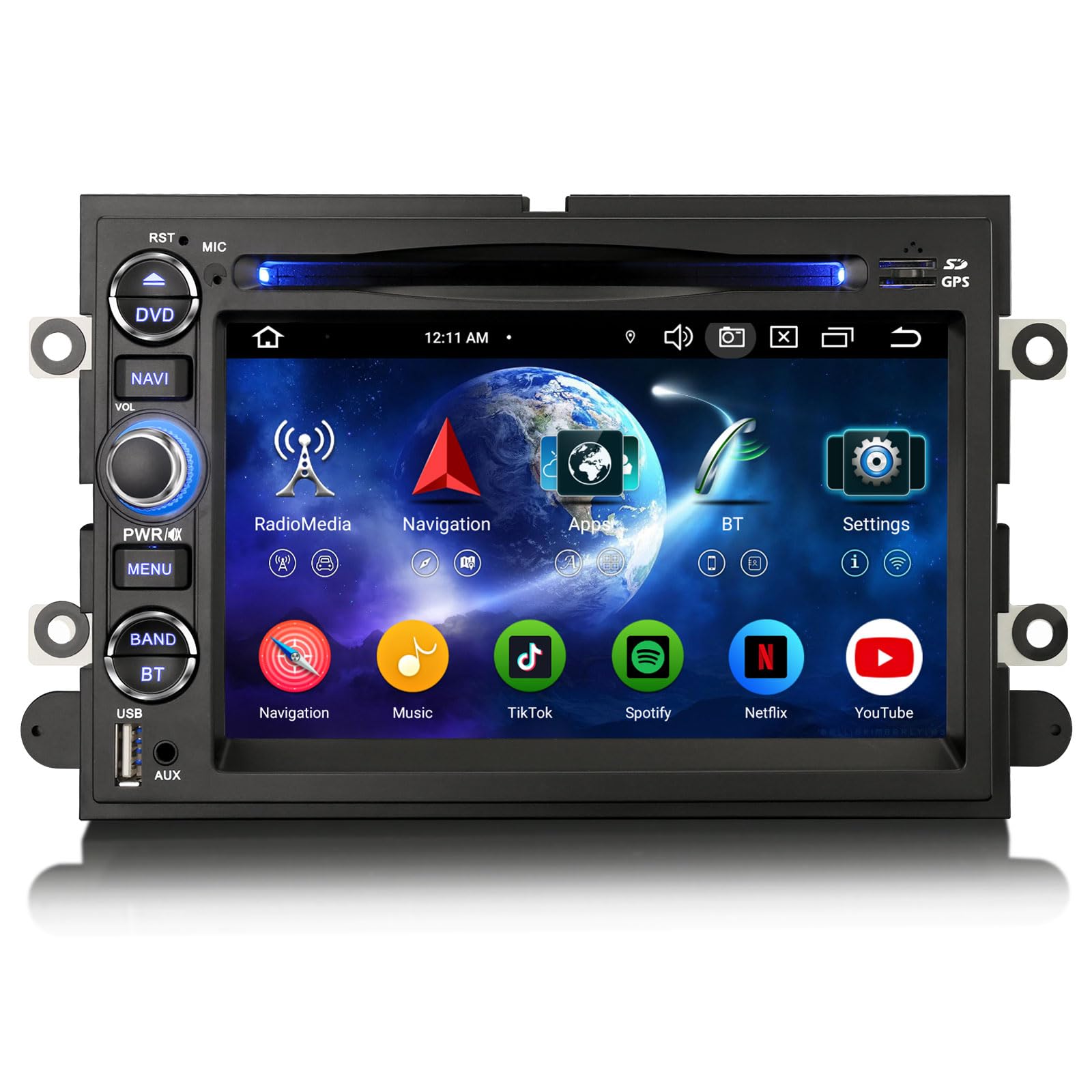
Front view of the Erisin 8-Core Android 14 Car Stereo unit.
2. Specifications
| Feature | Description |
|---|---|
| Operating System | Android 14.0 |
| CPU | MT8667 1.5GHz*4+2.0GHz*4 64-bit 12nm Cortex 8* A53 (8-Core) |
| RAM | 4GB |
| ROM | 64GB |
| Display | 7-inch IPS Capacitive Touchscreen |
| Connectivity | Wireless Apple CarPlay, Wireless/Wired Android Auto, Bluetooth 5.0, Wi-Fi (2.4GHz/5GHz), Ethernet, TF, USB |
| Audio Output | 4*48W Stereo, Subwoofer Amplifier, DSP (16-band EQ) |
| Special Features | Built-in Canbus, DVD/CD Player, RDS Radio Tuner, Split Screen, GPS Navigation, Steering Wheel Control, Support for OBD2/DVR/TPMS/TV/DAB+ |
| Panel Dimensions | 188 mm (width) * 120 mm (height) |
3. Vehicle Compatibility
This car stereo is compatible with various Ford models. Please verify the panel dimensions (188mm x 120mm) and your car's original console design before installation.
- Ford F150: 2004-2008
- Ford F250/F350: 2006-2014
- Ford E250/E350: 2009-2014
- Ford Shelby GT500: 2007-2009
- Ford Five Hundred: 2005-2007
- Ford Montego: 2005-2007
- Ford Milan: 2006-2009
- Ford Sable: 2008-2009
- Ford Mountaineer: 2007-2010
- Ford Fusion: 2006-2009
- Ford Taurus: 2008-2009
- Ford Escape: 2008-2012
- Ford Freestyle: 2005-2007
- Ford Freestar: 2004-2007
- Ford MKX: 2007-2009
- Ford Mark LT: 2006-2008
- Ford Edge: 2007-2010
- Ford Focus: 2005-2007
- Ford Mustang: 2005-2009
- Ford Explorer (U251): 2006-2010
- Ford Expedition: 2007-2014
- Ford Expedition EL/MAX (U354): 2007-2014

Ensure your car's original console matches the dimensions and design shown for proper fitment.
4. Setup and Installation
4.1 Pre-Installation Check
Before beginning installation, ensure all components are present and undamaged. Disconnect the vehicle's battery to prevent electrical shorts.
4.2 Wiring Diagram
Refer to the detailed wiring diagram below for correct connections. Incorrect wiring can damage the unit or your vehicle's electrical system.
Wiring diagram showing connections for AMP control, audio output, video input/output, USB, GPS, Wi-Fi, and other peripherals.
4.3 Installation Steps
- Carefully remove your vehicle's original radio unit.
- Connect the provided wiring harness to the car stereo and your vehicle's wiring. Pay close attention to the CANBUS decoder connection if your car requires it.
- Connect the GPS antenna, Wi-Fi antenna, and any optional accessories (e.g., rear camera, DVR).
- Mount the Erisin car stereo into the dashboard opening.
- Secure the unit using the provided brackets and screws.
- Reconnect the vehicle's battery and test the unit's functionality.

Visual comparison of the dashboard before and after the car stereo installation.
5. Operating Instructions
5.1 Android 14 System Overview
The unit runs on Android 14, providing a fluid and responsive user experience. It supports quick boot-up and features an IPS capacitive touchscreen. The 8-core CPU ensures efficient multitasking.
5.2 GPS Navigation
The car stereo includes built-in GPS functionality. You can use pre-installed offline maps or download online navigation apps like Waze and Sygic from the Google Play Store. Navigation can run simultaneously with music or radio playback.
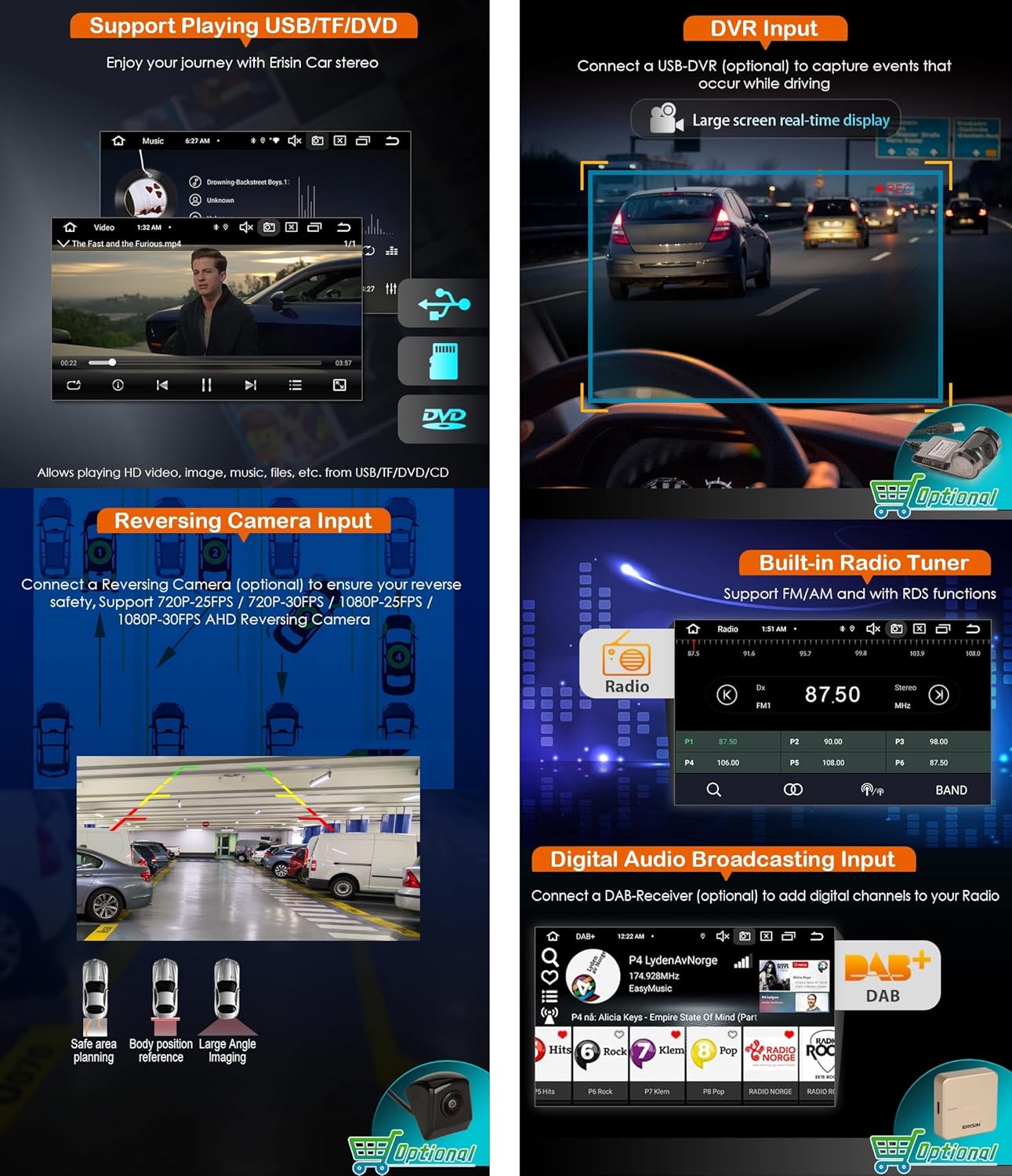
Example of the GPS navigation interface displaying a map with route information.
5.3 Wireless Apple CarPlay & Android Auto
Connect your iPhone via Bluetooth for wireless Apple CarPlay or your Android phone via Bluetooth/USB for wireless/wired Android Auto. This allows access to phone calls, music, navigation, and other apps safely while driving.

Screenshots demonstrating the Apple CarPlay and Android Auto interfaces. For connection assistance, refer to the guide at this link.
5.4 Digital Sound Processor (DSP)
The integrated DSP features a 16-band equalizer, allowing you to customize audio settings to your preference and vehicle acoustics for an optimized listening experience.
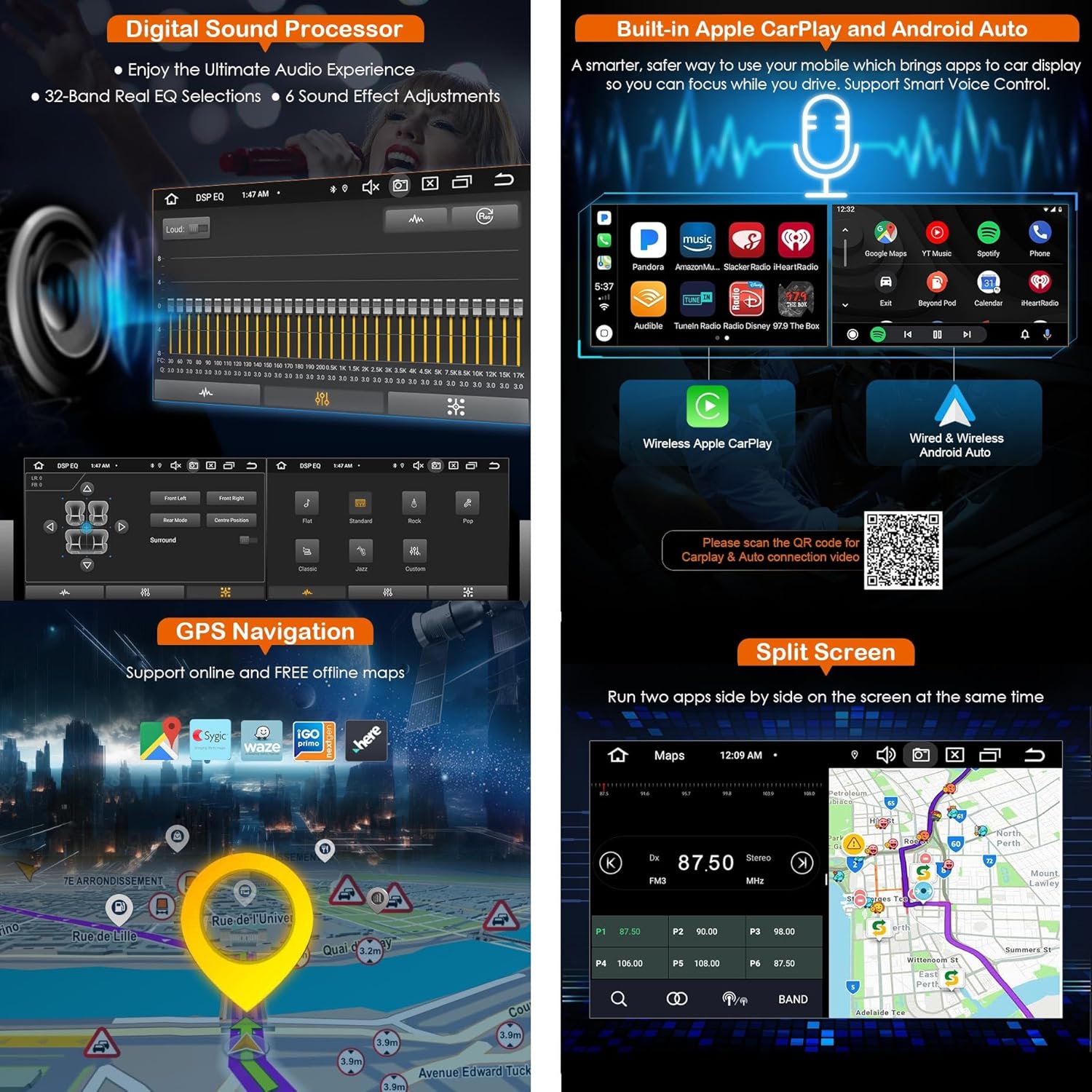
The DSP interface showing the 16-band equalizer for audio adjustments.
5.5 Bluetooth 5.0
Bluetooth 5.0 enables hands-free calling, audio streaming (BT-Music), and contact synchronization, enhancing driving safety and convenience.

Bluetooth interface displaying connection status, call history, and music playback controls.
5.6 Wi-Fi and 4G Module
The unit supports dual-band Wi-Fi (2.4GHz and 5GHz) for stable internet access. An optional 4G module allows for mobile data connectivity by inserting a micro-SIM card (not included).
Information on dual-band Wi-Fi and the 4G module for internet access.
5.7 Steering Wheel Control
The unit supports steering wheel controls, allowing you to manage music playback, volume, and calls without taking your hands off the wheel.
Diagram illustrating how steering wheel controls can be used with the car stereo.
5.8 Media Playback (DVD/USB/TF)
The unit features a DVD/CD player and supports media playback from USB drives and TF cards, including HD video, images, and music files.
Interface showing video playback from USB/TF/DVD sources.
5.9 Radio Tuner (RDS)
The built-in radio tuner supports FM/AM frequencies with RDS functions, providing station information and enhanced listening.
Radio interface displaying frequency and RDS information.
5.10 Optional Features
- DVR Input: Connect an optional DVR to record driving footage.
- Reversing Camera Input: Supports various AHD reversing cameras for enhanced parking safety.
- DAB+ Input: Connect an optional DAB+ module for digital audio broadcasting.
- Video Output: Connect an optional USB-RCA converter to share video content with rear displays.
- Digital TV Input: Connect an optional DVB-T/T2 box for digital TV reception.
- Torque Pro (OBD2) Support: Connect an optional OBD2 scan tool to diagnose car status.
- TPMS Monitor: Connect an optional TPMS module to monitor tire pressure and temperature.
Visuals for optional DVR, reversing camera, and DAB+ connectivity.

Visuals for optional video output, digital TV, OBD2, and TPMS features.
6. Main Menu Overview
The main menu provides quick access to all major functions and applications. Icons are clearly labeled for easy navigation.
Screenshot of the main menu displaying various application icons.
7. Accessories
The package includes essential accessories for installation and operation.
- User's Manual (English)
- External Microphone
- Din to Fakra Radio Antenna Adapter Cable
- Din to ISO Radio Antenna Adapter
- Power Cable with Special Connector
- GPS Antenna
- Special CANBUS Decoder Box
- Camera Input and Control Cable
- 4G Antenna
- Rear USB Adapter Cables
- RCA AV Connecting Cable
A visual representation of the accessories included with the Erisin car stereo.
8. Troubleshooting
If you encounter issues, refer to the following common problems and solutions:
- No Power: Check all power connections, fuses, and ensure the vehicle's battery is charged.
- No Sound: Verify speaker connections, volume settings, and ensure the amplifier (if external) is powered on.
- GPS Not Working: Ensure the GPS antenna is properly connected and has a clear view of the sky. Check GPS settings in the system.
- Bluetooth Connection Issues: Ensure Bluetooth is enabled on both the stereo and your device. Try unpairing and re-pairing the devices.
- Touchscreen Unresponsive: Try restarting the unit. If the issue persists, a factory reset might be necessary (note: this will erase all user data).
- Unit Freezes: Perform a soft reset by pressing the RST button (if available) or by disconnecting and reconnecting the power.
For persistent issues, contact customer support.
9. Maintenance
To ensure the longevity and optimal performance of your car stereo:
- Cleaning: Use a soft, dry cloth to clean the screen and unit. Avoid abrasive cleaners or solvents.
- Temperature: Avoid exposing the unit to extreme temperatures.
- Software Updates: Periodically check for and install software updates to improve performance and add new features.
- Dust and Debris: Keep the unit free from dust and debris, especially around ventilation areas.
10. Warranty and Support
This product comes with a standard manufacturer's warranty. Please refer to the warranty card included in your package for specific terms and conditions. For technical support, troubleshooting assistance, or warranty claims, please contact Erisin customer service through their official website or the retailer where the product was purchased.
