
1. Introduction
This manual provides detailed instructions for the installation, operation, and maintenance of your Inateck FE3003 RGB 3.5-Inch USB 3.0 Hard Drive Enclosure. Please read this manual thoroughly before use to ensure proper functionality and to maximize the lifespan of your device.
2. Package Contents
- 1x Inateck FE3003 USB 3.0 3.5'' Hard Drive Enclosure
- 1x Type A/C to B Data Cable (100cm)
- 1x 12V/2A Power Adapter
- 1x Instruction Manual
- Screws and Screwdriver (for optional securing)
- Rubber Feet (for stability and shock absorption)
3. Product Overview
The Inateck FE3003 enclosure is designed for both 2.5-inch and 3.5-inch SATA HDDs and SSDs, supporting capacities up to 20TB. It features USB 3.0 for high-speed data transfer, RGB lighting effects, and additional expansion ports.

Figure 1: Internal view of the Inateck FE3003 enclosure, demonstrating compatibility with both 2.5-inch and 3.5-inch SATA drives.
4. Setup and Installation
The Inateck FE3003 enclosure offers tool-free installation for convenience.
- Open the Enclosure: Gently slide open the enclosure cover to reveal the internal tray.
- Connect the Drive: Align your 2.5-inch or 3.5-inch SATA HDD or SSD with the internal SATA connector on the tray and firmly push it into place. Ensure a secure connection.
- Insert the Drive Assembly: Slide the tray with the connected drive back into the enclosure until it clicks securely into place.
- Apply Rubber Feet (Optional): For added stability and shock absorption, attach the provided rubber feet to the bottom of the enclosure.
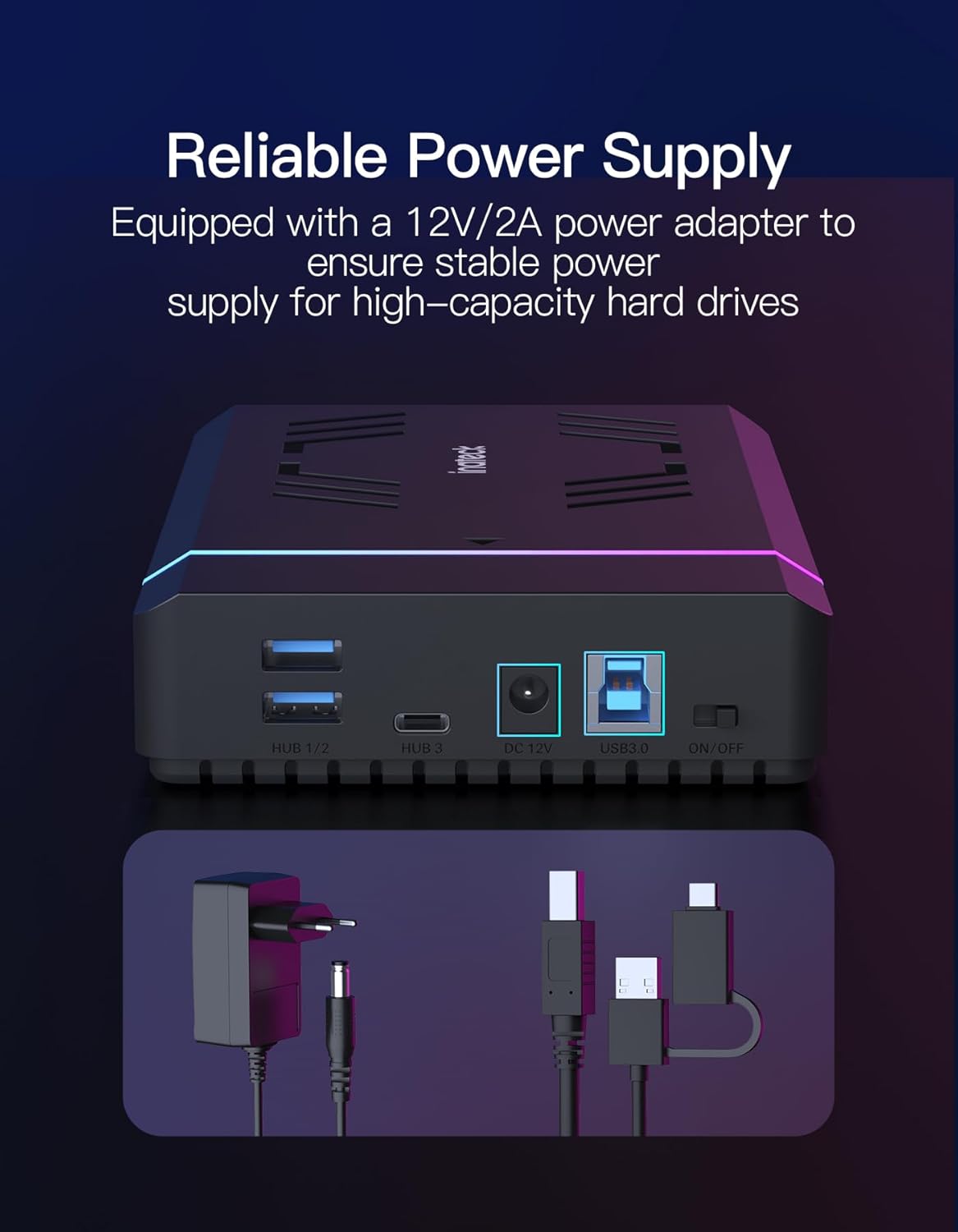
- Connect Power: Plug the 12V/2A power adapter into the DC 12V port on the enclosure and then into a power outlet.
- Connect to Computer: Use the provided Type A/C to B Data Cable to connect the enclosure's USB 3.0 port to an available USB port on your computer.

Figure 2: Tool-free installation of a hard drive into the Inateck FE3003 enclosure.
5. Operating Instructions
Once the hard drive is installed and the enclosure is connected to your computer, follow these steps:
- Power On: Flip the ON/OFF switch on the back of the enclosure to the 'ON' position. The RGB lighting will activate, and the power indicator LED will illuminate.
- Drive Recognition: Your operating system should automatically detect the new external drive. If it's a new drive, you may need to initialize and format it through Disk Management (Windows) or Disk Utility (macOS) before it appears in 'My Computer' or 'Finder'.
- Data Transfer: You can now access and transfer files to and from the installed hard drive. The data transfer indicator LED will flash during activity.
- Automatic Sleep: The enclosure is designed to enter sleep mode after 30 minutes of inactivity (no read/write operations) to conserve power and extend the hard drive's lifespan. It will automatically wake up upon access.
Video 1: A demonstration of connecting and powering on the Inateck FE3003 RGB 3.5-Inch Hard Drive Enclosure, showing the drive being recognized by a computer.
6. Key Features
6.1 RGB Lighting Effects
The enclosure features dynamic RGB lighting that activates when connected and in use, offering both 'Fast Flash Effect' and 'Breathing Effect' modes to enhance your workspace aesthetics.

6.2 High-Speed Data Transfer
Equipped with a USB 3.0 interface, the enclosure supports data transfer speeds of up to 5Gbps. The internal SATA III interface further supports bandwidth up to 6Gbps, ensuring efficient and fast file transfers. It is backward compatible with SATA I and SATA II.

6.3 Expansion Ports
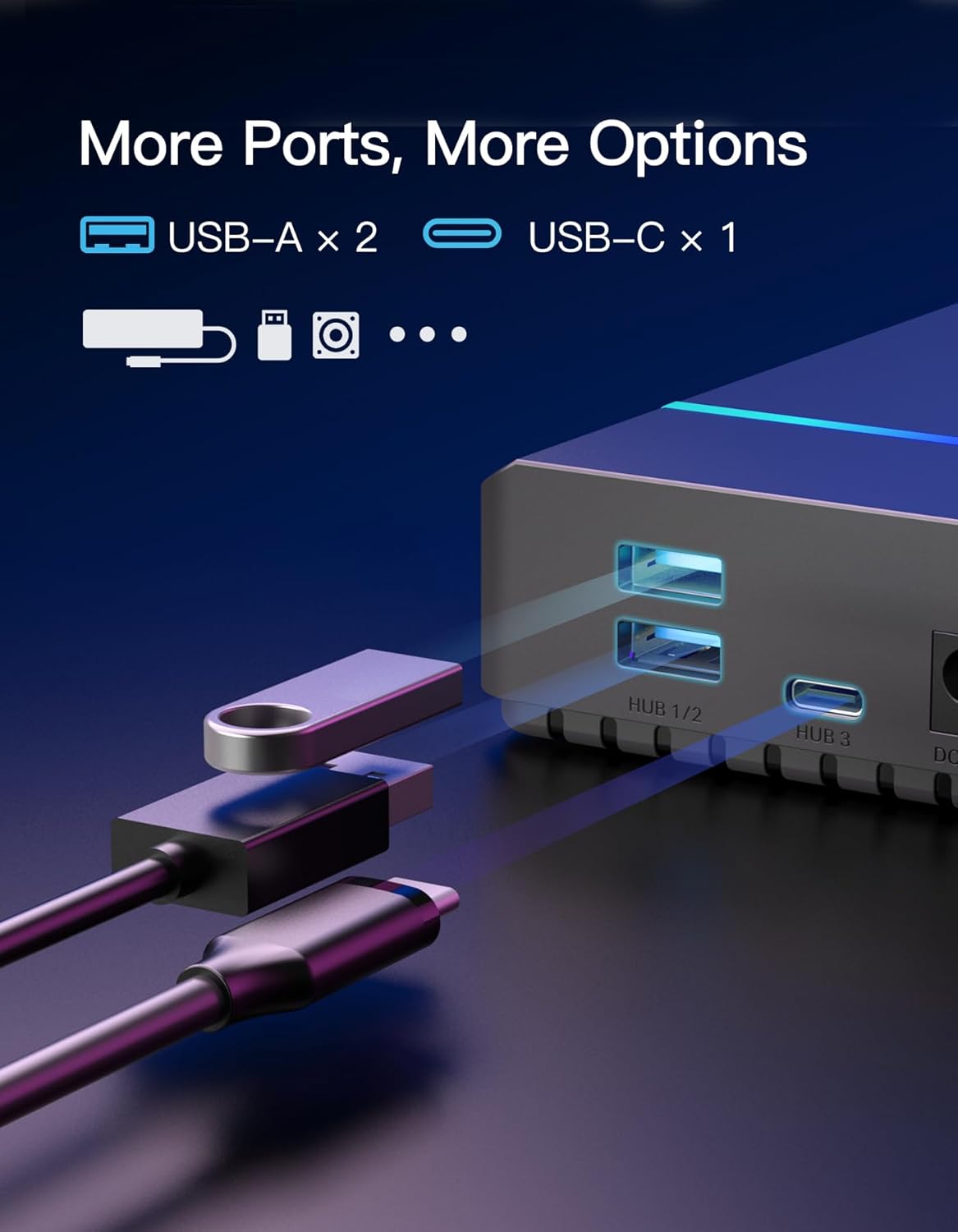
Beyond its primary function, the enclosure includes additional ports for enhanced connectivity: two USB-A ports and one USB-C port, catering to various peripheral needs.
6.4 Efficient Cooling
The enclosure features a rear fan-shaped vent design to facilitate efficient heat dissipation, helping to maintain optimal operating temperatures for your hard drive and prolong its lifespan.
6.5 Reliable Power Supply
A dedicated 12V/2A power adapter is included to ensure a stable and sufficient power supply, especially crucial for high-capacity 3.5-inch hard drives.

7. Compatibility
- Drive Types: Supports 2.5-inch and 3.5-inch SATA I/II/III HDDs and SSDs.
- Maximum Capacity: Up to 20TB.
- Operating Systems: Compatible with Windows XP/7/8/10/11 and Mac OS 10.3 and above.
- Devices: Desktop PCs, Laptops, Gaming Consoles.
8. Specifications
| Feature | Detail |
|---|---|
| Model Number | FE3003 |
| Hardware Interface | USB 3.0 |
| Data Transfer Rate | 5000 Megabits Per Second (USB 3.0) |
| Hard Disk Form Factor | 2.5 / 3.5 Inches |
| Memory Storage Capacity | 20 TB (Max) |
| Max Number of Supported Devices | 1 |
| Power Adapter | 12V/2A |
| Product Dimensions | 7.68 x 4.53 x 1.3 inches |
| Item Weight | 7.7 ounces |
| Material | Plastic |
9. Troubleshooting
- Drive Not Detected:
- Ensure the power adapter is securely connected and the enclosure is powered on.
- Verify the USB data cable is firmly connected to both the enclosure and your computer. Try a different USB port.
- Check the internal SATA connection of the hard drive within the enclosure.
- For new drives, ensure they are initialized and formatted via your operating system's Disk Management (Windows) or Disk Utility (macOS).
- Test with a different hard drive to rule out a drive issue.
- Slow Data Transfer:
- Ensure you are connected to a USB 3.0 port on your computer for optimal speeds.
- Verify the data cable is the original or a high-quality USB 3.0 compatible cable.
- Close any unnecessary applications running in the background that might be consuming system resources.
- Check the health of your hard drive using appropriate diagnostic tools.
- RGB Lights Not Working:
- Ensure the enclosure is powered on and connected to your computer.
- Check the power adapter connection.
10. Maintenance
- Keep the enclosure clean and free from dust. Use a soft, dry cloth for cleaning.
- Avoid exposing the device to extreme temperatures, humidity, or direct sunlight.
- Do not attempt to disassemble or repair the enclosure yourself, as this may void the warranty and cause damage.
- Always safely eject the hard drive from your operating system before disconnecting the enclosure to prevent data corruption.
11. Warranty and Support
Inateck products come with a standard manufacturer's warranty. For detailed warranty information, technical support, or service inquiries, please refer to the warranty card included in your package or visit the official Inateck website. Please retain your proof of purchase for warranty claims.