Introduction
This manual provides detailed instructions for the installation, operation, and maintenance of your Podofo 2+64G Android Car Radio. Please read this manual thoroughly before using the product to ensure proper function and safety. This device is designed to enhance your driving experience with advanced features such as GPS navigation, multimedia playback, and smartphone integration.
Compatibility
This Podofo Android Car Radio is compatible with the following vehicle models:
- Dacia Duster: 2010, 2011, 2012, 2013, 2014, 2015
- Dacia Sandero: 2010, 2011, 2012, 2013, 2014, 2015
- Dacia Logan: 2012
- Dacia Dokker: 2012
If you are unsure about compatibility with your specific car model and year, please consult the manufacturer.
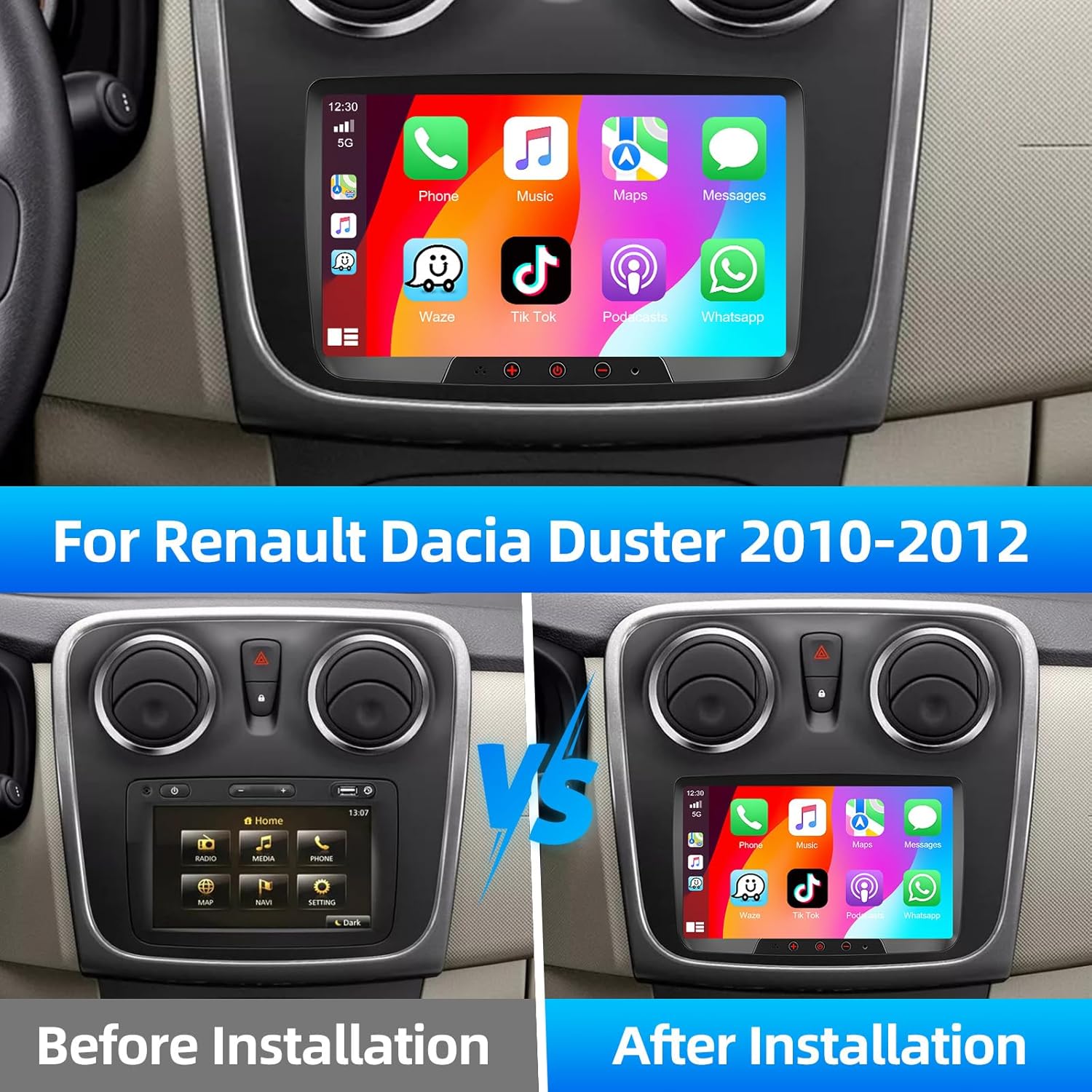
Figure 1: Compatibility Overview. This image demonstrates the car radio's fit and appearance in a Renault Dacia Duster, showing the dashboard before and after installation.
Package Contents
Upon opening the package, verify that all the following components are included:

Figure 2: Package Contents. This image displays all items included in the product package, such as the main head unit, various cables, and accessories.
- 1 x Podofo Android Car Radio Head Unit
- 1 x GPS Antenna
- 1 x RCA Cable
- 1 x User Manual
- 2 x USB Cables
- 2 x Power Cables
- 1 x Rear Camera Input Cable
- 1 x Canbus (if applicable for your vehicle)
- 1 x Microphone
- 1 x Radio Antenna
- 1 x Rear Camera (if included in your specific package)
Setup and Wiring Instructions
Proper wiring is crucial for the correct operation of your car radio. Refer to the diagram below for connection points.

Figure 3: Wiring Instructions. This diagram illustrates the various ports on the rear of the head unit, including connections for RCA cables, power, radio antenna, rear view camera, GPS antenna, and USB extension cables.
- Power Cable: Connect the main power harness to your vehicle's wiring. Ensure correct positive, negative, and accessory connections.
- RCA Cable: Use the RCA cable for audio output to external amplifiers or subwoofers, and for video input/output if applicable.
- Radio Antenna: Connect your vehicle's radio antenna to the designated port for FM/RDS reception.
- GPS Antenna: Connect the GPS antenna and mount it in a location with a clear view of the sky for optimal signal reception.
- USB Extend Cables: Connect the two USB extension cables for connecting USB drives, charging devices, or for wired Carplay/Android Auto.
- Rear View Camera Input: Connect the rear view camera cable to this input. The system will automatically display the camera feed when reversing.
- Fuse: The unit includes a fuse for protection. Ensure it is properly seated.
It is recommended to have professional assistance for installation if you are unfamiliar with car audio wiring.
Operating Instructions
Android 13 System Overview

Figure 4: Android 13 System. This image highlights the core specifications of the car radio's operating system, including its processor, memory, and storage, along with various supported applications.
Your car radio operates on the latest Android 13 system, featuring a 4-core processor, 2GB RAM, and 64GB of internal storage. This configuration ensures smooth performance for navigation, multimedia, and various applications.
Carplay, Android Auto, and Mirror Link
The unit supports both wireless and wired Apple Carplay and Android Auto. Connect your mobile phone to access navigation, music, calls, and other apps directly from the car radio's display using voice control. Additionally, it features Mirror Link for screen projection from both iOS and Android devices via USB connection.
GPS Navigation and WiFi Connectivity

Figure 5: Navigation and Connectivity. This image displays the GPS navigation interface with map data, the WiFi connection screen for internet access, the FM/RDS radio tuner, and the Bluetooth hands-free calling interface.
The integrated GPS navigation system allows you to download maps and receive real-time traffic updates. Connect to mobile hotspots via WiFi to browse the internet and access online services.
FM/RDS Radio and Bluetooth
Enjoy high-quality audio with the built-in FM/RDS radio. RDS (Radio Data System) displays station names, program content, and other relevant information. Bluetooth 4.0 enables hands-free calling, music streaming, and automatic phonebook synchronization.
Hi-Fi Function and User Interface
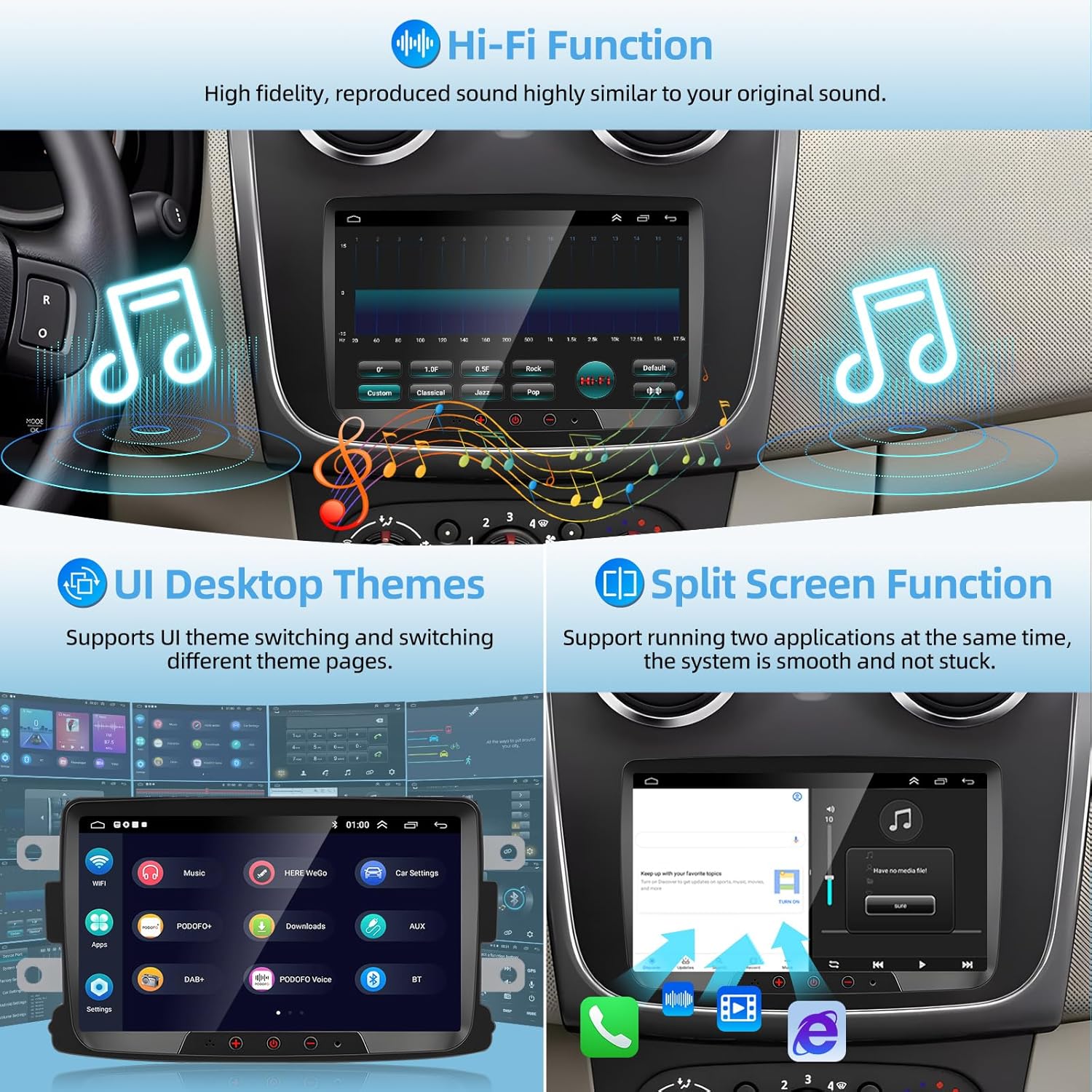
Figure 6: Audio and Interface Features. This image illustrates the Hi-Fi audio equalizer for sound customization, different UI desktop themes for personalization, and the split-screen function allowing two applications to run simultaneously.
Experience high-fidelity sound reproduction with the Hi-Fi function, offering 16 types of Auto EQ sound effect adjustments and exclusive HiFi customization. The unit supports subwoofer output. Personalize your experience with various UI desktop themes and utilize the split-screen function to run two applications simultaneously, such as navigation and music playback.
Rear Camera Support and Steering Wheel Control (SWC)
The system supports HD rear view camera input, including night vision. The display automatically switches to the rear camera view when the vehicle is in reverse. It also supports original car steering wheel controls, allowing you to answer calls, change songs, and control other radio functions safely while driving.
Maintenance
- Cleaning: Use a soft, dry cloth to clean the screen and exterior. Avoid abrasive cleaners or solvents.
- Software Updates: Periodically check for software updates from the manufacturer's official website to ensure optimal performance and access to new features.
- Fuse Replacement: If the unit loses power, check the fuse located on the back of the unit (refer to Figure 3). Replace with a fuse of the same rating if blown.
Troubleshooting
| Problem | Possible Cause | Solution |
|---|---|---|
| Screen flickers or is blurry in cold temperatures. | Temperature sensitivity of the display panel. | Allow the vehicle interior to warm up. This issue may resolve as the unit reaches operating temperature. |
| Unit is slow or unresponsive. | Too many applications running in the background; insufficient RAM. | Close unused applications. Restart the unit if necessary. Ensure sufficient storage space is available. |
| CarPlay/Android Auto connection issues. | Incorrect cable, software glitch, phone compatibility. | Ensure you are using a high-quality USB cable. Restart both the phone and the car radio. Check phone settings for CarPlay/Android Auto permissions. Try a wireless connection if supported. |
| Screen remains blank after restarting the vehicle. | Software issue or power connection problem. | Try restarting the unit manually through its settings. Check power connections. If the issue persists, contact customer support. |
| No GPS signal. | GPS antenna improperly installed or obstructed. | Ensure the GPS antenna is securely connected and mounted in a location with a clear view of the sky, away from metal obstructions. |
Specifications
| Feature | Detail |
|---|---|
| Brand | Podofo |
| Model Name | Podofo (2+64G Autoradio) |
| Operating System | Android 13 |
| Processor | 4-core |
| RAM | 2GB |
| Internal Storage | 64GB |
| Screen Size | 7 Inches (Touchscreen) |
| Connectivity Technology | USB, Bluetooth, WiFi |
| Special Features | Wireless/Wired Carplay, Android Auto, GPS Navigation, FM/RDS Radio, Bluetooth 4.0, Mirror Link, Hi-Fi Audio, Steering Wheel Control (SWC), Rear Camera Input, Split Screen, DAB+/OBD/DVR support (advanced) |
| Audio Output Mode | APE/FLAC/WAV/MP3/WMA etc. |
| Mounting Type | Dashboard Mount |
| Package Dimensions | 29 x 18 x 10 cm |
| Item Weight | 1.29 kilograms |
Warranty and Support
Podofo offers friendly and professional customer service, along with lifetime technical support. The product comes with a 30-day return or exchange policy without specific reason required.
For any questions or technical assistance, please contact Podofo customer service via email. You can expect a satisfactory response within 24 hours.
Please refer to your purchase documentation for specific contact details.


