
1. Introduction
Thank you for choosing the EAYBLLY Ergonomic Backlit Wired Keyboard KG811-01. This keyboard is designed to provide a comfortable and efficient typing experience with its wave-shaped keys, integrated wrist rest, and customizable backlighting. This manual will guide you through the setup, operation, and maintenance of your new keyboard.
2. Package Contents
- EAYBLLY Ergonomic Backlit Wired Keyboard KG811-01
- Integrated USB-A Cable
3. Key Features
- Ergonomic Wave-Shaped Keys: Designed to promote a natural hand posture for enhanced comfort and efficiency.
- 7-Color Backlighting: Offers 7 switchable backlight colors and 4 brightness levels for various lighting conditions.
- Integrated Wrist Rest: Provides support for your wrists, reducing fatigue during extended use.
- Built-in Phone & Tablet Holder: A convenient slot for holding mobile devices, aiding multitasking.
- Plug and Play: No drivers required for immediate use.
- Spill-Resistant Design: Helps protect against accidental liquid spills.
- Multimedia Keys: Dedicated keys for quick access to common functions.
- System Compatibility: Compatible with Windows, Mac OS, Linux, Android, and Chrome OS.
4. Setup Guide
4.1 Connecting the Keyboard
- Locate an available USB-A port on your computer (PC, laptop, desktop).
- Plug the USB-A cable from the keyboard into the USB-A port on your computer.
- The keyboard is plug-and-play; no additional drivers are required. Your operating system should automatically detect and configure the device.

Image: The EAYBLLY keyboard connected to a computer, showcasing its ergonomic design and integrated tablet holder.
4.2 Adjusting the Typing Angle
The keyboard features foldable stands on the back to adjust the typing angle for personalized comfort.
- Gently flip out the two stands located on the underside of the keyboard.
- Position the keyboard to your preferred angle.

Image: A close-up view illustrating the adjustable kickstand mechanism on the keyboard's underside.
5. Operating Instructions
5.1 Backlight Control
The keyboard offers 7 switchable backlight colors and 4 brightness levels.
- Turn On/Off Backlight: Press Fn + Del.
- Switch Backlight Color: Press Fn + Ins to cycle through the 7 available colors.
- Adjust Backlight Brightness: Press Fn + Page Up to increase brightness or Fn + Page Down to decrease brightness. There are 4 levels of brightness.

Image: The keyboard displaying various backlight colors and key combinations for controlling backlight functions.
5.2 Using the Phone & Tablet Holder
A dedicated slot at the top of the keyboard allows you to place your smartphone or tablet for easy viewing and multitasking.

Image: A smartphone securely resting in the keyboard's integrated holder, demonstrating its utility.
5.3 Multimedia and Function Keys
The keyboard includes several function keys and multimedia shortcuts for enhanced productivity.
- Calculator: Press the dedicated calculator key.
- Email: Press the dedicated email key.
- Screen Lock: Press the dedicated screen lock key.
- System Switching:
- To switch to Windows system: Press Fn + S.
- To switch to Mac system: Press Fn + A.

Image: The keyboard layout showing the location of multimedia keys and instructions for switching between Windows and Mac operating systems.
6. Maintenance
6.1 Cleaning the Keyboard
To maintain the keyboard's appearance and functionality:
- Disconnect the keyboard from your computer before cleaning.
- Use a soft, lint-free cloth slightly dampened with water or a mild cleaning solution.
- Avoid using harsh chemicals, abrasives, or solvents, as these can damage the surface.
- For dust and debris between keys, use compressed air.
6.2 Spill-Resistant Feature
The keyboard features a spill-resistant design. In case of accidental spills:
- Immediately disconnect the keyboard from your computer.
- Carefully wipe away any liquid with a clean, dry cloth.
- Allow the keyboard to air dry completely before reconnecting it.
Note: While spill-resistant, this feature does not guarantee full waterproofing. Avoid submerging the keyboard in liquid.
7. Troubleshooting
7.1 Keyboard Not Responding
- Ensure the USB cable is securely plugged into both the keyboard and the computer's USB port.
- Try plugging the keyboard into a different USB port on your computer.
- Test the keyboard on another computer to determine if the issue is with the keyboard or the computer.
- Restart your computer.
7.2 Backlight Not Working or Dim
- Ensure the backlight is turned on using Fn + Del.
- Adjust the brightness levels using Fn + Page Up or Fn + Page Down.
- Verify that the keyboard is receiving sufficient power from the USB port. Try a different USB port.
7.3 Keys Are Sticky or Unresponsive
- Clean the keyboard as described in the Maintenance section, paying attention to individual keys.
- Ensure no debris is lodged under the keycaps.
8. Specifications
| Feature | Detail |
|---|---|
| Model Number | KG811-01 |
| Product Dimensions | 16.5"L x 9.5"W x 1.28"H (419mm x 242mm x 33mm) |
| Item Weight | 2.12 pounds |
| Connectivity Technology | USB-A Wired |
| Keyboard Backlighting | RGB (7 colors, 4 brightness levels) |
| Compatible Devices | Laptop, Personal Computer, Windows, Mac OS, Linux, Android, Chrome OS |
| Special Features | Ergonomic, Backlit, Wave Keys Design, Wrist Rest, Phone Holder, Spill Proof, Hotkeys and Media Keys |
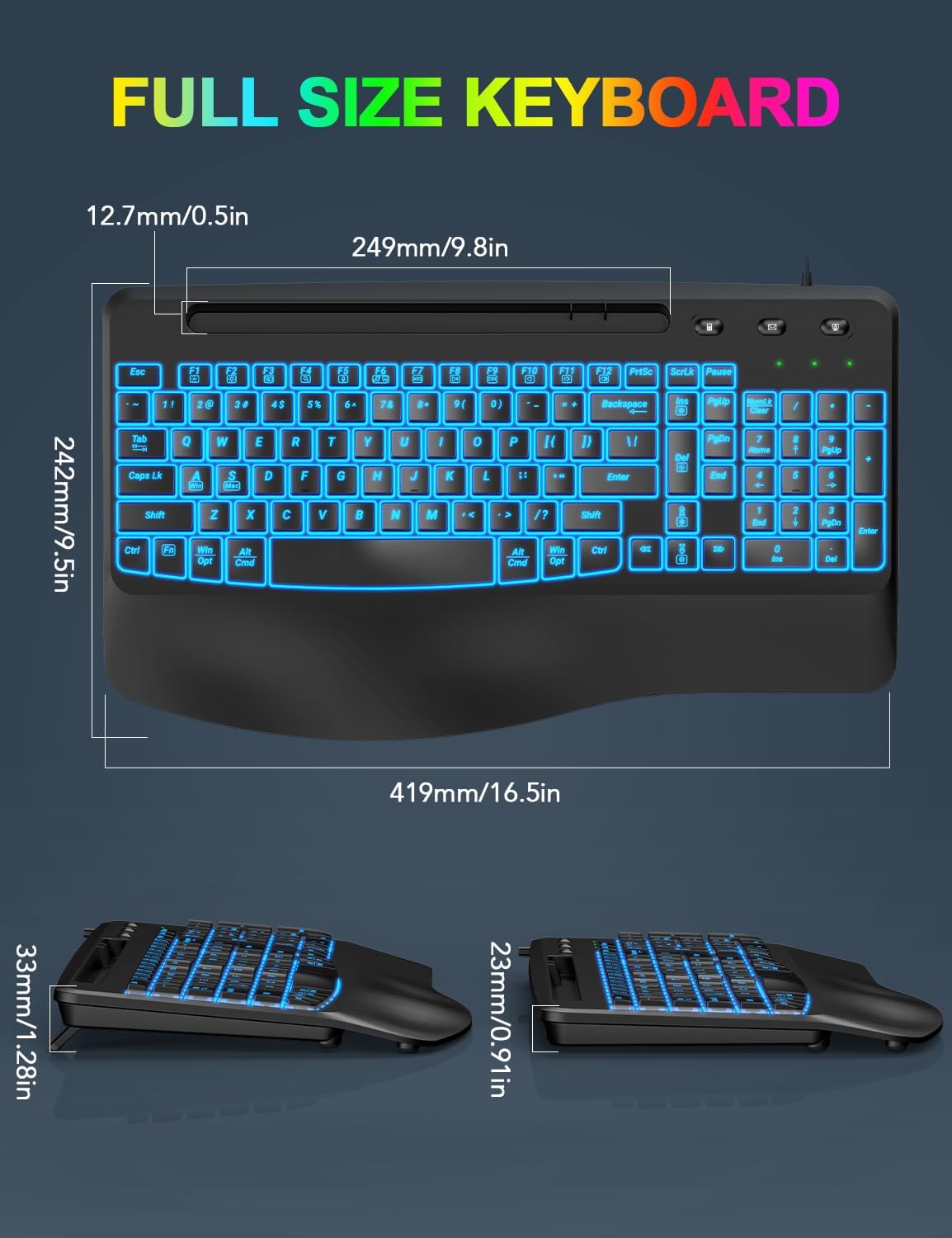
Image: Detailed dimensions of the EAYBLLY full-size keyboard, including length, width, and height.
9. Warranty and Support
EAYBLLY is committed to providing quality products and customer satisfaction.
- Warranty: This product comes with a 360-day (12-month) warranty from the date of purchase.
- Replacement Policy: A 90-day replacement policy is offered for eligible issues.
- Customer Service: Our dedicated 24-hour customer service team is available to assist you.
- Lifetime Care: EAYBLLY provides lifetime care for its products.
For any questions, concerns, or support needs, please contact our customer service team. Refer to your purchase documentation for specific contact details.

Image: An illustration representing EAYBLLY's professional customer service team, emphasizing support availability.