
Nunoo Nunoo-Android12
Nunoo Android 12 Car Stereo User Manual
For Lexus RX300, RX330, RX350, RX400H (2003-2009)
1. Introduction
This manual provides detailed instructions for the installation, operation, and maintenance of your Nunoo Android 12 Car Stereo. Please read this manual thoroughly before installation and use to ensure proper function and to maximize your user experience. This unit is designed for Lexus RX300, RX330, RX350, and RX400H models manufactured between 2003 and 2009.
2. Product Overview
The Nunoo Android 12 Car Stereo is an advanced in-dash navigation and entertainment system featuring an 8-core processor, 4GB RAM, and 32GB ROM. It offers a 9-inch IPS touchscreen display with 1280x720 resolution, providing clear visuals and responsive touch control. Key features include wireless CarPlay, Android Auto, AM/FM/RDS radio, AUX input, Digital Sound Processor (DSP), and Steering Wheel Control (SWC) compatibility.
2.1 Key Features
- Operating System: Android 12
- Processor: 8-Core CPU for high performance
- Memory: 4GB RAM + 32GB ROM
- Display: 9-inch IPS Touchscreen, 1280x720 resolution
- Connectivity: Wireless CarPlay, Wireless Android Auto, Bluetooth, Wi-Fi
- Audio: AM/FM/RDS Radio, Digital Sound Processor (DSP)
- Compatibility: Steering Wheel Control (SWC), Backup Camera (AHD 1080P included)
- Additional: USB ports, AUX input

Figure 2.1: Nunoo Android 12 Car Stereo main unit with included backup camera and smartphone mirroring icons.

Figure 2.2: Overview of the car stereo's core features and capabilities.

Figure 2.3: Illustration of the 8-core processor and its performance benefits.

Figure 2.4: Display resolution comparison, highlighting the 1280x720 IPS screen.
2.2 Vehicle Compatibility
This car stereo is specifically designed for Lexus RX300, RX330, RX350, and RX400H models from 2003 to 2009. It is important to verify your vehicle's dashboard configuration matches the compatible types shown below. This unit is intended for vehicles with the original CD-ROM unit and is not compatible with large-screen style car systems.
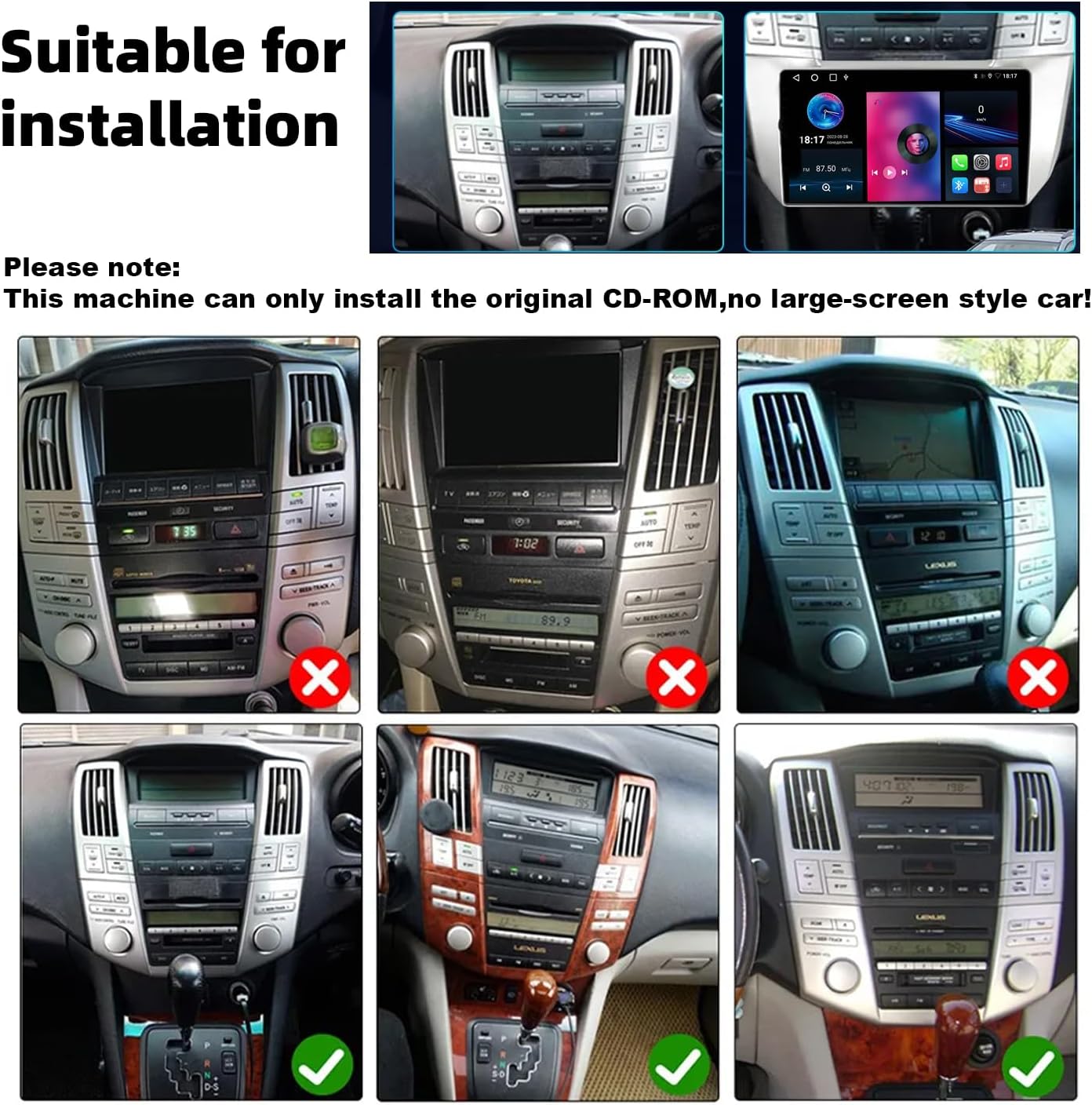
Figure 2.5: Vehicle compatibility guide for Lexus RX models (2003-2009).
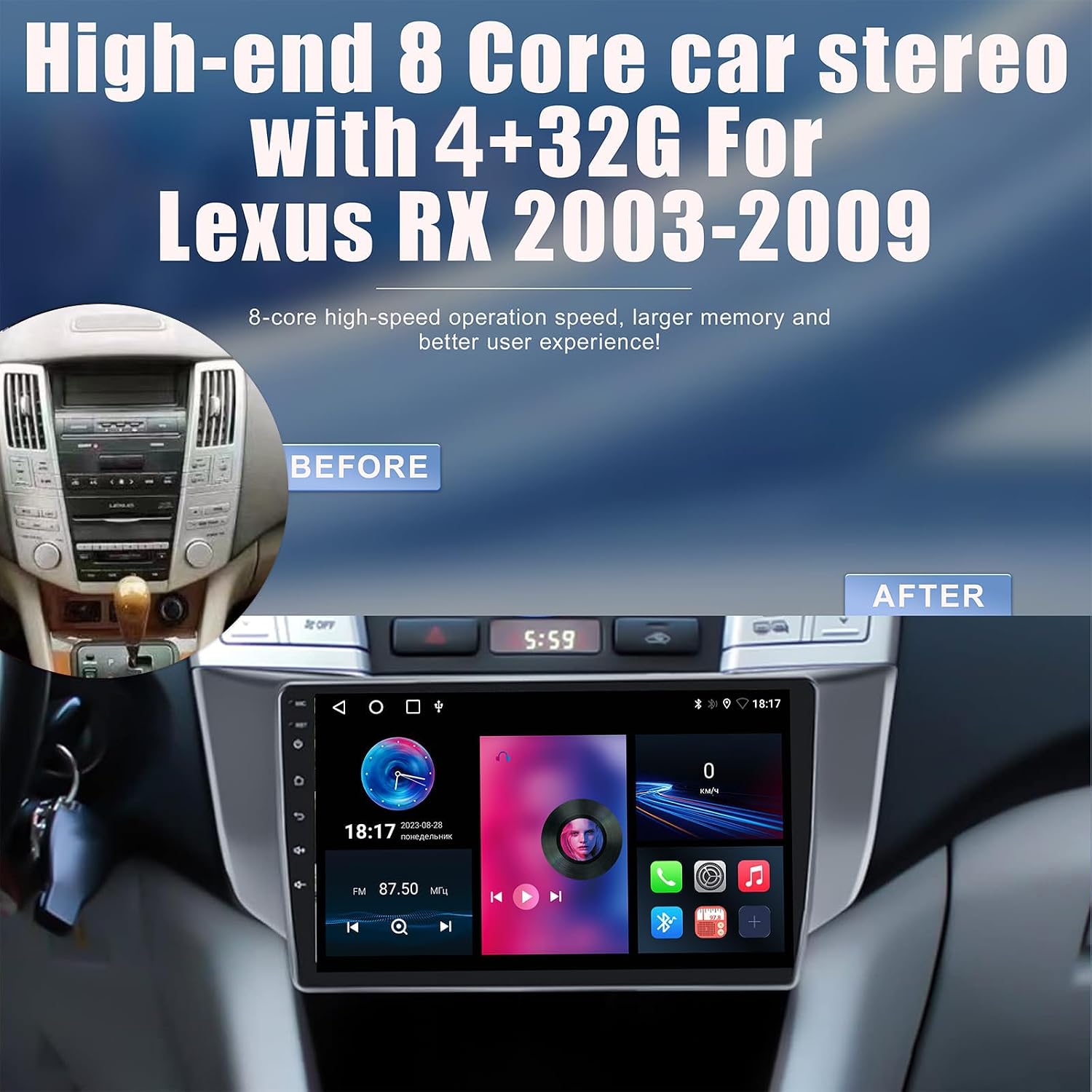
Figure 2.6: Before and after installation comparison in a compatible Lexus RX dashboard.
3. What's in the Box
Please check the contents of your package against the list below. If any items are missing or damaged, contact customer support immediately.
- Car Radio (1280*720) with Frame x1
- User Manual x1 (This document)
- Power Cord x1
- USB 4Pin Cable x1
- USB 6Pin Cable x1
- GPS Antenna x1
- AHD 1080P Rear View Camera x1
- Cleaning Cloth x1

Figure 3.1: Included accessories and wiring diagram.
4. Setup and Installation
Professional installation is recommended. Before beginning, ensure the vehicle's battery is disconnected to prevent electrical damage. Refer to your vehicle's service manual for specific dashboard removal instructions.
4.1 Wiring Connections
Connect the provided power cord, USB cables, GPS antenna, and RCA cables to their respective ports on the car stereo. Ensure all connections are secure.
- Power Cable: Connects to the vehicle's power harness.
- USB Cables (4Pin & 6Pin): For external USB devices and data transfer.
- GPS Antenna: Mount in a location with a clear view of the sky for optimal signal reception.
- RCA Cables: For audio output (e.g., external amplifier) and video input/output.
4.2 Rear View Camera Connection
The included AHD 1080P rear view camera enhances safety during reversing. Follow the diagram below for proper connection.
- Connect the camera's video output cable to the "Rear View Input" on the car stereo.
- Connect the camera's power cable (red wire) to the vehicle's reversing lamp power source (+12V).
- Connect the camera's ground wire (black wire) to a suitable ground point (GND) on the vehicle chassis.
- Connect the "pink" reversing signal wire from the car stereo's harness to the reversing lamp's positive wire. This signal tells the stereo to switch to the camera view when reverse gear is engaged.

Figure 4.1: Rear View Camera Connection Diagram.
5. Operating Instructions
Once installed, power on the unit. The Android 12 operating system will boot up. Navigate the interface using the 9-inch touchscreen.
5.1 Basic Navigation and Settings
- Home Screen: Access various applications and widgets.
- Settings: Tap the "Settings" icon to configure Wi-Fi, Bluetooth, display, sound, and other system preferences.
- Volume Control: Use the physical buttons or touchscreen controls to adjust volume.
- Speed Unit Settings: You can change the speed unit display (km/h or mph) in the factory settings menu.

Figure 5.1: Adjusting Speed Unit Settings.

Figure 5.2: Examples of various user interface themes.
5.2 Wireless CarPlay and Android Auto
Connect your smartphone wirelessly to access CarPlay (for iOS devices) or Android Auto (for Android devices). This allows for seamless integration of navigation, music, calls, and messages directly on the car stereo display.
- Ensure Bluetooth and Wi-Fi are enabled on your smartphone and the car stereo.
- Follow the on-screen prompts on the car stereo to pair your device.
- Once connected, the CarPlay or Android Auto interface will appear.

Figure 5.3: Wireless CarPlay and Android Auto connectivity.
5.3 Bluetooth Functionality
Pair your smartphone via Bluetooth for hands-free calling and audio streaming.
- Go to the Bluetooth settings on the car stereo.
- Enable Bluetooth on your smartphone and search for available devices.
- Select the car stereo from the list and confirm the pairing code.
- Once paired, you can make/receive calls and play music wirelessly.

Figure 5.4: Bluetooth pairing and operation.
5.4 Radio (AM/FM/RDS) and DSP
Access the built-in radio tuner for AM/FM stations. The RDS (Radio Data System) feature displays station information where available. The Digital Sound Processor (DSP) allows for advanced audio customization.
- Radio: Select the "Radio" app to scan for stations, save presets, and view RDS information.
- DSP: Access the DSP settings to adjust equalizer, balance, fader, and surround sound configurations for an optimized audio experience.

Figure 5.5: Radio and DSP interface.
6. Maintenance
To ensure the longevity and optimal performance of your car stereo, follow these maintenance guidelines:
- Cleaning: Use the provided cleaning cloth or a soft, dry cloth to wipe the touchscreen and unit exterior. Avoid abrasive cleaners or solvents.
- Software Updates: Periodically check for system software updates via Wi-Fi to ensure the latest features and bug fixes.
- Cooling Fan: The unit features a small cooling fan that automatically adjusts speed based on ambient temperature to maintain optimal operating temperature (-40°C to +65°C). Ensure the fan vents are not obstructed.

Figure 6.1: Integrated Cooling Fan for temperature regulation.
7. Troubleshooting
If you encounter issues, refer to the following common problems and solutions. If the problem persists, contact customer support.
| Problem | Possible Cause | Solution |
|---|---|---|
| Unit does not power on. | Incorrect wiring, blown fuse, vehicle battery disconnected. | Check power cable connections. Verify vehicle fuses. Ensure battery is connected. |
| No sound. | Volume too low, incorrect audio settings, speaker wiring issues. | Increase volume. Check DSP/audio output settings. Verify speaker connections. |
| Backup camera not displaying. | Camera not powered, incorrect video input, reversing signal not connected. | Check camera power and ground. Ensure video cable is connected to "Rear View Input". Verify pink reversing signal wire connection. |
| CarPlay/Android Auto not connecting. | Bluetooth/Wi-Fi off, phone not paired, software glitch. | Ensure Bluetooth and Wi-Fi are active on both devices. Re-pair the phone. Restart the car stereo. |
| GPS signal weak or inaccurate. | GPS antenna obstructed or improperly placed. | Relocate GPS antenna to a position with a clear view of the sky. |
8. Specifications
| Feature | Detail |
|---|---|
| Model Number | Nunoo-Android12 |
| Operating System | Android 12 |
| CPU | 8-Core |
| RAM | 4GB |
| ROM | 32GB |
| Display Size | 9 inches |
| Display Type | IPS Touchscreen |
| Resolution | 1280x720 |
| Wireless Connectivity | Bluetooth, Wi-Fi, Wireless CarPlay, Wireless Android Auto |
| Audio Output Mode | Stereo (4.0 Surround Sound Channel Configuration) |
| Special Features | Built-In Bluetooth, DSP, AM/FM/RDS, SWC Support |
| Included Accessories | AHD 1080P Rear View Camera, GPS Antenna, Power Cord, USB Cables |
| Package Dimensions | 13.7 x 10.2 x 5.9 inches |
| Item Weight | 3.6 pounds |
9. Warranty and Support
For technical assistance, installation questions, or warranty inquiries, please contact Nunoo customer support. You can typically find support contact information on the seller's page where you purchased the product.

Figure 9.1: How to contact Nunoo for support.
When contacting support, please provide your product model number (Nunoo-Android12) and a detailed description of the issue, including any relevant pictures or videos.
Related documentsNunoo-Android12


Ask a question about this manual
Ask about setup, troubleshooting, compatibility, parts, safety, or missing instructions. Manuals+ will review the question and use this page’s manual context to help answer it.