
Turtle Beach TBM-1104-05
Turtle Beach Kone II Air Wireless Gaming Mouse User Manual
Model: TBM-1104-05
Introduction
The Turtle Beach Kone II Air is an ergonomic wireless gaming mouse designed for unparalleled gaming freedom. It features exceptional battery life, precise tracking, and extensive customization options. This manual provides detailed instructions for setting up, operating, maintaining, and troubleshooting your Kone II Air mouse to ensure optimal performance.
What's in the Box

Image: The retail package contents, including the mouse, USB receiver, charging cable, adapter, and grip tape.
- Turtle Beach Kone II Air Wireless Gaming Mouse
- USB-A Wireless Receiver
- PhantomFlex USB-C to USB-A Charging Cable
- USB-A to USB-C Receiver Adapter
- Grip Tape
- Quick Start Guide
Setup
1. Initial Charging
Before first use, it is recommended to fully charge your Kone II Air mouse. Connect the PhantomFlex USB-C to USB-A charging cable to the USB-C port located at the front of the mouse and to a powered USB-A port on your computer or a USB wall adapter.
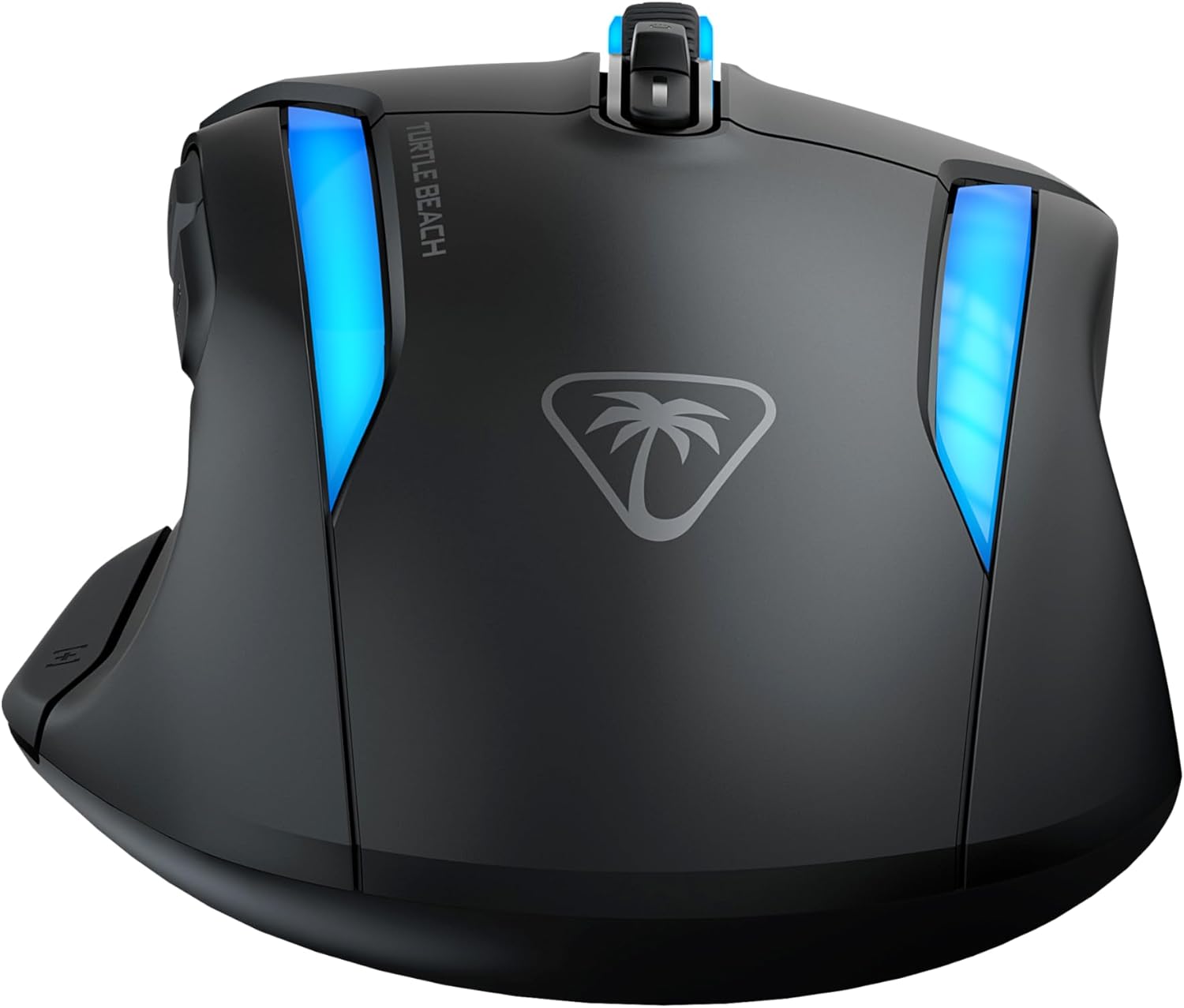
Image: The front of the mouse with the USB-C charging port visible.
2. Connecting Your Mouse
The Kone II Air offers two wireless connection modes: 2.4 GHz Wireless and Bluetooth.
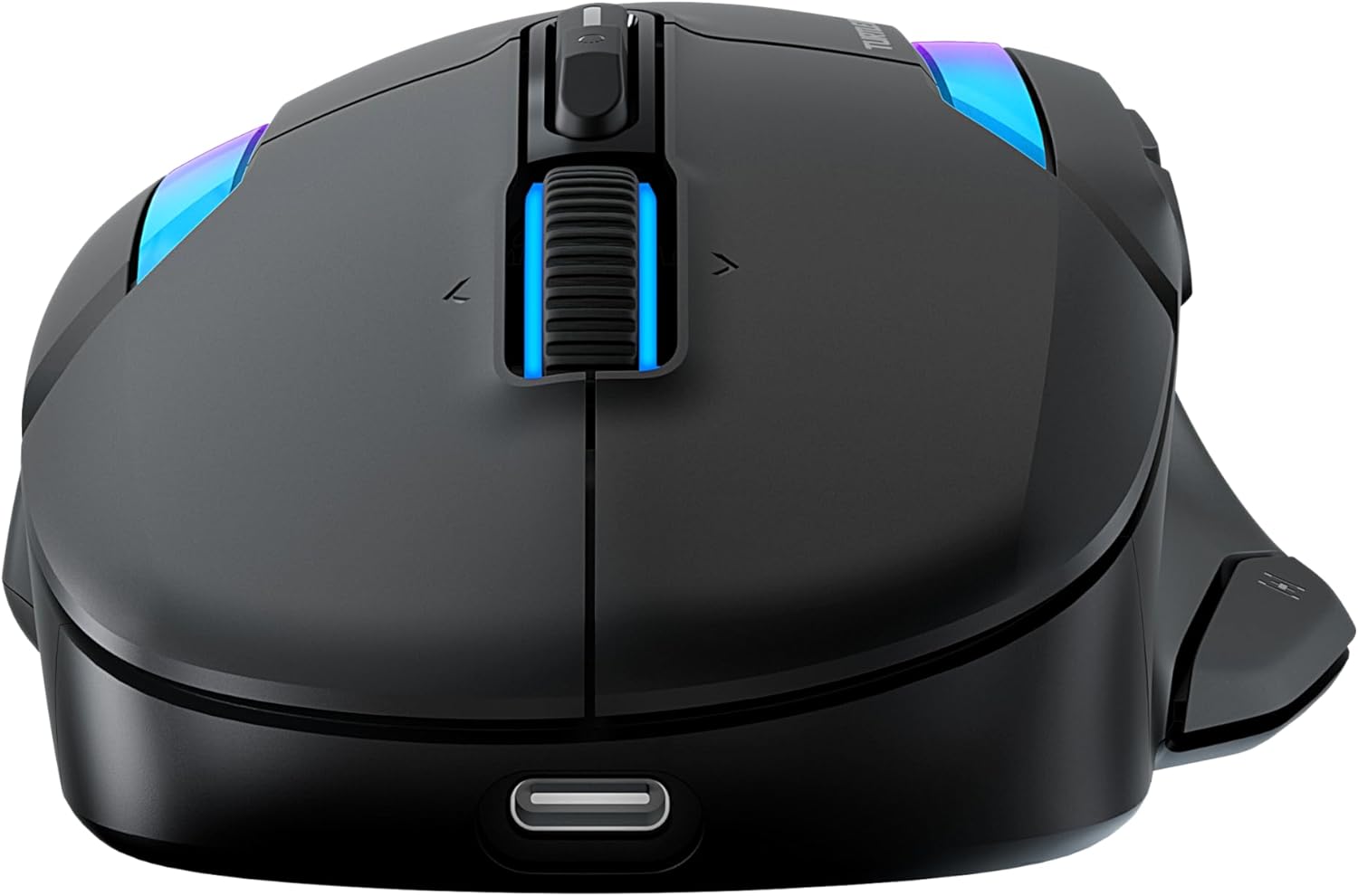
Image: The bottom of the mouse, highlighting the switch for 2.4GHz wireless and Bluetooth modes.
2.1. 2.4 GHz Wireless Connection (Low Latency)
- Locate the USB-A wireless receiver stored in the compartment on the underside of the mouse.
- Plug the USB-A wireless receiver directly into an available USB-A port on your computer. For convenience, you can use the included USB-A to USB-C adapter if your computer only has USB-C ports.
- Slide the switch on the underside of the mouse to the 2.4 GHz wireless icon.
- Your computer should automatically detect and install the necessary drivers. The mouse is ready for use.
2.2. Bluetooth Connection (Low Latency)
- Slide the switch on the underside of the mouse to the Bluetooth icon.
- On your computer, navigate to Bluetooth settings.
- Select "Add a device" or "Pair new device".
- Select "Turtle Beach Kone II Air" from the list of available devices.
- Follow any on-screen prompts to complete the pairing process.
3. Applying Grip Tape (Optional)
For enhanced control and grip, you can apply the included grip tape to the sides of the mouse. Ensure the mouse surface is clean and dry before applying for optimal adhesion.
Operating Your Mouse
1. Ergonomic Design and Grip
The Kone II Air is ergonomically designed to fit medium to large hands, accommodating various grip styles including palm, claw, and fingertip grips.

Image: A hand gripping the Kone II Air mouse, illustrating its comfortable ergonomic design.
2. Customizable Buttons and Easy-Shift[+]
The mouse features 7 programmable buttons and a 4D scroll wheel. With Easy-Shift[+] technology, you can expand these into 21 customizable functions, allowing for extensive personalization of your gaming experience.

Image: An overhead view of the mouse with circles highlighting the 7 primary buttons and the Easy-Shift[+] button, indicating their customizability.
3. 4D Multifunction Scroll Wheel
The 4D scroll wheel offers both free-spin and tactile scrolling options, along with fully customizable tilt controls for fluid content navigation and additional in-game commands.
4. DPI Adjustment and Tracking
Equipped with the Owl-Eye 26,000 DPI optical sensor, the mouse provides exceptional tracking performance. DPI settings can be adjusted to suit your preference, ranging from 50 to 26,000 DPI, with a tracking speed of 650 IPS (16.5 m/s).

Image: A transparent overlay showing the internal components of the mouse, focusing on the 26K DPI optical sensor for smooth tracking.
5. Optical Switches and Click Tensioning
The Kone II Air features TITAN optical switches, ensuring precise and reliable clicks with a lifecycle of 100 million clicks. The pre-tensioned buttons provide satisfying and rapid click responses.
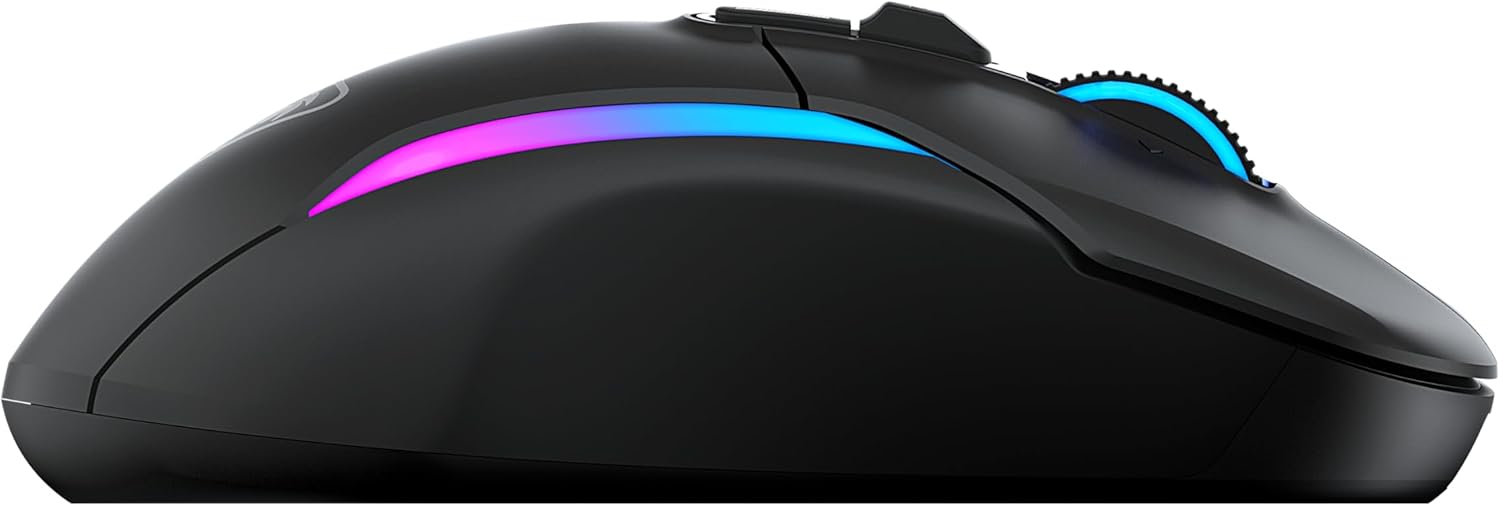
Image: A detailed internal view of the mouse, illustrating the optical switch mechanism responsible for click responsiveness and durability.
6. RGB Lighting
Personalize your gaming setup with the dual-zone programmable RGB lighting. Settings can be adjusted via the companion software (if available, check Turtle Beach website for software downloads).
7. Battery Life
Enjoy extended gaming sessions with up to 350 hours of battery life in low-latency Bluetooth connection or up to 130 hours in high-performance 2.4 GHz wireless mode.

Image: The mouse illuminated with RGB lighting, accompanied by icons indicating battery life for both 2.4GHz wireless and Bluetooth connections.
Maintenance
1. Cleaning
To maintain optimal performance and appearance, regularly clean your mouse. Use a soft, dry, lint-free cloth to wipe down the surface. For stubborn dirt, slightly dampen the cloth with water. Avoid using harsh chemicals, abrasive cleaners, or solvents.
2. Battery Care
To maximize battery lifespan, avoid fully discharging the mouse frequently. Recharge the mouse when the battery indicator suggests low power. Store the mouse in a cool, dry place when not in use for extended periods.
3. PTFE Feet
The mouse features pure, heat-treated PTFE feet for incredible glide. Keep the mousepad surface clean to prevent debris from accumulating on the feet, which can affect glide performance. Replacement feet may be available from Turtle Beach support if they wear out over time.

Image: The underside of the mouse, clearly showing the smooth, white PTFE feet designed for effortless gliding.
Troubleshooting
1. Mouse Not Responding
- Check Battery: Ensure the mouse is charged. Connect it to the charging cable.
- Check Connection Mode: Verify the switch on the underside of the mouse is set to the correct mode (2.4 GHz or Bluetooth) for your connection type.
- 2.4 GHz Wireless: Ensure the USB receiver is securely plugged into a working USB port. Try a different USB port.
- Bluetooth: Ensure Bluetooth is enabled on your computer and the mouse is paired. Try unpairing and re-pairing the mouse.
- Restart: Restart your computer.
2. Erratic Tracking or Cursor Movement
- Clean Sensor: Ensure the optical sensor on the underside of the mouse is clean and free of dust or debris.
- Surface: Use the mouse on a clean, uniform, non-reflective surface. A good quality mousepad is recommended.
- DPI Setting: Adjust the DPI setting to a lower value if the cursor is too sensitive.
3. Buttons Not Responding
- Software Conflict: If you have other mouse software installed, it might conflict. Try uninstalling other mouse drivers/software.
- Reset: Refer to the Quick Start Guide or Turtle Beach support for instructions on how to reset the mouse to factory settings, if available.
Specifications
| Feature | Detail |
|---|---|
| Model Number | TBM-1104-05 |
| Connectivity | 2.4 GHz Wireless, Bluetooth |
| Sensor | Owl-Eye Optical Sensor |
| DPI Range | 50 - 26,000 DPI |
| Tracking Speed | 650 IPS (16.5 m/s) |
| Switches | TITAN Optical Switches (100M click lifecycle) |
| Programmable Buttons | 7 buttons, 21 functions with Easy-Shift[+] |
| Scroll Wheel | 4D Multifunction (Free-spin & Tactile, Tilt) |
| Battery Life (2.4 GHz) | Up to 130 hours |
| Battery Life (Bluetooth) | Up to 350 hours |
| Dimensions (L x W x H) | 17.9 x 11.5 x 0.3 cm (approximate, based on product data) |
| Weight | Not specified in provided data |
| Compatibility | PC (Windows 7, Windows XP, Linux), Personal Computer |
Warranty Information
The Turtle Beach Kone II Air Wireless Gaming Mouse comes with a 2-year manufacturer's warranty. Please retain your proof of purchase for warranty claims. For detailed warranty terms and conditions, refer to the official Turtle Beach website or contact their customer support.
Support
For further assistance, technical support, or to download the latest software and drivers for your Turtle Beach Kone II Air mouse, please visit the official Turtle Beach support website. You can also find FAQs and community forums there.
Official Turtle Beach Website: www.turtlebeach.com
Related documentsTBM-1104-05


Ask a question about this manual
Ask about setup, troubleshooting, compatibility, parts, safety, or missing instructions. Manuals+ will review the question and use this page’s manual context to help answer it.