
Turtle Beach TBM-1003-15
Turtle Beach Kone II Wired Ergonomic RGB Gaming Mouse User Manual
Brand: Turtle Beach | Model: TBM-1003-15
Introduction
The Turtle Beach Kone II wired ergonomic gaming mouse is designed for superior gaming performance and comfort. It features an ergonomic shape suitable for medium to larger hands and various grip styles, including claw, palm, or fingertip. This manual provides detailed instructions for setting up, operating, maintaining, and troubleshooting your Kone II gaming mouse.
Key features include a 26K DPI optical sensor, 100M click life optical switches, 23 customizable inputs, a 4D scroll wheel, and pure PTFE glides for smooth movement. The mouse also incorporates three-zone AIMO intelligent RGB illumination and is NVIDIA Reflex compatible for enhanced responsiveness.
Package Contents
- Turtle Beach Kone II Mouse
- Grip Tape
- Quick-Start Guide

Image: Contents of the Turtle Beach Kone II package, including the mouse, grip tape, and quick-start guide.
Setup
Connecting the Mouse
- Locate an available USB-A port on your PC.
- Plug the PhantomFlex USB-A cable of the Turtle Beach Kone II mouse into the USB-A port.
- The mouse will be automatically detected by your operating system (Windows 10 or later).
Software Installation (Swarm II)
For full customization options, including RGB illumination, button remapping, and DPI adjustments, download and install the Swarm II software from the official Turtle Beach website. Ensure your operating system is Windows 10 or later for compatibility.
- Visit the official Turtle Beach support website.
- Navigate to the support page for the Kone II gaming mouse.
- Download the latest version of the Swarm II software.
- Run the installer and follow the on-screen prompts to complete the installation.
- Launch Swarm II to configure your mouse settings.
Operating Instructions
Ergonomic Design

Image: The ergonomic shape of the Turtle Beach Kone II mouse, designed for comfort during extended use.
The Kone II is engineered with an ergonomic shape to perfectly suit medium and larger hand sizes. It supports various grip styles, including claw, palm, and fingertip, ensuring comfort during long gaming sessions. Additional grip tape is included in the package for enhanced control and customization of your grip.
Buttons and 4D Scroll Wheel

Image: The Turtle Beach Kone II mouse highlighting its 7 buttons and 4D scroll wheel, which can be expanded to 23 customizable functions using Easy-Shift [+].
The Kone II features 7 programmable buttons and a 4D scroll wheel with tilt capability. Utilizing Easy-Shift [+] button duplicator technology, these inputs can be expanded to provide up to 23 customizable functions. The 4D scroll wheel allows for tactile scrolling and can be tilted left and right for two additional customizable controls.
TITAN Optical Switches

Image: An internal view illustrating the TITAN Optical Switches, designed for tactile feedback and a 100 million click life cycle.
Equipped with TITAN Optical Switches, the Kone II provides a tactile feel with high speed and durability. These switches boast a 100 million click life cycle, and a pre-tensioning system enhances reliability and response time for precise clicks.
Owl-Eye Optical Sensor

Image: The internal structure of the mouse highlighting the Owl-Eye optical sensor, capable of 26K DPI and 650 IPS tracking.
The advanced Owl-Eye optical sensor delivers smooth and precise tracking, ranging from 50 DPI up to 26,000 DPI with a 650 IPS (16.5m/s) tracking speed. Dedicated DPI buttons allow for quick adjustments without needing software.
Pure PTFE Glides

Image: The underside of the Turtle Beach Kone II mouse, showcasing the pure, heat-treated PTFE feet for smooth gliding.
The mouse features pure, heat-treated PTFE feet, which provide incredible glide and the smoothest mouse movements right out of the box, reducing friction for effortless control.
PhantomFlex Cable
The lightweight and ultra-flexible PhantomFlex braided USB-A cable is designed to minimize drag, making it feel almost wireless during use.
Multi-Zone RGB Illumination
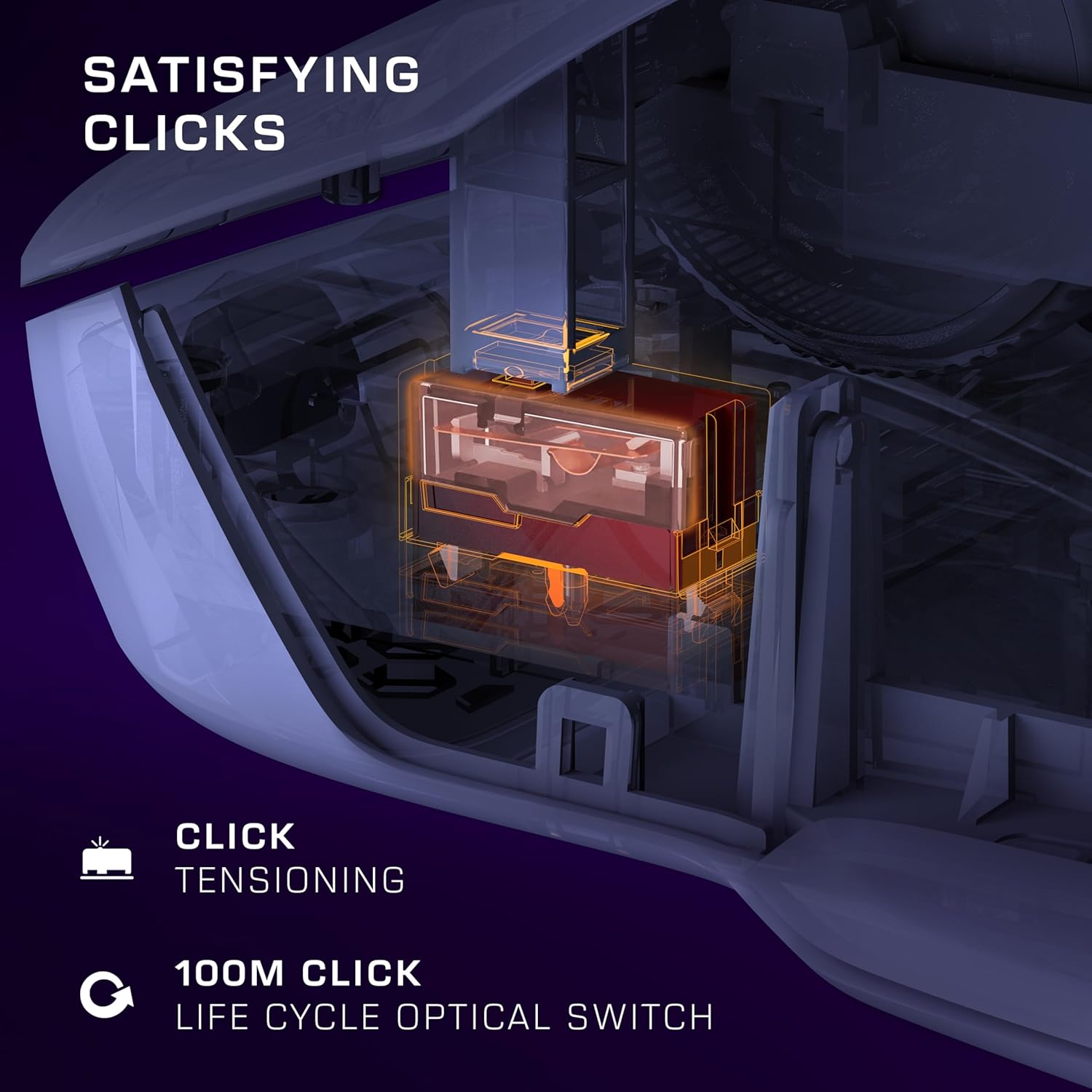
Image: The Turtle Beach Kone II mouse displaying its vibrant multi-zone RGB illumination.
The Kone II features three fully customizable RGB lighting zones. These can be programmed via the Swarm II app and include synchronized AIMO intelligent lighting for dynamic effects.
NVIDIA Reflex Compatibility
The Kone II is NVIDIA Reflex compatible, which, when paired with GeForce RTX GPUs and NVIDIA G-SYNC monitors, helps deliver sub-25ms response times. This feature is designed to help users acquire targets faster and increase aim precision in compatible games.
Customization with Swarm II
The Swarm II software is your central hub for customizing your Turtle Beach Kone II mouse. After installation, launch the application to access various settings:
- Button Assignment: Remap any of the 7 buttons and the 4D scroll wheel functions. Utilize Easy-Shift [+] to assign secondary functions, effectively expanding your control options to 23 inputs.
- DPI Settings: Adjust and save multiple DPI profiles, allowing you to switch sensitivity on the fly using the dedicated DPI buttons.
- RGB Lighting: Customize the three-zone RGB illumination with various effects, colors, and brightness levels. Synchronize lighting with other AIMO-compatible devices.
- Polling Rate: Adjust the mouse's polling rate to suit your preferences.
- Lift-Off Distance: Fine-tune the lift-off distance for optimal tracking performance.
- Macro Management: Create and assign complex macros to any programmable button.
Regularly check the Swarm II software for firmware updates to ensure optimal performance and access to the latest features.
Maintenance
Cleaning
- To clean the mouse, use a soft, lint-free cloth slightly dampened with water or a mild cleaning solution.
- Avoid using harsh chemicals, abrasive cleaners, or solvents, as these can damage the mouse's surface.
- Do not spray cleaning solutions directly onto the mouse.
- Regularly clean the optical sensor area on the underside of the mouse to ensure accurate tracking.
Cable Care
- Avoid sharp bends or kinks in the PhantomFlex cable to prevent internal damage.
- Do not pull the mouse by its cable. Always grasp the mouse body when moving it.
Troubleshooting
Mouse Not Responding
- Check USB Connection: Ensure the USB-A cable is securely plugged into a working USB port on your PC. Try a different USB port.
- Restart PC: A simple system restart can often resolve connectivity issues.
- Test on Another PC: If possible, test the mouse on another computer to determine if the issue is with the mouse or your PC.
Tracking Issues / Cursor Lag
- Clean Sensor: Ensure the optical sensor on the underside of the mouse is clean and free of dust or debris.
- Mouse Pad Surface: Use the mouse on a clean, uniform surface or a high-quality mouse pad. Avoid highly reflective or transparent surfaces.
- DPI Setting: Adjust the DPI setting using the dedicated buttons or the Swarm II software. A very high DPI might feel erratic on some surfaces.
Swarm II Software Not Detecting Mouse
- Reinstall Software: Uninstall and then reinstall the Swarm II software from the official Turtle Beach website.
- Update Drivers: Ensure your PC's USB drivers are up to date.
- Run as Administrator: Try running the Swarm II software as an administrator.
Buttons Not Responding
- Check Software Settings: Verify button assignments in the Swarm II software. Ensure no conflicting profiles are active.
- Firmware Update: Check if a firmware update is available for your mouse via the Swarm II software.
Specifications
| Feature | Detail |
|---|---|
| Brand | Turtle Beach |
| Model Number | TBM-1003-15 |
| Connectivity | Wired (PhantomFlex USB-A Cable) |
| Sensor | Owl-Eye Optical Sensor |
| DPI Range | 50 - 26,000 DPI |
| Tracking Speed | 650 IPS (16.5 m/s) |
| Switches | TITAN Optical Switches |
| Switch Life Cycle | 100 Million Clicks |
| Buttons | 7 programmable buttons + 4D scroll wheel (23 customizable functions with Easy-Shift [+]) |
| Glides | Pure, Heat-Treated PTFE |
| Illumination | Three-zone AIMO Intelligent RGB |
| Operating System Compatibility | Windows 10 or later |
| Weight | 3.2 ounces (approx. 90.7 grams) |
| Dimensions (LxWxH) | 7.09 x 4.96 x 0.1 inches (approx. 18 x 12.6 x 0.25 cm) |
Warranty and Support
Turtle Beach products come with a manufacturer's warranty. For specific warranty terms and conditions, please refer to the warranty information provided with your product packaging or visit the official Turtle Beach website.
For technical support, FAQs, driver downloads, and additional resources, please visit the Turtle Beach support portal:
When contacting support, please have your product model number (TBM-1003-15) and purchase information ready.
Related documentsTBM-1003-15


Ask a question about this manual
Ask about setup, troubleshooting, compatibility, parts, safety, or missing instructions. Manuals+ will review the question and use this page’s manual context to help answer it.