
1. Introduction
The Tera P162GC is an advanced Android 11-based barcode scanner PDA designed for high-performance data collection in various demanding environments. Featuring a robust Qualcomm Octa-Core CPU and a powerful Zebra SE4750MR 2D scanning engine, this device offers exceptional speed, accuracy, and an extended scanning range. Its durable IP65-rated design and hot-swappable battery ensure reliable operation and continuous productivity.

The Tera P162GC Android Barcode Scanner PDA, shown with its included pistol grip and charging cradle, designed for efficient data collection.
2. Package Contents
Please verify that all items listed below are included in your package:
- 1x Tera P162GC Android 11 Barcode Scanner
- 1x Pistol Grip
- 1x Charging Cradle
- 1x Hand Strap
- 1x Charge Adapter
- 1x QC-Adapter-US
- 1x Screen Protector
- 1x USB Cable
- 1x User Manual
- 1x SDK

This image displays the complete package contents for the Tera P162GC, ensuring users have all necessary items for immediate operation and development.
3. Key Features
- Zebra SE4750MR 2D Scanner Engine: Offers an impressive scanning range of up to 13 feet, which is 10 times that of conventional scanners. It reads barcodes with exceptional speed and accuracy, even in challenging conditions like low light, direct sunlight, or with damaged labels.
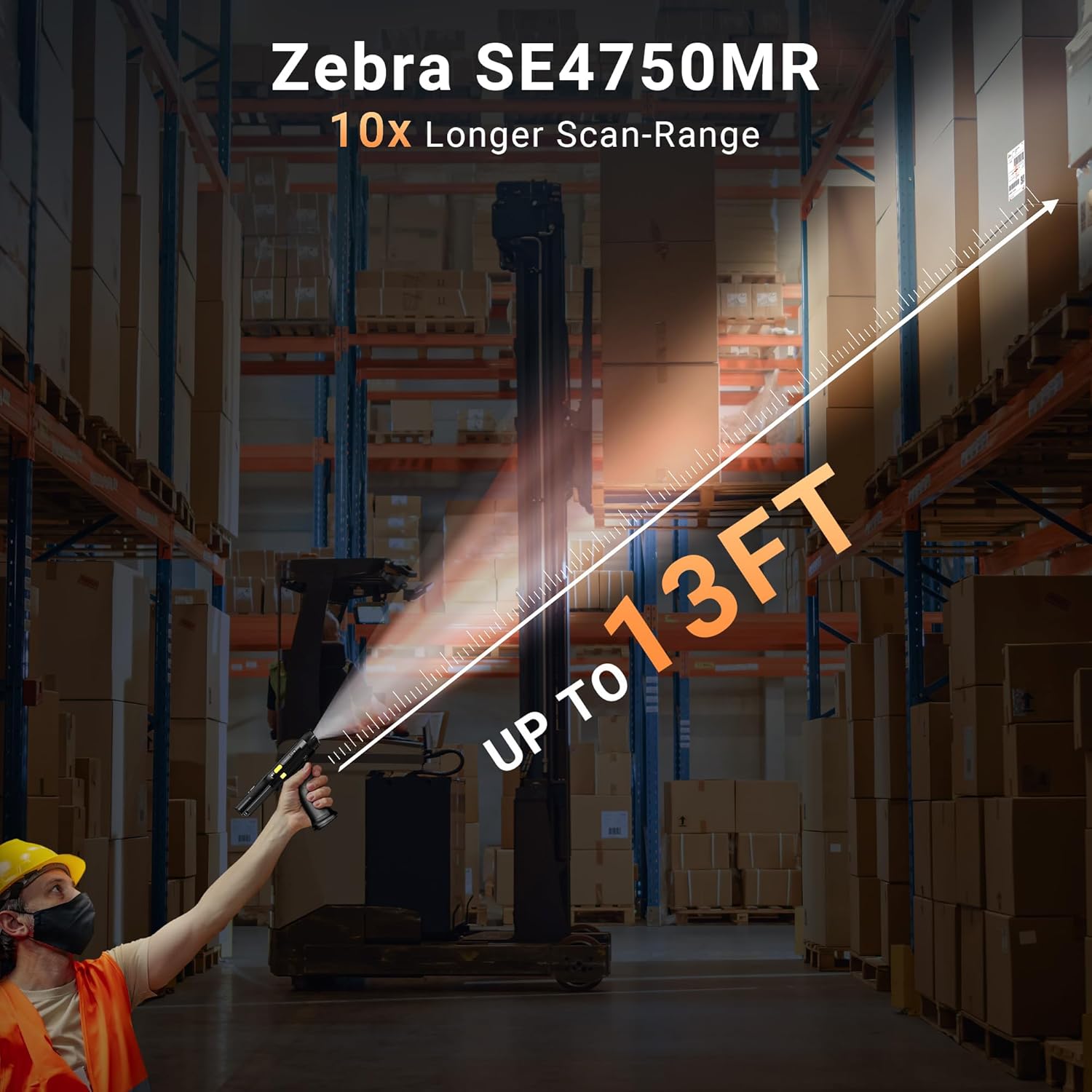
This image demonstrates the extended 13-foot scanning range of the Tera P162GC, powered by the Zebra SE4750MR engine, allowing for efficient scanning of items on high shelves.
- Qualcomm 662 Octa-Core CPU: The Qualcomm Snapdragon 662 Octa-Core Processor, clocked at 2.0GHz, provides robust performance and efficiency for a wide range of applications. Its eight cores enable smooth multitasking and handle demanding tasks seamlessly.

Powered by a Qualcomm 2.0GHz Octa-Core CPU, the Tera P162GC ensures fast and accurate decoding with lower power consumption, featuring 3GB RAM, 32GB ROM, and Android 11.
- 47 Keys Design: Unlike full touchscreen PDAs, the physical keypad offers accurate response, well-spaced keys for easy pressing, and dedicated function keys for quick access to frequently used commands, streamlining data entry and improving efficiency.
- 6700 mAh Large Battery with Hot-Swap: The P162GC PDA features a substantial 6700 mAh battery, offering up to 680 hours of standby time and over 12 hours of continuous use. A built-in 100mAh backup battery supports hot-swap functionality, preventing data loss during battery replacement.

The P162GC is equipped with a substantial 6700mAh removable battery, offering up to 680 hours standby time, 12 hours continuous use, and a 3.5-hour charging time. A 100mAh backup battery supports hot-swap functionality.
- IP65 Grade Protection: Built to withstand harsh working environments, the device boasts an IP65 rating, making it resistant to dust and water splashes, and durable against accidental drops.

The Tera P162GC is built with an IP65 grade, ensuring durability against drops, water splashes, and dust, making it suitable for harsh working environments.
4. Setup
- Battery Installation:
Locate the battery compartment on the back of the device. Insert the 6700mAh battery, ensuring it clicks into place. The device also has a 100mAh backup battery for hot-swapping.
- Initial Charging:
Connect the provided USB cable to the device and the charge adapter. Plug the adapter into a power outlet. For convenient charging, place the device in the charging cradle. A full charge takes approximately 3.5 hours.
- Power On/Off:
To power on, press and hold the power button until the screen illuminates. To power off, press and hold the power button, then select 'Power off' from the options.
- Initial Configuration:
Upon first boot, follow the on-screen prompts to set up your Android 11 operating system, including Wi-Fi connection, language, and time zone settings.
This video demonstrates the key features and operation of the Tera P162GC Android PDA, including its Zebra SE4750MR scanner, IP65 protection, battery hot-swap, and barcode scanning capabilities.
5. Operating Instructions
- Barcode Scanning:
Point the scanner's window at the barcode you wish to scan. Press the dedicated scan button (typically on the side or pistol grip) to activate the laser. Ensure the barcode is within the optimal scanning range (up to 13 feet for 2D barcodes). The device supports scanning of all common barcode types.
- Keypad Usage:
Utilize the 47-key physical keypad for accurate data entry. The keys are designed for tactile feedback and ease of use, even with gloves. Dedicated function keys provide quick access to specific operations within applications.
- Android 11 Interface:
Navigate the Android 11 operating system using the touchscreen. Access applications, settings, and system functions as you would on any Android device. The device is optimized for enterprise applications.
- Pistol Grip Attachment:
Attach the pistol grip to the bottom of the device for comfortable, extended use, especially during high-volume scanning tasks. The grip provides an ergonomic hold and often integrates an additional scan trigger.
6. Maintenance
- Cleaning:
Wipe the device regularly with a soft, damp cloth. For the screen, use a microfiber cloth. Avoid abrasive cleaners or solvents. Ensure the scanning window is clean and free of smudges for optimal performance.
- Battery Care:
To prolong battery life, avoid extreme temperatures. Store the device with a partial charge if not in use for extended periods. Utilize the hot-swap feature to replace batteries without powering down the device, ensuring continuous operation.
- Software Updates:
Periodically check for and install software updates to ensure optimal performance, security, and access to new features. Refer to the device's settings for update options.
7. Troubleshooting
| Problem | Possible Cause | Solution |
|---|---|---|
| Device does not power on | Low or depleted battery; Power button not pressed correctly | Charge the device for at least 30 minutes. Press and hold the power button firmly for 3-5 seconds. |
| Barcode not scanning | Barcode damaged or dirty; Incorrect scanning distance; Scanner window obstructed; Application issue | Clean the barcode and scanner window. Adjust scanning distance. Ensure no obstructions. Restart the scanning application or device. |
| Slow performance | Too many applications running; Low storage space | Close unnecessary applications. Clear cache or uninstall unused apps to free up storage. Restart the device. |
| Battery drains quickly | Screen brightness too high; Wi-Fi/Bluetooth always on; Background apps | Reduce screen brightness. Turn off Wi-Fi/Bluetooth when not in use. Close background applications. |
8. Specifications
| Feature | Detail |
|---|---|
| Model Number | P162GC_US |
| Operating System | Android 11 |
| CPU | Qualcomm Snapdragon 662 Octa-Core 2.0GHz |
| Scanner Engine | Zebra SE4750MR 2D Imager |
| Scanning Range | Up to 13 feet (4 meters) |
| Keypad | 47 Physical Keys |
| Battery Capacity | 6700 mAh (Removable) + 100 mAh (Backup) |
| Charging Time | Approx. 3.5 hours |
| Continuous Use Time | More than 12 hours |
| Standby Time | Up to 680 hours |
| Protection Rating | IP65 (Drop-proof, Water-proof, Dust-proof) |
| Product Dimensions | 1.18 x 3.1 x 7.8 inches (1.18"D x 3.1"W x 7.8"H) |
| Item Weight | 2 pounds |
| Compatible Devices | Desktop, Laptop, POS, Smartphone, Tablet |
| Power Source | Battery Powered |
9. Warranty and Support
Tera is committed to providing high-quality products and excellent customer service. Your Tera P162GC barcode scanner PDA comes with comprehensive support.
- Lifetime Technical Assistance: As a US-based brand, Tera offers lifetime technical assistance to ensure your satisfaction and peace of mind.
- 24/7 Customer Support: Dedicated customer support is available 24/7 to assist with any inquiries or issues you may encounter.
- SDK Kits: SDK (Software Development Kit) kits are provided to facilitate customization and integration with your existing systems.

Tera provides comprehensive support including SDK development kits, 24/7 customer support, and technical assistance, highlighting their US-based brand and factory source.
For further assistance, please refer to the contact information provided in your package or visit the official Tera website.


